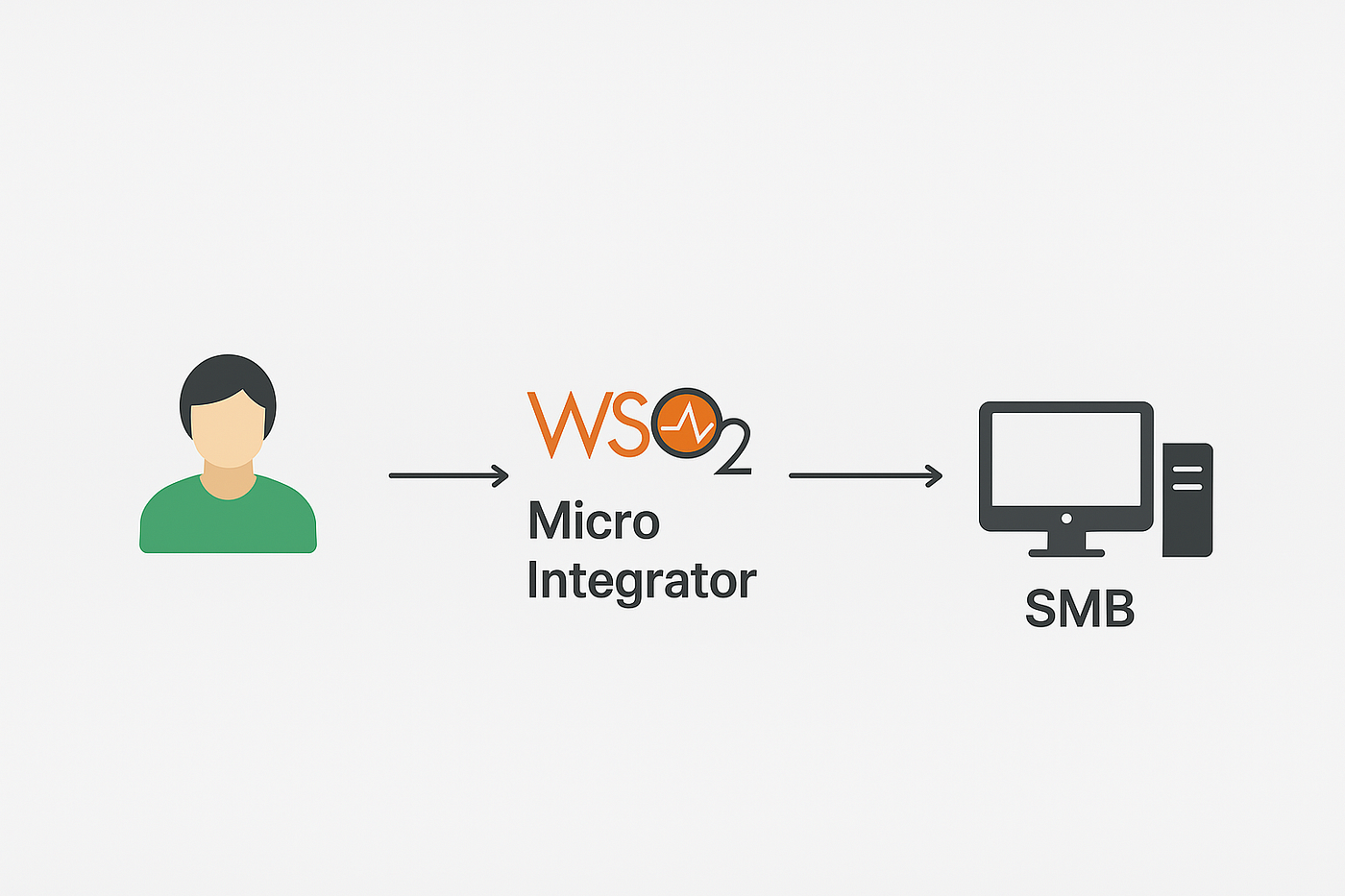
Handling EDI in WSO2 Integrator:MI with Ballerina
Electronic Data Interchange (EDI) is widely used in B2B integrations for exchanging structured data. However, modern systems often prefer…
Handling EDI in WSO2 Integrator:MI with Ballerina

Electronic Data Interchange (EDI) is widely used in B2B integrations for exchanging structured data. However, modern systems often prefer formats like JSON or XML. In this blog, we’ll walk through how to handle EDI input and convert it into JSON using WSO2 Integrator:MI and Ballerina.
We’ll keep things simple with a custom EDI format, but this approach can be applied to standard formats like X12 or EDIFACT as well.
Scenario: Handling a Simple Order EDI File
In this scenario, we’ll build an integration where a WSO2 Integrator API receives a custom EDI file as input, invokes a Ballerina function (generated using the Ballerina EDI Tool) to parse the EDI content into JSON, transform that JSON in integrator, and returns the transformed data to the client.

Imagine a company that uses a custom EDI format for order placement. The data looks like this:
Input EDI File
HDR*HDR123*ACME_CORP*20240519~
ITM*Pen*10~
ITM*Notebook*5~
ITM*Eraser*3~
ITM*Ruler*7~
ITM*Stapler*2~
Structure:
- Segment Delimiter: ~
- Field Delimiter: *
- Header Segment (HDR): orderId, organization, date
- Item Segment (ITM): item name, quantity
Target JSON Output
We want this EDI file converted to JSON like this:
{
  "orderId": "HDR123",
  "organization": "ACME_CORP",
  "date": "20240519",
  "items": [
    { "item": "Pen", "quantity": 10 },
    { "item": "Notebook", "quantity": 5 },
    { "item": "Eraser", "quantity": 3 },
    { "item": "Ruler", "quantity": 7 },
    { "item": "Stapler", "quantity": 2 }
  ]
}
Prerequisites
Before we begin, ensure you have the following:
- WSO2 Micro Integrator 4.2.0 or later
- Ballerina 2201.12.0 or later
- Java Development Kit (JDK) — Version 17 (for MI 4.2.0/4.3.0) or Version 21 (for MI 4.4.0)
- VS Code with the WSO2 Micro Integrator extension installed
- Ballerina VS Code extension installed.
Setting Up Your Integration Project
- Install the WSO2 Micro Integrator VS Code Extension: Begin by installing the WSO2 Micro Integrator VS Code extension from the VS Code Marketplace. This extension provides the tools you need to create, manage, and deploy integration projects.
- Create a New Integration Project: Use the extension to create a new integration project. Let’s name it
edi-transform. This project will house our Ballerina module and integration logic.


Creating the EDI Tranformation Ballerina Module
Step 1: Define the EDI Schema
We define our EDI format using the Ballerina schema supported by the Ballerina EDI Tool. Created schema is named as simple_order_schema.json
Click Ballerina EDI Schema specification for how to create Ballerina EDI Specifications.
{
  "name": "SimpleOrder",
  "delimiters": {
    "segment": "~",
    "field": "*",
    "component": ":",
    "repetition": "^"
  },
  "segments": [
    {
      "code": "HDR",
      "tag": "header",
      "minOccurances": 1,
      "fields": [
        { "tag": "code" },
        { "tag": "orderId" },
        { "tag": "organization" },
        { "tag": "date" }
      ]
    },
    {
      "code": "ITM",
      "tag": "items",
      "maxOccurances": -1,
      "fields": [
        { "tag": "code" },
        { "tag": "item" },
        { "tag": "quantity", "dataType": "int" }
      ]
    }
  ]
}
Note: Ballerina EDI Tool support various EDI standards as well (example: X12, EDIFACT). if you need to use a standard, you can read this.
Step 2: Generate Ballerina Code
Run this code on your terminal to
bal edi codegen -i simple_order_schema.json -o schema.bal
Step 3: Add MI Wrapper For Ballerina Functions
Edit generated schema.bal and append following functions to the code. (this will help to expose 2 operations convertEDItoJSON and convertJSONtoEDI in )
import wso2/mi;

@mi:Operation
public function convertEDItoJSON(string ediText)returns json {
    // Convert EDI string to Ballerina SimpleOrder record.
    SimpleOrder|error simpleOrder = fromEdiString(ediText);
    // Check if the conversion was successful.
    if (simpleOrder is error) {
        return {
            "error": simpleOrder.message()
        };
    }
    // Convert Ballerina SimpleOrder record to JSON.
    return simpleOrder.toJson();
}

@mi:Operation
public function convertJSONtoEDI(json jsonData) returns string {
    // Convert JSON to Ballerina SimpleOrder record.
    SimpleOrder|error simpleOrder = jsonData.cloneWithType();

    // Check if the conversion was successful.
    if (simpleOrder is error) {
        return "Error converting JSON to SimpleOrder: " + simpleOrder.message();
    }
    // Convert Ballerina SimpleOrder record to EDI string.
    string|error ediString = toEdiString(simpleOrder);
    // Check if the conversion was successful.
    if (ediString is error) {
        return "Error converting SimpleOrder to EDI: " + ediString.message();
    }
    // Return the EDI string.
    return ediString;
}
Step 4: Create Ballerina Module
In the Add artifact view, select Ballerina Module to create a new module.

Name and Version the Module: Provide a name (e.g., SimpleOrder) and a version for your Ballerina module in the form, and then click Create.

Then Copy->Paste the Modified Ballerina Code.
Step 5: Build the Ballerina Module
Click the Build Ballerina Module icon in VS Code. This will compile your Ballerina code and make it available for use in your integration project.

Once the build is successful, there will be a notification “Ballerina module build successful” in right-below.

Developing the Integration Logic
Step 1: Create an API
Go the Project Overview and click on the + button. and select API.

Provide the name of the API as /transform and click Create.

Step 2:Configure the API Method
By default, the API will be created with a get method. Click on the /transformAPI and click on Edit. Then,Select the POST method and click on Update.

Step 3: Add the Ballerina Mediator
Now, click on + to add a new mediator then select ConvertEDItoJSON operation in SimpleOrderBallerina Module.

Click the Ex button and select the payload as the input and click OK. (This will send the payload given when we calling the /transform api to the Ballerina function.)

Using the Ballerina module, you can send an EDI payload file and receive its JSON-converted version as shown below:
{
  header: {
    code: "HDR",
    orderId: "HDR123",
    organization: "ACME_CORP",
    date: "20240519"
  },
  items: [
    { code: "ITM", item: "Pen", quantity: 10 },
    { code: "ITM", item: "Notebook", quantity: 5 },
    { code: "ITM", item: "Eraser", quantity: 3 },
    { code: "ITM", item: "Ruler", quantity: 7 },
    { code: "ITM", item: "Stapler", quantity: 2 }
  ]
}
Step 4: Add the Payload
To set the transform json to payload(since we need to pass it to data mapper and respond it to the user) we can add a payload mediator from mediator pane.

Now click fx->Variables->Payload.

Step 5: Add the Data Mapper
Next, we need to convert this into the target JSON format. This can be achieved using the WSO2 Micro Integrator’s DataMapper. To do this, go to the Mediators section and select Data Mapper.

Now click Add New. then, give a name “OrderTransform”and create a data mapping.

Step 6: Configure the DataMapper
Now you can give source JSON and target JSON to create a mapping.

Copy and paste source and target json from the above and import it to the data mapper.

And do the mapping like follows;

Step 7: Add Respond mediator
Now we did all the thing what we need. we converted the EDI to JSON and transform JSON output to a format that we need. Only thing now left is give the output to the user. To do that we can add a respond mediator.

Thats it.. Our integration is now complete

Running and Testing the Integration
Run the Project
Click the “Run” icon in VS Code to deploy and run your integration project.

Test the API
Use the integrated Try it feature or a tool like Postman to send an EDI payload to the /transform API.

You will get a response like the following;

So, that’s how you can handle B2B EDI in WSO2 Integrator:MI with Ballerina.
Thanks for reading!
메타데이터
- post_id
- 7e7c4b9373ff
- slug
- handling-edi-in-wso2-integrator-mi-with-ballerina-7e7c4b9373ff
- url
- https://medium.com/think-integration/handling-edi-in-wso2-integrator-mi-with-ballerina-7e7c4b9373ff
- canonical_url
- https://medium.com/think-integration/handling-edi-in-wso2-integrator-mi-with-ballerina-7e7c4b9373ff
- author_url
- https://medium.com/@dilanperera
- status
- ok
- fetched_at
- 2026-07-31 10:12:53