AI/LLM as assistant in monitoring SCADA system Part 2: setup and secure a test environment.
Foreword
AI/LLM as assistant in monitoring SCADA system Part 2: setup and secure a test environment.
Foreword
This article is a continuation of the following one :
[embed]AI/LLM as assistant in monitoring SCADA system Part 1: Opportunities & Risks. Forewordmedium.com
I encourage you to read it before starting this one.
Glossary :
- LLM : Large Language Models are advanced AI systems based on deep learning (typically Transformer architectures) pre-trained on massive, diverse datasets to understand and generate human-like text
- ML : Machine learning is a subset of artificial intelligence (AI) focusing on algorithms that learn patterns from data to make predictions or decisions without being explicitly programmed for every task
- MCP : The Model Context Protocol (MCP) is an open standard, that connect AI models (LLMs) to external data and tools (databases, APIs, local files). It streamlines integration, reduces hallucinations, and enables AI systems to act on real-time data via a client-server architecture.
- RAG : Retrieval-Augmented Generation is an AI framework that improves Large Language Model (LLM) accuracy and relevance by retrieving data from external, trusted sources before generating a response.
- Defense in depth : is a cybersecurity strategy employing multiple, layered security controls (administrative, technical, and physical) to protect data integrity and network availability
- Siemens TIA Portal :(Totally Integrated Automation Portal) is an engineering framework that integrates PLC programming (STEP 7), HMI visualization (WinCC), and drive configuration (Startdrive) into a single software environment.
- Node-RED : Node-RED is an open-source, low-code programming tool for event-driven applications, allowing users to connect hardware devices, APIs, and online services via a visual browser-based editor.
- Factory IO: Factory IO is a 3D factory simulation that can be used to create industrial scene.
- UaExpert : UaExpert is a full-featured OPC UA Client.
- opcua-asyncio : opcua-asyncio is an asyncio-based asynchronous OPC UA client and server based on python-opcua, removing support of python < 3.8. Asynchronous programming allows for simpler code (e.g. less need for locks) and can potentially provide performance improvements.
Disclaimer
This article offers some thoughts on LLMs as assistant for supervision and monitoring systems in industrial settings.
It is not intended to provide an exhaustive overview or to serve as a definitive guide. Please consider what is written here as a perspective and a framework for setting up an environment.
For now, when I talk about AI, I’m referring to a large lenguage model running on a computer within a specific context that can interact with the physics system via MCP or tooling interface.
The lab and its contents.
I propose setting up a lab based once again on the Purdue model, with Levels 0 and 1 represented by a LAN hosting the physical system emulator and the PLC, and a LAN representing Level 2 hosting the EWS and the language model with the MCP
In addition to this, I have imposed some additional constraints on myself.
- Using OPC UA for PLC control and monitoring adds a bit of complexity to the initial setup, but it makes it easier to add security.
- I’ll be using the hardware I already have on hand — specifically a Siemens S7–1200 but don’t worry, there’s an emulator in TIA Portal; you just need to find a version that works for you (WARNING: At one point, I encountered an issue with the OPC UA server when compiling and uploading the file to the PLC. This was due to a bug in certain versions of TIA Portal from V16 to V19, so I recommend using version 20 or applying the patches as explained in the following link.)
[embed]SIOS Edit descriptionsupport.industry.siemens.com
- 2 setups for LLM, One remote and one local.
As you can see, the lab has been symbolically divided into two parts: the standard system and the LLM with its connector. The first part will be very similar to one of my previous articles (but oriented on OPC-UA) , so sorry for the redundancy.
For the lab setup, I’ll keep it fairly standard, with monitoring via Node-RED, simulations via Factory IO, OPC-UA debugging via UA Expert, and asyncio-asyncua (if we want to scale and use some asynchronous processing, that’s always preferable), which will serve as an OPC-UA client connected to the MCP so that Claude and the local LLM can interface with it.
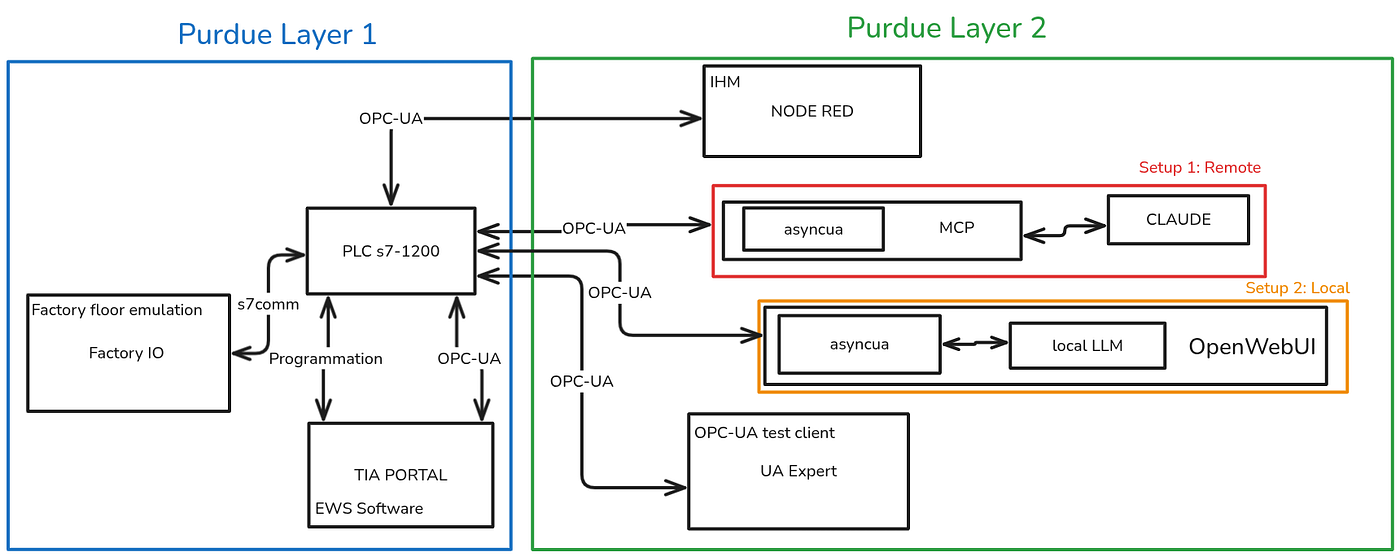
LAB setup:
NOTE: To save you the trouble of configuring everything, I’m providing the various files here. I’ll let you know which files to use as we go through the article.
Factory IO:
The factory IO scene will be intentionally simple, as that is not the goal of this lab.
All you need to do is place a water tank on your scene — that’s it. The scene file will not be provided.

Configurations Drivers S7–1200

I/O and network configurations for the scene.
NOTE: There is a recurring issue that I haven’t been able to resolve: Factory IO temporarily disconnects when a new client connects to the OPC-UA server using a certificate and password. I should note that a connection from a client without authentication or signature encryption will not cause this crash. The disconnection is only temporary and therefore does not really affect the simulation; it just blocks it if you do not set up an auto-connection and do not specify

TIA Portal:
The TIA Portal project file is available on the repository at the following URL.
Here are the capture that can interest you.

Main bloc program

list of the tag.

OPC UA server interface.
As for server configuration and managing the interface with the PLC, I won’t go into that here; I recommend reviewing Part 3 of the S7–1200 lab setup article listed above.
NOTE: I recommend running an initial test without security on OPC-UA to verify that the scene is working properly.
setup OPC-UA scurity and test with UAexpert
So far, in my previous articles, I haven’t discussed implementing security on OPC-UA. Here, I’ll cover a simplified security implementation.
I won’t be discussing the GDS server nor advanced concept; instead, I’ll focus on adding certificates for signing and encrypting connections, as well as a password for authentication.
NOTE: The username and password I’ll be using for this article are biero:SXxKvSixpEzyvJboPB5aHd1IjTw1JHj
TIA setup
To set up OPC-UA authentication in TIA Portal, go to:
- Parameter / General / OPC UA / Security / User authentifications
- Parameter / General / OPC UA / Security / Certificate

And the screenshot for the security policy.

NOTE: In my case, I tested certificate management using Basic256 — Sign and Basic256 — Sign & Encrypt. We won’t be using them here, but it’s still worth testing.
Furthermore, we won’t be filtering the different certificates (theoretically, we could filter the certificates to add an extra layer of authentication).

After that, we just need to go to Online / Online & Diagnostics (this is the tab where we’ll see the client certificates appear).

UAexpert
An UA expert and an OPC-UA client that allows you to connect to a server; here, we will use it to test connections with the server.
https://www.unified-automation.com/downloads/undefined
Once installed and launched, you can create a new connection or add a new connection using custom discovery mode.

Anonymous test connexions
Once selected you can choose the type of connexions you want.

Here an example of password authentication.

Dont forget to click on “TRUST CENTER CERTIFICATE”

Then ignore and ignore , and you will see the certificate that is requested in ther server (go online in your TIA portal interface to see that)

Yayyy your are now connected (export the 3 tag and you can modify them)

Proof of work.

NODE RED:
Node-RED provides a simple dashboard for monitoring our system. I won’t go into detail about how Node-RED works here; I recommend reviewing Part 3 of the S7–1200 lab setup article listed above.
The node palette I’m using for this project and the next one.
Here is the final Node-RED graph I’m proposing.

It’s fairly simple, but it provides the basics for configuring these nodes.
Don’t forget to configure the settings for packet encryption and signing.

Parameter of the node write functions.

Parameter of the Endpoint
The JSON file is available on this project’s GitHub repository.
LLM:
Options 1: remote hosting.
Option 1 is based on the assumption that you don’t mind using a hosted model on a system you don’t control. Remember, the cloud is just someone else’s computer. A bit extreme example, but this is one.
[embed]
So for that, you’ll need Claude Desktop. Personally, I’m running Debian; apparently, a port was recently released.
you can go on the setting / developer / local MCP server.

Here my claude_desktop_config.json (go on “Edit Config”, if not exist create it).
{
  "mcpServers": {
    "Industrial-station": {
      "command": "/path/to/you/python3",
      "args": [
        "/path/to/you/script/server.py"
      ]
    }
  },
  "preferences": {
    "coworkScheduledTasksEnabled": true,
    "ccdScheduledTasksEnabled": true,
    "sidebarMode": "task",
    "coworkWebSearchEnabled": true
  }
}
server.py
As for the server.py script, it’s pretty easy to understand.
- Definitions of global variables (OPC-UA URL and parameter name dictionary for the various nodes, definition of the MCP name and credential + certt)
- 1 functions to generate and write the cert and the private key.
- 1 functions to connect to the opc ua server.
- 2 functions: one to read a node’s values, and one to write to a node,
- 1 function using a decorator to be called by the FastMCP lib (i encourage you to read the doc), which will retrieve the node’s values (read).
- 1 function using a decorator to be called by the MCP library (it will translate natural language into parameters for the function) and which will write the values to the nodes
NOTE : i know that you can generate your certificate one time , but there i was getting error with this method i dont know why, so i try with regenerate a certificate and a key every time, and it’s seem to work.
"""
Water Tank Control - MCP Server
OPC UA secure connection to S7-1200
"""
import os
import datetime
import socketfrom mcp.server.fastmcp import FastMCP# --- Config ---
CERT_DIR = "/tmp"
CERT_PATH = os.path.join(CERT_DIR, "client_cert.pem")
KEY_PATH = os.path.join(CERT_DIR, "client_key.pem")
OPC_URL = "opc.tcp://10.1.1.13:4840"
OPC_USER = "biero"
OPC_PASS = "SXxKvSixpEzyvJboPB5aHd1IjTw1JHj"# --- MCP Server ---
mcp = FastMCP("water-tank")
# --- Certificate generation ---
def generate_certificates():
    if os.path.exists(CERT_PATH) and os.path.exists(KEY_PATH):
        return
from cryptography import x509
from cryptography.x509.oid import NameOID
from cryptography.hazmat.primitives import hashes, serialization
from cryptography.hazmat.primitives.asymmetric import rsa os.makedirs(CERT_DIR, exist_ok=True)
hostname = socket.gethostname() key = rsa.generate_private_key(public_exponent=65537, key_size=2048) subject = issuer = x509.Name([
x509.NameAttribute(NameOID.COMMON_NAME, "AsyncuaClient"),
]) cert = (
x509.CertificateBuilder()
.subject_name(subject)
.issuer_name(issuer)
.public_key(key.public_key())
.serial_number(x509.random_serial_number())
.not_valid_before(datetime.datetime.now(datetime.UTC))
.not_valid_after(datetime.datetime.now(datetime.UTC) + datetime.timedelta(days=365))
.add_extension(
x509.SubjectAlternativeName([
x509.UniformResourceIdentifier("urn:example.org:FreeOpcUa:opcua-asyncio"),
x509.DNSName(hostname),
]),
critical=False,
)
.add_extension(
x509.BasicConstraints(ca=False, path_length=None),
critical=True,
)
.add_extension(
x509.KeyUsage(
digital_signature=True,
key_encipherment=True,
content_commitment=True,
data_encipherment=True,
key_agreement=False,
key_cert_sign=False,
crl_sign=False,
encipher_only=False,
decipher_only=False,
),
critical=True,
)
.add_extension(
x509.ExtendedKeyUsage([
x509.oid.ExtendedKeyUsageOID.CLIENT_AUTH,
]),
critical=False,
)
.sign(key, hashes.SHA256())
) with open(KEY_PATH, "wb") as f:
f.write(key.private_bytes(
serialization.Encoding.PEM,
serialization.PrivateFormat.TraditionalOpenSSL,
serialization.NoEncryption(),
)) with open(CERT_PATH, "wb") as f:
f.write(cert.public_bytes(serialization.Encoding.PEM))
# --- OPC UA connection helper ---
async def opc_connect():
    from asyncua import Client
    from asyncua.crypto.security_policies import SecurityPolicyBasic256Sha256
    from asyncua.ua import MessageSecurityMode
client = Client(url=OPC_URL, timeout=10)
await client.set_security(
SecurityPolicyBasic256Sha256,
certificate=CERT_PATH,
private_key=KEY_PATH,
mode=MessageSecurityMode.Sign,
)
client.set_user(OPC_USER)
client.set_password(OPC_PASS)
await client.connect()
return client
# --- MCP Tools ---
@mcp.tool()
async def get_tank_level() -> str:
    """Get the current water tank level. Always use this when asked about tank level."""
    try:
        client = await opc_connect()
        level = await client.get_node("ns=4;i=12").read_value()
        entry = await client.get_node("ns=4;i=23").read_value()
        exit_v = await client.get_node("ns=4;i=34").read_value()
        await client.disconnect()
        return f"Tank level: {level} liters. Entry valve: {entry}%. Exit valve: {exit_v}%."
    except Exception as e:
        return f"Error: {e}"
@mcp.tool()
async def set_valve(valve_type: str, percentage: int) -> str:
    """Control a valve. valve_type is 'entry' or 'exit'. percentage is 0 to 100.
    Use this when asked to open, close, or adjust a valve."""
    try:
        from asyncua import ua
if percentage < 0 or percentage > 100:
return "Error: percentage must be between 0 and 100." client = await opc_connect() if valve_type == "entry":
node = client.get_node("ns=4;i=23")
elif valve_type == "exit":
node = client.get_node("ns=4;i=34")
else:
await client.disconnect()
return "Error: valve_type must be 'entry' or 'exit'." dv = ua.DataValue(ua.Variant(int(percentage), ua.VariantType.Int16))
await node.write_value(dv)
await client.disconnect()
return f"Success: {valve_type} valve set to {percentage}%."
except Exception as e:
return f"Error: {e}"
# --- Startup ---
generate_certificates()
if __name__ == "__main__":
mcp.run(transport="stdio")After that run a new discussions.

Once you’ve done that, you can start talking to your LLM.

Hurray that work, Also note how he asks for my permission to enter values.
Pros and cons
Given the obvious advantage and the speed at which actions take place — it should take less than 5 seconds for an action to be performed and for the model to respond ,it can also provide contextual elements.
Furthermore, if we had a much larger scene, it could effectively manage the differences between various actuators within a natural language context.
The obvious drawback is that I’ve just opened a file on my computer that a remote model can use , a model that I don’t control fully and is hosted on a system that isn’t mine.
I don’t need to explain why this is a problem.
Options 2: local hosting.
For local hosting, I decided to go with a fairly compact model since I only have a laptop (which does have 64GB of RAM and an 11th-generation i7 processor, but no dedicated graphics card).
I settled on the Mistral model with 3 billion parameters, so I choose the Mistral 3 3B.
The reasons are pretty simple: first of all, Mistral is a French company, and I really like its AI, “Le Chat.”, also the fact that this model is Apache 2.0 licenced it’s quite cool.
I’ll admit the choice is somewhat arbitrary a benchmark comparing the different models for various use cases could be a good topic for an article.
As for the interface, I’m going to use OpenWebUI to get a nice graphical interface and establish connections between Mistral 3 and 3B and Python connectors.
For the installation.
# Ollama install
curl -fsSL https://ollama.com/install.sh | sh
systemctl enable ollama
systemctl start ollama
# pull Mistral 3 3b (the qunatized one)
# https://huggingface.co/docs/optimum/concept_guides/quantization
ollama pull ministral-3:3b-instruct-2512-q4_K_M
ollama serve
# test the ollama with mistral 3B
ollama run ministral-3:3b-instruct-2512-q4_K_M "what's yellow and waiting ? "# OpenWebUI once installed go on the url.
docker run -d --network=host \
-e OLLAMA_BASE_URL=http://127.0.0.1:11434 \
-v open-webui:/app/backend/data \
--name open-webui --restart always \
ghcr.io/open-webui/open-webui:mainNOTE 1: We dont have the right python lib installed in the docker so we need to install it so go to Docker and generate one using the following command.
NOTE 2: If you have trouble generating a certificate using the Python script, you can simply generate one using OpenSSL. All you need to do is specify the path (in the docker) to the certificate and the private key that you have just generated in the script.
# install python depedency
apt install pip
pip install asyncua
mkdir -p /app/backend/cert
openssl req -x509 -newkey rsa:2048 -keyout /app/backend/cert/client_key.pem -out /app/backend/cert/client_cert.pem -days 365 -nodes -subj "/CN=AsyncuaClient"
Normally, you’ll see this option in the following url: http://localhost:8080/

Next, go to Workspace > Tools > New Tool

To avoid repeating myself, I won’t describe the script here — it’s essentially the same as the one for Claude. I’ll just give you the code directly.
NOTE: As explained at the beginning, we can assign access to the use of the tool.
Once you’ve done that, you can create a new conversation and click the four small dots in a square below the chat text box, then select the tool you want to add.

Actually, it works.

Pros and cons
So, I’m going to say the exact opposite of what Claude said: here we have a very high latency ,about 20 seconds to trigger the action and maybe between 30 and 40 seconds to get feedback. This means that when the valve is fully open, I have a very poor view of what’s happening in my tank.
However, I can improve this issue with a graphics card and a PC that has a better CPU. Since we host our own model, the security issue (which, in my opinion, is the most important) is partially resolved.
It’s also worth noting that we can apply identity access management to the tools in the Open Web UI.
About the Author
— — — — — — — — — — — — — — — — — — — — — — — — — — — — — — — — — — — — — I am a freelance ICS security consultant and a teacher available for assignments in this field.
If you are interested, DM me on LinkedIn. https://www.linkedin.com/in/erwan-cordier/
메타데이터
- post_id
- 7ea106d936ce
- slug
- ai-llm-as-assistant-in-monitoring-scada-system-part-2-setup-and-secure-a-test-environment-7ea106d936ce
- url
- https://medium.com/@biero-llagas/ai-llm-as-assistant-in-monitoring-scada-system-part-2-setup-and-secure-a-test-environment-7ea106d936ce
- canonical_url
- https://medium.com/@biero-llagas/ai-llm-as-assistant-in-monitoring-scada-system-part-2-setup-and-secure-a-test-environment-7ea106d936ce
- author_url
- https://medium.com/@biero-llagas
- status
- ok
- fetched_at
- 2026-07-13 06:23:13