Sound Engineering on iOS: AudioToolbox, AVAudioSession, and UIFeedbackGenerator
“Music, Sound and Haptic Feedback” have played a crucial role in enhancing user experiences on iOS
Sound Engineering on iOS: AudioToolbox, AVAudioSession, and UIFeedbackGenerator
Since the iPhone’s debut in 2007, music, sound, and haptic feedback have significantly enhanced user experiences on iOS devices. From distinctive ringtones to modern app sound effects and vibrations, audio and haptics are central to mobile interaction. Apple provides developers with powerful frameworks like **AudioToolbox, `UIFeedbackGenerator**, andAVAudioSession` to create engaging audio experiences. These tools enable subtle haptic cues and complex audio session management, crucial for user engagement.
Haptic feedback, while rooted in human-computer interaction (HCI), UX engineering, and accessibility design, complements audio design, especially for notifications in silent mode, where vibrations replace sounds.
The iPod 1st Gen played a major role in influencing the iPhone, making it crucial to understand what sound engineering really meant for iOS development.
The iPhone’s sound and vibration system enhances user interaction and accessibility. System sounds, like ringtones, text tones, and notification alerts, can be customized for contacts or apps. Distinct audio cues include the lock sound, photo shutter (required in some regions for privacy), and toggleable keyboard clicks. Siri’s voice feedback and subtle warning tones ensure intuitive interactions.
Apple’s Taptic Engine, introduced with the iPhone 6s, delivers precise haptic feedback for actions like Face ID, Control Center, and switch toggles. Evolving from physical buttons to gesture-based navigation, haptics provide confirmation, even in silent mode, ensuring alerts without sound.
For accessibility, features like Live Voicemail use audio alerts, while Sound Recognition detects critical sounds (e.g., alarms, doorbells) and notifies users via vibrations. AssistiveTouch leverages haptics for users with physical challenges. The Apple Watch and AirPods integrate adaptive vibrations and spatial audio for a cohesive multi-device experience.
AudioToolbox: The Voice of the OS
First of all, let’s talk about AudioToolbox. It usually starts with something like this:
let successSoundId: SystemSoundID = 1075

AudioServicesPlayAlertSound(successSoundId)

AudioServicesPlayAlertSoundWithCompletion(successSoundId) {
   AudioServicesDisposeSystemSoundID(successSoundId)
}
The
**AudioServicesPlayAlertSoundWithCompletionapproach is better than the regular `AudioServicesPlayAlertSound` because it ensures the sound is disposed of, making it useful for playing a repeating sound. The code will trigger a sound that is coded inside the operating system, as you can see from the value of SystemSoundID**.
There is also a built-in SystemSoundID such as kSystemSoundID_Vibrate. The prefix k is a convention used to declare that the variable is a constant:
AudioServicesPlayAlertSoundWithCompletion(kSystemSoundID_Vibrate) {
   AudioServicesDisposeSystemSoundID(kSystemSoundID_Vibrate)
}
There are several more built-in SystemSoundID constants:
- kSystemSoundID_Vibrate — On the iPhone, use this constant with the
**AudioServicesPlayAlertSound** function to trigger a brief vibration. On the iPod touch, it does nothing. - kSystemSoundID_UserPreferredAlert — On macOS, use this constant with the
**AudioServicesPlayAlertSound**function to play the alert sound specified in the Sound preference pane. - kSystemSoundID_FlashScreen — On macOS, use this constant with the
**AudioServicesPlayAlertSound** function to display a brief flash of light on the screen. - kUserPreferredAlert — Deprecated. Use kSystemSoundID_UserPreferredAlert instead.
Most SystemSoundID values correspond to familiar sounds that we frequently hear when using iOS. Some of them are exclusive to macOS.
Unfortunately, not everything is well-documented for modern usage. Some SystemSoundID values are legacy and may have been deprecated over time. Additionally, some developers speculate that certain sound IDs might be considered private APIs.
There are some predefined system sounds, for the system sound ID in the range 1000 to 2000 (decimal), as shown below (from 2.0 to 5.0 beta). The system sounds are all stored in /System/Library/Audio/UISounds/.
Mail & Messaging 1000 — New Mail (
new-mail.caf) 1001 — Mail Sent (mail-sent.caf) 1002 — Voicemail Received (Voicemail.caf) 1003 — SMS Received (ReceivedMessage.caf) 1004 — SMS Sent (SentMessage.caf) 1013 — SMS Received 5 (sms-received5.caf) 1014 — SMS Received 6 (sms-received6.caf) 1016 — Tweet Sent (tweet_sent.caf) (since iOS 5.0)
Calendar & Power Alerts 1005 — Calendar Alert (
alarm.caf) 1006 — Low Power Alert (low_power.caf)
SMS Received Alerts 1007 — SMS Received 1 (
sms-received1.caf) 1008 — SMS Received 2 (sms-received2.caf) 1009 — SMS Received 3 (sms-received3.caf) 1010 — SMS Received 4 (sms-received4.caf)
Lock & Unlock Sounds 1100 — Lock (
lock.caf) 1101 — Unlock (unlock.caf) 1102 — Failed Unlock 1103 — Key Pressed (Tink.caf) 1104 — Key Pressed (Tock.caf)
Camera & Screenshot Sounds 1108 — Camera Shutter (
photoShutter.caf)
Charging & Ringer Sounds 1106 — Connected to Power (
beep-beep.caf) 1107 — Ringer Switch (RingerChanged.caf)
Recording Sounds 1113 — Begin Recording (
begin_record.caf) 1114 — End Recording (end_record.caf) 1117 — Begin Video Recording (begin_video_record.caf) 1118 — End Video Recording (end_video_record.caf)
Touch Tone Sounds 1200–1211 — DTMF Tones (
dtmf-0.caftodtmf-pound.caf)
Headset Sounds 1254 — Headset Start Call (
long_low_short_high.caf) 1255 — Headset Redial (short_double_high.caf) 1256 — Headset Answer Call (short_low_high.caf) 1257 — Headset End Call (short_double_low.caf)
Vibration Sounds 4095 — Vibrate (
**kSystemSoundID_Vibrate**)
The above list are copied from well-documented and well-maintained TheAppleWiki https://theapplewiki.com/wiki/Dev:AudioServices
AVAudioSession: Where Music and Code Meet
Spotify, SoundCloud, and Apple Music are dominant users of this component. It serves as the primary API for playing tracks, stopping music from another app, and replacing it with your own, all of which are controlled by **AVAudioSession**.
The “Audio Setup”
When starting an **AVAudioSession**, it usually starts like this:
func setupAudioSession() {
    do {
        let audioSession = AVAudioSession.sharedInstance()
        try audioSession.setCategory(.playback, options: .mixWithOthers)
        try audioSession.setActive(true)
    } catch {
        print("Failed to set up AVAudioSession: \(error.localizedDescription)")
    }
}**AVAudioSession.Category** plays a crucial role in ensuring that your tracks are played optimally and are properly managed by iOS. These categories allow developers to specify how their app should handle audio playback, recording, and interaction with other audio sources. Here are all of its key categories:
extension AVAudioSession.Category {
    @available(iOS 3.0, *)
    public static let ambient: AVAudioSession.Category

    @available(iOS 3.0, *)
    public static let soloAmbient: AVAudioSession.Category

    @available(iOS 3.0, *)
    public static let playback: AVAudioSession.Category

    @available(iOS 3.0, *)
    public static let record: AVAudioSession.Category

    @available(iOS 3.0, *)
    public static let playAndRecord: AVAudioSession.Category

    @available(iOS, introduced: 3.0, deprecated: 10.0, message: "No longer supported")
    public static let audioProcessing: AVAudioSession.Category

    @available(iOS 6.0, *)
    public static let multiRoute: AVAudioSession.Category
}
https://developer.apple.com/documentation/avfaudio/avaudiosession/category-swift.struct
In addition to the **AVAudioSession.Category, there is also the `AVAudioSession.CategoryOptions`, which determines the audio output’s quality and behavior, **here are all the option available:
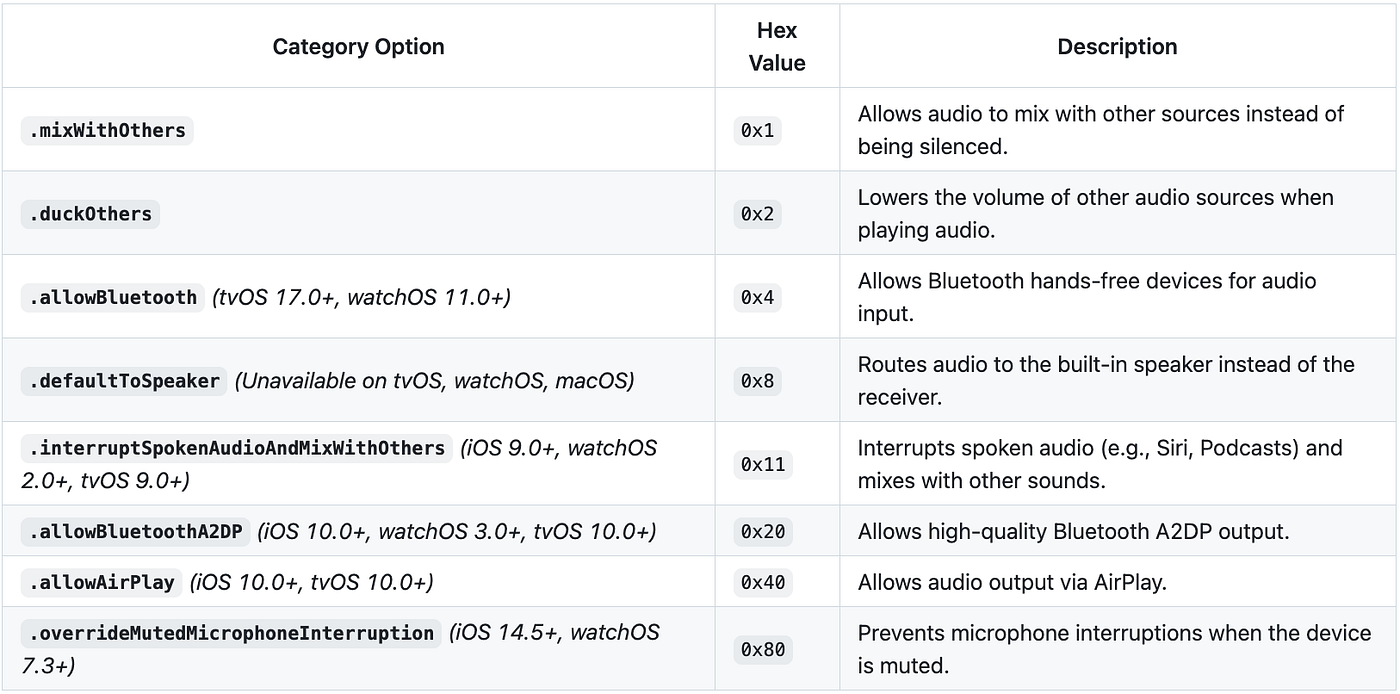
https://developer.apple.com/documentation/avfaudio/avaudiosession/categoryoptions-swift.struct
I have personally used the
**duckOthersoption combined with the `playAndRecord`** category to play sound through the ear speaker.
You can also ensure that the previous track from another app resumes playback after the track in your app has finished.
try audioSession.setActive(true, options: .notifyOthersOnDeactivation)Another trick I found from this conversation, you can start recording while playing track from another app, just like the Shazam app, the session has a property called **automaticallyConfiguresApplicationAudioSession** which by default is set true, and can be set to false:
captureSession.automaticallyConfiguresApplicationAudioSession = falseThe **automaticallyConfiguresApplicationAudioSession code allowing it to automatically configure the app’s shared `AVAudioSession** for optimal recording. However, when manually configuringAVAudioSession`, this property should be set to false to prevent conflicts. Manually setting the appropriate audio session categories resolved the issue.
Additionally, the .**notifyOthersOnDeactivation flag is only needed when deactivating an audio session, not when activating it, making `AVAudioSession.sharedInstance().setActive(true)`** sufficient for activation.
Another key observation is that **.playAndRecord lowers the background sound volume significantly, which can be addressed by using the `.mixWithOthers** and.defaultToSpeaker` options when setting the category:
try? AVAudioSession.sharedInstance().setCategory(.playAndRecord, with: [.mixWithOthers, .defaultToSpeaker])Once the “Audio Setup” is completed, you can do whatever you need to, from recording a sound, reading a text and playing a music:
Recording an Audio:
func startRecording() {
  let audioSession = AVAudioSession.sharedInstance()
  do {
     try audioSession.setCategory(.playAndRecord, mode: .measurement, options: .defaultToSpeaker)
     try audioSession.setActive(true, options: .notifyOthersOnDeactivation)
  } catch {
     self.voiceDetectedCallback?(error)
  }

  recognitionRequest = SFSpeechAudioBufferRecognitionRequest()

  let inputNode = audioEngine.inputNode
  guard let recognitionRequest = recognitionRequest else { return }

  recognitionRequest.shouldReportPartialResults = true

  self.recognitionTask = speechRecognizer?.recognitionTask(
     with: recognitionRequest,
     resultHandler: { [weak self] result, error in
       if let result = result, !result.bestTranscription.formattedString.isEmpty {
         self?.voiceDetectedCallback?(nil)
         if result.isFinal {
           self?.stopRecording()
         }
       } else {
         self?.stopRecording()
       }

       if let error = error, error.localizedDescription.contains("denied") {
        self?.voiceDetectedCallback?(PermissionFailed.microphoneNotPermitted)
      }
    }
)

let recordingFormat = inputNode.outputFormat(forBus: 0)

inputNode.installTap(onBus: 0, bufferSize: 1024, format: recordingFormat) { buffer, _ in
   self.recognitionRequest?.append(buffer)
}

audioEngine.prepare()
  do {
     try audioEngine.start()
  } catch {
     self.voiceDetectedCallback?(error)
  }
}
Reading a Text:
func speak(_ text: String, useEarSpeaker: Bool, language: String = "en-US") {
   do {
     if useEarSpeaker {
       try audioSession.setCategory(.playAndRecord, options: .duckOthers)
     } else {
       try audioSession.setCategory(.playAndRecord, options: .defaultToSpeaker)
     }
     try audioSession.setActive(true)
   } catch {
      print("Error setting audio session category: \(error.localizedDescription)")
   }

   let utterance = AVSpeechUtterance(string: text)
   utterance.rate = AVSpeechUtteranceDefaultSpeechRate // Speech rate (0.0 to 1.0)
   utterance.voice = AVSpeechSynthesisVoice(language: language) // Voice language

   synthesizer.speak(utterance)
}
Playing a Track:
func playMusic() {
   guard let url = Bundle.main.url(forResource: "music", withExtension: "mp3") else {
      print("Music file not found")
      return
   }

   do {
      audioPlayer = try AVAudioPlayer(contentsOf: url)
      audioPlayer?.prepareToPlay()
      audioPlayer?.play()
   } catch {
      print("Error playing audio: \(error.localizedDescription)")
   }
}
UIFeedbackGenerator: Every Interaction Feels Real
**UIImpactFeedbackGenerator** is an abstract introduced by Apple that provides as base class for all types of feedback generators. It is a general interface, but by itself, it cannot generate feedback directly. Instead, specific subclasses implement the protocol to trigger particular types of feedback.
It is primarily used as a base for more specific feedback generators like **UIImpactFeedbackGenerator, `UINotificationFeedbackGenerator**, andUISelectionFeedbackGenerator`.
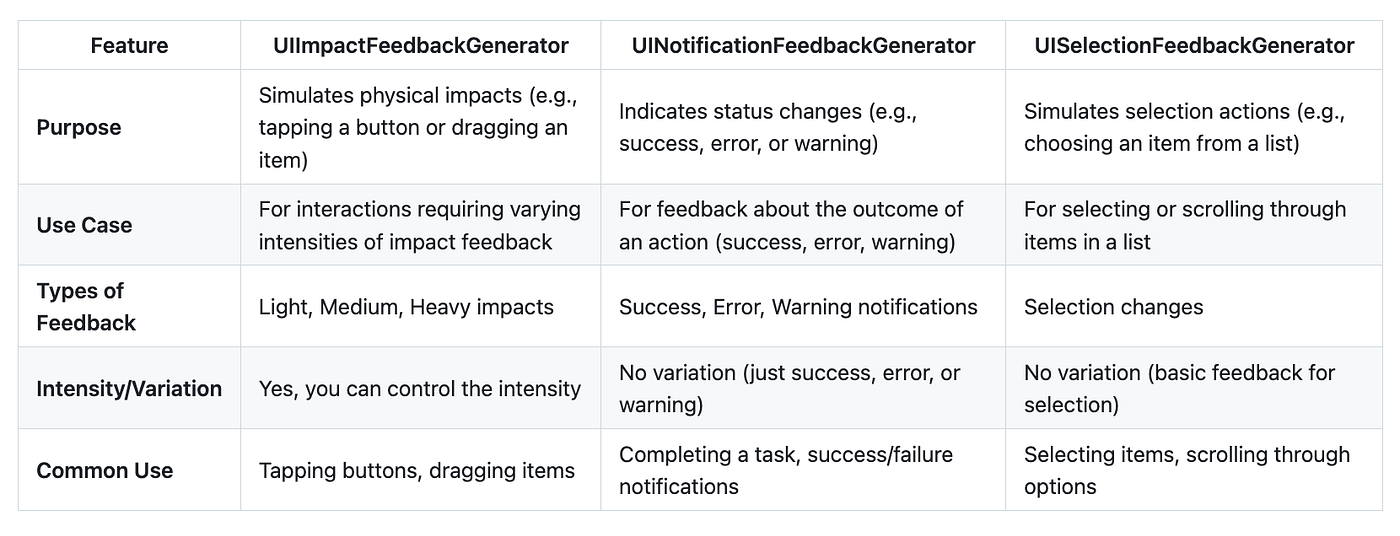
https://developer.apple.com/documentation/uikit/uifeedbackgenerator
There’s also the newest **UICanvasFeedbackGenerator** available on iOS 17.5+
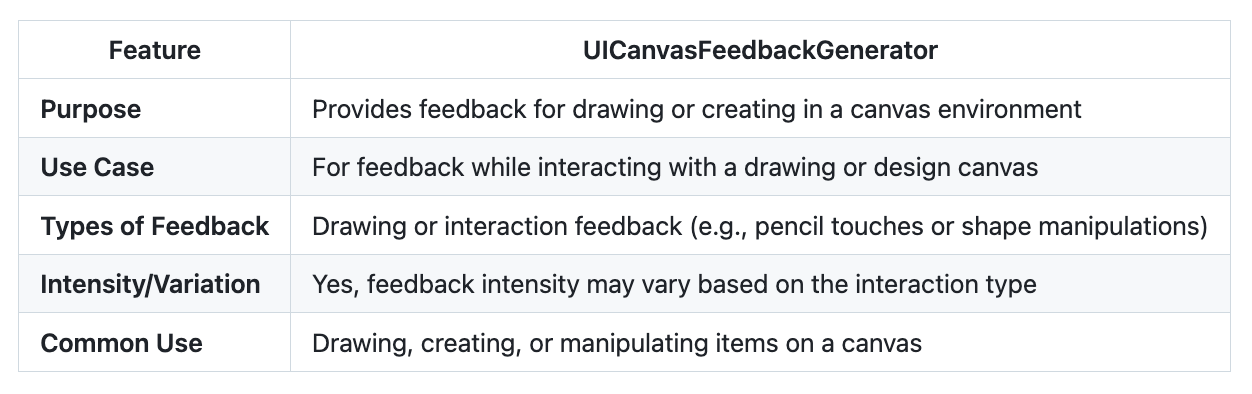
https://developer.apple.com/documentation/uikit/uifeedbackgenerator
The usage of each of them is pretty straightforward, with slight differences in the trigger:
let impactFeedbackGenerator = UIImpactFeedbackGenerator(style: .medium)
let notificationFeedbackGenerator = UINotificationFeedbackGenerator()
let selectionFeedbackGenerator = UISelectionFeedbackGenerator()
let canvasFeedbackGenerator = UICanvasFeedbackGenerator()

[
  impactFeedbackGenerator,
  notificationFeedbackGenerator,
  selectionFeedbackGenerator,
  canvasFeedbackGenerator
].forEach {
   $0.prepare() // Optional
}

impactFeedbackGenerator.impactOccurred()
notificationFeedbackGenerator.notificationOccurred(.success)
selectionFeedbackGenerator.selectionChanged()
canvasFeedbackGenerator.alignmentOccurred(at: .init(x: 1, y: 3))
canvasFeedbackGenerator.pathCompleted(at: .init(x: 10, y: 10))
Closing
By the way, I’m listening to music while writing this article, that’s it for Sound Engineering on iOS. Thank you all for your support. Don’t forget to clap if you like it. See you next time. Peace out!
[embed]
메타데이터
- post_id
- 7ecee15db93a
- slug
- sound-engineering-on-ios-audiotoolbox-avaudiosession-and-uifeedbackgenerator-7ecee15db93a
- url
- https://medium.com/@uwaisalqadri/sound-engineering-on-ios-audiotoolbox-avaudiosession-and-uifeedbackgenerator-7ecee15db93a
- canonical_url
- https://medium.com/@uwaisalqadri/sound-engineering-on-ios-audiotoolbox-avaudiosession-and-uifeedbackgenerator-7ecee15db93a
- author_url
- https://medium.com/@uwaisalqadri
- status
- ok
- fetched_at
- 2026-06-24 23:31:39