Learning AWS: From Storage Buckets to the CloudWatch
In the previous chapters, we built the networking foundation of AWS, exploring concepts like routers, switches, private IP addresses, and…
Learning AWS: From Storage Buckets to the CloudWatch
In the previous chapters, we built the networking foundation of AWS, exploring concepts like routers, switches, private IP addresses, and CIDR blocks, before diving into Amazon EC2 to figure out exactly where our applications actually run.
But once you have your network configured and your virtual servers spinning, the next inevitable question hits you:
“Where the heck do we put all our data, how do we make sure it doesn’t vanish into the ether, and how do we monitor it all?”
That is exactly where the core data and observability pillars of AWS enter the picture. In this chapter, I explored everything from navigating the cloud storage jungle (EBS vs. EFS vs. S3) and choosing the right database engine, to setting up the ultimate “eye in the sky” monitor using Amazon CloudWatch.
Part 1: The AWS Storage Jungle 📁
If you ask a non-cloud engineer what “storage” is, they’ll tell you it’s a place to put your files. If you ask an AWS Solutions Architect, they’ll ask: “Block, Object, or File?”
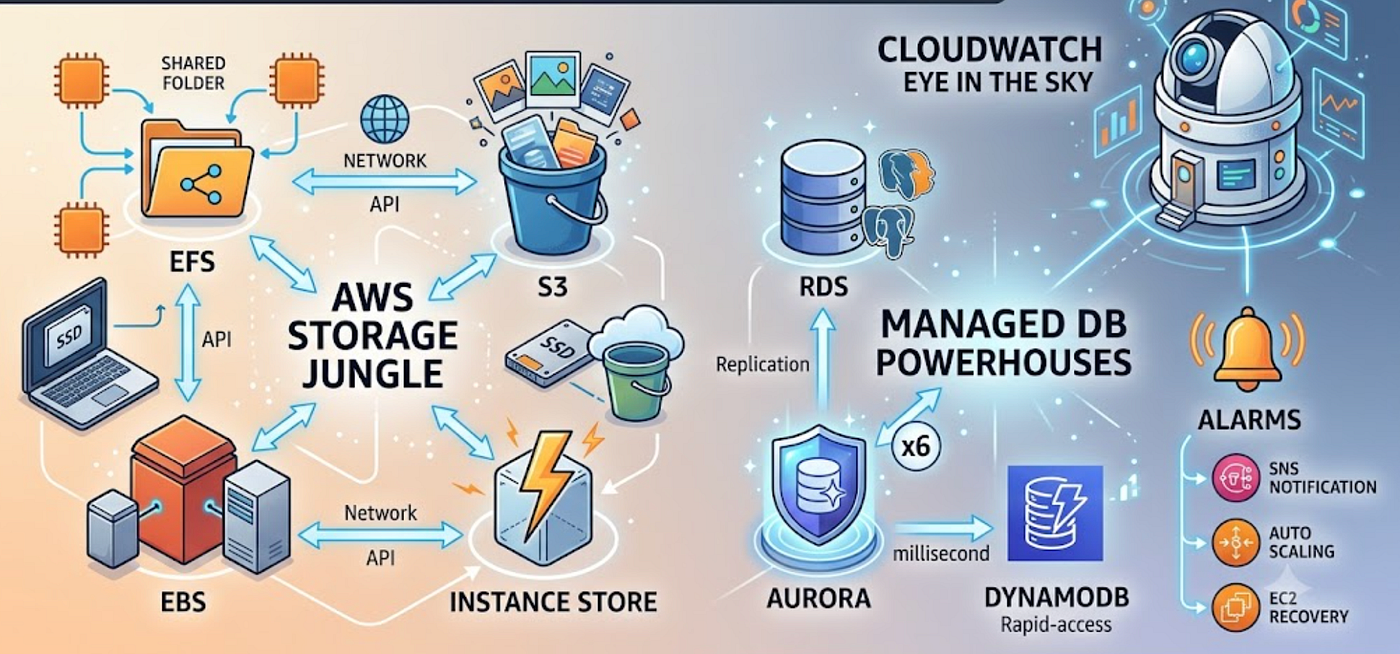
AWS gives you a massive breadth of options. Let’s use a quick mental trick to keep the big three straight before we look under the hood:
- EBS = Your laptop’s internal SSD (one computer owns it).
- EFS = A shared office network drive (everyone can access it simultaneously).
- S3 = Google Drive or Dropbox (you access files via an API/Web UI).
1. Amazon EFS (Elastic File System) & The Magic of NFS
A normal folder lives locally on one computer. If that machine dies, or if another computer wants that data, you’re out of luck.
NFS (Network File System) is a protocol that lets one computer share its folders over a network, making a remote folder look and act exactly like a local folder. This magical attachment process is called Mounting.
Amazon EFS is AWS’s fully managed NFS.
Why use EFS?
True simultaneous sharing. If EC2-1 writes a file to EFS, EC2-2 and EC2-3 can read it immediately. There is only one copy of the file, and everyone sees it.
- The Catch: It’s only accessible inside a VPC (Virtual Private Cloud). Why? Because NFS was designed for trusted, private networks with ultra-low latency, not the wild wild west of the public internet.
2. Amazon ElastiCache: Lightning-Fast In-Memory Data
Before we even go to disk-bound files, what if your application needs data now? Like, in sub-millisecond speeds?
That’s where Amazon ElastiCache comes in. It is a fully managed, in-memory data store service. Instead of waiting for a database to read blocks off a hard drive, ElastiCache holds crucial, frequently requested data directly in RAM. It supports two popular open-source caching designs:
- Memcached: Simple, multi-threaded, perfect for straightforward string caching.
- Redis: Advanced, supports complex data structures, high availability, and replication.
3. Amazon S3: The Unlimited Object Cloud Bucket
Moving on to Object Storage. Amazon S3 (Simple Storage Service) doesn’t care about filesystems or blocks. It stores Objects (File + Metadata + Unique Key) inside Buckets.
The Scale & The “Folder” Lie
S3 features virtually unlimited storage. You can upload billions of objects. The only limit? A single object cannot exceed 5 TB. (If you’re uploading a single 5 TB file, please tell us what you’re caching, we’re genuinely curious). Just remember to use the Multipart Upload API for anything over 5 MB to break the upload into parallel chunks!
Also, those pretty folders you see in the AWS Console? Total lie. S3 uses a flat namespace. Folders are just prefixes glued onto the object’s key name (e.g., projects/2026/architecture.jpg).
Here’s proof
Suppose you upload only one object:
projects/2026/report.pdfThe console shows:
projects
   │
   └──2026
        │
        report.pdf
Now delete report.pdf.
Guess what?
projects also disappears!
Why?
Because there was never a real folder.
There were no keys beginning with projects/ anymore.
It doesn’t think in terms of folders. It only thinks:
“Give me the object whose key is
projects/2026/report.pdf."
The “folders” are just a convenient illusion for us humans.
🧠 The S3 Consistency Evolution
If you’re reading older AWS blogs or study guides, you’ll likely come across the term eventual consistency. That was true for Amazon S3 in the past, but it’s no longer the case.
Since December 2020, Amazon S3 provides strong consistency for all PUT, GET, OVERWRITE, DELETE, and LIST operations.
What does this mean? The moment a write operation succeeds, every subsequent read or list operation returns the latest version of the object. Even though S3 stores multiple replicas of your data across AWS’s storage infrastructure, you no longer have to worry about reading stale data or waiting for updates to propagate.
In short: once S3 confirms your write, every future read sees the latest data.
📦 Choosing the Right S3 Storage Class
Amazon S3 offers multiple storage classes so you can optimize for cost based on how frequently your data is accessed.
🟢 S3 Standard
Think of this as your everyday storage. It’s designed for data that’s accessed frequently, such as application assets, website content, user uploads, images, and videos.
- ✅ Frequent access
- ✅ Millisecond retrieval
- ✅ Highest availability and durability
- 💰 Higher storage cost, but no penalties for frequent access
🟡 S3 Standard-Infrequent Access (Standard-IA)
Standard-IA provides the same durability, availability, and millisecond retrieval as S3 Standard. The difference is that it’s optimized for data that’s rarely accessed.
AWS charges less to store the data but more each time you retrieve it. If you’re accessing the data regularly, Standard-IA often becomes more expensive than Standard.
Use it for:
- Backups
- Disaster recovery files
- Older project documents
- Data that’s kept “just in case”
Rule of thumb:
- Access it often? → S3 Standard
- Store it for long periods and rarely read it? → S3 Standard-IA
🧠 S3 Intelligent-Tiering
Not sure how often your data will be accessed? Let AWS decide.
S3 Intelligent-Tiering automatically monitors object access patterns and moves data between frequent and infrequent access tiers to reduce storage costs, without affecting performance or requiring manual intervention.
🟠 S3 One Zone-IA
Works like Standard-IA but stores data in only one Availability Zone instead of multiple.
- 💰 Cheaper than Standard-IA
- ⚠️ Lower resilience
- Best for data that can be recreated if lost (for example, temporary backups or derived datasets)
🧊 S3 Glacier & S3 Glacier Deep Archive
These are archival storage classes designed for data that’s rarely, if ever, accessed.
- S3 Glacier: Low-cost archival storage with retrieval times ranging from minutes to hours.
- S3 Glacier Deep Archive: Lowest-cost storage option in S3, with retrieval typically taking up to 12 hours.
Ideal for:
- Compliance records
- Historical backups
- Tax documents
- Long-term archives
S3 Security: Don’t End Up in the News 🔐
By default, S3 buckets are private. AWS gives you three ways to lock things down: ACLs (old school, weakest link), IAM Policies (great for user-specific permissions), and Bucket Policies (assigned to the bucket to force HTTPS or restrict IP ranges).
Pro Tip: Turn on S3 Block Public Access. It acts as an absolute master override. Even if a junior dev tries to change security settings to make a bucket public, S3 will look at them and say, “Access Denied.”
4. Amazon EBS vs. Instance Store (Block Storage)
Now let’s look at Block Storage, the type of storage that behaves like a traditional hard drive attached to your computer.
💽 Amazon EBS (Elastic Block Store)
Think of Amazon EBS as a virtual hard disk attached to an EC2 instance. It stores raw blocks, so the operating system must format it (using a filesystem like ext4 or NTFS) before it can store files and folders.
EBS is persistent storage. Your data remains intact even if you reboot or stop the EC2 instance, making it the ideal choice for operating systems, databases, and applications that require durable storage. Since EBS is network-attached, an EBS volume is typically attached to one EC2 instance at a time.
⚡ Instance Store (Ephemeral Storage)
Instance Store is temporary block storage that resides on an SSD physically attached to the host server running your EC2 instance. Because there’s no network hop, it’s incredibly fast and perfect for workloads that need high-speed temporary storage.
The catch? It’s ephemeral. While the data typically survives a reboot, it does not survive instance termination or underlying host failure. Use Instance Store for caches, temporary processing, scratch space, or Spark shuffle data, but never for data you can’t afford to lose.
Part 2: The Managed Database Powerhouses 🗄️
Where do databases live in this storage ecosystem? Let’s talk about RDS, Aurora, and the king of shopping carts, DynamoDB.
🧠 Why Amazon RDS Needs EBS (and Loves S3)
Amazon RDS is your managed relational database service (supporting MySQL, Postgres, SQL Server, etc.). Have you ever wondered why RDS uses EBS volumes instead of S3 to store active database tables?
Think about how databases work. A user updates their phone number. That’s a tiny change, just a few kilobytes.
- With EBS: The database engine goes in and updates only that specific raw block. Done.
- With S3: S3 handles whole objects. To change a single phone number, the database would have to download the entire multi-gigabyte database file, modify the number, and upload the whole giant file back to S3. Incredibly inefficient.
So, RDS uses EBS for high-speed random block reads/writes, but uses S3 for its automated Snapshots (backups) because S3 is cheap, durable, and backups don’t change constantly!
⚡ Amazon Aurora
If standard Amazon RDS is a reliable sedan, Amazon Aurora is the high-performance sports car. It’s an AWS-built relational database engine that’s fully compatible with MySQL and PostgreSQL, allowing existing applications to migrate with little or no code changes.
Unlike traditional RDS database engines that rely on standard EBS-backed storage, Aurora uses a distributed, SSD-based storage architecture purpose-built by AWS. Your data is automatically replicated six times across three Availability Zones, providing exceptional durability and high availability.
Aurora also automates backups, storage scaling, and failover. Because the storage layer handles replication and recovery, the database engine can focus on processing queries, delivering significantly better performance than standard MySQL and PostgreSQL for many workloads, while requiring minimal administrative effort.
🛒 DynamoDB: The Shopping Cart That Conquered the World
Back in 2006, Amazon had a massive scale problem: how do we make sure millions of holiday shoppers can put items in their shopping carts at the exact same time without crashing our database?
Their answer was DynamoDB, officially launched to the public as a fully managed NoSQL database in 2012. Today, the entire global Amazon store is backed by DynamoDB. It delivers single-digit millisecond performance at an astronomical scale and fully supports ACID transactions across tables within an AWS region. If you need hyper-scale internet performance, this is your weapon of choice.
Part 3: What is CloudWatch?
Now that we have data moving between EC2 instances, EFS drives, caches, and RDS databases, how do we know if everything is running smoothly or burning down?
Enter Amazon CloudWatch, the embedded monitoring and observability camera of the AWS cloud operating system.
📊 The Metrics Game: Standard vs. Detailed
CloudWatch is always tracking your resources, but it doesn’t treat every service equally out of the box.
- Basic Monitoring (Free): This comes standard, but intervals vary. For EC2 instances and containers (ECS), metrics are sent every 5 minutes. For RDS databases and ELB (Load Balancers), data is sent every 60 seconds.
- Detailed Monitoring (Paid): Want your EC2 instances to report in every single minute? You can enable detailed monitoring, but AWS is going to bill you for that extra vigilance.
🚨 Alarms & Auto Recovery
CloudWatch doesn’t just watch; it acts. You can set up Alarms that trigger a cascade of events if a metric crosses a threshold (like your CPU utilization hitting 95%). Alarms can fire off an SNS Notification (to scream at your team via email), scale up your fleet using Auto Scaling, or execute an EC2 Auto Recovery action.
Did You Know? By tracking the health metrics
StatusCheckFailed_InstanceandStatusCheckFailed_System, a CloudWatch alarm can automatically reboot or entirely recover a dead EC2 instance onto new underlying hardware for zero additional charge. It’s like a free automated life-support system for your virtual servers.
And that’s AWS storage, databases, and monitoring in a nutshell! You’re now fully equipped to mount shared drives, lock down S3 buckets, spin up massive database clusters, and set up CloudWatch alarms like an absolute cloud architect.
If this breakdown gave you that long-awaited “aha!” moment, make sure to hit that Follow button so you don’t miss our next deep dive into the AWS ecosystem.
Don’t be shy with the Claps (👏) either, if this article saved you an hour of staring blankly at dry documentation, throw a few claps my way. See you in the next chapter! ☁️
메타데이터
- post_id
- 7ee1063dc5d5
- slug
- learning-aws-from-storage-buckets-to-the-cloudwatch-7ee1063dc5d5
- url
- https://medium.com/@deekshasharma2022/learning-aws-from-storage-buckets-to-the-cloudwatch-7ee1063dc5d5
- canonical_url
- https://medium.com/@deekshasharma2022/learning-aws-from-storage-buckets-to-the-cloudwatch-7ee1063dc5d5
- author_url
- https://medium.com/@deekshasharma2022
- status
- ok
- fetched_at
- 2026-07-30 16:09:00