Still Tracking Sam’s Club Prices Manually? Here’s a Faster Way
Still copying prices off Sam’s Club one product at a time? Pull 188 listings with prices, ratings, and stock status in 25 seconds. No Sam’s…
Still Tracking Sam’s Club Prices Manually? Here’s a Faster Way
Still copying prices off Sam’s Club one product at a time? Pull 188 listings with prices, ratings, and stock status in 25 seconds. No Sam’s Club API needed. Here’s the exact workflow.
The Problem with Manual Sam’s Club Research
If you’ve ever tried to track pricing or build a product catalog from Sam’s Club, you know how the afternoon disappears.
One search turns into:
- Clicking through page after page of results
- Manually copying product names, prices, and ratings into a spreadsheet
- Losing your place halfway through and starting over
- A dataset that’s already outdated before you paste the last row
A single product category. Eighty listings across three pages. Two hours of clicking. I knew there had to be a better way.
The Tool That Changed Everything
What if you could collect an entire Sam’s Club search result with one keyword?
That’s exactly what the **Sam S Club Product Scraper** does.
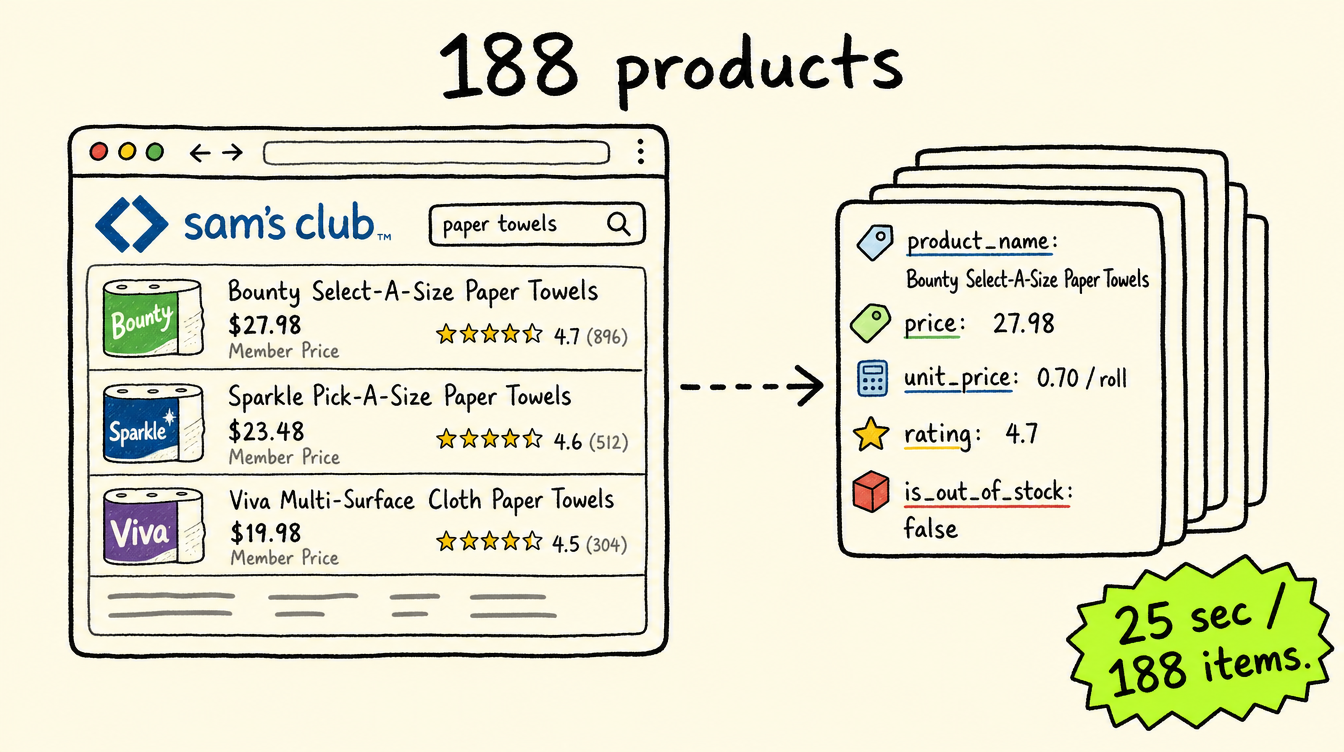
Type a keyword or paste a Sam’s Club URL, set a limit, hit run. The actor pages through every result automatically and returns a clean, structured dataset. No clicking. No copy-pasting. Pagination handled without any extra setup.
For each product, it collects:
- Product name, brand, and Sam’s Club item number
- Current price, original price, and unit price (e.g., $2.31/lb)
- Star rating and total review count
- Availability status and out-of-stock boolean
- Short description and primary image URL
- Direct product page URL
To test it, I searched “vegetables” using both a keyword and the matching Sam’s Club URL in one run.
In just 25 seconds, the actor collected 188 products across 2 pages for each input. Total: 188 clean records ready to open in Excel.
One keyword in. One complete product dataset out. That’s when I stopped building Sam’s Club price sheets by hand.
The setup process (3 minutes, no code required)

Let’s walk through the setup. No technical skills needed. Three steps and you’re running.
Step 1: Access the scraper
Go to the Sam S Club Product Scraper page on Apify and click “Try for free.” The button is right there in the top right corner. You can’t miss it.

The actor page on Apify. Click “Try for free” to get started. No credit card required for the free trial.
Step 2: Log in to Apify
You’ll need an Apify account. If you don’t have one, there’s a “Sign up” link right on the login screen. I already had an account so I just entered my email and password. The whole login takes about 20 seconds.
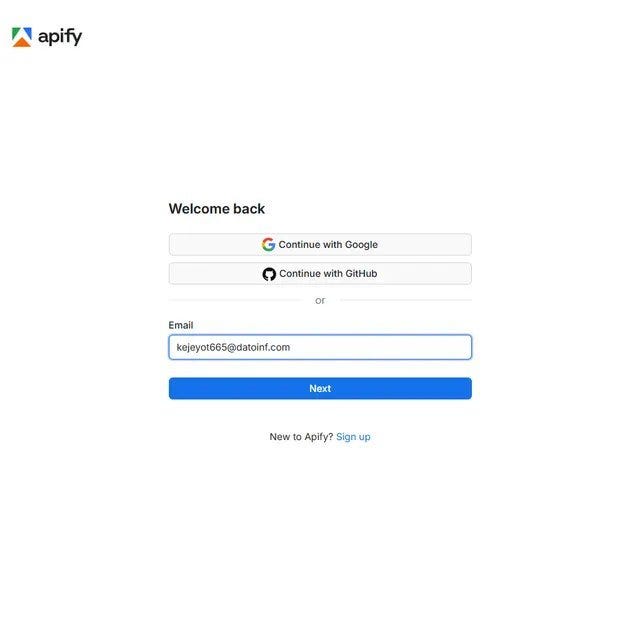
Step 2a: Enter your Apify email. You can also log in with Google or GitHub if that’s faster.
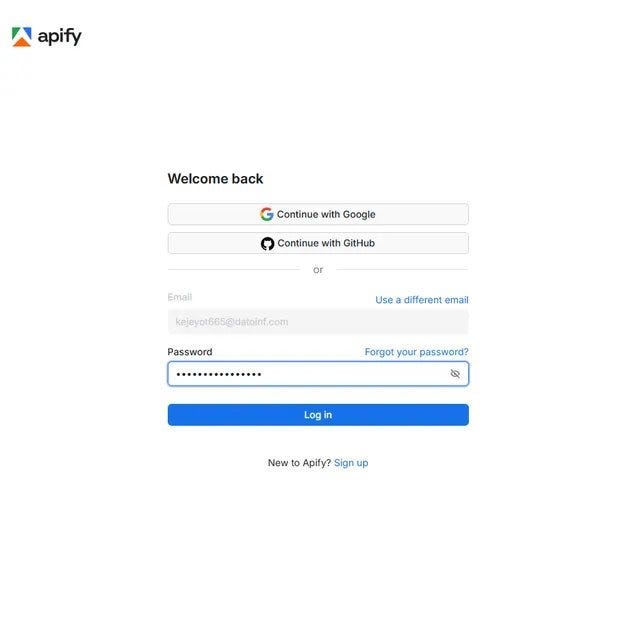
Step 2b: Enter your password and hit Log in. Standard stuff, takes seconds.
Step 3: Add your keywords or URLs and hit Start
Once you’re in, you’ll see the input form. There are two fields that matter.
Search keywords is where you type any product term: vegetables, paper towels, organic milk, or anything else you'd search on Sam's Club. Sam's Club URLs takes any direct search or category URL. You can use both in the same run and the actor handles each independently.
Expand Limits to cap how many products you want per run. I left it at the default for my vegetables test.
When you’re ready, click the green Start button at the bottom left. The red arrow in the screenshot points right to it.
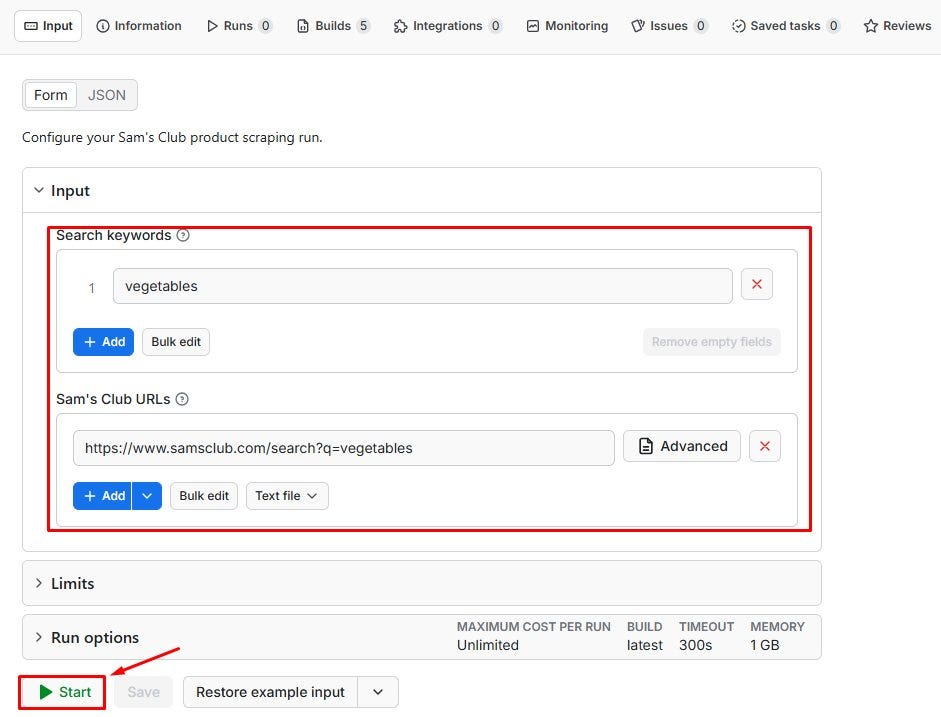
Step 3: Type your keyword and optionally paste a Sam’s Club URL into the highlighted fields. Hit Start. That’s the entire setup for a basic run.
What happens when it runs
The Log tab shows the actor working in real time. You can see it fetching page 1, collecting the first 47 products, then moving to page 2 for the next batch. It does the same for the URL input, then combines everything into one dataset.
My vegetables run fetched 2 pages per input, hit a total of 188 products, and finished in 25 seconds. The green “Succeeded” banner confirmed a clean exit.
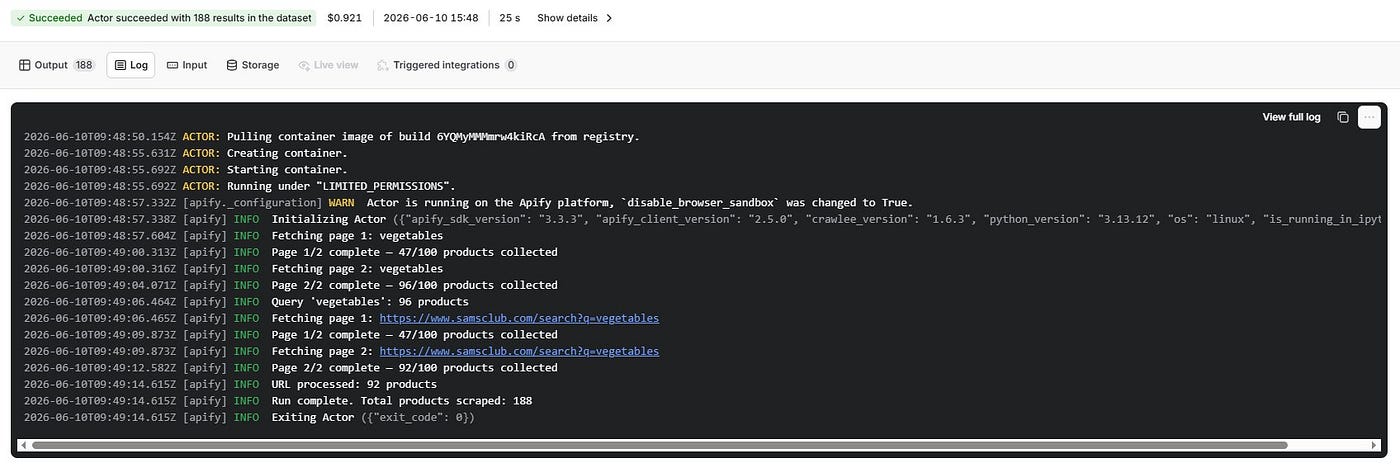
The run log in real time. Each line shows the actor moving through pages, collecting batches, and pushing records to the dataset. 188 products, 25 seconds, zero errors.
The Part That Impressed Me Most
Speed is nice.
The price fields are even better.
When the run finished, every product came back with the pricing detail that actually matters:
- Current selling price as a number, not a string you have to clean
- Original price when there’s a discount active
- Unit price already parsed (e.g., “$2.31/lb”) for direct comparison
- A boolean
is_out_of_stockfield, no text parsing needed - Rating and review count on every product that has them
No cleanup. No missing fields. No reformatting.
Just a dataset ready to sort, filter, and analyze.
What used to take me two hours of clicking now takes 25 seconds. And the unit price field alone made the switch obvious.
Before vs. After Using the Scraper
Manual Research
- ⏱️ 1 to 3 hours per product category
- 📦 Covers whatever you have time to click through
- ⚠️ Unit prices and original prices often missed
- 📉 Stock status requires clicking into every listing
Using the Scraper
- ⚡ 25 seconds for 188 products
- 📦 Up to 1,000 products per run
- ✅ Price, unit price, original price, rating all included
- 📉
is_out_of_stockboolean on every record
The difference is simple: more products, deeper pricing data, and zero copy-pasting.
Getting your data out
When the run finishes, click Storage in the top nav. The Dataset tab shows your item count and file size. My 188-product run came in at 39.9 kB. Pick your format (JSON, CSV, Excel, JSONL, or HTML Table) and hit Download.
For pricing analysis or catalog work, CSV opens directly in Google Sheets in two seconds. For pipeline or monitoring use, JSON or JSONL is cleaner. The Dataset ID also lets you pull data via the Apify API without downloading anything.
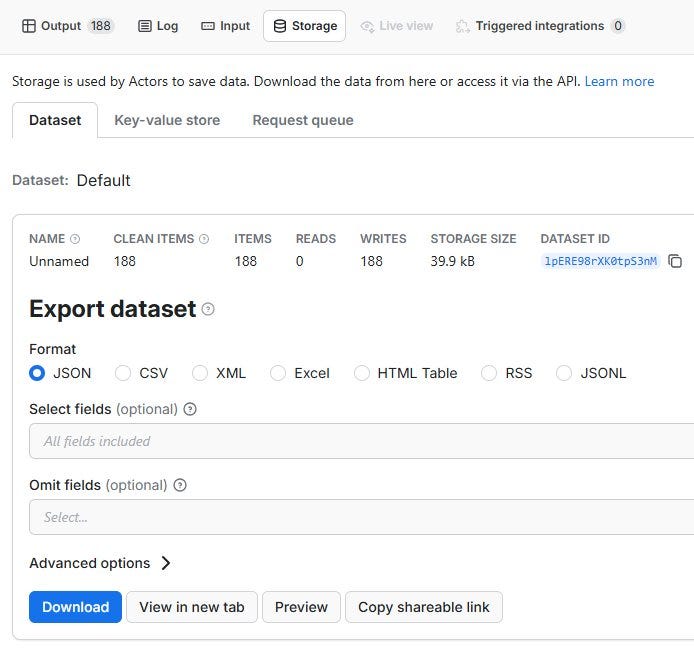
The Storage tab after a completed run. 188 items, 39.9 kB. One click to download in JSON, CSV, XML, or Excel. Use the Dataset ID to pull data via the API for automated or scheduled runs.
Who Needs This?
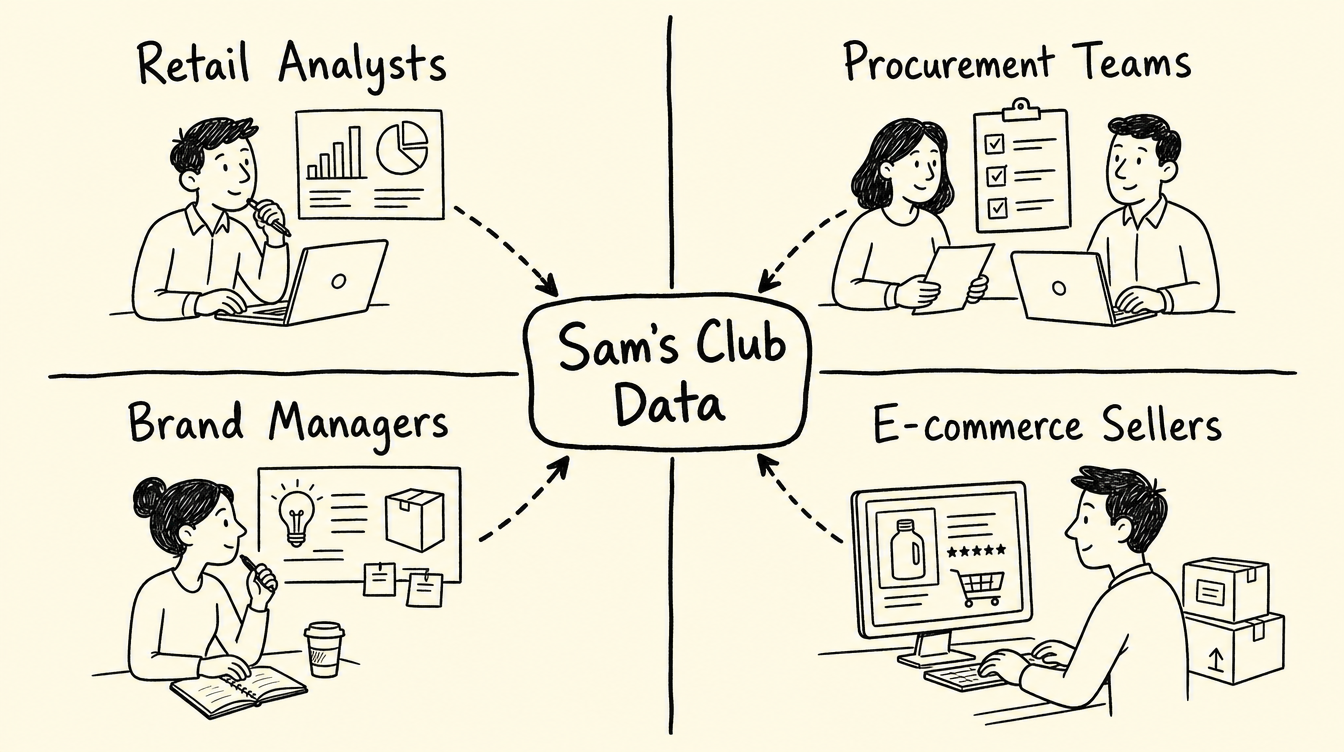
Still building Sam’s Club product sheets by clicking through search results?
Then you’re probably the right audience for this.
The Sam S Club Product Scraper is useful for:
- 📊 Retail analysts tracking how Sam’s Club prices shift week over week
- 🛒 Procurement teams comparing Sam’s Club vs Costco unit pricing across categories
- 📈 Brand managers monitoring which products in their category are in and out of stock
- 🔍 E-commerce sellers benchmarking wholesale pricing before setting their own margins
What Could You Build With This?
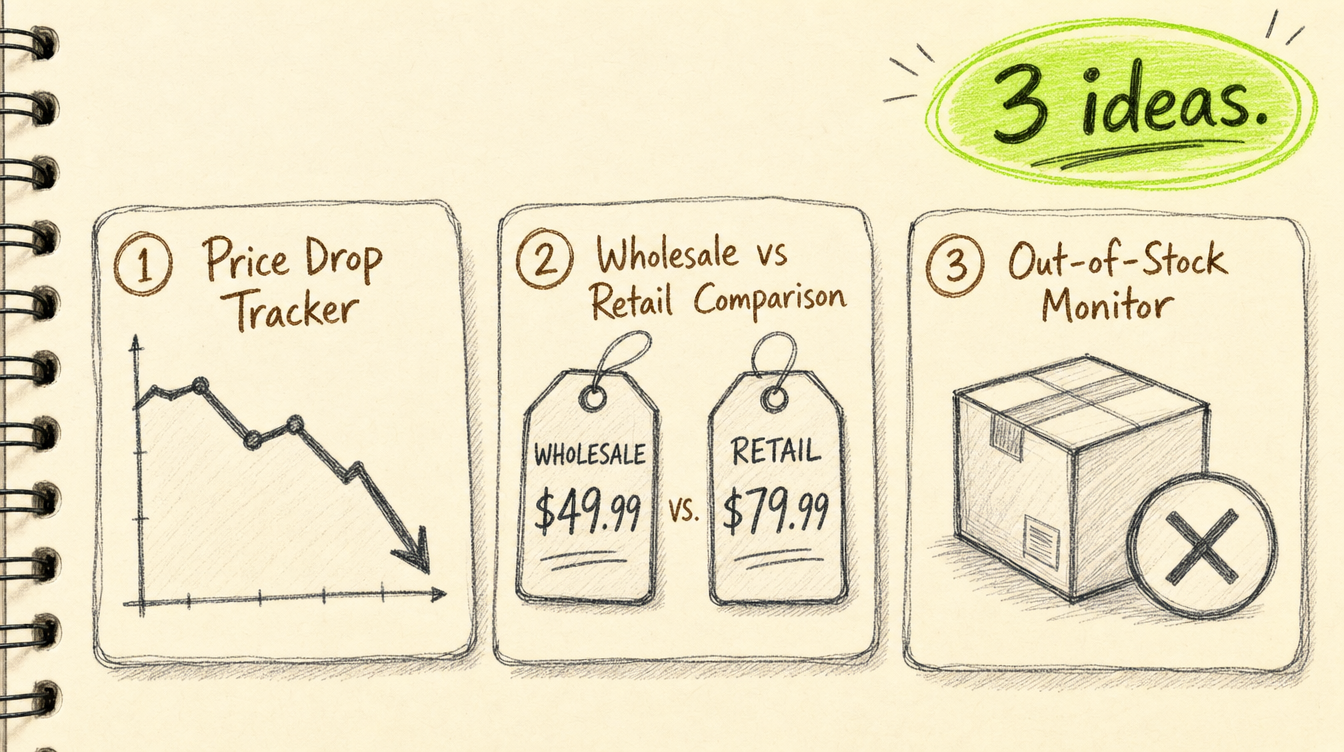
Automate the collection and a lot becomes possible.
📉 Sam’s Club Price Drop Tracker Schedule weekly runs on 10 to 20 keywords. Compare each run against the previous one. Flag any product where price dropped more than 5%. Pipe alerts to Slack or email. Useful for anyone who stocks Sam’s Club products or benchmarks against their pricing.
🛒 Wholesale vs Retail Comparison Tool Pull Sam’s Club unit prices for a product category and compare against standard retail prices from another source. Surface the best bulk-buy deals automatically. Resellers and procurement teams pay for this kind of analysis by the hour when done manually.
📦 Out-of-Stock Monitor
Run the actor daily on a set of category URLs. Track when specific products go out of stock and when they come back. The is_out_of_stock boolean makes this a 10-line script on top of the dataset. Useful for suppliers watching shelf availability on their own products.
Ready to pull Sam’s Club product data at scale?
**Try the Sam S Club Product Scraper on Apify**
No infrastructure. No maintenance. Just run it and get your data.
Final thoughts
I’m not trying to sell you anything. I’m just sharing what worked after too many afternoons clicking through Sam’s Club pages and pasting product data into a spreadsheet that needed updating again two days later.
The Sam S Club Product Scraper took three minutes to set up and replaced a recurring manual task. The unit price and out-of-stock fields are things I was never capturing consistently by hand. And it runs the same way every time.
Have you tried automating retail price tracking? Leave a comment. I’m always looking for better methods.
메타데이터
- post_id
- 7ff014bb2d45
- slug
- still-tracking-sams-club-prices-manually-here-s-a-faster-way-7ff014bb2d45
- url
- https://medium.com/@bigiByte/still-tracking-sams-club-prices-manually-here-s-a-faster-way-7ff014bb2d45
- canonical_url
- https://medium.com/@bigiByte/still-tracking-sams-club-prices-manually-here-s-a-faster-way-7ff014bb2d45
- author_url
- https://medium.com/@bigiByte
- status
- ok
- fetched_at
- 2026-06-17 10:49:34