Bundling Lightning JS Application for Android Tv.
Android Tv is one of major share holder in the world of Smart Tv. When developing a smart tv application, android Tv is inevitable. This…
Bundling Lightning JS Application for Android Tv.
Android Tv is one of major share holder in the world of Smart Tv. When developing a smart tv application, android Tv is inevitable. This article will take you through creating an android tv application with lightning Js build.
This article can be divided into two parts,
- Building a web application using Lightning JS
- Creating an android Tv Application.
Here the first step is pretty straight forward, you have to create an application using Lightning JS. You can use either Lightning building tool or Vite to build your application.
If you don’t know how to build a Lightning application with Vite, please refer my blog here: https://medium.com/@amalmohann/how-to-use-vite-to-build-your-lighting-js-applications-e5e482f9a946
In this article, hosted web application will be used for creating android tv application. So you have to serve the web application and get the url of the web application.
Creating an Android TV Application
To create an android tv application you’ll have to create an android native project in android studio and do the initial setup. You can refer the following official documentations.
Install Android Studio :https://developer.android.com/studio/install Setup Android Studio : https://developer.android.com/courses/pathways/android-basics-compose-unit-1-pathway-2
now that you’ve completed the setup, open android studio and follow the steps below (you can skip this part if you’re familiar with android studio)
step 1: Click on the new project

step 2 : Select No Activity in the Android TV from templates and click next
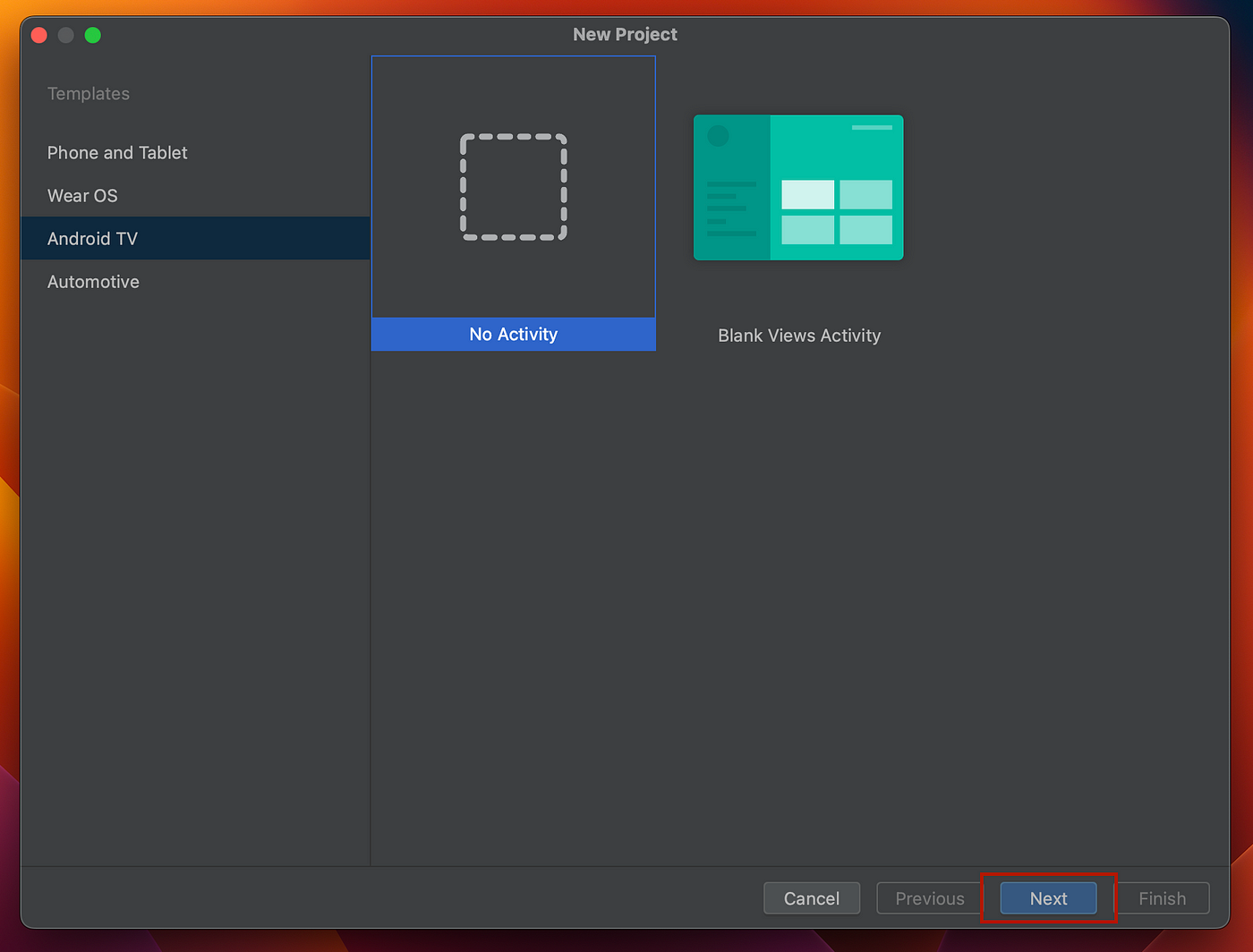
step 3 : Enter the preferable name, package name of the Application and leave everything else as default, if you don’t know what you’re doing. Click Finish after the changes has been made.

This will take you to the Android studio IDE, please make sure no process is running by checking the bottom bar.
step 4 : change the view to android so that we can focus on the important parts. Now expand your projects folders.

step 5 : right click on the java folder and select New then Activity and then Empty Views Activity
java → New → Activity → Empty Views Activity

step 6 : You’ll now get a modal like this, now add the details as shown in the screen grab (except the package name. It should be your package name). Click Finish

step 6 : Make sure there is MainActivity under the package name under the java folder and activity_main.xml under res → layout folder.

step 7: Open activity_main.xml file. Make sure it is in Design mode. Now click on the search button and search for webView. Now you’ll get a item in the search result.


step 8 : Drag and drop the webView into the layout and change the mode to code. You can see the below code,
<?xml version="1.0" encoding="utf-8"?>
<androidx.constraintlayout.widget.ConstraintLayout xmlns:android="http://schemas.android.com/apk/res/android"
    xmlns:app="http://schemas.android.com/apk/res-auto"
    xmlns:tools="http://schemas.android.com/tools"
    android:layout_width="match_parent"
    android:layout_height="match_parent"
    tools:context=".MainActivity">

    <WebView
        android:layout_width="409dp"
        android:layout_height="729dp"
        tools:layout_editor_absoluteX="1dp"
        tools:layout_editor_absoluteY="1dp" />
</androidx.constraintlayout.widget.ConstraintLayout>
step 9 : You need to change the layout to Frame Layout and add an id, and a proper layout width and height for webView. For that change the code as below,
<?xml version="1.0" encoding="utf-8"?>
<FrameLayout xmlns:android="http://schemas.android.com/apk/res/android"
    xmlns:tools="http://schemas.android.com/tools"
    android:id="@+id/main_browse_fragment"
    android:layout_width="match_parent"
    android:layout_height="match_parent"
    tools:context=".MainActivity"
    tools:deviceIds="tv"
    tools:ignore="MergeRootFrame">

    <WebView
        android:id="@+id/webview"
        android:layout_width="match_parent"
        android:layout_height="match_parent"
        />
</FrameLayout>
our work in the layout part is done as per the scope of this documentation.
step 10 : Open the MainActivity file and update the code as below. Update the loadUrl with the url for your web application.
class MainActivity : AppCompatActivity() {
    override fun onCreate(savedInstanceState: Bundle?) {
        super.onCreate(savedInstanceState)
        setContentView(R.layout.activity_main)

        val webView: WebView = findViewById(R.id.webview)

        webView.webViewClient = object : WebViewClient() {
            override fun onPageFinished(view: WebView?, url: String?) {
            }
        }

        webView.setInitialScale(1)
        webView.loadUrl("<your web application url here>")
        val webSettings = webView.settings
        webSettings.useWideViewPort = true
        webSettings.javaScriptEnabled = true

    }
}
step 11: Make sure your AndroidManifest.xml file has similiar configurations.
<?xml version="1.0" encoding="utf-8"?>
<manifest xmlns:android="http://schemas.android.com/apk/res/android">

    <application
        android:allowBackup="true"
        android:icon="@mipmap/ic_launcher"
        android:label="@string/app_name"
        android:supportsRtl="true"
        android:theme="@style/Theme.AndroidLightningTV">
        <activity
            android:name=".MainActivity"
            android:exported="true">
            <intent-filter>
                <action android:name="android.intent.action.MAIN" />
                <category android:name="android.intent.category.LAUNCHER" />
            </intent-filter>
        </activity>
    </application>

</manifest>
step 12 : Run your Application. Tada 🎉
That’s it, Now you can run your web application in any android Tv and FireTv.
메타데이터
- post_id
- 80b14d7cf7f
- slug
- bundling-lightning-js-application-for-android-tv-80b14d7cf7f
- url
- https://medium.com/@amalmohann/bundling-lightning-js-application-for-android-tv-80b14d7cf7f
- canonical_url
- https://medium.com/@amalmohann/bundling-lightning-js-application-for-android-tv-80b14d7cf7f
- author_url
- https://medium.com/@amalmohann
- status
- ok
- fetched_at
- 2026-08-09 10:16:41