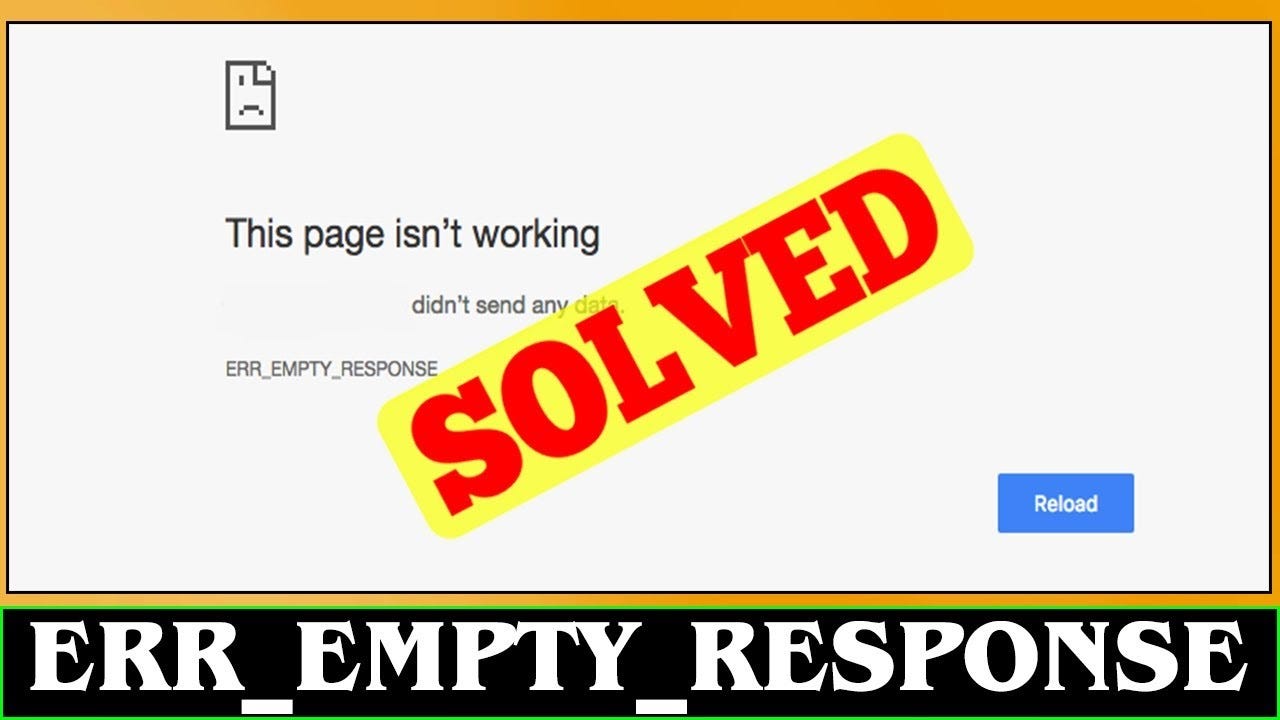
How Can I Fix the “Check Your Connection” Error?
Encountering the dreaded “Check Your Connection” error can disrupt your workflow, gaming, or streaming session. This guide will walk you…
How Can I Fix the “Check Your Connection” Error?

Encountering the dreaded “***Check Your Connection***” error can disrupt your workflow, gaming, or streaming session. This guide will walk you through the most effective ways to identify and fix the issue, ensuring a seamless online experience.
What Causes the “Check Your Connection” Error?
- Internet Service Issues
- Outages from your internet service provider (ISP).
- Weak or unstable Wi-Fi signals.
2. Outdated Software or Apps
- Apps unable to connect due to version mismatches.
- Incompatibility with current internet protocols.
3. VPN or Proxy Interference
- Misconfigured settings can block internet access.
- Excessive lag or packet loss due to VPN server overload.
Basic Troubleshooting Steps
- Restart Your Device
- Power cycle your device.
- Often resolves temporary software glitches.
2. Check Your Internet Connection
- Ensure your router/modem is operational.
- Verify active internet connectivity by visiting a ***different*** website.
3. Test Other Devices
- See if the problem exists across multiple devices.
- Helps isolate whether it’s a device or network issue.
Network-Specific Fixes
- Reset Your Router
- Turn off the router for 30 seconds and restart.
- Use the reset button for factory default settings if necessary.
2. Verify DNS Settings
- Set DNS to Google’s public DNS (8.8.8.8).
- Ensure no manual misconfigurations in network settings.
3. Run a Speed Test
- Confirm if your internet speed matches the plan.
- Use tools like Speedtest.net.
Software-Related Fixes
- Clear Browser Cache
- Go to browser settings and clear cache and cookies.
- Resolves website-specific connectivity issues.
2. Update Software and Apps
- Outdated apps often fail to connect properly.
- Enable automatic updates for critical software.
3. Check for Malware
- Use antivirus software to scan for malicious programs.
- Malware can block or redirect internet traffic.
Advanced Fixes
- Flush DNS Cache
- Open Command Prompt and type:
bash
Copyedit
ipconfig /flushness
2. Adjust Firewall Settings
- Temporarily disable firewalls to test connectivity.
- Add exceptions for trusted applications.
3. Configure a Static IP
- Avoid conflicts by setting a static IP address.
- This helps with devices that frequently disconnect.
Mobile-Specific Solutions
- Switch to a Different Network
- Test connection on mobile data or another Wi-Fi network.
- Confirms whether the issue is network-specific.
2. Reset Network Settings
- On iOS: Settings > General > Reset > Reset Network Settings.
- On Android: Settings > System > Reset Options > Reset Wi-Fi, Mobile & Bluetooth.
3. Update Mobile OS
- Navigate to Settings > Software Update.
- Fixes compatibility issues with the latest protocols.
Special Cases
- Issues with Gaming Consoles
- Reconfigure DNS settings on the console.
- Check for system and game updates.
2. Fixing Errors on Smart TVs
- Reconnect Wi-Fi or use an Ethernet cable for stability.
- Reset network settings if streaming apps fail to load.
3. Troubleshooting Streaming Devices
- Restart the device and update firmware.
- Check subscription status for specific apps.
Prevention Tips
- Regular Software Updates
- Keep firmware and drivers up to date.
2. Secure Your Wi-Fi Network
- Use a strong password and enable WPA3 security.
3. Monitor Internet Usage
- Avoid bandwidth throttling by limiting background downloads.
Conclusion
The “Check Your Connection” error, though frustrating, is fixable with the right approach. By following the steps outlined here, you can quickly restore your connectivity and get back to what you were doing.
FAQs
- Why does the “Check Your Connection” error occur?
- It often results from unstable internet, incorrect settings, or software issues.
2. Is this issue related to my ISP?
- Possibly, especially during outages or maintenance.
3. Can VPNs cause this error?
- Yes, misconfigured VPNs may block internet access.
4. How do I fix this on my mobile device?
- Reset network settings and update your OS.
5. Can outdated browsers cause this error?
- Absolutely, ensure your browser is up-to-date.
6. What if nothing works?
- Contact your ISP or a tech specialist for assistance.
메타데이터
- post_id
- 812da38ed2c8
- slug
- how-can-i-fix-the-check-your-connection-error-812da38ed2c8
- url
- https://medium.com/@techinpost/how-can-i-fix-the-check-your-connection-error-812da38ed2c8
- canonical_url
- https://medium.com/@techinpost/how-can-i-fix-the-check-your-connection-error-812da38ed2c8
- author_url
- https://medium.com/@techinpost
- status
- ok
- fetched_at
- 2026-09-10 03:56:28