TLDR: We will walk through a production-grade setup for acquiring and managing Let’s Encrypt…
Why Wildcard Certificates (e.g., *.yourdomain.com) ?
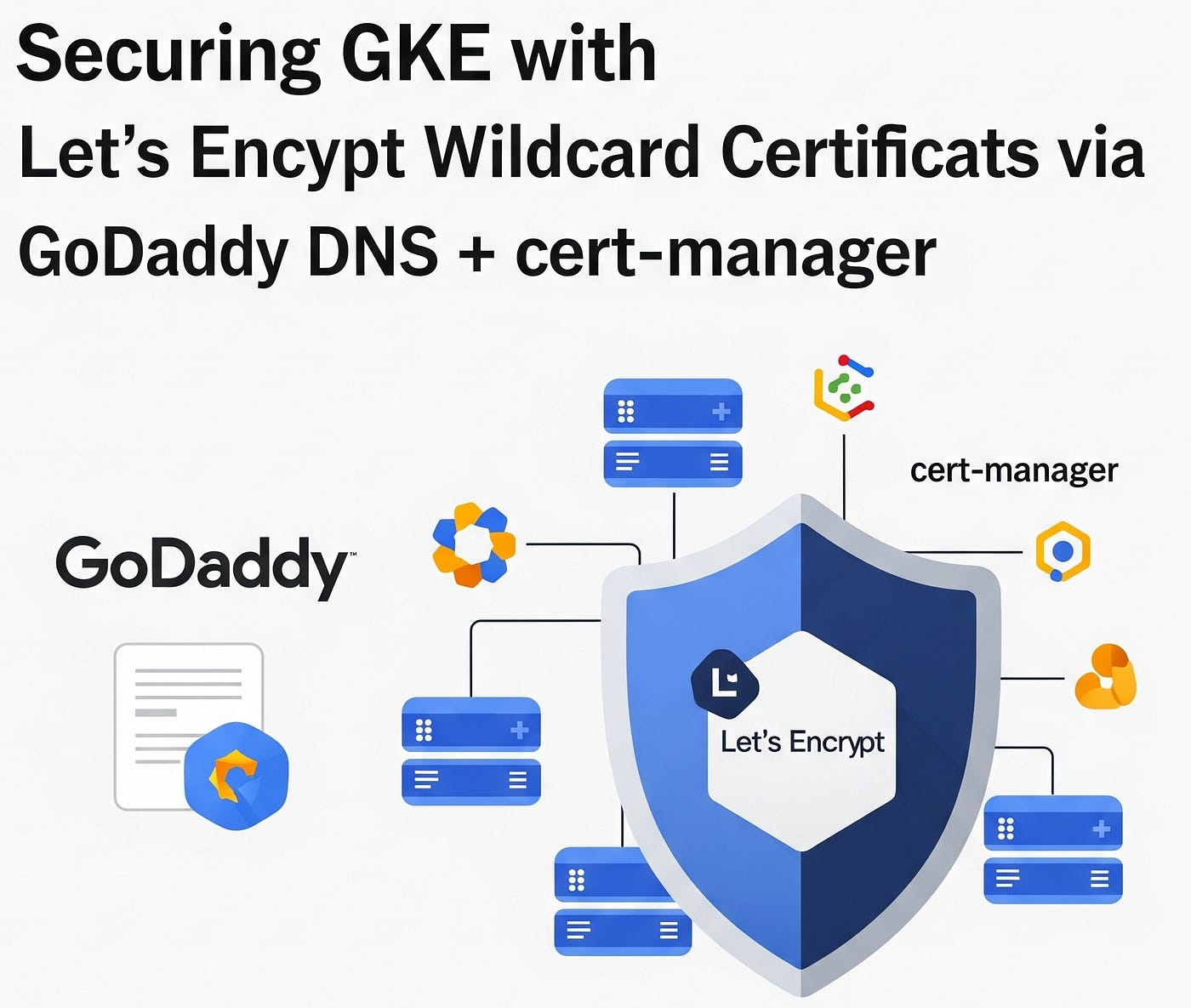
Securing GKE with Let’s Encrypt Wildcard Certificate via GoDaddy DNS and cert-manager
TLDR: We will walk through a production-grade setup for acquiring and managing Let’s Encrypt wildcard SSL certificates using cert-manager and the GoDaddy DNS webhook solver.
Why Wildcard Certificates (e.g., *.yourdomain.com) ?
Simplify TLS management across multiple subdomains and services, ensuring encrypted HTTPS connections without manually managing individual certificates.
Prerequisites
- GKE cluster with Ingress configured (using GCE Ingress or similar)
- A GoDaddy domain with DNS managed via GoDaddy
kubectl,helm, and cluster-admin access- A GoDaddy API key/token for DNS automation
Overall Flow

Steps Involved
Step 1: Install cert-manager
cert-manager automates TLS certificate issuance and renewal via Automated Certificate Management Environment (ACME) — Let’s Encrypt
helm repo add jetstack https://charts.jetstack.io --force-update
helm install \
  cert-manager jetstack/cert-manager \
  --namespace cert-manager \
  --create-namespace \
  --version v1.17.2 \
  --set crds.enabled=true
cert-manager installs its CRDs (Custom Resource Definitions) like
Certificate,ClusterIssuer,Issuer, and sets up controllers to watch and reconcile these resources.
Step 2: Install GoDaddy DNS Webhook Solver
godaddy-webhook — allows cert-manager to fulfill DNS-01 challenges via GoDaddy’s DNS API.
helm repo add godaddy-webhook https://snowdrop.github.io/godaddy-webhook
helm install acme-webhook godaddy-webhook/godaddy-webhook \
  -n cert-manager \
  --set groupName=acme.example.com
The webhook solver pod gets deployed which allows cert-manager to communicate with the GoDaddy DNS API for DNS-01 challenges.
Step 3: Store GoDaddy API Token Securely
This secret is used to authenticate webhook requests to GoDaddy.
kubectl create secret generic godaddy-api-key \
  --from-literal=token=<GODADDY_API_KEY>:<GODADDY_SECRET_KEY> \
  --namespace cert-manager
This secret is later referenced in the ClusterIssuer and used by the webhook to authenticate with GoDaddy’s API.
Step 4: Create the ClusterIssuer
Save this as clusterissuer.yaml:
apiVersion: cert-manager.io/v1
kind: ClusterIssuer
metadata:
  name: letsencrypt-staging
spec:
  acme:
    server: https://acme-v02.api.letsencrypt.org/directory
    email: devops@example.com
    privateKeySecretRef:
      name: letsencrypt-staging
    solvers:
    - dns01:
        webhook:
          groupName: acme.example.io
          solverName: godaddy
          config:
            apiKeySecretRef:
              name: godaddy-api-key
              key: token
            production: true
            ttl: 600
kubectl apply -f clusterissuer.yamlcert-manager registers the ClusterIssuer and attempts to validate connectivity and the provided ACME configuration. It will not yet perform any challenges.
Verify ClusterIssuer
kubectl describe clusterissuer letsencrypt-stagingEnsure you see:
Type: ReadyandStatus: True
Step 5: Request a Wildcard Certificate
Save the following as wildcard-certificate.yaml
apiVersion: cert-manager.io/v1
kind: Certificate
metadata:
  name: example-staging-wildcard-cert
  namespace: example
spec:
  secretName: example-staging-wildcard-tls
  issuerRef:
    name: letsencrypt-staging
    kind: ClusterIssuer
  commonName: '*.staging.yourdomain.com'
  dnsNames:
  - '*.staging.yourdomain.com'
  - 'staging.yourdomain.com'
kubectl apply -f wildcard-certificate.yamlWhat happens: cert-manager triggers the ACME flow. It creates a
Challengeand aOrderresource. The GoDaddy webhook adds a TXT record to verify domain ownership. Once validated, the certificate is requested and stored as a Kubernetes TLS secret.
Verify Certificate Status
kubectl describe certificate example-staging-wildcard-cert -n exampleCheck for: Status: Ready=True
Step 6: Add DNS A Record(s) in GoDaddy
To ensure your domain and subdomains point to your GKE Ingress:
Option A: Wildcard record (recommended)
*.yourdomain.com A <GKE LoadBalancer IP>Option B: Specific record (e.g., for example.yourdomain.com)
example.yourdomain.com A <GKE LoadBalancer IP>You can add multiple such DNS records depending on your application structure. These entries must be configured in GoDaddy’s DNS dashboard. This step is not required for certificate issuance but is essential to serve traffic via Ingress.
Step 7: Use TLS in Ingress Resource
Update your GKE Ingress with wildcard TLS
apiVersion: networking.k8s.io/v1
kind: Ingress
metadata:
  name: example-ingress
  namespace: example
  annotations:
    kubernetes.io/ingress.class: "gce"
    kubernetes.io/ingress.global-static-ip-name: "example-lb-ip"
    kubernetes.io/ingress.allow-http: "true"
    networking.gke.io/v1beta1.FrontendConfig: "http-redirect"
spec:
  tls:
    - hosts:
        - '*.yourdomain.com'
      secretName: example-wildcard-tls
  rules:
  - host: '*.yourdomain.com'
    http:
      paths:
        - path: /*
          pathType: ImplementationSpecific
          backend:
            service:
              name: frontend-lb
              port:
                number: 80
Debugging Secrets (Avoid in Prod)
kubectl get secret letsencrypt-staging -n cert-manager -o jsonpath='{.data.tls\.key}' | base64 -d
kubectl get secret example-staging-wildcard-tls -n example -o jsonpath='{.data.tls\.crt}' | base64 -d
kubectl get secret example-staging-wildcard-tls -n example -o jsonpath='{.data.tls\.key}' | base64 -dletsencrypt-staging: your ACME account keyexample-staging-wildcard-tls: your actual TLS cert + key
Note: Never use ACME account keys in your services.
You’re Done! Yayyy
You can now serve HTTPS traffic on any subdomain under staging.yourdomain.com securely, backed by Let's Encrypt certificates managed automatically by cert-manager. This setup ensures:
- Zero-downtime TLS renewal
- Wildcard coverage
- Secure integration with GoDaddy
Resources
- cert-manager: https://cert-manager.io/
- Let’s Encrypt ACME protocol: https://letsencrypt.org/docs/acme-protocol/
- GoDaddy API: https://developer.godaddy.com/
- GKE Ingress: https://cloud.google.com/kubernetes-engine/docs/how-to/load-balance-ingress
- DNS-01 Webhook Solver Docs: https://cert-manager.io/docs/configuration/acme/dns01/webhook/
For platform engineers looking to scale HTTPS across environments and clients, this pattern is extensible, secure, and production-proven.
메타데이터
- post_id
- 81beaf47b7e7
- slug
- tldr-we-will-walk-through-a-production-grade-setup-for-acquiring-and-managing-lets-encrypt-81beaf47b7e7
- url
- https://medium.com/meghgen/tldr-we-will-walk-through-a-production-grade-setup-for-acquiring-and-managing-lets-encrypt-81beaf47b7e7
- canonical_url
- https://medium.com/meghgen/tldr-we-will-walk-through-a-production-grade-setup-for-acquiring-and-managing-lets-encrypt-81beaf47b7e7
- author_url
- https://medium.com/@aniketwdubey
- status
- ok
- fetched_at
- 2026-06-10 08:17:25
