Ditch the Cloud: Build a Free, Local AI Coding Agent with llama.cpp
How to use local models to perform in your daily work without losing your PC’s performance.
Ditch the Cloud: Build a Free, Local AI Coding Agent with llama.cpp
How to use local models to perform in your daily work without losing your PC’s performance.

Source: Image by William Harrison on Sewe
Table of Contents
- Introduction
- Download the Open-Weights Model
- Download and Prepare llama.cpp
- Create the Execution Script
- Install Node.js
- Install and Configure Qwen Code
- Install and Configure Opencode
- Time to Code!
- Conclusion
- References
Introduction
We all know the struggle: you want to use advanced AI agents for your daily coding tasks, but online subscriptions are expensive, privacy is a concern, and heavy local models can turn your PC into a space heater.
What if I told you that you can run a fully functional, autonomous AI coding agent for FREE?
In this guide (inspired by the excellent workflow shared by Nichonauta), we will set up Qwen 3.5-4B locally. It is 100% free, entirely private, and highly optimized. By combining this lightweight model with the right agentic tools, you can automate complex coding tasks without bottlenecking your computer’s performance.
Let’s dive into how to build your own local coding assistant.
Download the Open-Weights Model
You don’t need to pay for API keys; everything relies on open weights.
- Go to Hugging Face and search for **unsloth/Qwen 3.5-4B-GGUF *(or any unsloth/model*).
- Download the
**Q4_K_XL** (or MXFP4) quantization. This specific format is crucial because it maintains the best response quality while compressing the model down to a tiny 2.91 GB. - (Optional but recommended) Download the Vision Encoder file in Files and versions (
mmprojin BF16 format). This allows your AI to "see" images or analyze web browser screenshots later on.
Download and Prepare llama.cpp
llama.cpp is the magic engine that runs our model efficiently, utilizing either your GPU or CPU (RAM) without devouring system resources.
- Head over to the official **llama.cpp GitHub repository**.
- Download the compiled release that matches your hardware. If you have an Nvidia card, grab the Windows 64-bit CUDA version (e.g., CUDA 12 or 13) and the CUDA 1x.x DLLs.
- Unzip the downloaded
.zipfiles into a dedicated folder on your computer. - Move your downloaded model files (the
.ggufand themmprojfiles) into one same folder to keep everything organized. - Create the Execution Script

llama.cpp file example
To avoid typing a massive command line every time you want to work, create a simple .bat file (for Windows) to boot up the model as a local API server.
Here are the key parameters you want to include in your script:
- Context Window: Set it high (e.g.,
262144native tokens) so the agent remembers the whole project. - KV Cache at 8-bits: This significantly saves VRAM.
- Chain of Thought (CoT): Keep it active. This boosts the model’s reasoning capabilities, which is essential for programming.
- Sampling Parameters: Set Temperature to
1.0, Top P to0.95, and Min P to0.01to prevent repetitive loops.
.\llama-b8873-bin-win-cuda-13.1-x64\llama-server.exe ^
  -m gguf\Qwen3.5-4B\Qwen3.5-4B-UD-Q4_K_XL.gguf ^
  -c 262144 ^
  -mg 1 ^
  -sm none ^
  --cache-type-k q8_0 ^
  --cache-type-v q8_0 ^
  --image-min-tokens 1024 ^
  --reasoning on ^
  --temp 0.6 ^
  --top-p 0.95 ^
  --top-k 20 ^
  --min-p 0.00 ^
  --presence-penalty 0.0 ^
  --repeat-penalty 1.0 ^
  --dry-multiplier 0.1 ^
  --dry-base 1.05 ^
  --dry-allowed-length 12 ^
  --dry-penalty-last-n 128 ^
  -a Qwen3.5-4B
Install Node.js
Our AI needs a visual interface and an agentic environment to work inside your projects. For this, we need a JavaScript runtime environment.
- Go to the official **Node.js website**.
- Download the installer and run through the standard setup (default settings are fine).
Install and Configure Qwen Code
We will use Qwen Code as our agent interface. It is visually appealing, easy to use, and natively designed for agentic software development.
- Open your terminal (PowerShell or CMD) as Administrator.
- Paste the installation command from the Qwen Code GitHub repository (usually an
npm install -g @qwen-code/qwen-code@latestcommand). - Once installed, run the app once and close it. This generates a hidden configuration folder.
- Navigate to
C:\Users\YourUser\.qwen\and open the**settings.json** file. - Connect it to your local
llama.cppserver by updating these fields:
- Provider: Set it to an OpenAI-compatible API.
- URL: Point it to your localhost (usually
[http://localhost:8080/v1).](http://localhost:8080/v1).) - Model Name: Enter the exact name you specified in your
.batfile. - Context Window: Match the context length from your script (e.g.,
262144) so the agent knows when to auto-compact its memory.
{
  "modelProviders": {
    "openai": [
      {
        "id": "llama.cpp",
        "name": "llama.cpp",
        "envKey": "LLAMA_CPP_API_KEY",
        "baseUrl": "http://127.0.0.1:8080/v1",
        "generationConfig": {
          "contextWindowSize": 262144
        }
      }
    ]
  },
  "security": {
    "auth": {
      "selectedType": "openai"
    }
  },
  "model": {
    "name": "llama.cpp"
  },
  "env": {
    "LLAMA_CPP_API_KEY": "llama.cpp"
  },
  "$version": 3,
  "tools": {
    "approvalMode": "plan"
  },
  "general": {
    "language": "en",
    "outputLanguage": "Español"
  },
  "mcpServers": {
    "playwright": {
      "command": "npx",
      "args": [
        "@playwright/mcp@latest"
      ]
    },
    "brave-search": {
      "command": "npx",
      "args": [
        "-y",
        "@brave/brave-search-mcp-server"
      ],
      "env": {
        "BRAVE_API_KEY": "BRAVE_API_KEY"
      }
    },
    "context7": {
      "httpUrl": "https://mcp.context7.com/mcp/"
    }
  }
}
Install and Configure Opencode
While Qwen Code is fantastic for straightforward tasks, you might want an environment that is even more robust and feature-rich. OpenCode is an extremely comprehensive agentic platform that gives you absolute control over your local AI.
Here is how to set it up to talk with your local llama.cpp server:
- Install OpenCode: Open your terminal and install the tool globally (usually via npm with a command like
npm install -g opencode-ai, or by downloading their desktop release). - Connect to Your Local API: Navigate to the OpenCode settings; it should be
C:\Users\YourUser\.qwen\. - Open the
opencode.jsonfile and paste this settings:
{
  "$schema": "https://opencode.ai/config.json",

  "provider": {

    "llamacpp-local": {
      "name": "LlamaCPP local",
      "npm": "@ai-sdk/openai-compatible",
      "models":{
        "Qwen3.5-4B": {
          "name": "Qwen3.5-4B"
        }
      },
      "options": {
          "baseURL": "http://127.0.0.1:8080/v1"
        }
    }

  }
}
Time to Code!
You are fully set up. Here is your new daily workflow:
- Double-click your
.batfile to startllama.cppquietly in the background. - Navigate to your project folder using your terminal.
- Type
qwenoropencodeand hit enter.
Depending on the complexity of your task, you have three distinct ways to interact with your local model.
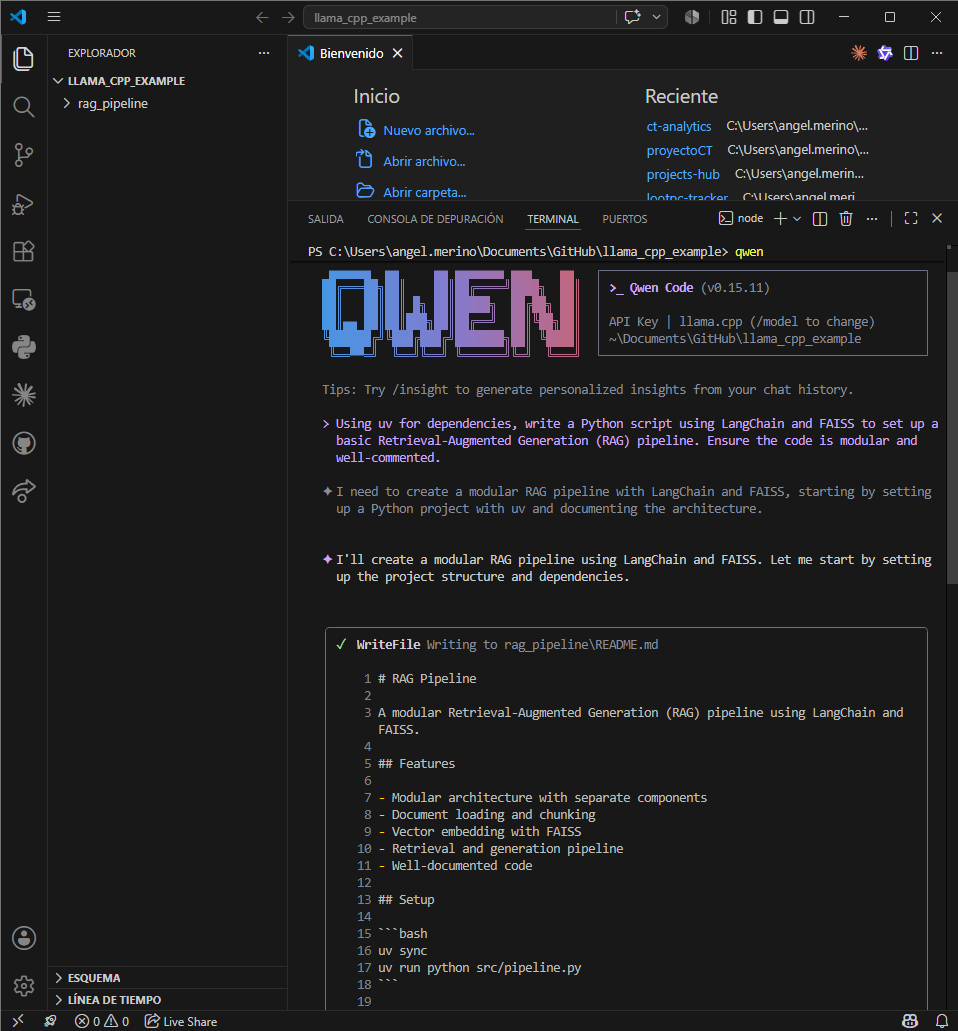
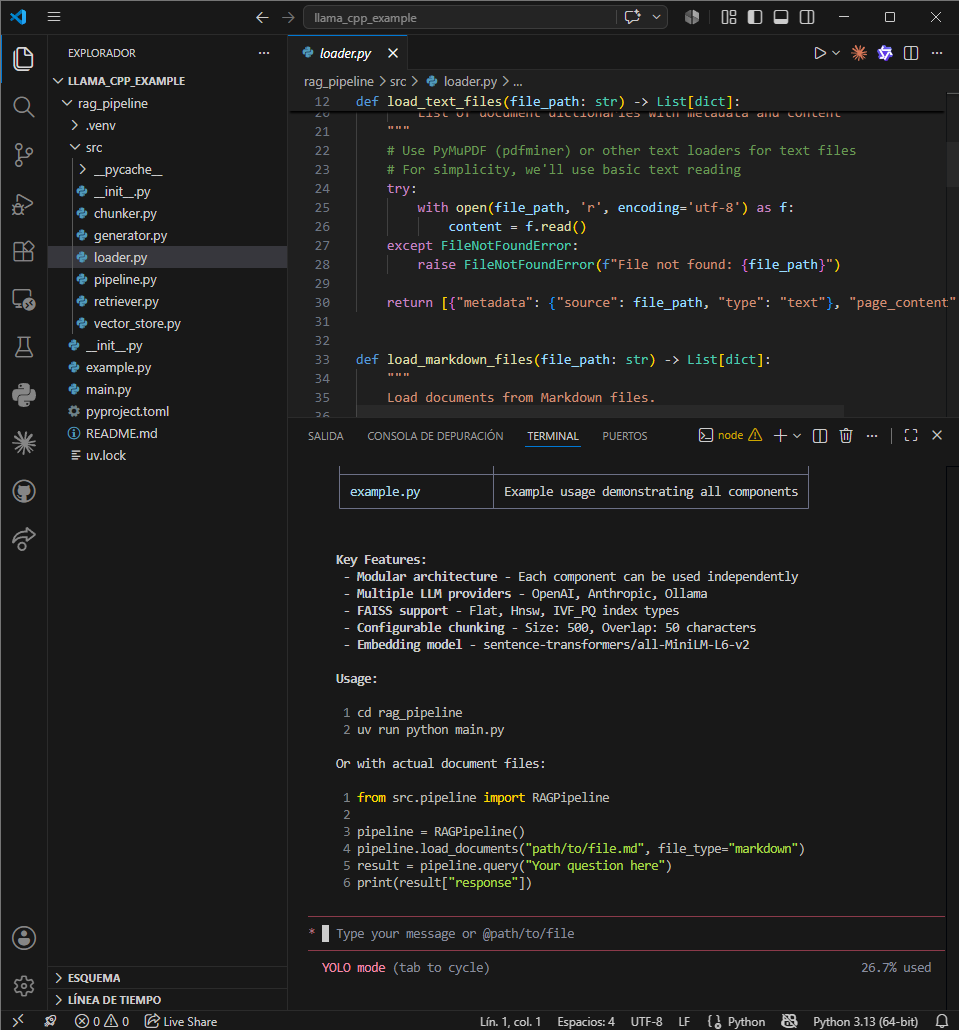
The Guided Assistant: Qwen Code
Qwen Code is fantastic when you want an interactive, visually appealing interface to build features step-by-step. It acts as a collaborative partner.
- How to use it: Open your terminal in your project folder, type
qwen, and switch to Yolo Mode. - Example Prompt: “Using uv for dependencies, write a Python script using LangChain and FAISS to set up a basic Retrieval-Augmented Generation (RAG) pipeline. Ensure the code is modular and well-commented.”
The Autonomous Developer: OpenCode
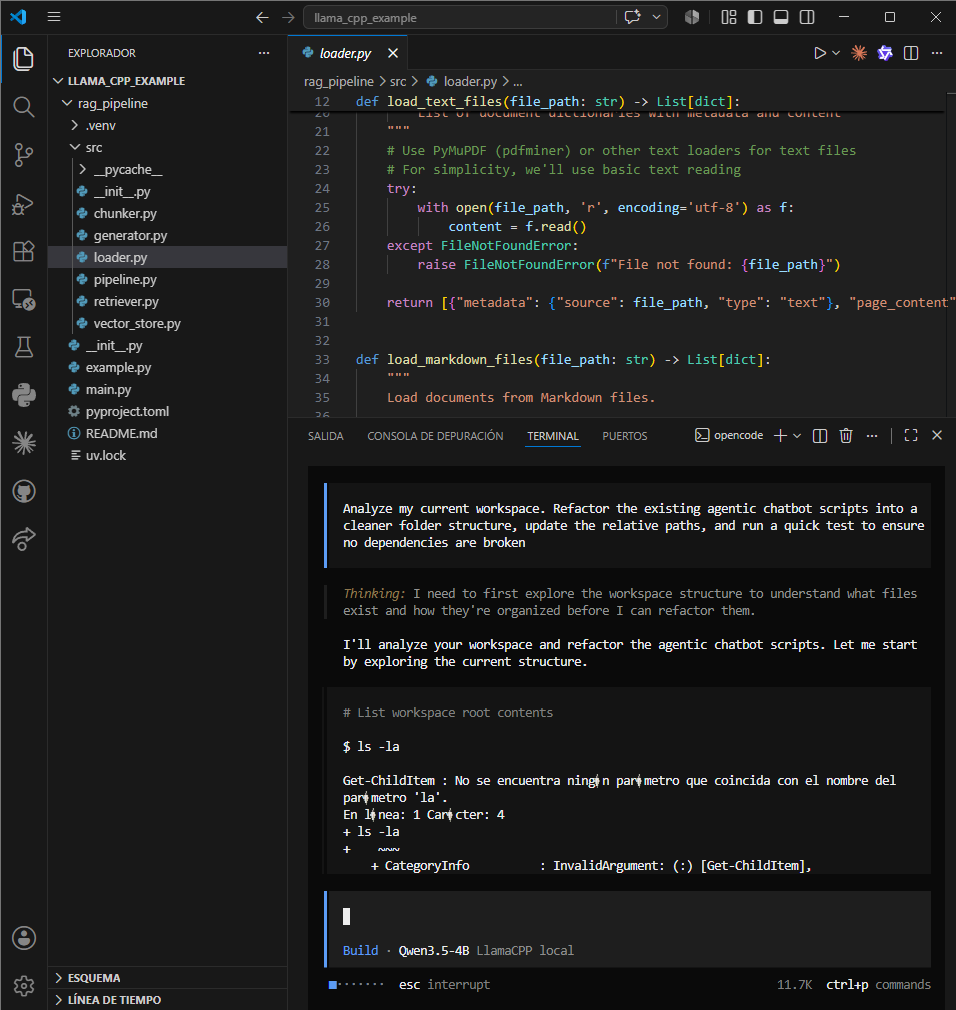
When you need an agent to take the wheel, manage multiple files, and handle complex workspace architecture, OpenCode is your heavy-duty tool.
- How to use it: Launch
opencodein your terminal and let it read your environment. - Example Prompt: “Analyze my current workspace. Refactor the existing agentic chatbot scripts into a cleaner folder structure, update the relative paths, and run a quick test to ensure no dependencies are broken.”
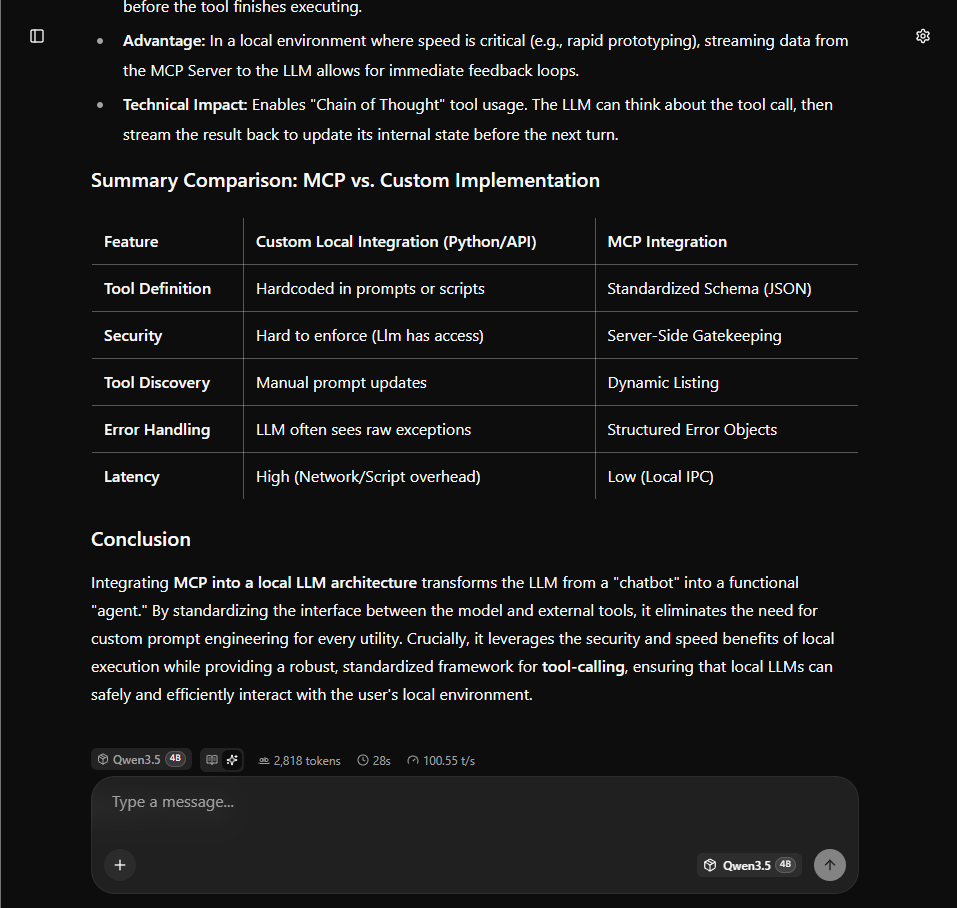
The Quick Sandbox: llama.cpp Web UI
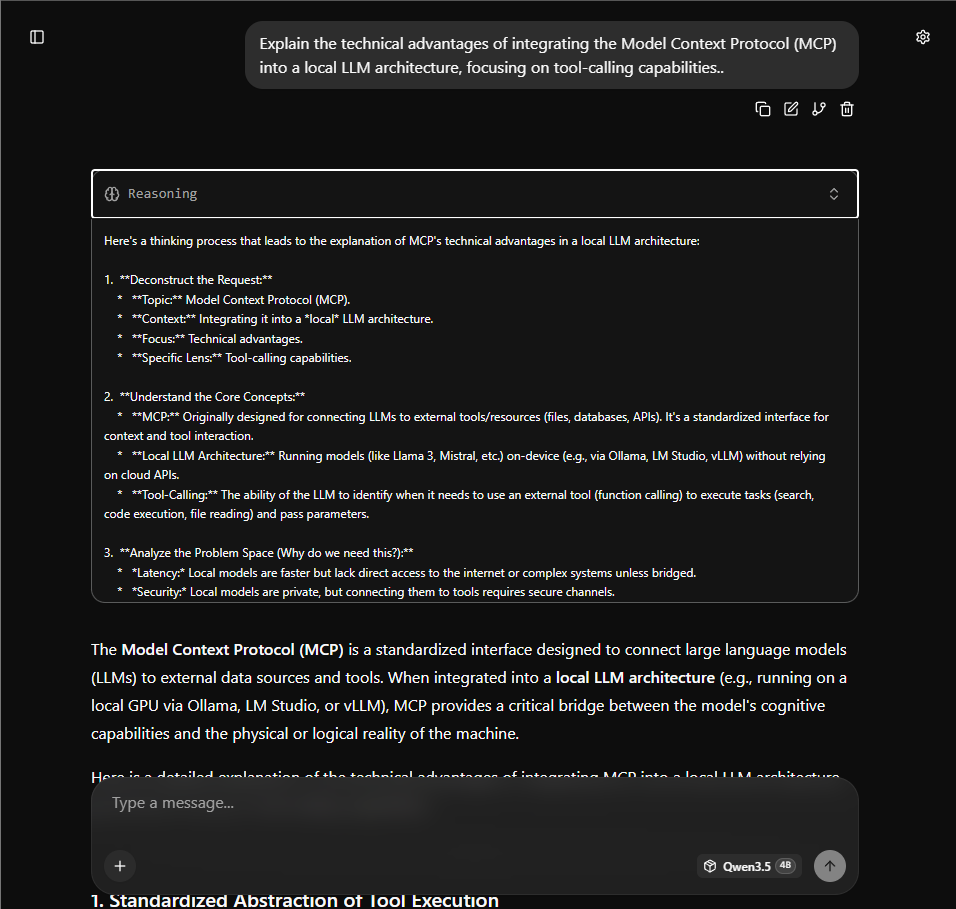
Sometimes you don’t need a coding agent; you just need a quick chat or want to test the model’s raw logic and generation speed. llama.cpp comes with a lightweight, built-in chat interface.
- How to use it: Open your web browser and navigate directly to
[http://127.0.0.1:8080/.](http://127.0.0.1:8080/.) - Example Prompt: “Explain the technical advantages of integrating the Model Context Protocol (MCP) into a local LLM architecture, focusing on tool-calling capabilities.”
Conclusion
Building a local AI coding agent is no longer a luxury reserved for massive server farms or expensive monthly subscriptions. As we have seen, combining lightweight open-weight models like Qwen 3.5-4B with the highly optimized engine of llama.cpp allows you to transform your personal computer into a private, autonomous development powerhouse.
Whether you prefer the collaborative, step-by-step nature of Qwen Code, the comprehensive architectural control of OpenCode, or just a quick sandbox chat, you now have a complete toolkit at your fingertips. You can build, refactor, and test complex applications while keeping your codebase entirely private and your wallet full.
Welcome to the era of local, uncompromised AI development.
Happy coding!
References
- unsloth/Qwen3.5–4B-GGUF · Hugging Face. (2026, May 18). Huggingface.Co. https://huggingface.co/unsloth/Qwen3.5-4B-GGUF
- Nichonauta. (18 de abril de 2026). [TUTORIAL] El Fin de la IA de Pago. YouTube. https://www.youtube.com/watch?v=ewuJcBoKhA4.
메타데이터
- post_id
- 826a8357b510
- slug
- build-local-ai-coding-agent-llama-cpp-826a8357b510
- url
- https://pub.towardsai.net/build-local-ai-coding-agent-llama-cpp-826a8357b510
- canonical_url
- https://pub.towardsai.net/build-local-ai-coding-agent-llama-cpp-826a8357b510
- author_url
- https://medium.com/@datpandx
- status
- ok
- fetched_at
- 2026-06-09 15:37:30