How to Add External Service Status Alerts to Google Chat
A practical guide for IT, DevOps, and support teams who rely on real-time visibility
How to Add External Service Status Alerts to Google Chat
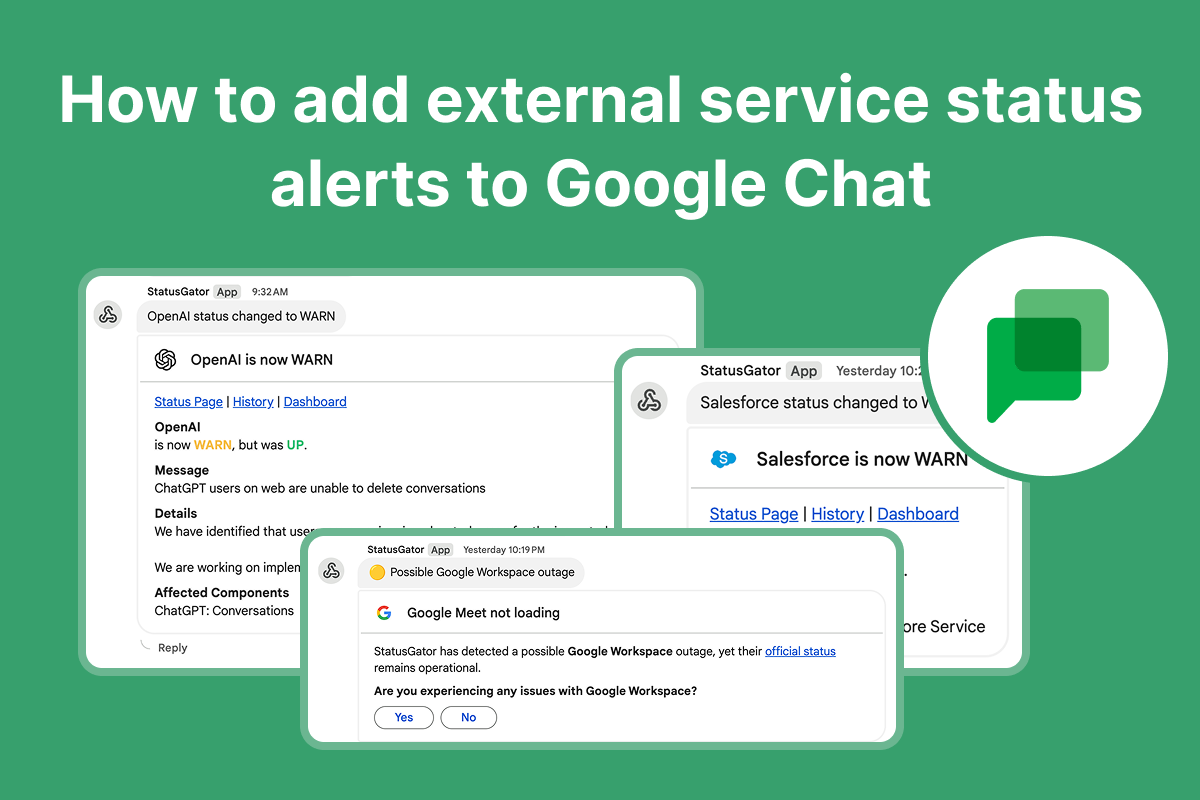
A practical guide for IT, DevOps, and support teams who rely on real-time visibility
When one of your critical SaaS tools slows down or goes offline, the last thing you want is to be hunting through vendor status pages to figure out what’s happening. Your team needs immediate visibility, right where you already work and communicate.
That’s where StatusGator’s Google Chat integration comes in. By connecting your StatusGator board to a Google Chat space, you can stream real-time service outage alerts, health updates, maintenance notifications, and even predictive Early Warning Signals directly into the conversations your team is already having.
Below, you’ll learn exactly how to set up the integration and why it’s becoming an essential tool for teams that rely on dozens of cloud services.
Why Add External Service Status Alerts to Google Chat?
Most organizations now depend on a growing list of SaaS providers, including Google Workspace, Zoom, Cloudflare, AWS, GitHub, Slack, Atlassian, and many more. When one of these services experiences an outage, your team typically finds out in one of three ways:
- A support ticket spike
- A frustrated message in Slack or Chat
- A manual check of a status page
All three methods are reactive. StatusGator flips this around by pushing automated, real-time alerts into Google Chat before downtime spreads across your organization.
Adding StatusGator alerts to Google Chat helps your team:
- Respond faster to incidents affecting your external dependencies
- Centralize monitoring in one communication hub
- Avoid app-switching during an outage
- Detect issues earlier with predictive signals
- Keep IT, engineering, and support aligned during service disruptions
It’s automated visibility, without extra dashboards or browser tabs.
How to Connect StatusGator to Google Chat
The integration relies on a simple incoming webhook, and the full setup takes only a few minutes.
Step-by-step setup guide
- Open Google Chat and navigate to the space where alerts should appear.
- Click the space name → Apps & Integrations → Webhooks.

- Create a new Incoming Webhook.

- Copy the Webhook URL generated by Google Chat.

-
In StatusGator, open your board and go to: Integrations → Chat → Add Google Chat
-
Paste the Webhook URL and select Save.

- Send a test alert to make sure everything is connected.

Your Google Chat space will now display real-time updates from all services monitored on your StatusGator board.
What You’ll See in Google Chat: Real-Time, Actionable Alerts
Once connected, StatusGator automatically posts updates the moment something changes with a monitored provider:
✔️ Instant outage notifications
For incidents, degraded performance, or unplanned downtime.
✔️ Maintenance reminders
So your team knows what’s scheduled before it happens.
✔️ Recovery and resolution updates
Ensuring everyone knows exactly when things return to normal.
These alerts appear directly in your chat thread, making it easy for teams to discuss, triage, and respond.
Early Warning Signals: Catch Problems Before They Hit Status Pages
One of the most valuable features of the integration is Early Warning Signals. These alerts are triggered by StatusGator’s anomaly detection system, which analyzes:
- API reliability
- Network behavior
- Latency anomalies
- Status data patterns
- Community reports
If the system detects early signs of trouble, your Google Chat space receives a proactive alert, often several minutes before the provider publishes anything.
Why this matters
Teams gain:
- More time to react
- Early insights during emerging incidents
- Better alignment during fast-moving outages
- Fewer surprises
- Reduced ticket volume from internal users
Early Warning Signals are turned on by default, but you can modify them:
- Per service: Monitor → Settings → Notifications
- Globally: Board Settings → Monitor Notifications
Route Alerts to Multiple Google Chat Spaces
If your organization has specialized teams, you can route alerts precisely where they’re needed:
- Engineering: infrastructure, cloud providers, CI/CD tools
- Support: helpdesk platforms, communication tools
- IT: authentication, email, productivity tools
Each StatusGator board connects to one Google Chat space. If you need alerts for more than one team, simply create additional boards and connect each one with its own webhook.
Updating or Changing Integrations Later
Your Google Chat integration can be adjusted at any time:
- Want to move alerts to a different space? Create a new webhook in Google Chat and replace the URL in StatusGator.
- Need to disconnect the integration? Remove it from your board’s Integrations page.
- Reconnecting after a channel change? Just re-create the webhook and re-add it.
Everything is flexible, so you can fine-tune your routing strategy as your team structure evolves.
Bring External Service Outage Alerts Into Your Google Chat Workflow
Adding StatusGator alerts to Google Chat gives your team an always-on, real-time view of the services you depend on most. With instant notifications, proactive warnings, and centralized visibility, your communication space becomes a lightweight incident command center.
If your team relies on Google Chat and wants to reduce the chaos of unexpected outages, this integration is one of the fastest wins you can implement.
Set it up once — and never miss a critical outage again.
메타데이터
- post_id
- 832da7bd1e6e
- slug
- how-to-add-external-service-status-alerts-to-google-chat-832da7bd1e6e
- url
- https://medium.com/@cbartlett/how-to-add-external-service-status-alerts-to-google-chat-832da7bd1e6e
- canonical_url
- https://medium.com/@cbartlett/how-to-add-external-service-status-alerts-to-google-chat-832da7bd1e6e
- author_url
- https://medium.com/@cbartlett
- status
- ok
- fetched_at
- 2026-07-08 04:56:24