Extract Text from Screenshots with an OCR API
Screenshots are everywhere in developer workflows. Error logs from a terminal, metrics from a dashboard, text from a chat conversation, UI…
Extract Text from Screenshots with an OCR API
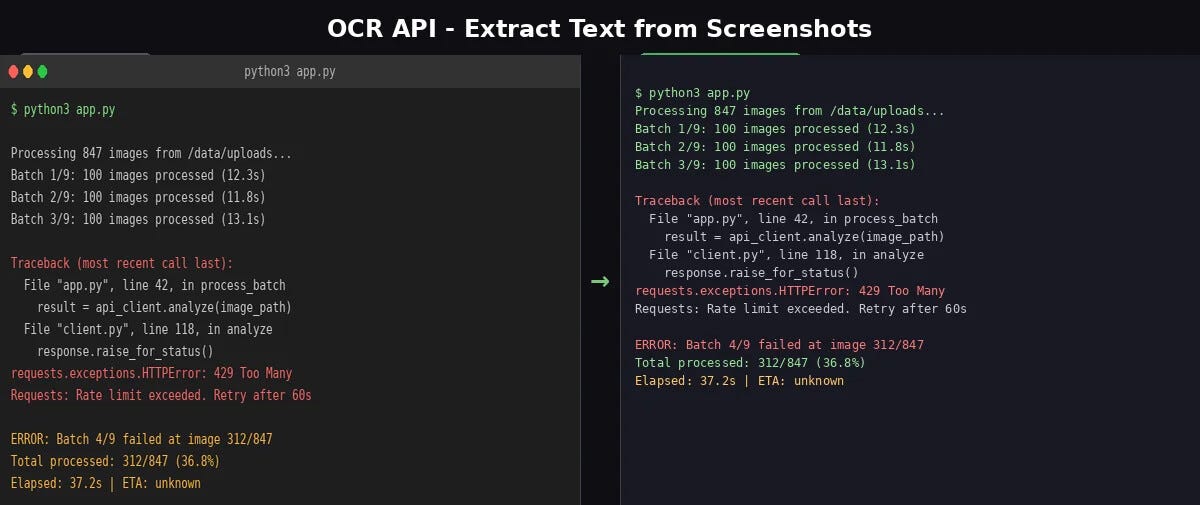
Screenshots are everywhere in developer workflows. Error logs from a terminal, metrics from a dashboard, text from a chat conversation, UI copy from a design mockup. The text inside those images is useful, but it’s trapped in pixels. An OCR API can extract it in a single HTTP call.
Want to test it? Try the OCR Wizard API on your own screenshots.
Why Not Tesseract?
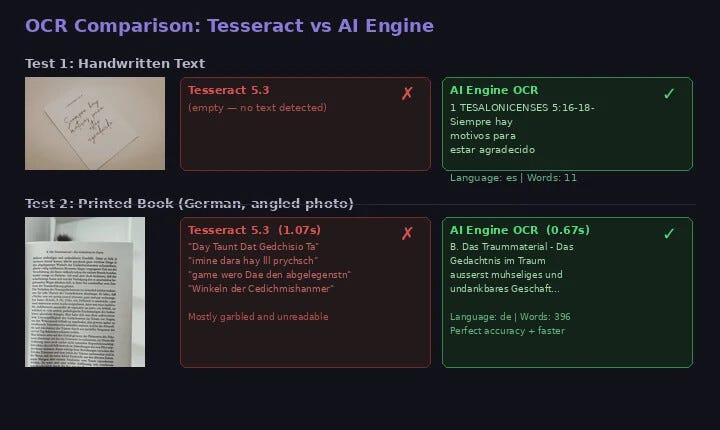
Tesseract is the go-to open-source OCR engine, but it struggles with screenshots. Colored backgrounds, UI elements, and non-standard fonts confuse it. Some developers add GPT on top just to clean up Tesseract’s noisy output. That’s two API calls, a local install, and extra latency. A cloud OCR API handles screenshots natively: send the image, get back clean text.
Extracting Text in Python
import requestsurl = "https://ocr-wizard.p.rapidapi.com/ocr"
headers = {
"x-rapidapi-host": "ocr-wizard.p.rapidapi.com",
"x-rapidapi-key": "YOUR_API_KEY",
}with open("screenshot.png", "rb") as f:
response = requests.post(url, headers=headers, files={"image": f})data = response.json()
print(data["body"]["fullText"])Here’s the real output from calling the API on the terminal screenshot above:
$ python3 app.py
Processing 847 images from /data/uploads...
Batch 1/9: 100 images processed (12.3s)
Batch 2/9: 100 images processed (11.8s)
Batch 3/9: 100 images processed (13.1s)
Traceback (most recent call last):
  File "app.py", line 42, in process_batch
    result = api_client.analyze(image_path)
  File "client.py", line 118, in analyze
    response.raise_for_status()
requests.exceptions.HTTPError: 429 Too Many
Requests: Rate limit exceeded. Retry after 60s
ERROR: Batch 4/9 failed at image 312/847
Total processed: 312/847 (36.8%)
Elapsed: 37.2s | ETA: unknown
Every word captured, including the traceback, error code (429), file names, line numbers, and progress stats.
Handling Different Screenshot Types
- Terminal and error logs — High contrast, monospaced text. OCR handles these well. Line breaks preserved, so you can parse stack traces or grep for error codes.
- Dashboards and analytics — Numbers mixed with labels, charts, colored backgrounds. The API extracts text elements and skips graphical parts.
- Chat conversations — Slack, Discord, WhatsApp. Usernames, timestamps, and message bodies in top-to-bottom order. Useful for archiving or extracting action items.
- UI mockups — Figma designs or web pages. Extract button labels, headings, body text for QA spec verification.
See the full tutorial with cURL and JavaScript examples in the complete screenshot OCR guide.
Structuring Extracted Text with GPT
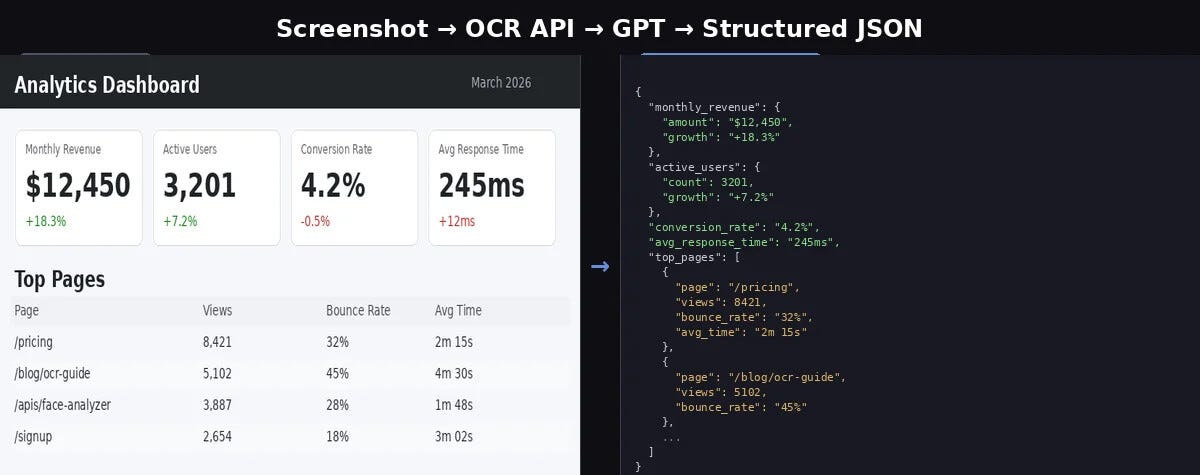
The OCR gives you raw text. Sometimes you need structured data. Combine it with GPT-4o mini to go from pixels to JSON in two API calls.
import requests
from openai import OpenAI
# Step 1: OCR
ocr_url = "https://ocr-wizard.p.rapidapi.com/ocr"
ocr_headers = {
"x-rapidapi-host": "ocr-wizard.p.rapidapi.com",
"x-rapidapi-key": "YOUR_API_KEY",
}with open("dashboard_screenshot.png", "rb") as f:
ocr_response = requests.post(ocr_url, headers=ocr_headers, files={"image": f})raw_text = ocr_response.json()["body"]["fullText"]# Step 2: Structure with GPT-4o mini
client = OpenAI()
completion = client.chat.completions.create(
model="gpt-4o-mini",
messages=[
{"role": "system", "content": "Extract structured data from the following text. Return valid JSON only."},
{"role": "user", "content": raw_text},
],
)print(completion.choices[0].message.content)Real GPT-4o mini output from the dashboard screenshot:
{
  "monthly_revenue": { "amount": "$12,450", "growth_rate": "+18.3%" },
  "active_users": { "count": 3201, "growth_rate": "+7.2%" },
  "conversion_rate": "4.2%",
  "avg_response_time": { "time": "245ms", "change": "+12ms" },
  "top_pages": [
    { "page": "/pricing", "views": 8421, "bounce_rate": "32%", "avg_time": "2m 15s" },
    { "page": "/blog/ocr-guide", "views": 5102, "bounce_rate": "45%", "avg_time": "4m 30s" },
    { "page": "/apis/face-analyzer", "views": 3887, "bounce_rate": "28%", "avg_time": "1m 48s" },
    { "page": "/signup", "views": 2654, "bounce_rate": "18%", "avg_time": "3m 02s" }
  ]
}
GPT paired each metric with its value, converted the table into an array, and typed the numbers as integers. The same approach works for error logs, chat messages, or any semi-structured screenshot.
Tips
- Use PNG for screenshots (lossless). JPG compression adds artifacts that reduce OCR accuracy
- Crop before sending if you only need text from one part of the screenshot
- Use the
annotationsarray for layout-aware extraction (word-level bounding boxes) - Multi-language works automatically, check the
detectedLanguagefield - For QA automation, combine Playwright screenshots with OCR to assert visible text without brittle CSS selectors
Read the full guide with QA automation pipeline, JavaScript examples, and error log parsing on ai-engine.net.
Originally published at ai-engine.net
메타데이터
- post_id
- 841825ffafce
- slug
- extract-text-from-screenshots-with-an-ocr-api-841825ffafce
- url
- https://medium.com/@ai-engine/extract-text-from-screenshots-with-an-ocr-api-841825ffafce
- canonical_url
- https://medium.com/@ai-engine/extract-text-from-screenshots-with-an-ocr-api-841825ffafce
- author_url
- https://medium.com/@ai-engine
- status
- ok
- fetched_at
- 2026-06-09 15:37:30