How to Add the Benzene Network System (BNS) Token to MetaMask (Polygon Network)
How to Add the Benzene Network System (BNS) Token to MetaMask (Polygon Network)
If you've purchased or received Benzene Network System (BNS) tokens, you may not see them in your MetaMask wallet automatically.
This is completely normal. MetaMask only displays tokens that have been added to your wallet.
In this guide, you'll learn how to add the Benzene Network System (BNS) token to MetaMask in just a few minutes.
Before You Begin
Make sure you have:
- MetaMask installed on your mobile device.
- An internet connection.
- The official BNS token contract address:
BNS Contract Address
"0x1a19990ABe96e742B302BbB60968232D97F2dfD6"
«Important: Always copy the contract address from an official Benzene Network System source. Never use a contract address shared by unknown people, as fake tokens are common in the crypto ecosystem.»
Step 1 — Open MetaMask
Launch the MetaMask app on your smartphone.
If you have multiple accounts, select the wallet where you want to view your BNS tokens.
Step 2 — Go to the Tokens Tab
At the bottom of the wallet screen, tap Tokens.
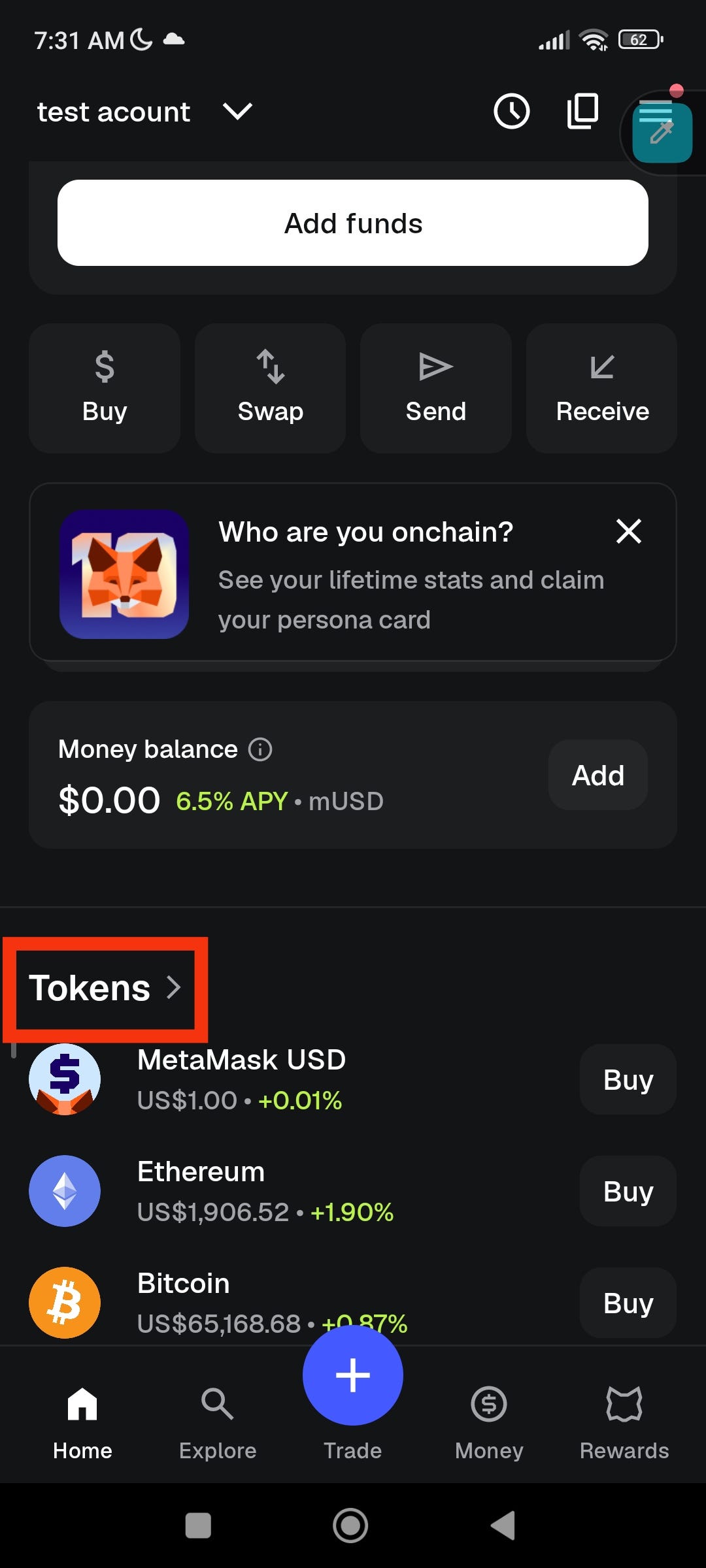
This page displays all the cryptocurrencies that are currently visible in your wallet.
Step 3 — Open Popular Networks
Tap Popular Networks.
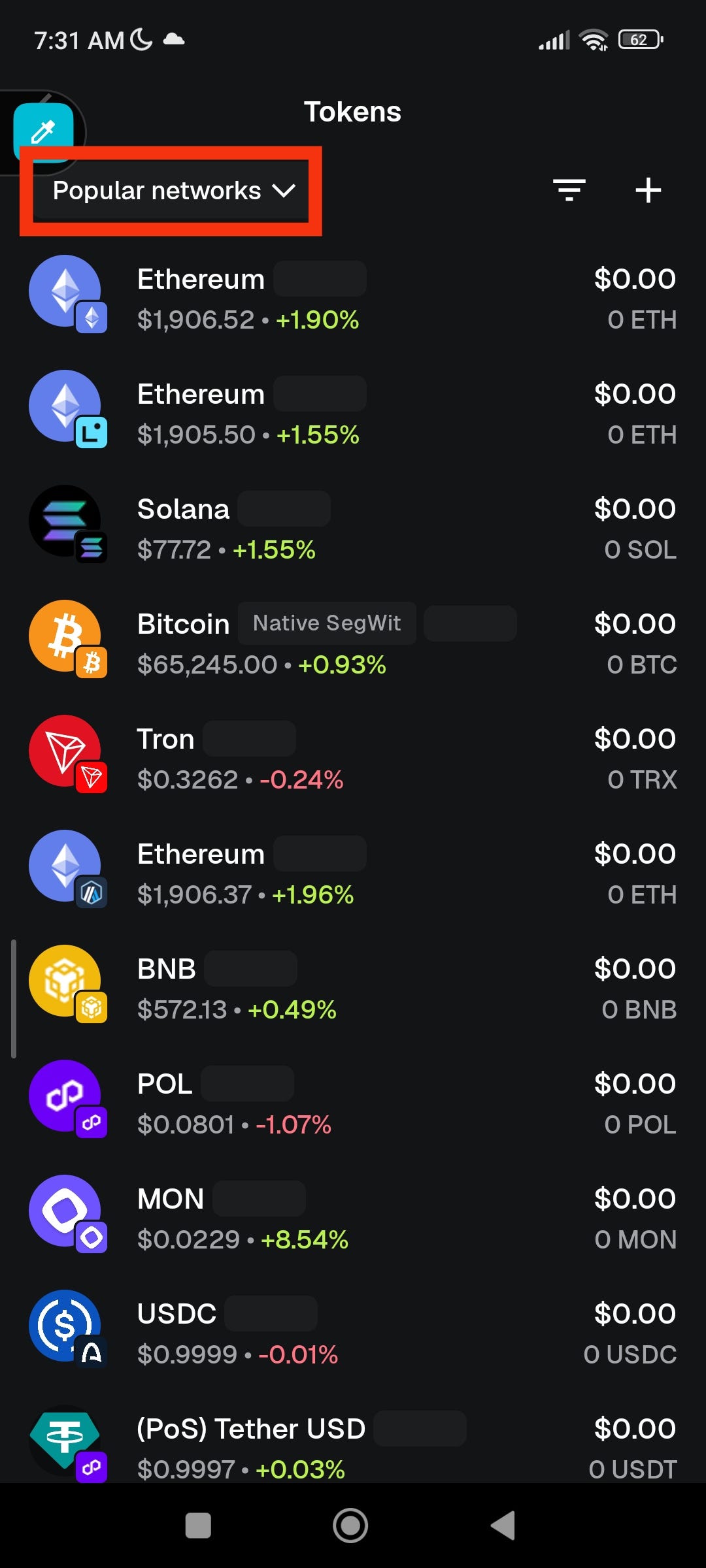
MetaMask will display a list of blockchain networks that it supports.
Step 4 — Select Polygon
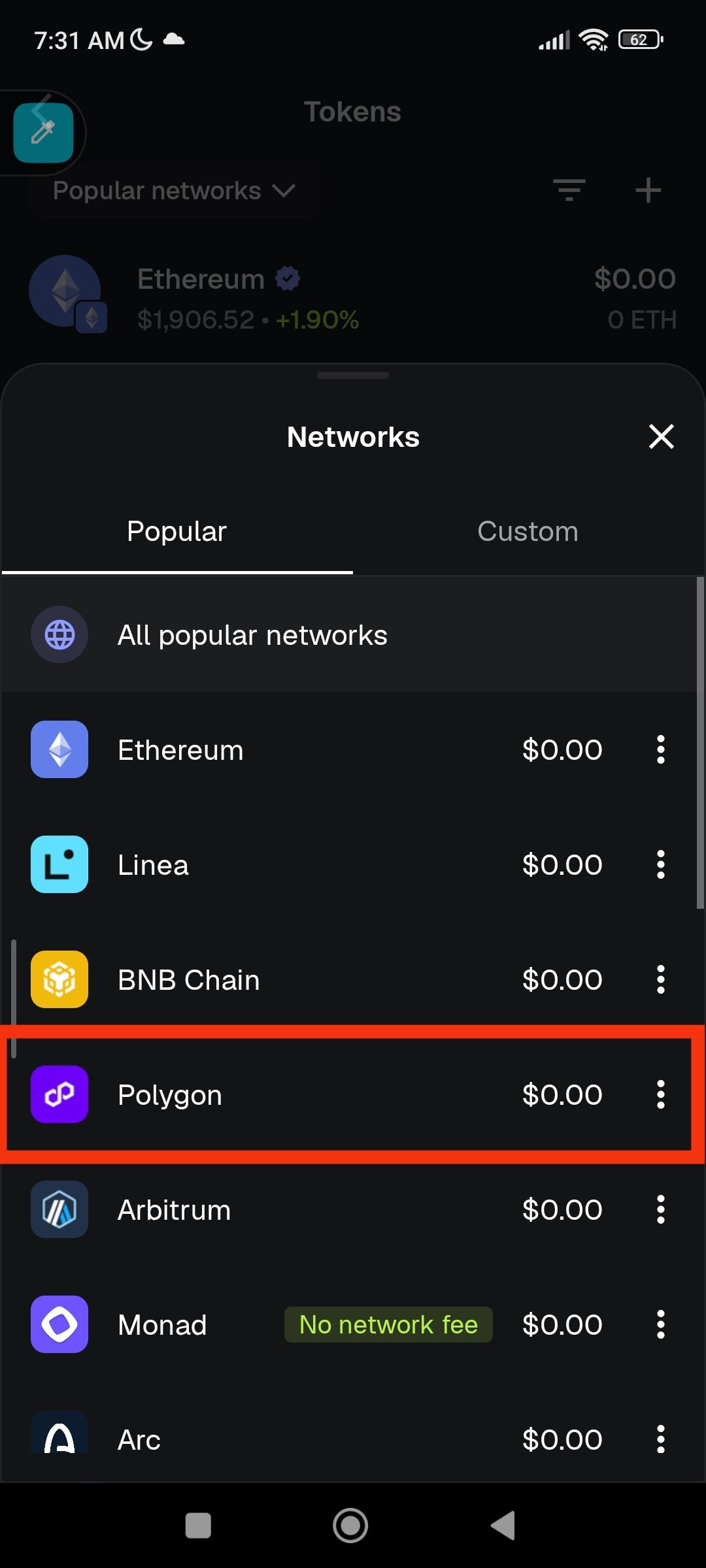
Choose Polygon from the list.
The Benzene Network System token exists on the Polygon blockchain, so you'll need to add the token while using this network.
Step 5 — Tap the "+" Button
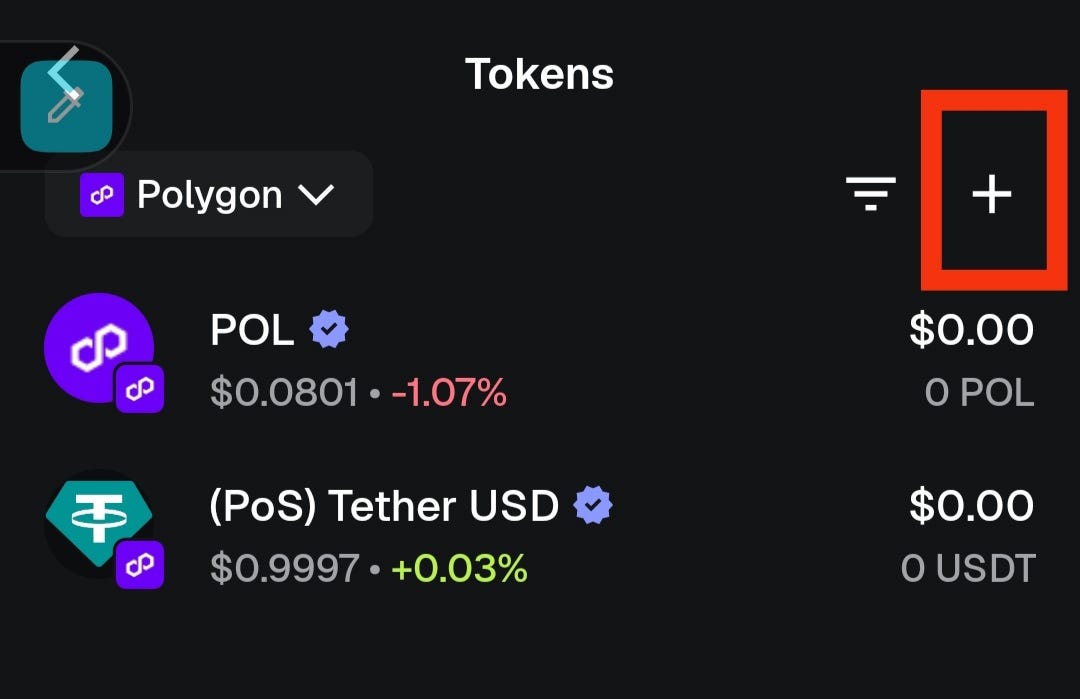
Look for the + (Add Token) button and tap it.
MetaMask will ask how you would like to add a token.
Step 6 — Choose "Custom Token"
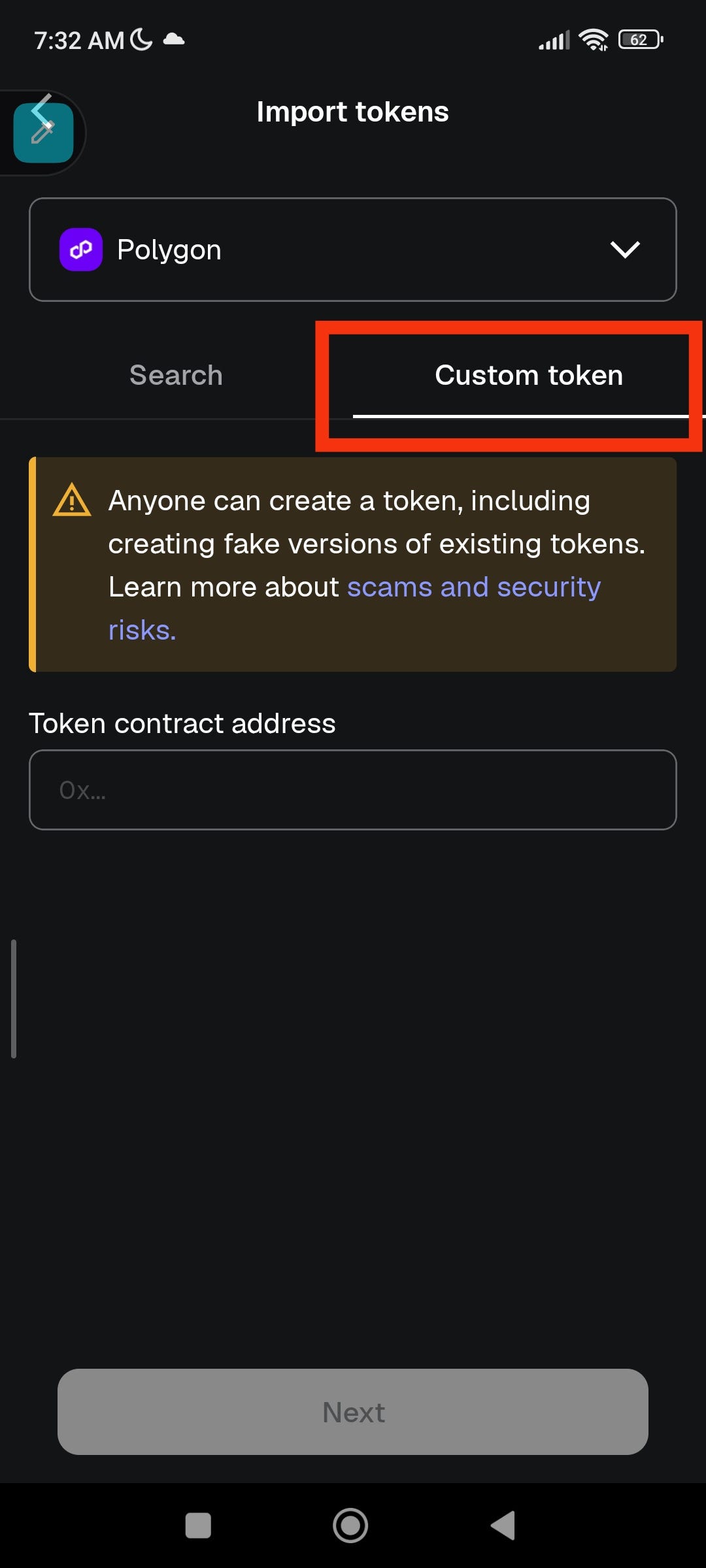
Select Custom Token.
This option allows you to manually add any ERC-20 compatible token on the Polygon network.
Step 7 — Paste the BNS Contract Address
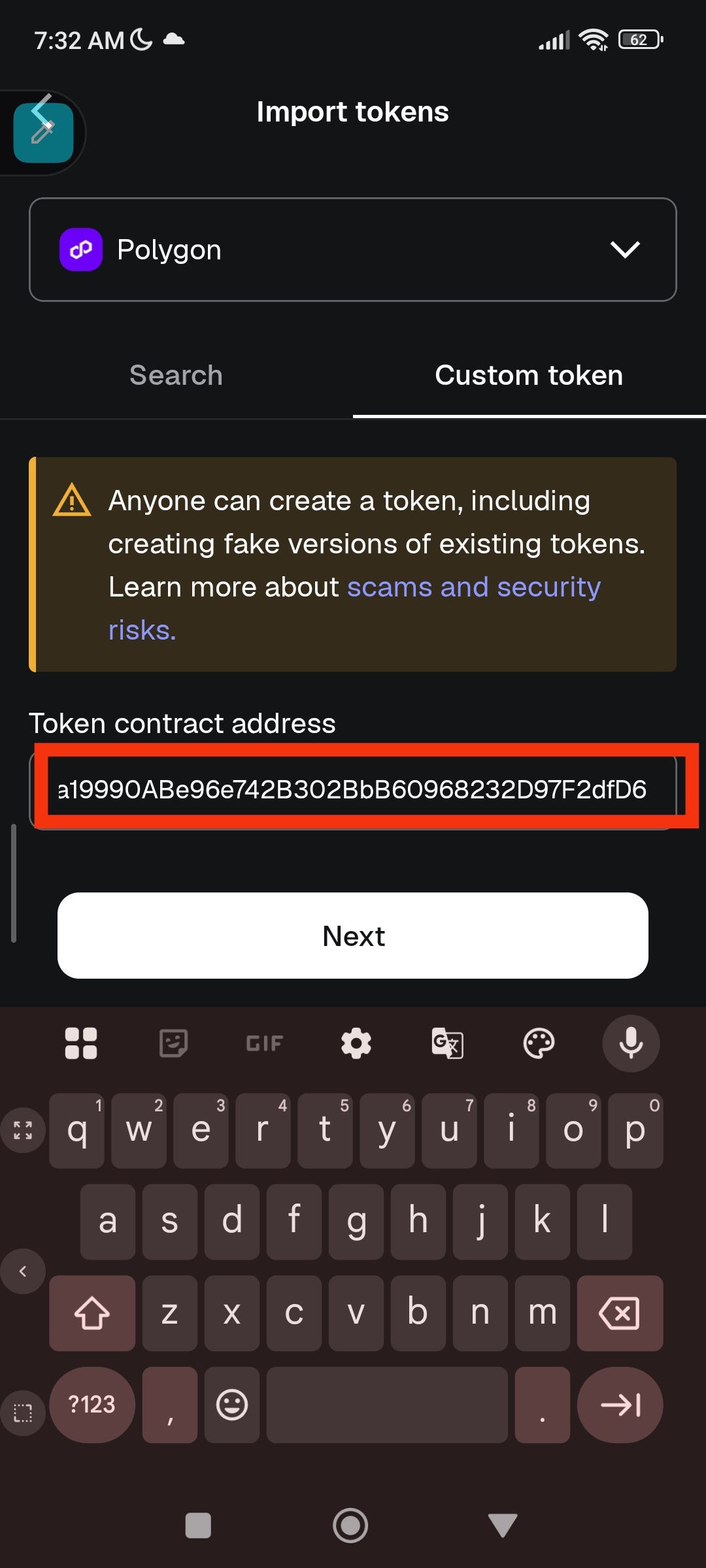
Copy and paste the official BNS contract address:
"0x1a19990ABe96e742B302BbB60968232D97F2dfD6"
After pasting it, tap Next.
MetaMask should automatically recognize the token information.
Step 8 — Import the Token
Tap Import.
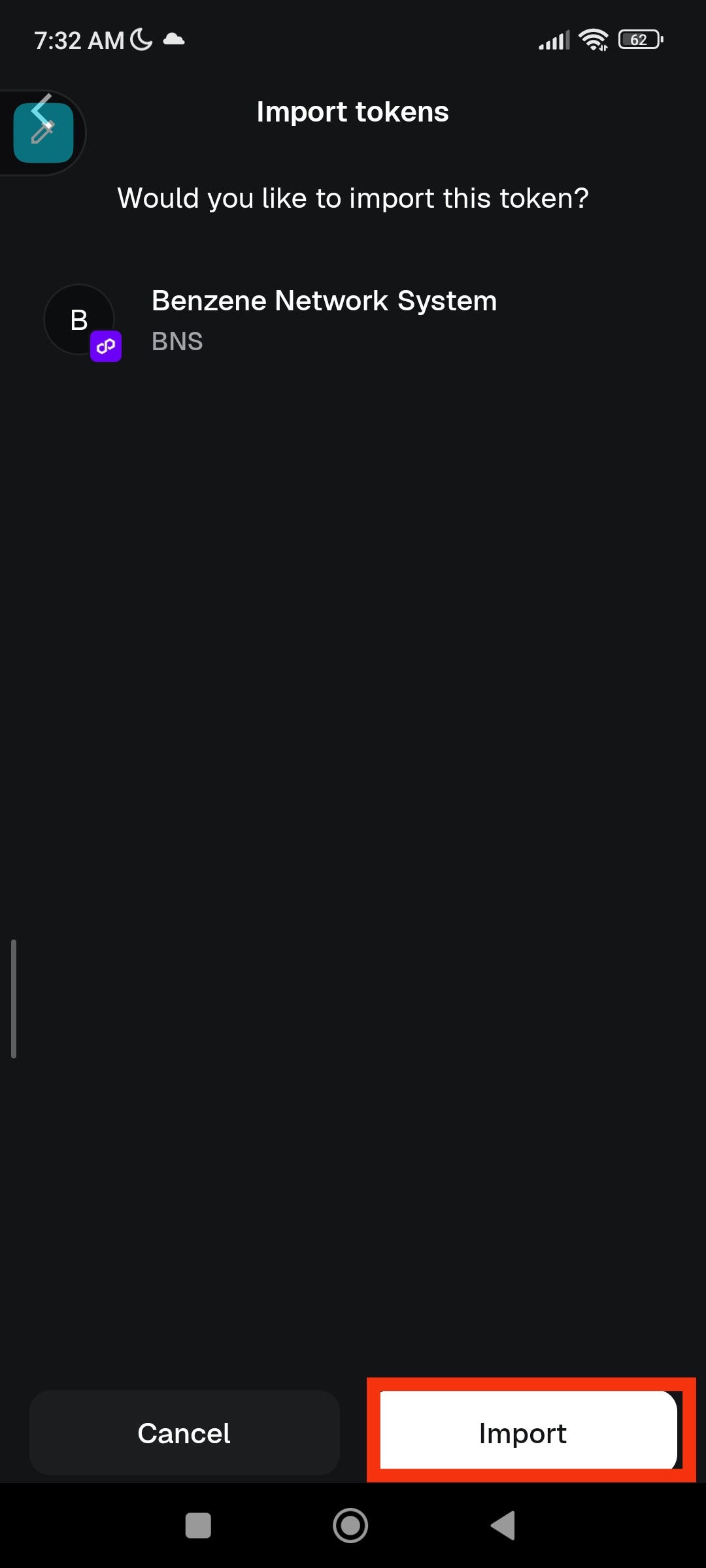
MetaMask will now add Benzene Network System (BNS) to your wallet.
Step 9 — Verify the Token
Return to your Tokens list.
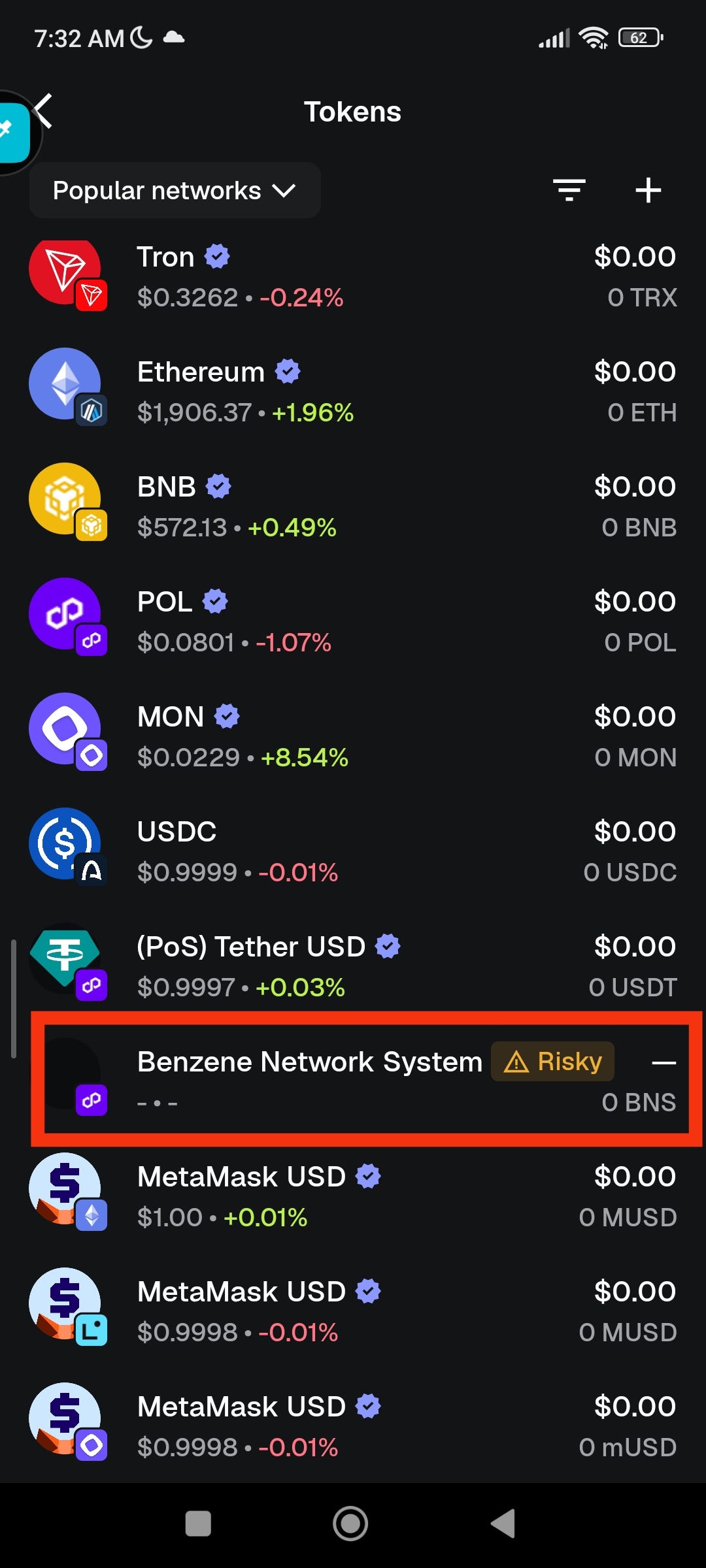
You should now see Benzene Network System (BNS) among your assets.
If your wallet already contains BNS tokens, your balance will now be displayed automatically.
Troubleshooting:
I don't see my BNS balance.
Check the following:
- You're connected to the Polygon network.
- You imported the correct contract address.
- The tokens were actually sent to your wallet address.
- Give the blockchain a few moments if the transaction was very recent.
MetaMask says the token cannot be found.
Verify that you pasted the contract address exactly as shown below:
"0x1a19990ABe96e742B302BbB60968232D97F2dfD6"
Even a single incorrect character will prevent MetaMask from finding the token.
Security Tips
- Never share your Secret Recovery Phrase with anyone.
- Never send your wallet's private key to anyone.
- Only use the official BNS contract address.
- Ignore messages from people claiming they can "unlock" or "recover" your tokens.
Conclusion:
Adding the Benzene Network System (BNS) token to MetaMask is a simple one-time process. Once imported, BNS will remain visible in your wallet, allowing you to monitor your balance and receive future transfers on the Polygon network.
Official BNS Contract Address:
"0x1a19990ABe96e742B302BbB60968232D97F2dfD6"
After completing these steps, simply return to your Tokens page, and Benzene Network System (BNS) should appear in your wallet.
메타데이터
- post_id
- 87f6ec1ee473
- slug
- how-to-add-the-benzene-network-system-bns-token-to-metamask-polygon-network-87f6ec1ee473
- url
- https://medium.com/@benzenenetwork/how-to-add-the-benzene-network-system-bns-token-to-metamask-polygon-network-87f6ec1ee473
- canonical_url
- https://medium.com/@benzenenetwork/how-to-add-the-benzene-network-system-bns-token-to-metamask-polygon-network-87f6ec1ee473
- author_url
- https://medium.com/@benzenenetwork
- status
- ok
- fetched_at
- 2026-07-31 09:22:26