How to Split a PDF Into Separate Files: A Simple Guide to Extracting PDF Pages
Large PDF documents are useful when everything needs to stay together, but sometimes you only need a few pages from a much larger file.
How to Split a PDF Into Separate Files: A Simple Guide to Extracting PDF Pages
Large PDF documents are useful when everything needs to stay together, but sometimes you only need a few pages from a much larger file.
Maybe you have a 100-page report but only need pages 20–25. Perhaps you received a scanned document containing several sections and want to separate them. Or you need to send one chapter of a PDF without sharing the entire document.
In these situations, a PDF splitter can save time.
A PDF splitting tool allows you to divide a large PDF into smaller documents or extract selected pages from an existing file. Instead of manually recreating documents or using complicated software, you can use an online PDF tool directly from your browser.
In this guide, we’ll explain how to split PDF files online, when you should use a PDF splitter, and how to organize your extracted pages.
What Is a PDF Splitter?
A PDF splitter is a tool that divides a PDF document into separate files or extracts specific pages from a larger PDF.
For example, suppose you have a 50-page PDF containing:
- Introduction
- Chapter 1
- Chapter 2
- Chapter 3
- Appendix
- References
If you only need Chapter 2, splitting the PDF can allow you to work with the relevant pages separately.
This can make large documents easier to share, store, print, and manage.
Why Would You Need to Split a PDF?
There are many everyday situations where splitting a PDF is useful.
1. Extract Specific Pages
One of the most common reasons to split a PDF is to extract only the pages you need.
For example, a 200-page report might contain a five-page section that you need to send to a colleague.
Instead of sending the entire report, you can extract those pages into a separate PDF.
2. Reduce Unnecessary Information
Sometimes a document contains information that isn’t relevant to the person receiving it.
Splitting a PDF allows you to create a smaller document containing only the appropriate pages.
This can make sharing information more convenient.
3. Separate Chapters
Students, teachers, and researchers often work with large educational documents.
If you only need one chapter from a textbook or research document, you can separate those pages into their own PDF.
4. Organize Scanned Documents
Scanners sometimes create a single PDF containing many unrelated pages.
For example, you might scan several receipts, forms, certificates, and invoices together.
Splitting the resulting PDF can help separate these documents into individual files.
5. Share Smaller Documents
Large PDFs can be inconvenient to upload or send.
If you only need a small section, splitting the document can create a more manageable file.
How to Split a PDF Online
One of the easiest ways to split a PDF online is to use a browser-based PDF splitter.
You can use the PDFKRAFTS PDF Split tool to access a dedicated PDF-splitting workflow.
The basic process is straightforward.
Step 1: Open the PDF Split Tool
Start by opening the PDF Split tool.
You can access it here:
**Split PDF Online with PDFKRAFTS**
This gives you a dedicated place to work with the PDF instead of installing separate desktop software.
Step 2: Upload Your PDF
Select the PDF document you want to split.
Before uploading, make sure you have the correct document, especially if you are working with multiple versions of the same file.
For large documents, the upload time can depend on your internet connection and the size of the PDF.
Step 3: Select the Pages You Need
Determine which pages should be extracted or separated.
For example, if you need pages 10 through 15 from a 50-page document, select that range according to the options provided by the tool.
If you need several separate sections, carefully check the page numbers before continuing.
Step 4: Split the PDF
Start the splitting process once your pages or ranges have been selected.
The tool processes the document and creates the resulting PDF file or files.
Step 5: Download and Check the Result
After processing is complete, download the resulting PDF.
Open it and check:
- Page order
- Number of pages
- Text
- Images
- Page orientation
- Formatting
This is particularly important when the extracted document will be used for an application, assignment, business report, or official submission.
Split PDF vs. Extract PDF Pages
You may see different terminology when searching for PDF tools.
“Split PDF” and “extract PDF pages” are closely related, but they can describe slightly different workflows.
Splitting a PDF generally means dividing a larger document into smaller documents or sections.
Extracting PDF pages usually means taking selected pages from an existing document and creating a new PDF from them.
For example:
Original: 100-page PDF
Split/extracted document: Pages 25–35
The result is a smaller PDF containing only the pages you need.
How to Split a PDF Into Multiple Files
Sometimes you don’t want just one section.
You may want to divide a large document into several smaller PDFs.
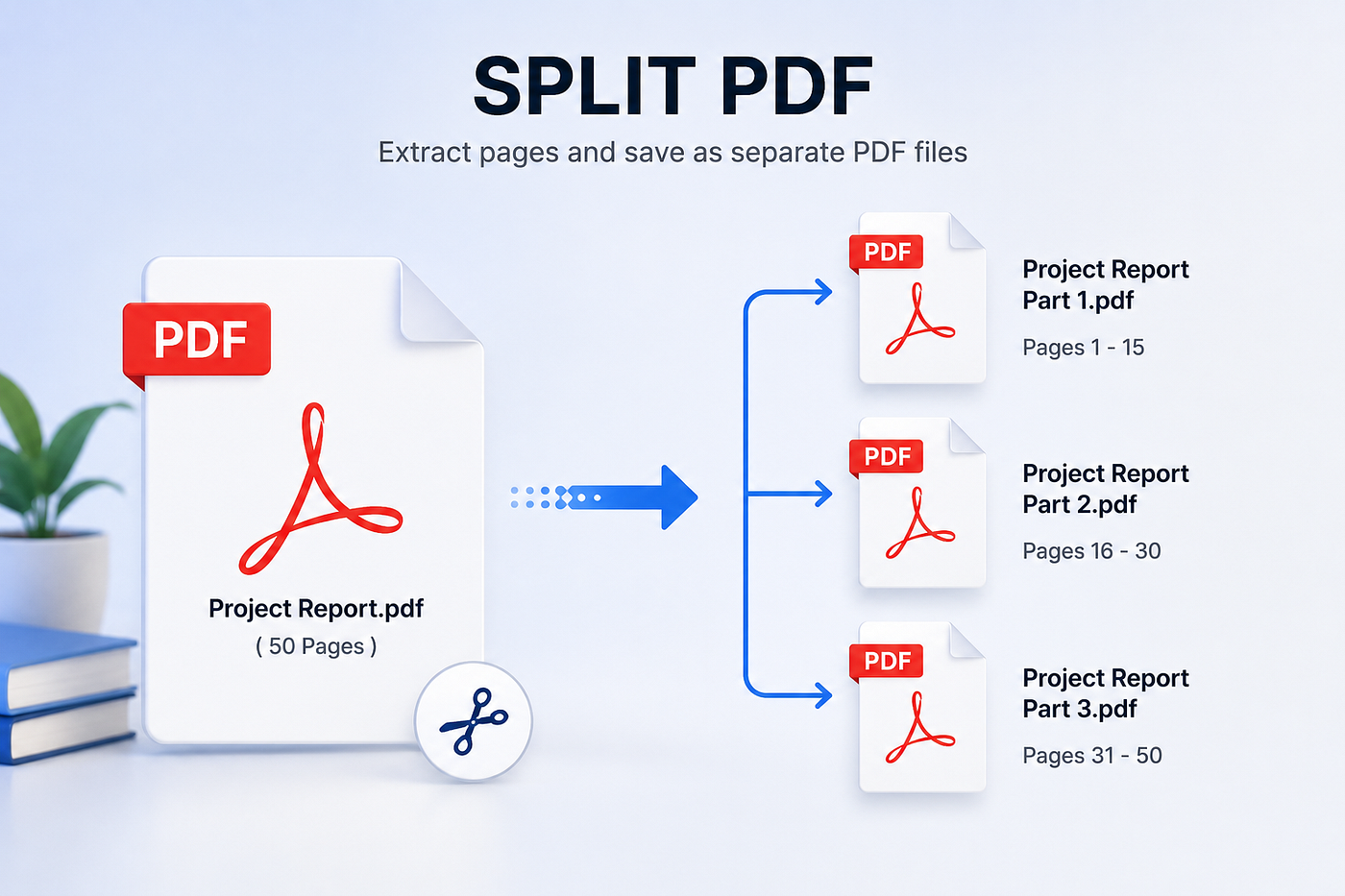
For example, a 60-page business report could be organized into:
- PDF 1 — Pages 1–15
- PDF 2 — Pages 16–30
- PDF 3 — Pages 31–45
- PDF 4 — Pages 46–60
This can be useful when different sections need to be sent to different people.
The exact splitting options depend on the PDF tool you are using, so always review the available controls before processing your document.
Can You Split a PDF Without Installing Software?
Yes.
Online PDF tools allow you to perform many common PDF tasks directly from a web browser.
This can be convenient if you are using a computer where you don’t have permission to install applications or if you only need to split a document occasionally.
A browser-based workflow can be as simple as:
Upload → Select Pages → Split → Download
For occasional PDF tasks, this can be more convenient than installing a dedicated application.
Tips for Splitting PDF Files Correctly
A few simple checks can help you avoid mistakes.
Check the Page Numbers
Always verify the page numbers before splitting.
Some PDFs have printed page numbers that don’t match the actual PDF page count.
For example, the first page of a document might be labeled “Page 1,” while the PDF viewer considers it page 3 because of a cover and contents page.
Preview the Document
If possible, preview the pages you want to extract before processing the PDF.
This reduces the chance of accidentally selecting the wrong section.
Keep the Original PDF
Don’t delete the original document immediately.
Keep a copy until you’ve confirmed that the extracted or split PDFs contain everything you need.
Use Clear File Names
After splitting a document, use meaningful names such as:
Chapter-1.pdf
Chapter-2.pdf
Invoices-January.pdf
Project-Appendix.pdf
Clear names make future document management much easier.
What About Large PDF Files?
Large PDF files can sometimes be difficult to upload, share, or store.
Splitting a large PDF into smaller sections can make individual files easier to handle.
However, splitting a document does not necessarily reduce the total amount of information contained in it. If your primary goal is to reduce file size, you may also want to consider using a PDF compression tool.
For example:
Split PDF → Extract relevant pages → Compress the resulting PDF if necessary
This workflow can be useful when a website has a strict upload-size limit.
Common PDF Splitting Problems
Wrong Pages Were Selected
Always double-check your page range before processing.
Pages Are in the Wrong Order
Review the resulting PDF to make sure the pages appear in the intended sequence.
The PDF Is Password Protected
Some PDFs have restrictions that may prevent certain operations. If you own the document or have permission to modify it, you may need the appropriate password or authorization.
The Resulting File Is Still Large
If the extracted PDF contains high-resolution images or scans, it may still be large. Compression may help reduce its file size.
Scanned PDFs
Splitting a scanned PDF separates its pages, but it doesn’t automatically make the text editable. If you need to edit text inside a scanned document, an OCR tool may be required.
Who Can Benefit From a PDF Splitter?
A PDF splitter can be useful for almost anyone who regularly works with digital documents.
Students
Students can extract chapters, assignment sections, or specific pages from large academic documents.
Teachers
Teachers can separate individual worksheets, reading materials, or sections from larger PDFs.
Businesses
Companies can divide reports, invoices, contracts, and supporting documents into smaller files.
Freelancers
Freelancers can extract relevant pages from proposals, portfolios, and project documents before sending them to clients.
Researchers
Researchers working with long reports and academic documents can extract only the pages relevant to their work.
Frequently Asked Questions
Can I split a PDF into separate pages?
Yes. Depending on the tool, you can divide a PDF into individual pages or selected sections.
Can I extract specific pages from a PDF?
Yes. A PDF splitter can be used to extract selected pages from a larger document.
Can I split a PDF online for free?
Some online PDF tools offer free PDF-splitting functionality, although available limits and features can vary between services.
Does splitting a PDF delete the original?
No. Splitting creates new output files. You should still keep the original PDF until you have confirmed that the new files are correct.
Can I split a PDF on my phone?
Browser-based PDF tools can also be useful on smartphones and tablets, depending on the device, browser, file size, and available storage.
Does splitting a PDF reduce its quality?
Splitting primarily separates pages rather than intentionally reducing their quality. However, the exact output can depend on the processing method used by the tool.
Final Thoughts
Knowing how to split a PDF is a useful skill whenever you work with large or complicated documents.
Whether you need to extract a few pages from a report, separate scanned documents, divide a textbook into chapters, or create smaller files for sharing, a PDF splitter can make the process much easier.
Instead of keeping a large document when you only need a small section, you can extract the relevant pages and create a focused PDF.
If you’re looking for a straightforward way to split PDF files online, you can try the PDFKRAFTS PDF Split tool.
Before sharing the final document, always check the page range, order, formatting, and file size. A quick review helps ensure that the PDF contains exactly what you intended to extract.
split PDF, split PDF online, PDF splitter, split PDF files, extract PDF pages
split PDF into multiple files, extract pages from PDF, separate PDF pages, split large PDF, PDF page extractor, online PDF tools, split PDF for free
메타데이터
- post_id
- 88e6cec84aa2
- slug
- how-to-split-a-pdf-into-separate-files-a-simple-guide-to-extracting-pdf-pages-88e6cec84aa2
- url
- https://medium.com/@hamadurrehman675/how-to-split-a-pdf-into-separate-files-a-simple-guide-to-extracting-pdf-pages-88e6cec84aa2
- canonical_url
- https://medium.com/@hamadurrehman675/how-to-split-a-pdf-into-separate-files-a-simple-guide-to-extracting-pdf-pages-88e6cec84aa2
- author_url
- https://medium.com/@hamadurrehman675
- status
- ok
- fetched_at
- 2026-08-17 23:29:27