Restoring a Frappe/ERPNext Database and Setting the Encryption Key
When restoring a Frappe project database from a server or GitHub repository to your local system, you may need to configure certain…
Restoring a Frappe/ERPNext Database and Setting the Encryption Key
When restoring a Frappe project database from a server or GitHub repository to your local system, you may need to configure certain settings for proper functionality. One critical component is the encryption key, which secures sensitive data, such as passwords, stored in your database. This article will guide you through the step-by-step process of restoring a database and setting the encryption key for your local environment.
1. Restoring the Frappe Database
Before diving into encryption keys, the first step is to restore your database. Here are the steps:
Prerequisites:
- Ensure that you have Frappe and MariaDB/MySQL installed on your system.
- The database dump or backup file should be available (typically in
.sqlor.gzformat). - Access to the Frappe site directory and proper permissions on your system.
Steps to Restore the Database:
- Navigate to your Frappe Bench Directory: Open your terminal and move to the bench folder where your Frappe project is located: cd ~/frappe-bench
- Restore the Database: Use the
benchcommand to restore your database. Replace[your-site-name]with the name of your site and[path-to-your-backup.sql]with the path to the backup SQL file.
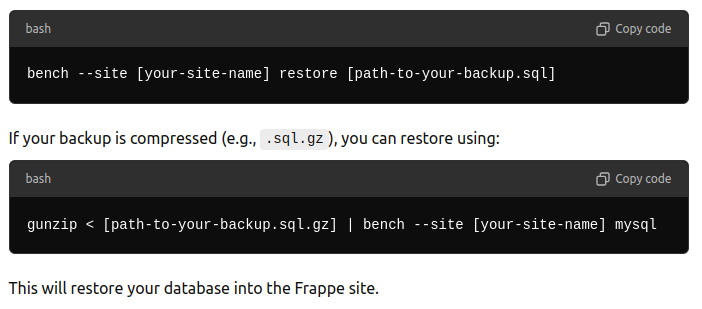
3. Run Bench Migrate (optional): If there are pending migrations, or you are restoring data from a different environment, it’s a good idea to run database migrations: bench — site [your-site-name] migrate
Setting the Encryption Key :
The encryption key is used to secure sensitive data (such as passwords, OAuth tokens, etc.) in your database. If you are restoring the project from another server or repository, you will need the encryption key used in the original system. This key is stored in the site_config.json file.
Steps to Set the Encryption Key:
- Locate the Encryption Key: The encryption key can be found in the
site_config.jsonfile of the original system. If you're working from a GitHub repository or another server, this key should be shared with you. It typically looks like this:

Restart Bench: After setting the encryption key, restart your bench to apply the changes : bench start
메타데이터
- post_id
- 8b5f0f3c78e5
- slug
- restoring-a-frappe-erpnext-database-and-setting-the-encryption-key-8b5f0f3c78e5
- url
- https://medium.com/@parthsurati096/restoring-a-frappe-erpnext-database-and-setting-the-encryption-key-8b5f0f3c78e5
- canonical_url
- https://medium.com/@parthsurati096/restoring-a-frappe-erpnext-database-and-setting-the-encryption-key-8b5f0f3c78e5
- author_url
- https://medium.com/@parthsurati096
- status
- ok
- fetched_at
- 2026-08-05 18:05:34


