Claude: Gemini CLI, and NanoBanana Integration
Claude agents like those powering Cowork mode run inside a sandboxed Linux VM — isolated from the host operating system by design. This…
Claude: Gemini CLI, and NanoBanana Integration
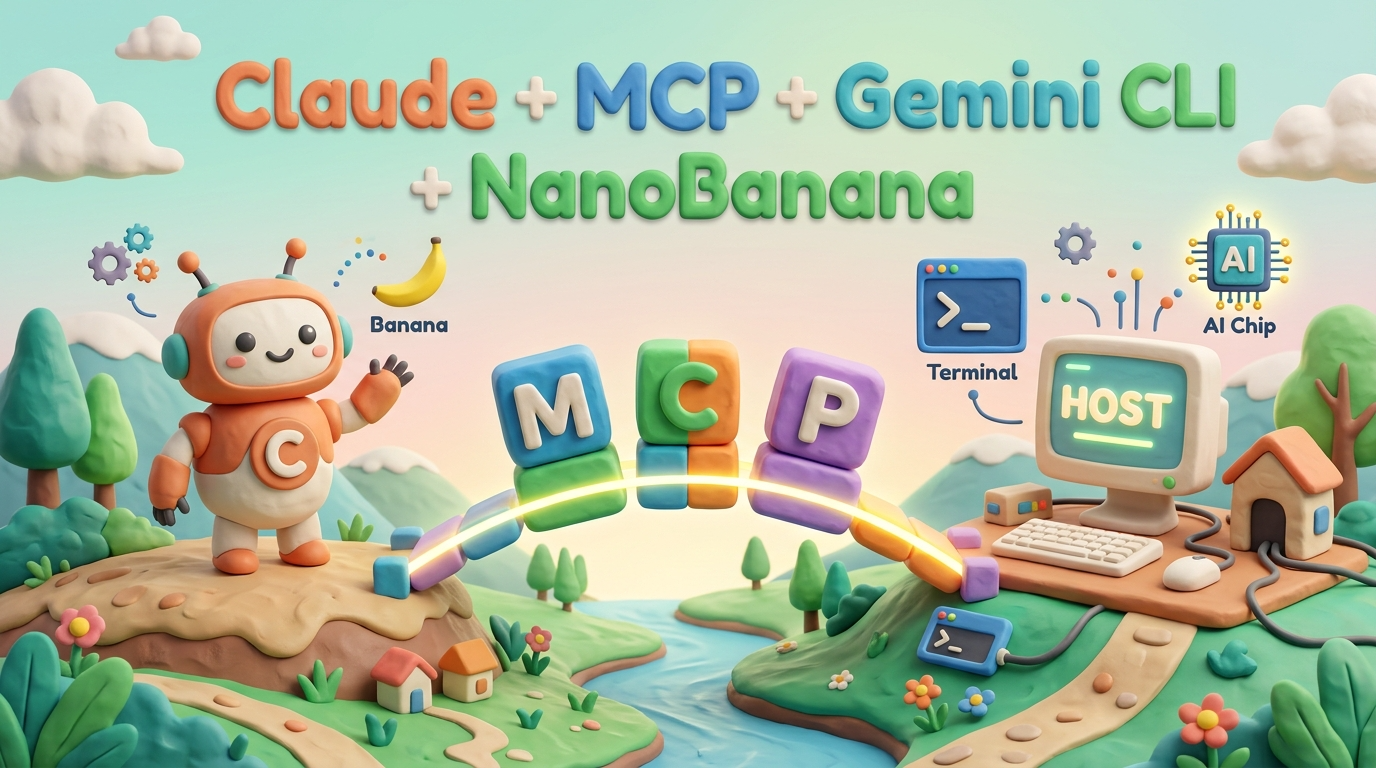
Claude agents like those powering Cowork mode run inside a sandboxed Linux VM — isolated from the host operating system by design. This sandbox gives Claude a safe, controlled environment to execute Bash commands, write files, and run code. But that isolation also means Claude cannot, by default, reach binaries installed on your actual machine: tools like gemini (Google Gemini CLI) or custom shell extensions like NanoBanana are simply not in scope.
The Model Context Protocol (MCP) changes that equation. MCP is an open standard developed by Anthropic that lets you expose arbitrary tools — including host machine CLI commands — to Claude through a structured, authenticated server interface. This post walks through the full setup: what MCP is, how to build a local MCP server that delegates to host CLI tools, and how to wire it specifically to the Google Gemini CLI and the NanoBanana image generation extension.
Understanding Claude’s Execution Boundary
Before building anything, it helps to be precise about what “host access” means in this context.
When Claude runs in Cowork mode (or via Claude Code), its Bash tool executes inside an ephemeral Linux VM. This VM:
- Has its own filesystem (separate from
~/on your Mac or Windows host) - Has its own
PATH— only tools installed inside the VM are available - Cannot reach processes, sockets, or binaries on the host unless explicitly bridged
The VM can mount specific directories from the host (your selected workspace folder), but it cannot exec host binaries. So when Claude runs which gemini inside its VM, it fails — even if gemini is perfectly installed at /usr/local/bin/gemini on your machine.
An MCP server running on the host solves this. Claude connects to it over a local socket or stdio pipe, sends structured tool-call requests, and the server executes the actual CLI commands on the host, returning results back to Claude.
The Model Context Protocol: A Primer
MCP defines a JSON-RPC 2.0-based protocol where:
- A host (Claude’s runtime) connects to one or more MCP servers
- Each server exposes a list of tools, each with a name, description, and input schema
- Claude selects and calls tools by name, passing typed arguments
- The server executes the tool and returns structured output
MCP servers can communicate over stdio (spawned as child processes by the Claude host) or HTTP/SSE (long-running networked servers). For local CLI bridging, stdio transport is the simplest and most secure option — the server process is owned by your user account and never exposed to the network.
The full spec lives at modelcontextprotocol.io.
Architecture Overview
┌──────────────────────────────────┐
│         Claude (VM / Host App)   │
│                                  │
│  ┌─────────────┐                 │
│  │  MCP Client │◄──stdio pipe───►│──┐
│  └─────────────┘                 │  │
└──────────────────────────────────┘  │
                                      ▼
                          ┌───────────────────────┐
                          │  MCP Server (Node/Py)  │
                          │  running on HOST       │
                          │                        │
                          │  tools:                │
                          │  - gemini_prompt()     │
                          │  - nanobanana_image()  │
                          │  - shell_exec()        │
                          └───────────────────────┘
                                      │
                          ┌───────────▼───────────┐
                          │  HOST BINARIES        │
                          │  /usr/local/bin/gemini │
                          │  ~/.nvm/bin/node       │
                          │  nanobana extension   │
                          └───────────────────────┘
The MCP server is the trust boundary. It runs with your host user permissions, and you control exactly which CLI commands it exposes.
Setting Up the MCP Server
Prerequisites
On your host machine, install:
# Node.js 20+ (recommended runtime for MCP servers)
brew install node

# Google Gemini CLI
npm install -g @google/gemini-cli
# Authenticate Gemini CLI
gemini auth login
# NanoBanana (Gemini CLI extension)
gemini extension install nano-banana
Verify:
gemini --version
gemini extension list   # should show nano-banana
Project Scaffold
mkdir claude-host-mcp && cd claude-host-mcp
npm init -y
npm install @modelcontextprotocol/sdk zod
The @modelcontextprotocol/sdk package provides the McpServer class, transport adapters, and the tool registration API. zod handles runtime input schema validation.
Writing the Server
Create server.mjs:
import { McpServer } from "@modelcontextprotocol/sdk/server/mcp.js";
import { StdioServerTransport } from "@modelcontextprotocol/sdk/server/stdio.js";
import { z } from "zod";
import { execFile } from "node:child_process";
import { promisify } from "node:util";
import { promises as fs } from "node:fs";
import { join } from "node:path";

const execFileAsync = promisify(execFile);
// Explicit paths to binaries - bypasses PATH resolution issues that occur
// when Claude Code spawns the server with its own Node.js environment.
// Update these to match your machine's actual nvm or homebrew paths.
// Run `which gemini` and `which node` on your host to find the correct paths.
const NVM_NODE_BIN = "/Users/pi/.nvm/versions/node/v22.16.0/bin";
const GEMINI_BIN = `${NVM_NODE_BIN}/gemini`;
// Inject nvm paths into environment so child processes inherit them
if (!process.env.PATH?.includes(NVM_NODE_BIN)) {
  process.env.PATH = `${NVM_NODE_BIN}:${process.env.PATH}`;
}
// Allowlist of safe commands - never use open exec without this
const ALLOWED_COMMANDS = new Set(["gemini", "ls", "node"]);
const server = new McpServer({
  name: "host-cli-bridge",
  version: "1.0.0",
});
// ─── Tool: gemini_prompt ─────────────────────────────────────────────────────
server.tool(
  "gemini_prompt",
  "Send a text prompt to Google Gemini CLI and return the response.",
  {
    prompt: z.string().min(1).describe("The prompt to send to Gemini"),
    model: z
      .string()
      .optional()
      .default("gemini-2.5-flash")
      .describe("Gemini model to use"),
  },
  async ({ prompt, model }) => {
    try {
      // Execute gemini binary directly (not through node)
      const { stdout, stderr } = await execFileAsync(GEMINI_BIN, [
        "--model", model,
        "--prompt", prompt,
      ]);
      return {
        content: [{ type: "text", text: stdout.trim() || stderr.trim() }],
      };
    } catch (error) {
      return {
        content: [{
          type: "text",
          text: `Error calling gemini: ${error.message}\n\nDebug: GEMINI_BIN="${GEMINI_BIN}"\nPATH="${process.env.PATH}"`
        }],
      };
    }
  }
);
// ─── Tool: nanobanana_image ──────────────────────────────────────────────────
server.tool(
  "nanobanana_image",
  "Generate an image using the NanoBanana Gemini CLI extension.",
  {
    description: z
      .string()
      .min(1)
      .describe("Natural language description of the image to generate"),
    output_path: z
      .string()
      .describe("Absolute path on the host where the image should be saved"),
  },
  async ({ description, output_path }) => {
    try {
      // Create nanobanana-output directory if it doesn't exist
      const outputDir = join(process.cwd(), "nanobanana-output");
      try {
        await fs.mkdir(outputDir, { recursive: true });
      } catch (mkdirErr) {
        // Directory may already exist, continue
      }
      // Execute nanobanana without explicit output path (uses default nanobanana-output folder)
      const { stdout, stderr } = await execFileAsync(GEMINI_BIN, [
        "--yolo","-p",
        `/nanobanana ${description}`,
      ]);
      // Wait a moment for file to be written
      await new Promise(resolve => setTimeout(resolve, 1000));
      // List files in nanobanana-output directory to find the generated image
      let generatedFile = null;
      try {
        const files = await fs.readdir(outputDir);
        // Find the most recently modified image file
        const imageFiles = files.filter(f => /\.(png|jpg|jpeg|webp)$/i.test(f));
        if (imageFiles.length > 0) {
          // Get the most recent file
          const fileStats = await Promise.all(
            imageFiles.map(async (file) => ({
              name: file,
              time: (await fs.stat(join(outputDir, file))).mtime.getTime(),
            }))
          );
          generatedFile = fileStats.sort((a, b) => b.time - a.time)[0].name;
        }
      } catch (readErr) {
        // Directory read failed
      }
      if (!generatedFile) {
        return {
          content: [{
            type: "text",
            text: `Warning: No image file found in nanobanana-output directory. Gemini output:\n${stdout || stderr}`
          }],
        };
      }
      // Move the generated file to the output_path
      const sourcePath = join(outputDir, generatedFile);
      try {
        await fs.copyFile(sourcePath, output_path);
        return {
          content: [{
            type: "text",
            text: `✓ Image successfully generated and saved to: ${output_path}\nSource file: ${generatedFile}`
          }],
        };
      } catch (copyErr) {
        return {
          content: [{
            type: "text",
            text: `Image generated but failed to copy: ${copyErr.message}\nSource: ${sourcePath}\nTarget: ${output_path}`
          }],
        };
      }
    } catch (error) {
      return {
        content: [{
          type: "text",
          text: `Error calling nanobanana: ${error.message}\n\nNote: Ensure GEMINI_API_KEY is set in your MCP server environment.`
        }],
      };
    }
  }
);
// ─── Tool: shell_exec (restricted) ──────────────────────────────────────────
server.tool(
  "shell_exec",
  "Run an allowlisted host binary with arguments.",
  {
    command: z
      .enum([...ALLOWED_COMMANDS])
      .describe("The binary to execute (must be in allowlist)"),
    args: z.array(z.string()).describe("Arguments to pass to the binary"),
  },
  async ({ command, args }) => {
    try {
      const { stdout, stderr } = await execFileAsync(command, args, {
        timeout: 30_000,
      });
      return {
        content: [{ type: "text", text: stdout || stderr }],
      };
    } catch (error) {
      return {
        content: [{ type: "text", text: `Error: ${error.message}` }],
      };
    }
  }
);
// ─── Start ───────────────────────────────────────────────────────────────────
const transport = new StdioServerTransport();
await server.connect(transport);
console.error("host-cli-bridge MCP server running on stdio");
console.error(`Using gemini from: ${GEMINI_BIN}`);
Finding Your Paths
The improved server uses absolute paths to bypass PATH resolution issues that occur when Claude spawns the server with a different NODE_PATH. Before deploying, find your actual paths:
# Find where node/npm installs global binaries
which gemini
# Example output: /Users/pi/.nvm/versions/node/v22.16.0/bin/gemini

which node
# Example output: /Users/pi/.nvm/versions/node/v22.16.0/bin/node
Update the constants at the top of server.mjs with your actual paths:
const NVM_NODE_BIN = "/Users/pi/.nvm/versions/node/v22.16.0/bin";  // Your nvm path
const GEMINI_BIN = `${NVM_NODE_BIN}/gemini`;
If you use Homebrew instead of nvm, it’s typically:
const NVM_NODE_BIN = "/opt/homebrew/bin";  // Homebrew on Apple Silicon
const GEMINI_BIN = `/opt/homebrew/bin/gemini`;
File Handling & Output Path Detection
How nanobanana_image Works:
The nanobanana_image tool now implements a three-step file handling pipeline:
- Generation — Call Gemini with
--yolo -p /nanobanana ${description}. NanoBanana automatically saves output to./nanobanana-output/in the current working directory - Detection — Wait briefly for file write to complete, then scan the
nanobanana-output/directory for image files (png, jpg, jpeg, webp) - Migration — Copy the most recently modified image file to the user-specified
output_path
This approach is more robust than relying on NanoBanana’s command-line output path arguments, which may change across versions. Instead, we:
- Work with the tool’s default behavior
- Detect files using filesystem operations
- Ensure the file ends up exactly where the user needs it
Connecting the Server to Claude
Claude Desktop / Cowork
Claude reads MCP server configurations from ~/Library/Application Support/Claude/claude_desktop_config.json (macOS) or the equivalent on Windows/Linux.
Add your server:
{
  "mcpServers": {
    "host-cli-bridge": {
      "command": "node",
      "args": ["/absolute/path/to/claude-host-mcp/server.mjs"],
      "env": {
        "PATH": "/usr/local/bin:/opt/homebrew/bin:/usr/bin:/bin"
      }
    }
  }
}
The env.PATH override is essential. GUI-launched apps on macOS inherit a stripped PATH that often omits Homebrew and npm global bins. Explicitly including these paths ensures gemini resolves correctly from within the spawned server process.
Restart Claude. On the next launch, Claude will spawn your MCP server as a child process and register its tools automatically.
Claude Code (CLI)
For Claude Code, the mcp add command takes the server name, then the binary, then any arguments as positional parameters. Use -e to inject environment variables:
# Basic form: claude mcp add <name> <command> [args...]
claude mcp add host-cli-bridge node /absolute/path/to/claude-host-mcp/server.mjs

# With explicit PATH so gemini resolves correctly inside the spawned server
claude mcp add \
  -e PATH=/usr/local/bin:/opt/homebrew/bin:/usr/bin:/bin \
  host-cli-bridge \
  node /absolute/path/to/claude-host-mcp/server.mjs
# Scope to your user profile (persists across projects)
claude mcp add --scope user \
  -e PATH=/usr/local/bin:/opt/homebrew/bin:/usr/bin:/bin \
  host-cli-bridge \
  node /absolute/path/to/claude-host-mcp/server.mjs
If your node command itself needs flags (e.g. --experimental-vm-modules), separate them with -- so the CLI parser doesn't mistake them for mcp add options:
claude mcp add host-cli-bridge -- node --experimental-vm-modules /path/to/server.mjsVerify registration with:
claude mcp listOr edit ~/.claude/claude_desktop_config.json directly — the JSON schema is identical to the Desktop config shown above.
Verifying the Integration
Once connected, you can ask Claude:
“Use the gemini_prompt tool to ask Gemini: what is the capital of France?”
Claude will call gemini_prompt, the server will run:
gemini --model gemini-2.0-flash --prompt "what is the capital of France?"…and return the response. The round trip is entirely local — no cloud hop for the MCP layer itself (Gemini API calls happen server-side from your host).
For NanoBanana:
“Generate an image of a futuristic cityscape at dusk and save it to ~/Desktop/city.png”
Claude maps this to nanobanana_image with description and output_path arguments, and the extension handles the Gemini Imagen API call on the host.
Conclusion
Claude’s VM sandbox is a feature, not a limitation — it keeps agentic AI execution from accidentally touching sensitive host state. But it does mean that host CLI tools like Google Gemini CLI and NanoBanana are out of reach by default.
MCP servers bridge that gap with a clean, typed, auditable interface. The setup covered here — a Node.js stdio server, strict command allowlists, Zod-validated schemas, and explicit PATH configuration — gives Claude structured, controlled access to host binaries without opening a generic shell execution hole.
The same pattern extends to any CLI tool you trust. Start with a minimal allowlist, expand deliberately, and keep your tool schemas tight.
Next Steps
- Read the MCP specification to understand transport options and the full tool schema language
- Explore the MCP SDK on GitHub for Python and TypeScript implementations
- Review Google Gemini CLI documentation for the full flag reference and extension authoring guide
- Consider wrapping your MCP server in
systemdorlaunchdfor automatic startup on login
If you found this helpful, consider following my profile and signing up for the newsletter. Have thoughts or questions? Share them in the comments below.
References
메타데이터
- post_id
- 8d1feffa58cd
- slug
- claude-gemini-cli-and-nanobanana-integration-8d1feffa58cd
- url
- https://medium.com/@pi45757/claude-gemini-cli-and-nanobanana-integration-8d1feffa58cd
- canonical_url
- https://medium.com/@pi45757/claude-gemini-cli-and-nanobanana-integration-8d1feffa58cd
- author_url
- https://medium.com/@pi45757
- status
- ok
- fetched_at
- 2026-06-15 20:49:13