Apple ID Disabled | Apple ID Locked for Security Reasons | 2024 FIX
Introduction
Apple ID Disabled | Apple ID Locked for Security Reasons | 2024 FIX
Introduction
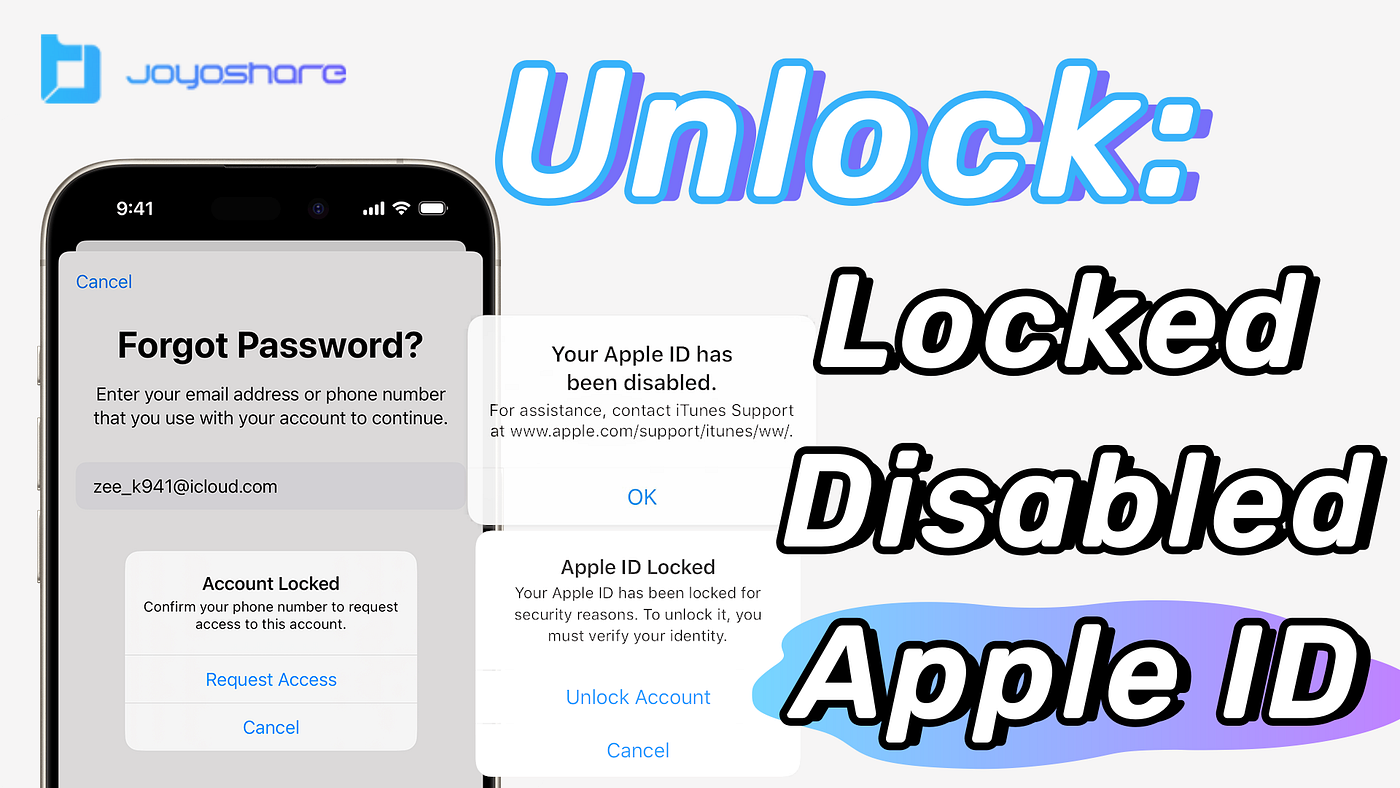
Is your Apple ID disabled or locked for security reasons? It can be incredibly frustrating when you’re unable to access your Apple services due to a locked Apple ID. But don’t panic — this issue is more common than you think and can happen due to several reasons, like entering the wrong password too many times or frequently changing your Apple ID details.
In this article, we’ll walk you through why your Apple ID might be disabled and provide you with effective solutions to regain access quickly. Let’s dive into it step by step!

Understanding Apple ID Security
Apple has a robust security system in place for its devices, ensuring that your personal information is kept safe. However, this system can sometimes work against you by locking you out of your Apple ID for various reasons.
Reasons for Apple ID Being Disabled
When your Apple ID is disabled, it’s usually due to some security measure that Apple has put in place. Here are the most common causes:
- Wrong Password Entries
If you’ve entered your Apple ID password incorrectly too many times, Apple will automatically disable your account to protect it. This usually happens when you forget your password or accidentally mistype it.
2. Frequently Changing Apple ID and Password
Changing your Apple ID information, such as your email or password, too frequently can also trigger Apple’s protective mechanism. This frequent change can be viewed as suspicious, prompting Apple to temporarily disable your ID for security reasons.
How to Know If Your Apple ID is Disabled
So how do you know if your Apple ID is disabled? Here are some of the signs:
- Receiving Notifications
You’ll usually receive a notification on your iPhone, iPad, or Mac alerting you that your Apple ID has been disabled for security reasons. This can happen after multiple failed login attempts or unusual account activity.
2. Errors During Login
If your Apple ID is disabled, you will encounter error messages when trying to log in to any Apple service. The messages usually say something like “Your Apple ID has been disabled” or “Apple ID locked for security reasons.”
Fixing Disabled Apple ID
Let’s get into the actionable steps to fix your disabled Apple ID.
Way 1: Check Privacy Restrictions and Payment Methods
Sometimes your Apple ID might be affected by privacy restrictions or an issue with your payment method. Here’s how you can address it:
1. Check Privacy Restrictions: — Go to Settings > Screen Time > Content & Privacy Restrictions > iTunes & App Store Purchases. — Ensure restrictions for iTunes and App Store are turned off.
2. Check Payment Methods: — Navigate to Settings > Apple ID > Media & Purchases > View Account > Purchase History. — If you have any unpaid bills or expired payment methods, settle them. — Update your payment methods under Apple ID > Payment & Shipping.
Way 2: Reactivate Your Account
Apple has a built-in support mechanism to help users reactivate their accounts. Here’s how to do it:

- Go to the Apple Support.
- Choose a product, then select Apple ID.
- Click Disabled Apple ID, and follow the on-screen instructions to reactivate your account.
Way 3: Sign Out and Sign In Again
If your Apple ID is disabled, sometimes simply signing out and signing back in can solve the problem:
- Go to Settings and tap on your profile.
- Scroll down to the Sign Out option and enter your password.
- Wait for a few minutes, then sign back in with your Apple ID.
Way 4: Reset Apple ID Password
If reactivating your account didn’t work, resetting your Apple ID password might be the key:
-
Via Settings: — Open Settings, tap on Apple ID, then select Sign-in & Security. — Choose Change Password, and follow the prompts to create a new password.
-
Via iForgot: — Visit iForgot. — Enter your Apple ID email and follow the instructions to reset your password.
Steps to Remove Apple ID Without Password
If you’re unable to reset your password and still locked out, you can use **Joyoshare iPasscode Unlocker**. Here’s how:

- Connect your Apple device to a computer.
- Open Joyoshare and select Unlock Apple ID.
- Download the required firmware package.
- Click Unlock, and the tool will remove your Apple ID without password.
Benefits of This Method
Joyoshare is a reliable tool that helps you bypass various Apple locks, including screen lock and MDM (Mobile Device Management) restrictions, making it a versatile solution.
Tips to Avoid Security Lockouts
- Avoid entering the wrong password multiple times.
- Keep your Apple ID information up to date, especially your recovery email and phone number.
- Use two-factor authentication for added security.
Conclusion
Getting locked out of your Apple ID can be frustrating, but with the right steps, it’s easy to get back on track. By following the solutions provided, you’ll regain access in no time. Just remember to keep your Apple ID information secure and avoid frequent changes to minimize the chances of future lockouts.
메타데이터
- post_id
- 8da73a89c65a
- slug
- apple-id-disabled-apple-id-locked-for-security-reasons-2024-fix-8da73a89c65a
- url
- https://medium.com/@j8191673/apple-id-disabled-apple-id-locked-for-security-reasons-2024-fix-8da73a89c65a
- canonical_url
- https://medium.com/@j8191673/apple-id-disabled-apple-id-locked-for-security-reasons-2024-fix-8da73a89c65a
- author_url
- https://medium.com/@j8191673
- status
- ok
- fetched_at
- 2026-07-18 23:24:10

