When Configuration Starts Acting Like Code: A Beginner’s Guide to Workspace Trust
You open a project folder the way you open a document: casually.
When Configuration Starts Acting Like Code: A Beginner’s Guide to Workspace Trust
You open a project folder the way you open a document: casually.
It is “just code.” Mostly text files. No installer. No obvious executable.
And yet something happens.
Maybe your editor starts a helper in the background. Maybe it spins up a task runner. Maybe it connects an integration you did not realize was enabled. You did not click Run. You did not type a command. The project simply arrived with “helpful defaults” that were allowed to act.
That uneasy feeling is the point. A recent MCP/OpenCode-style story put a spotlight on a broader pattern in modern tooling:
Some configuration files do not just describe settings anymore. They can trigger behavior.
This article is about that shift, how configuration-as-execution shows up in real life, and why workspace trust is not a cosmetic prompt.
Configuration-as-execution (in plain terms)
For years, configuration felt passive:
- choose a port
- set an environment name
- flip a feature flag
- point to a folder path
But developer tools are optimized for convenience. To reduce setup friction, they increasingly allow configuration to:
- auto-start background helpers
- register plugins or extensions
- define tasks that run on open
- connect providers and integrations
- set up “recommended” tool behavior without manual steps
At that point, configuration stops being “how the tool should look” and starts becoming “what the tool should do.”
A simple mental shift helps:
- Old model: “Config tells the tool how to behave.”
- New model: “Config can tell the tool what actions to perform.”
If you are new to this, you are not behind. The industry moved the boundary quietly.
The tool often reads configuration immediately, before you have reviewed anything. If that configuration enables automation, behavior can start right away, sometimes silently.
Workspace trust: the safety boundary most people click past
To reduce risk, many editors and dev tools introduced a concept commonly called workspace trust(the exact wording varies).
The intention is straightforward:
- Trusted workspace -> full functionality (automation, integrations, background tasks)
- Untrusted workspace -> restricted behavior (fewer side effects, fewer automatic actions)
The problem is not that workspace trust exists. The problem is that it is easy to interpret it as a “quality” question:
“Do you trust this project to be well-written?”
When the real question is closer to:
“Do you allow this folder to enable tool features that can affect your system and environment?”
That is a different kind of trust.
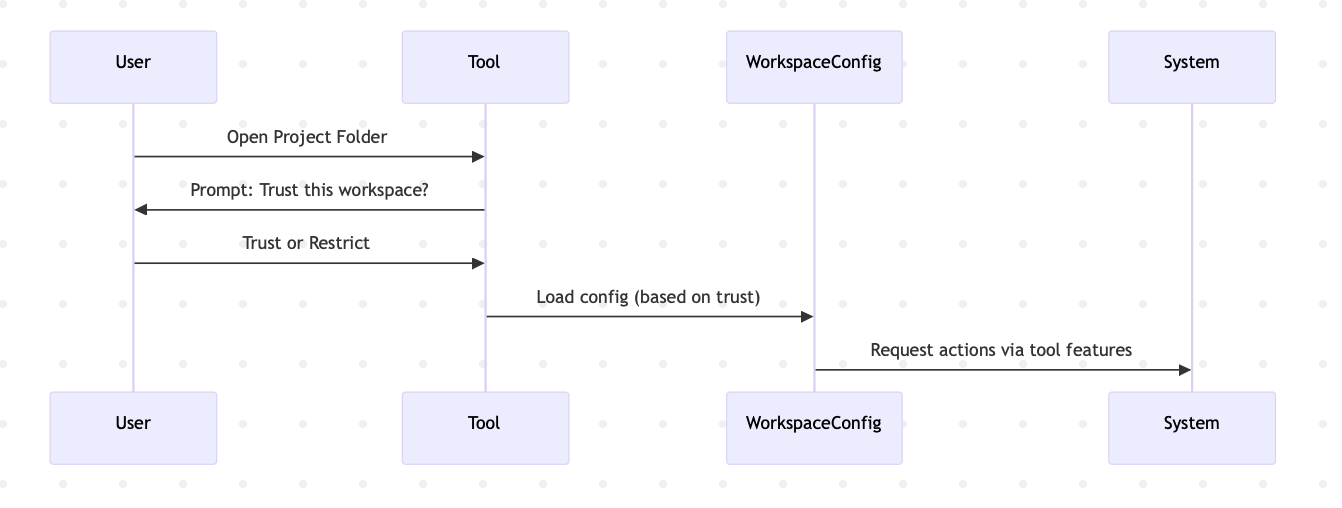
Brief explanation: the trust prompt usually appears before project-driven automation is fully enabled. If you click “Trust” automatically, you may be enabling behaviors you have not inspected yet.
Why this surprises people
This catches beginners and experienced developers for the same reasons:
- Config looks inert.YAML/JSON feels like data, not something that “runs.”
- Execution is implicit.*Automation often happens quietly and in the background.
- Tools are designed to be helpful. Auto-setup improves developer experience until it becomes an unexpected side effect.
- The boundary moved gradually. What used to require a manual step is now frequently a default.
The broader lesson (bigger than any one incident)
The MCP/OpenCode story is useful as a reference point, but the lesson is general:
Project files can influence execution because tools treat configuration as an input to automation.
This is not a call to panic. It is a call to update your mental model:
- Treat configuration as part of the execution path.
- Treat workspace trust as a real security boundary.
- Enable automation intentionally, not automatically.
Practical checklist
Use this when opening projects from outside your normal trusted sources.
Before you open a project
- Confirm the source (official org repo, known maintainer, colleague, etc.).
- If it came from a random link or zip, assume it is untrusted by default.
- Scan for tool configuration folders/files (editor settings, task definitions, integration configs).
When your tool asks about workspace trust
- Do not click “Trust” on autopilot.
- If you are unsure, choose restricted/untrusted mode first.
- Only trust after you understand what features will be enabled.
While still in restricted mode
- Look for configuration that enables: — extensions or plugins — automatic tasks or “run on open” behaviors — background services — external connections (local or remote)
- Prefer enabling features gradually rather than all at once.
Ongoing habits that pay off
- Keep your editor and dev tools updated.
- Review configuration changes in PRs like you review code.
- Avoid mixing random projects with sensitive workspaces, credentials, or production access.
A simple rule of thumb
If a file can cause your tools to:
- start something,
- connect to something, or
- trigger automation,
treat it with the same seriousness you would give a script.
Closing thought
Modern developer tools are powerful. That power has shifted into places that do not feel powerful: configuration, workspace metadata, integration definitions.
Once you recognize configuration-as-execution, the workspace trust prompt stops being an annoyance and becomes what it really is:
A deliberate choice about what your tools are allowed to do on your machine.
Thank you, Dinesh Karakambaka
메타데이터
- post_id
- 8ea5317c380f
- slug
- when-configuration-starts-acting-like-code-a-beginners-guide-to-workspace-trust-8ea5317c380f
- url
- https://medium.com/@kdineshkvkl/when-configuration-starts-acting-like-code-a-beginners-guide-to-workspace-trust-8ea5317c380f
- canonical_url
- https://medium.com/@kdineshkvkl/when-configuration-starts-acting-like-code-a-beginners-guide-to-workspace-trust-8ea5317c380f
- author_url
- https://medium.com/@kdineshkvkl
- status
- ok
- fetched_at
- 2026-07-09 05:26:43






