How to Edit Your Social Media Manager Instagram Templates in Canva (Step-by-Step Guide for…
For get-(click)
How to Edit Your Social Media Manager Instagram Templates in Canva (Step-by-Step Guide for Beginners)
For get-(click)
If you’re running a business, managing clients, or building a personal brand, having a consistent Instagram presence is no longer optional — it’s essential. But designing posts from scratch every day can be time-consuming and overwhelming.
That’s where Instagram templates for social media managers come in. With a ready-made Canva template, you can create professional, branded posts in minutes — even if you have zero design skills.
In this guide, you’ll learn exactly how to edit your Social Media Manager Instagram templates in Canva and customize them like a pro.
Why Use Canva for Instagram Templates?
Canva is one of the easiest design tools for beginners and professionals alike. It allows you to:
- Edit templates with drag-and-drop simplicity
- Customize colors, fonts, and layouts
- Add your own images and branding
- Export high-quality posts instantly
Whether you’re a freelancer, digital marketer, or business owner, Canva helps you save time while keeping your Instagram feed consistent and professional.
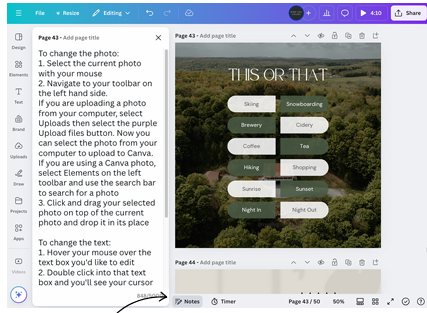
Step 1: Open Your Template in Canva
After purchasing or downloading your Instagram template:
- Open Canva and log in
- Click on “Your Projects”
- Open the template file link
- It will automatically load into the editor
Now you’re ready to customize.
Step 2: Replace Text with Your Content
Most Social Media Manager templates come with placeholder text like:
- “Your Headline Here”
- “Add caption text”
- “Your offer details”
Simply click on the text box and replace it with your own message.
💡 Tip: Keep your text short, clear, and engaging for Instagram readability.
Step 3: Customize Colors to Match Your Brand
Brand consistency is everything on Instagram.
To change colors in Canva:
- Click on any element (background, shape, text box)
- Select the color picker tool
- Choose your brand colors or add hex codes
This helps your posts look more professional and recognizable.
Step 4: Add Your Own Images or Logos
To personalize your template:
- Upload your logo in the “Uploads” section
- Drag and drop it into the design
- Replace stock images with your own photos
This step is crucial for building trust with your audience.
Step 5: Adjust Fonts for Better Branding
Fonts define your brand personality.
In Canva:
- Click on text
- Select font dropdown
- Choose a font that matches your brand tone (modern, luxury, playful, etc.)
Try not to use more than 2–3 fonts in one design.
Step 6: Duplicate and Create Multiple Posts
One of the biggest advantages of templates is scalability.
Instead of designing from scratch:
- Duplicate your design pages
- Change text and images
- Create a full Instagram content pack in minutes
This is perfect for scheduling weekly or monthly content.
Step 7: Download and Post
Once your design is ready:
- Click Share
- Select Download
- Choose PNG or JPG (best for Instagram)
- Upload directly to Instagram or schedule it
Why Instagram Templates Are a Smart Investment
Using ready-made templates helps you:
- Save hours of design work
- Maintain consistent branding
- Increase engagement on Instagram
- Focus more on content strategy instead of design
This is why many social media managers rely on Canva templates instead of designing everything manually.
Final Thoughts
Editing Instagram templates in Canva is simple, fast, and beginner-friendly. With just a few clicks, you can transform a basic design into a professional social media post that attracts attention and builds your brand identity.
If you’re a social media manager or business owner, investing in high-quality Canva templates can completely change the way you work.
Want Ready-Made Instagram Templates?
If you’re looking for professionally designed Social Media Manager Instagram templates that you can use instantly, check out my collection (insert your link here).
👉 Perfect for:
- Social media managers
- Freelancers
- Small business owners
- Digital marketers
메타데이터
- post_id
- 90621dde66dc
- slug
- how-to-edit-your-social-media-manager-instagram-templates-in-canva-step-by-step-guide-for-90621dde66dc
- url
- https://medium.com/@rabiulislamri1234/how-to-edit-your-social-media-manager-instagram-templates-in-canva-step-by-step-guide-for-90621dde66dc
- canonical_url
- https://medium.com/@rabiulislamri1234/how-to-edit-your-social-media-manager-instagram-templates-in-canva-step-by-step-guide-for-90621dde66dc
- author_url
- https://medium.com/@rabiulislamri1234
- status
- ok
- fetched_at
- 2026-07-22 00:55:33