Install Kerberos MIT on Cloudera Step by step
Make sure you already have kdc server and also cloudera manager cluster.
Install Kerberos MIT on Cloudera Step by step
Make sure you already have kdc server and also cloudera manager cluster.
Check on security on cloudera manager and Enable Kerberos.
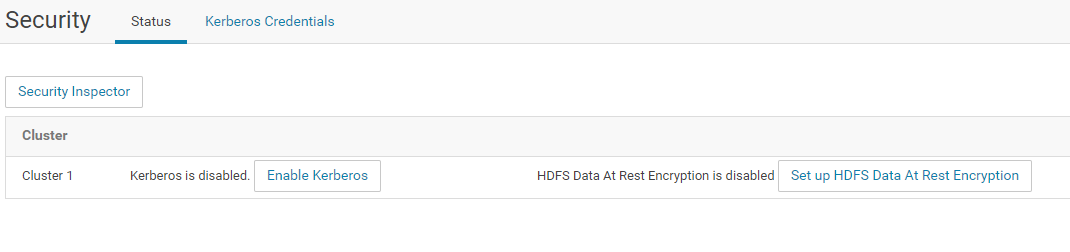
enable kerberos
Add information for kerberos server and its algorithm

setup kdc
Check “Manage krb5.conf through cloudera manager”, so kerberos will take control to create keytab files.

manager krb5.conf
Insert user and password for kerberos admin

If you get this kind of error, you need to install kerberos client on all hosts.

error kerberos install
install krb-libs and krb5-workstation
yum -y install krb5-libs krb5-workstationset all in default and check for restart cluster after adding kerberos.

restart cluster
Just wait until process is done

installation success
You’ll find that Hue will have an error message. This error appear because Hue can access renewal kerberos ticket.

hue error
to fix that, go to kdc server and add this command
kadmin -p admin/admin@HADOOP
modprinc -maxrenewlife 90day krbtgt/HADOOP.COM@HADOOP.COM
modprinc -maxrenewlife 90day+allow_renewable hue/node01.hadoop.com@HADOOP.COM
after that, go to hue in cloudera manager and go to instance and check kerberos ticket renewer.

kerberos ticket renewer
then choose regenerate keytab

regenerate keytab
after it’s done, just restart hue services and you’re done.

all green
메타데이터
- post_id
- 910b5d4a3a2
- slug
- install-kerberos-mit-on-cloudera-step-by-step-910b5d4a3a2
- url
- https://medium.com/@syarifh/install-kerberos-mit-on-cloudera-step-by-step-910b5d4a3a2
- canonical_url
- https://medium.com/@syarifh/install-kerberos-mit-on-cloudera-step-by-step-910b5d4a3a2
- author_url
- https://medium.com/@syarifh
- status
- ok
- fetched_at
- 2026-07-28 18:25:08