[OverTheWire] Bandit Level 26 → 27
Good job getting a shell! Now hurry and grab the password for bandit27!
[OverTheWire] Bandit Level 26 → 27

https://overthewire.org/wargames/bandit/bandit27.html
Goal
Good job getting a shell! Now hurry and grab the password for bandit27!
Possible commands to solve this level
*ls*
Note : Not all commands listed above is need
┌─────────┬────────────────────────────────────────────────────┐
│ Command │                    Explanation                     │
├─────────┼────────────────────────────────────────────────────┤
│ ls      │ list directory contents                            │
└─────────┴────────────────────────────────────────────────────┘
Additional Information
┌───────────────────┬─────────────────────────────────────────────┐
│     Commands      │                 Explanation                 │
├───────────────────┼─────────────────────────────────────────────┤
│ v                 │ Start up an editor at current line.         │
│                   │ The editor is taken from the environment    │
│                   │ variable VISUAL if defined, or EDITOR if    │
│                   │ VISUAL is not defined, or defaults to "vi"  │
│                   │ if neither VISUAL nor EDITOR is defined.    │
│                   │                                             │
│ !<cmd> OR :!<cmd> │ Execute <cmd> in a subshell                 │
└───────────────────┴─────────────────────────────────────────────┘
Write Up
Information
Host Name : bandit.labs.overthewire.org
Username : bandit26
Password : 5czgV9L3Xx8JPOyRbXh6lQbmIOWvPT6Z
Port Number : 2220
To find the password for Level 27
For this level, we are not given any hints. Importantly, to retrieve
*bandit27*‘s password, we have to stay in the Vim editor from the previous level’s shell.
[# Step 1]: For this level, we are not given any hints. Importantly, to retrieve *bandit27‘s password, we have to stay in the Vim editor from the previous level. (Skipped to [#Step 2] if you have stayed in the Vim editor from the previous level)*
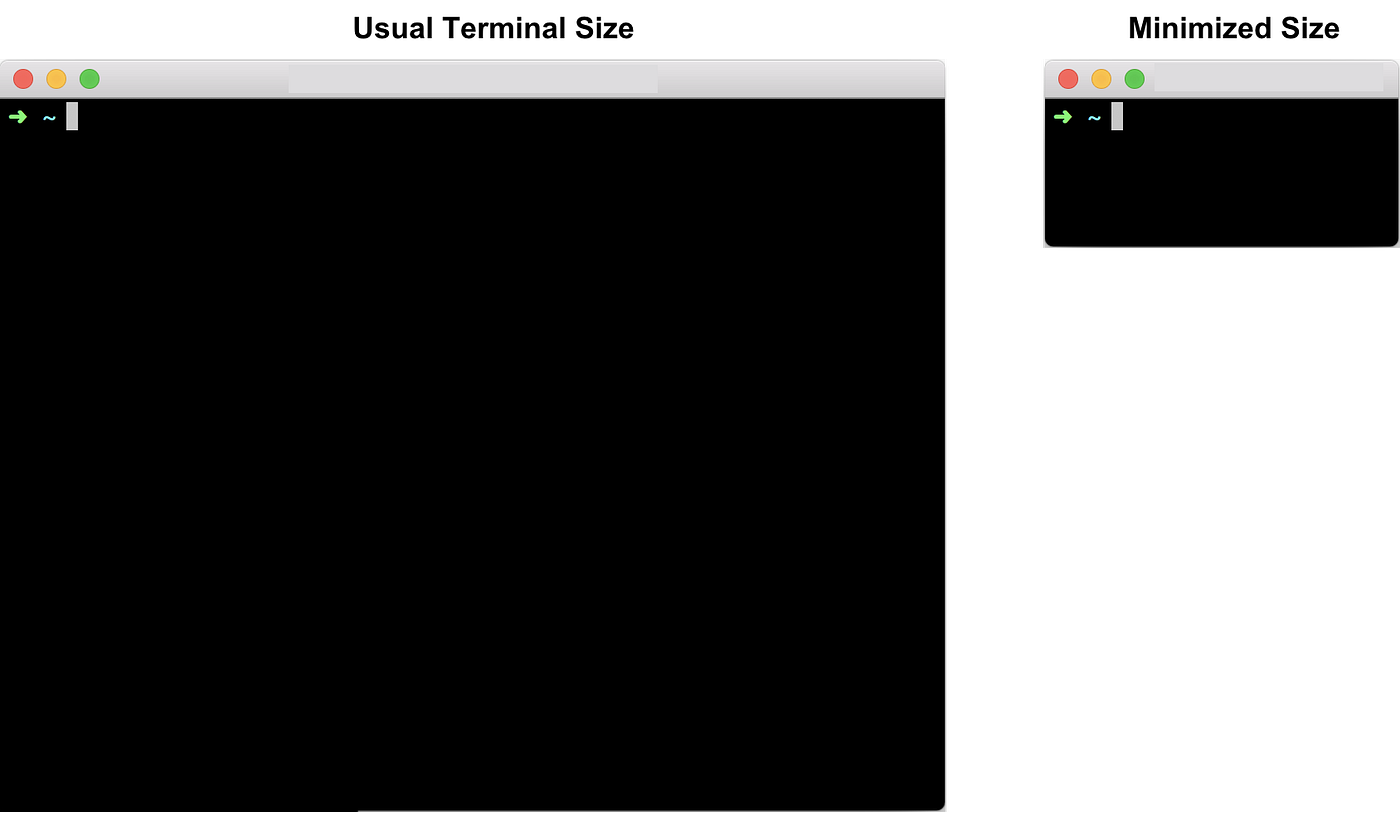
Alternatively, logging in with the above credentials is only POSSIBLE if we MINIMISE the terminal window like we have done in previous level. This is because of the different shell used for user bandit26: usr/bin/showtext.
Hence, before connecting and logging into the account with the username & password stated above, MINIMISE the terminal window.
You may refer to the screenshot below as an illustration of the minimised terminal for reference:
Upon successful login, due to reduced terminal size, the script will trigger the more command as shown below

Recall, more command consist of interactive commands and one of the command is:
┌───────────────────┬─────────────────────────────────────────────┐
│      Command      │                 Explanation                 │
├───────────────────┼─────────────────────────────────────────────┤
│ v                 │ Start up an editor at current line.         │
│                   │ The editor is taken from the environment    │
│                   │ variable VISUAL if defined, or EDITOR if    │
│                   │ VISUAL is not defined, or defaults to "vi"  │
│                   │ if neither VISUAL nor EDITOR is defined.    │
└───────────────────┴─────────────────────────────────────────────┘
Similar to previous level, enter v to start Vim editor, a built — in text editor on Unix machines. Upon entering v, it will display the Vim editor as shown below:

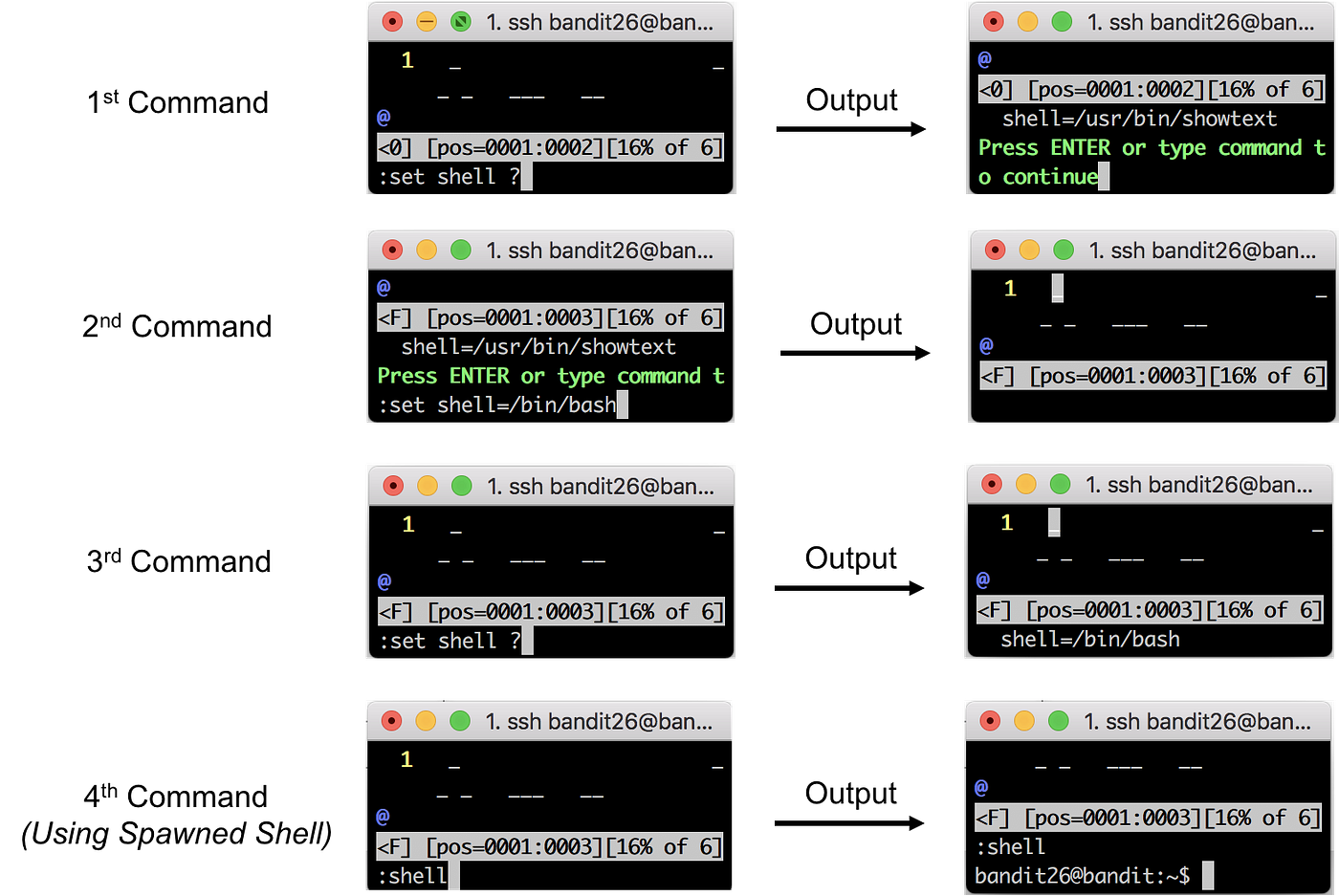
[# Step 2]: Next, run the following commands (case sensitive) to set the shell to /bin/bash:
**:set** shell ?to display the current shell used**:set** shell=/bin/bashto set it to/bin/bash- Run
**:set** shell ?again to confirm - Choose either methods:
a. Using subshell. In subshell, we can execute a command by entering
**:!**<cmd>. E.g. To list the directory contents, run**:!**ls. b. Using spawned shell. Run:shellcommand, to spawn a bash shell.
If you have chosen method b (using spawned shell), run
*:shell* to spawn a bash shell.
You may refer to the screenshot below as an illustration of the above commands for reference:
[# Step 3]: Next, running ls command, will display an executable script with elevated privilege, named bandit27-do. For subshell, recall we can execute a command by entering **:!**<cmd>. Hence, run **:!**ls.
From the filename, it can be assumed this executable executes commands as user bandit27. Executing the script confirms the above theory:
## Using spawned shell
bandit26@bandit:~$ ./bandit27-do
Run a command as another user.
  Example: ./bandit27-do id

bandit26@bandit:~$ file ./bandit27-do
./bandit27-do: setuid ELF 32-bit LSB executable, Intel 80386, version 1 (SYSV), dynamically linked, interpreter /lib/ld-linux.so.2, for GNU/Linux 2.6.32, BuildID[sha1]=8e941f24b8c5cd0af67b22b724c57e1ab92a92a1, not stripped
[# Step 4]: Since bandit27-do executable file allow us to run commands as user bandit27. Thus, by leveraging on the elevated privileges, we can read bandit27‘s password file located at /etc/bandit_pass/bandit27 using the **cat** command:
- For subshell:
**:!**./bandit27-do **cat** /etc/bandit_pass/bandit27 - For spawned shell:
./bandit27-do **cat** /etc/bandit_pass/bandit27
Solution
[# Step 1 (After resizing)] → Skip if have stayed in previous level
>  ~ ssh bandit26@bandit.labs.overthewire.org -p2220

This is a OverTheWire game server. More information on http://www.overthewire.org/wargames

bandit26@bandit.labs.overthewire.org's password:
5czgV9L3Xx8JPOyRbXh6lQbmIOWvPT6Z

- Enter "v" to start Vim editor

[# Step 2]
1. Enter ":set shell ?" to display the current shell used
2. Enter ":set shell=/bin/bash" to set it to /bin/bash
3. Enter ":set shell ?" again to confirm
4. 2 Methods:
     a. Using subshell
     b. Using spawned shell. Need to run ":shell" command

[# Step 3]
(Method a. Using subshell)
- Enter ":ls!"

(Method b. Using spawned shell)
bandit26@bandit:~$ ls
bandit27-do  text.txt

[# Step 4]
(Method a. Using subshell)
- Enter "!./bandit27-do cat /etc/bandit_pass/bandit27"

(Method b. Using spawned shell)
bandit26@bandit:~$ ./bandit27-do cat /etc/bandit_pass/bandit27
3ba3118a22e93127a4ed485be72ef5ea
Level 27’s Username & Password
Username : bandit27
Password : 3ba3118a22e93127a4ed485be72ef5ea
Level 26 Completed !
Resources
https://explainshell.com/Previously …
To Continue …
메타데이터
- post_id
- 93600a1489c3
- slug
- overthewire-bandit-level-26-27-93600a1489c3
- url
- https://medium.com/@h.nt/overthewire-bandit-level-26-27-93600a1489c3
- canonical_url
- https://medium.com/@h.nt/overthewire-bandit-level-26-27-93600a1489c3
- author_url
- https://medium.com/@h.nt
- status
- ok
- fetched_at
- 2026-06-25 07:00:49