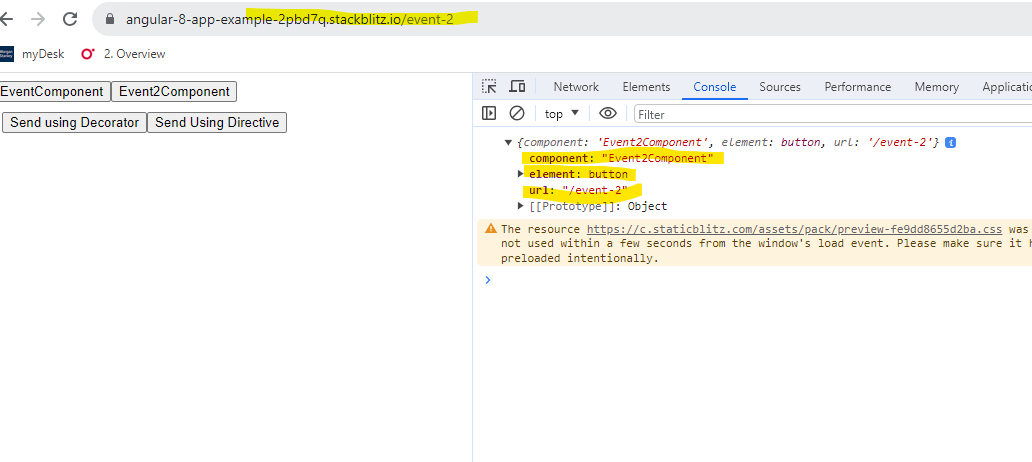
Angular: Finding Out the Component Where a Particular Event Occurred in the Application
There can be multiple use-cases for this subject depending on your requirement. User activity tracking is one of them.
Angular: Finding Out the Component Where a Particular Event Occurred in the Application
There can be multiple use-cases for this subject depending on your requirement. User activity tracking is one of them.
You can listen to events at application, component and element level.
Lets look at the ways you can listen to events at application and component level and how they will help us achieve our objective. Listening to events at element level is not discussed because its not a practical approach to our objective.
In this story we will look only at click events.
I. Listening to events at application level
To listen for a click event on any element in the application, there are 2 ways to do that.
- Using @HostListener(). @HostListener() accepts only document, window or body as targets for an event.
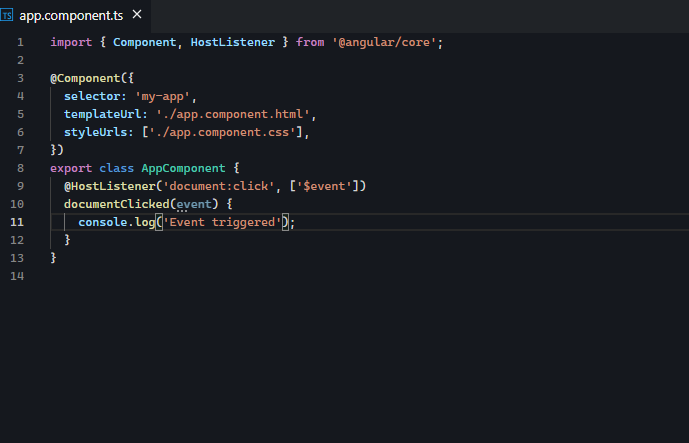
- Using the host property of the @Component() decorator, which also accepts only document, window or body as target.

If I have multiple components in my application and I click any element in the application, using either of the 2 methods above can I access the component which hosts that element ?
In both the ways, the only information I am able to access is the Event object which details the event that occurred and the element on which it occurred.
Using the @HostListener() method , I can make a little more progress by adding a custom method decorator to it. I have modified the AppComponent class as below to add a custom method decorator named eventTrackDec().

This method decorator is defined as below. We are logging the value of the argument target and also logging the name of the component where the event occurred.

The argument propertyKey is a string which is nothing but the name of method on which the decorator is called i.e documentClicked(). The argument desc is an object with multiple properties which you can see below. The value property of desc is nothing but the documentClicked() definition. We are modifying the value property of desc to log the the target argument and the component name and finally also call the original documentClicked().

This is how my browser console looks like when I run the application. If the application has multiple components and I click anywhere in application, it will only say that AppComponent is the component which hosts the element clicked on. This is because the decorator has been called on a method in the AppComponent class.

So we can conclude that this will not serve our objective.
Below is a working example of the above methods.
[embed]
Lets proceed to the ways we can listen for events at Component level.
II. Listening to events at component level
To listen for a click event on any element in a component, there are 3 ways to do that.
- Using @HostListener(), which listens for events on document, window and body targets.
- Using the host property of the @Component() decorator
- Using Custom Directives.
We have already seen that the host property of @Component() decorator cannot help us in accessing the host component where event occured. Hence we shall only see points 1) and 3).
I have created the below component structure.

=>ChildAComponent and ChildBComponent are loaded in the <router-outlet> of AppComponent.
=>SubChildAComponent and SubChildABComponent are loaded in the <router-outlet> of the ChildAComponent.
=>SubChildBComponent and SubChildBBComponent are referenced in the ChildBComponent using the selector.
Below is a short demo of what we are trying to achieve:

We shall be using @HostListener() technique combined with custom decorators in all components activated/deactivated with the help of router i.ChildAComponent,ChildBComponent,SubChildAComponent and SubChildABComponent.
We shall be using @HostListener() technique combined with custom decorators also for the bootstrapped AppComponent.
We shall use the Custom Directive technique to all components which referenced using selector in the template i.e SubChildBComponent and SubChildBBComponent
Please note: Its not mandatory that we can apply the 1) technique to only routed/bootstrapped components. It can be applied to others components too. To demonstrate that custom directives too will serve the objective, I reserved 2) technique for components referenced by selector in template.
Lets first look at the custom method decorator we have defined. Its quite similar to the one we created earlier in this story but with small changes. The stopImmediatePropagation() has been used to avoid event bubbling. We are sending the component name where the event occurred to the EventTrackService. We shall see shortly how we will access this information from the EventTrackService for display purpose.

Below is an example of how the custom decorator is used in the ChildAComponent. Similarly it will be applied to AppComponent,ChildBComponent,SubChildAComponent and SubChildABComponent. Its just 3 lines of code we will be adding to all these components.

Point to Note: In the custom decorator, the component class name(accessed using target.constructor.name)will get minified if the angular project is built using production configuration. In that scenario, you need to either update the webpack configuration to control the minification or you can go for the Custom Directive technique explained next below.
Lets now proceed to the Custom Directive technique. We have created a custom directive EventTrackDirective. In this directive, we are accessing the host component where the directive is applied using class interface technique.We are sending the component name where the event occurred to the EventTrackService.

To know how the class interface technique works, please check my story:
Please Note: In the custom decorator, the component name accessed using this.host.constructor.name will also get minified when angular project is built using production configuration.
To avoid this, instead of accessing the component class name, we can capture the component selector. This ensures we have the component details even when the angular project is built using production configuration. We are using this custom directive in 2 components: SubChildBComponent and SubChildBBComponent.
In both these components, we will pass a reference to ElementRef in the constructor of the class.
export class SubChildBBComponent implements OnInit, Base {
constructor(private ref: ElementRef) {}
ngOnInit() {}
}
export class SubChildBComponent implements OnInit, Base {
constructor(private ref: ElementRef) {}
ngOnInit() {}
}The EventTrackDirective can then be updated as below to access the component selector using this.host and the ElementRef reference “ref”. You can make this more generalized so that developers need not bother about the name of the ElementRef reference passed to the constructor. You can iterate through the object to check if there is an entry for ElementRef and use that entry to access the selector.

Below are screenshots of how the component selector name will be displayed.


The EventTrackDirective has been applied to the SubChildBComponent and SubChildBBComponent as below:
<app-sub-child-b appEventTrack></app-sub-child-b>

<app-sub-child-bb appEventTrack></app-sub-child-bb>
Now lets check the EventTrackService. It has a private subject and a corresponding observable. The custom directive and decorator send the component name by calling the pushEvent() of the service, where we are passing the component name to the subject.

Finally, we are subscribing to the observable in the AppComponent template to display the below message which you have already seen in the demo.

You can find the entire working example below to display the component class name using decorators and custom directives. Suitable for non-production configuration.
[embed]
Below is same working example but we are using the custom directive to display the component selector. This is suitable for production configuration.
[embed]
In Plain English
Thank you for being a part of our community! Before you go:
- Be sure to clap and follow the writer! 👏
- You can find even more content at **PlainEnglish.io 🚀**
- Sign up for our **free weekly newsletter**. 🗞️
- Follow us: **Twitter(X**), ***LinkedIn, [YouTube](https://www.youtube.com/channel/UCtipWUghju290NWcn8jhyAw), [Discord](https://discord.gg/in-plain-english-709094664682340443).***
- Check out our other platforms: **Stackademic**, ***CoFeed, [Venture](https://venturemagazine.net/)***.
메타데이터
- post_id
- 955fcf467325
- slug
- angular-finding-out-the-component-where-a-particular-event-occurred-in-the-application-955fcf467325
- url
- https://javascript.plainenglish.io/angular-finding-out-the-component-where-a-particular-event-occurred-in-the-application-955fcf467325
- canonical_url
- https://javascript.plainenglish.io/angular-finding-out-the-component-where-a-particular-event-occurred-in-the-application-955fcf467325
- author_url
- https://medium.com/@ramya-bala221190
- status
- ok
- fetched_at
- 2026-08-22 17:21:18