How to Free Up Space From sda1 on Linux
After being stuck the whole day trying to free up space on Ubuntu, I finally solved it using many resources across the web: and here’s the…
How to Free Up Space From sda1 on Linux
After being stuck the whole day trying to free up space on Ubuntu, I finally solved it using many resources across the web: and here’s the summary.
Background Story
When trying to install Anaconda, I couldn't move on because of the issue “No space left on device” as you can see in the image below:

I was pretty sure I had enough space to install it, but actually — as computers usually do not lie — I was wrong. Running the command df -h on the Linux terminal, I got that /dev/sda1 has used 100% of its available memory as shown below — so it is full!

Solution
After trying many different methods that may work for you, such as running the commands sudo apt autoremove or sudo apt autoclean , the solution is:
Run du -hs * | sort -h and the terminal will output all the directories and files of your current directory in ascending order so that you can see which files or directories are taking so much storage. The output will look like this:
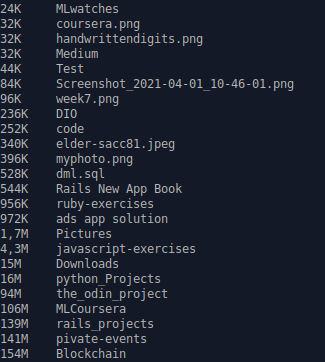
Now you can see which files or directories are taking much space and delete them using rm -rf filename or rm -rf directory_name . I did it and after running df -h again, I now had 88% — instead of 100% — of memory used from the dev/sda1 directory. Even though I had deleted many files and directories, it seemed strange to me that something was still occupying so much space. And here comes a powerful tool that solved my problems and of which I knew nothing before running into this issue.
NCDU
NCDU shows you which files and directories are taking the most space on the directory you run it — but it shows even the hidden files and directories that the other commands we used so far are unable to show. I did show you the other commands though because finding the big files and deleting them manually helped me to get some space — even if it was only a bit — so that I could install ncdu by running the command sudo apt-get install ncdu . Now, running the command ncdu path will show you what you need to find out — path being the directory you want to inspect, which on my case path was equal to /home/myusername . You will see something like this:
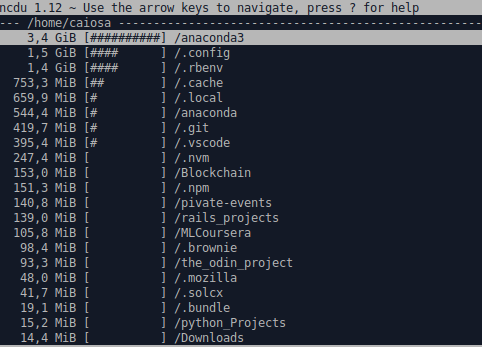
Here we go! After I solved the issue, you can see that anaconda3 takes up the most space, but before solving the issue, .local took about 4GiB of my memory — that is a lot. Also, .cache was a big part of the problem.
You now only need to remove the biggest files in these directories. I do not recommend removing all of the content inside them at once, but there are different opinions about it over the internet. But make some research so that you will not be doing something damageable for your computer. So, now, just run cd .cache and run du -hs * | sort -h to find which applications’ caches are unnecessarily big. Then, run rm -rf filename where the filename will be the name of the file you want to remove. Also, if .local is taking much space too, run rm -rf ~/.local/share/Trash to remove all the trash that has been saved — if you don't care about them, of course. If the .thumbs/ file is also taking much space, run rm -rf ~/.thumbs/* .
After doing all of this and removing the anaconda files I had before and trying running its installer again, the installation succeed, and now I can use it without any problems.
Credits to this helpful article on NCDU that was a light for me:
https://www.vivaolinux.com.br/dica/Usando-o-NcDU-(Ncurses-Disk-Usage)
메타데이터
- post_id
- 962eaaf52473
- slug
- how-to-free-up-space-from-sda1-on-linux-962eaaf52473
- url
- https://medium.com/@caiosa/how-to-free-up-space-from-sda1-on-linux-962eaaf52473
- canonical_url
- https://medium.com/@caiosa/how-to-free-up-space-from-sda1-on-linux-962eaaf52473
- author_url
- https://medium.com/@caiosa
- status
- ok
- fetched_at
- 2026-06-20 20:29:01