Step-by-Step Guide: Deploying Streamlit Apps on Google Cloud Platform (GCP)
This article is a quick guide on how to test and deploy your Python Web applications on GCP. Whether you’re a beginner looking to get your…
Step-by-Step Guide: Deploying Streamlit Apps on Google Cloud Platform (GCP)
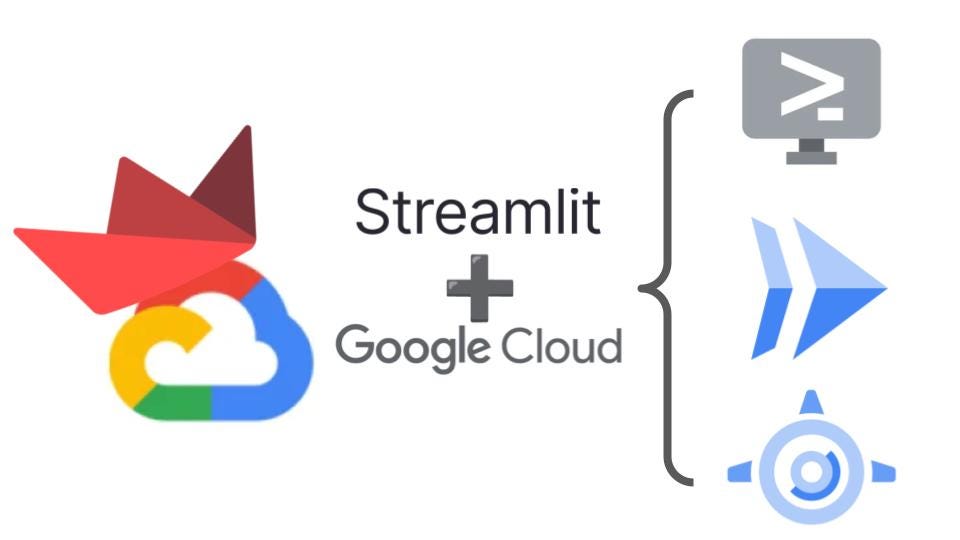
This article is a quick guide on how to test and deploy your Python Web applications on GCP. Whether you’re a beginner looking to get your app online or an experienced developer seeking to optimize your deployment process, this guide provides a practical approach to testing and deploying Streamlit apps on GCP.
This article covers the following:
- Testing a Streamlit App on the GCP **Cloud Shell**
- Deploying Streamlit Apps on GCP **Cloud Run**
- Deploying Streamlit Apps on GCP **App Engine**
- App Engine or Cloud Run, which is right for me?
Testing a Streamlit App on the GCP Cloud Shell
Before deploying your Web application on the Google Cloud, it’s a good idea to test it on the Cloud Shell. For this purpose,
- Open/activate the Cloud Shell from your Google Cloud Console (https://console.cloud.google.com/).
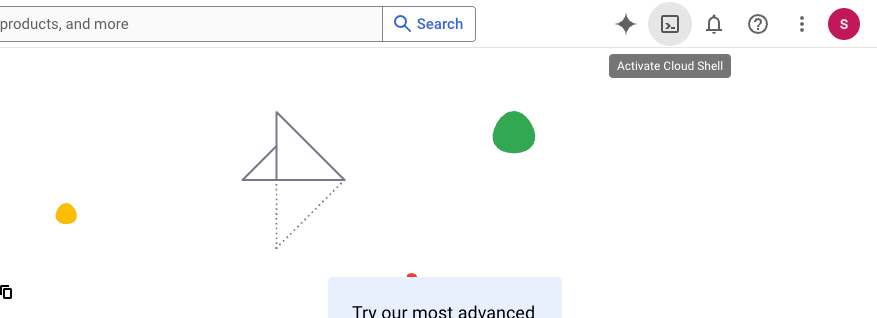
Activating GCP Cloud Shell
- Cloud Shell provisions 5 GB of free persistent disk storage. Copy your code into the GCP Cloud Shell environment, whether form Github through
git clonecommand or using the “Open Editor” button and through uploading into the Cloud Shell Editor UI.
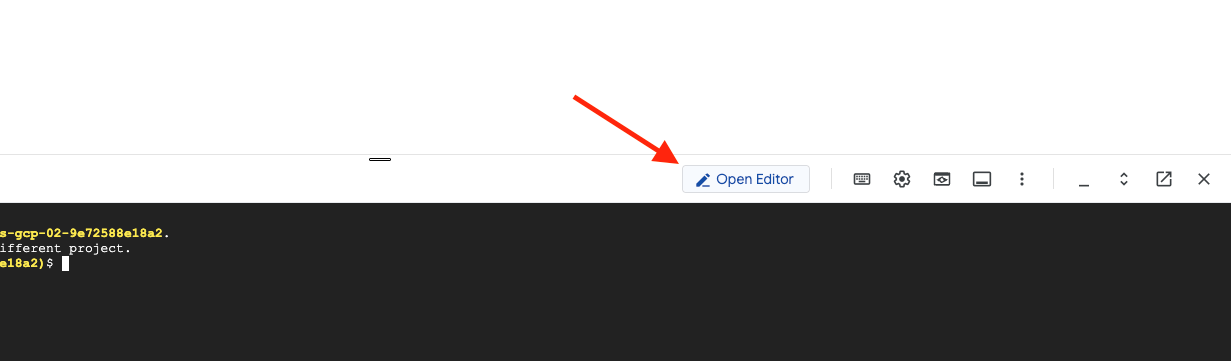
Opening the GCP Cloud Shell Editor
- Create a virtual environment and install the Python requirements. Using below code, replace
streamlit-envwith your desired name for your virtual environment.
python3 -m venv streamlit-env
source streamlit-env/bin/activate
pip install -r requirements.txt- Next, navigate to your Streamlit home directory and run the app using the followin code,
streamlit run app.py \
  --browser.serverAddress=localhost \
  --server.enableCORS=false \
  --server.enableXsrfProtection=false \
--server.port 8080- If the app runs successfully you’ll see a message similar to the one below,

Streamlit app running on the local host
Now, you can preview your app using the built-in preview feature of GCP Cloud Shell. As shown below, click on the Web preview icon and click on “Preview on port 8080”. A new tab will open, running your Streamlit app

Previewing the application on GCP Web preview
At any time, you can kill the app using ctrl+C in the Cloud Shell Terminal.
Deploying Streamlit Apps on GCP Cloud Run
Google Cloud Run is a fully managed serverless platform that allows you to run containerized applications without managing the underlying infrastructure. It automatically scales your services based on demand, offering flexibility and efficiency for deploying applications.
Here, we will go through the step-by-step process of Deploying a Python Web Application, more specifically a Streamlit Application, on GCP Cloud Run.
- Before deploying the code, make sure that you have a
Dockerfilein the root directory of your application. The below you can see a working sample for theDockerfile,
FROM python:3.12

EXPOSE 8080
WORKDIR /app

COPY . ./

RUN pip install --no-cache-dir -r requirements.txt

ENTRYPOINT ["streamlit", "run", "app.py", "--server.port=8080", "--server.address=0.0.0.0"]- First, set the GCP project parameters for later use,
GCP_PROJECT='project-ID'
GCP_REGION='us-central1'
AR_REPO='streamlit-ar-repo'
SERVICE_NAME='my-streamlit-app'
Where the project-ID should be replaced with your Project ID.

Determining the Project ID
The streamlit-ar-repo correspond to your desired name for the Artifact Registry repository that you’d like to create. Google Cloud Artifact Registry is a fully managed service for securely storing and managing container images, language packages, and other artifacts used in your development and deployment pipelines.
Moreover, my-streamlit-app could be replaced with your desired app name.
- Use the following command to create the Artifact registry repository with the Docker container,
gcloud artifacts repositories create "$AR_REPO" --location="$GCP_REGION" --repository-format=DockerAlternatively, you can do it through the GCP Console UI. Search for Artifact Registry > Create Repository > Set the Name, Region and other settings > Create
- Use following command to build the Docker container in the Artifact Registry. Make sure that you are in the
Dockerfiledirectory while running the below command.
gcloud builds submit --tag "$GCP_REGION-docker.pkg.dev/$GCP_PROJECT/$AR_REPO/$SERVICE_NAME"Now you should be able to see the repository you created in the Artifact Registry with the Docker container in it.
- Finally, you can deploy the container you created in the Artifact Registry on the Cloud Run using the following command.
gcloud run deploy "$SERVICE_NAME" \
  --port=8080 \
  --image="$GCP_REGION-docker.pkg.dev/$GCP_PROJECT/$AR_REPO/$SERVICE_NAME" \
  --allow-unauthenticated \
  --region=$GCP_REGION \
  --platform=managed  \
  --project=$GCP_PROJECT \
  --set-env-vars=GCP_PROJECT=$GCP_PROJECT,GCP_REGION=$GCP_REGION
Once the app is deployed you’ll see the service URL as below,

Streamlit App Deployed on GCP Cloud Run
Congrats! Now, you can go to the URL and use the app.
Troubleshooting Note: There are cases that your app works fine locally but gets stuck in the “Running…” at one point. It is more common for the larger/more complicated Streamlit application and is due to lack of memory or even processing power on the cloud run instance. The solution is to go to the Google Cloud Console > Cloud Run > click on your inctance > Edit and Deploy a New Version > Contaner(s) > Settings > Resources > You can increase the RAM and number of CPUs to your desired amount.
Deploying Streamlit Apps on GCP App Engine
Google Cloud App Engine is a fully managed platform-as-a-service (PaaS) that enables developers to build and deploy scalable web applications and services without managing the underlying infrastructure. It automatically handles scaling, load balancing, and other infrastructure tasks, allowing developers to focus on writing code.
- In order to deploy an application on App Engine, you need to create an
app.yamlfile in the root directory of your app. A working sample ofapp.yamlfile is presented below,
runtime: python312
env: flex

entrypoint: streamlit run app.py --browser.serverAddress 0.0.0.0 --server.port 8080- Authenticte and initialize the Google Cloud, if needed, using the following commands and follow the prompts,
gcloud auth login
gcloud init- Deploy your application on the App Engine using the following command,
gcloud app deployNow, you can see the application’s URL by running gcloud app browse on Cloud Shell.
Congrats! Your app is now deployed on App Engine.
Bonus point: Securing App Engine Applications
With Google Cloud’s Identity-Aware Proxy (IAP), you can secure the App Engine Application and restrict the access to it. With IAP, users need to login to their Google Account to be able to use the application.
In order to secure your App go to the Google Cloud Console’s Identity-Aware Proxy (https://console.cloud.google.com/security/iap) > Select your project > Select the checkbox next to the resource you want to grant access to > Add principal > Add the white-list emails > Select the Cloud IAP>IAP-secured Web App User > Save.
For more details, please refer to the following link, https://cloud.google.com/beyondcorp-enterprise/docs/securing-app-engine#enabling_iap_console
![IAP Mechanism [source: https://cloud.google.com/iap/docs/concepts-overview]](https://miro.medium.com/v2/resize:fit:1400/1*mUU9JukGBDs9glR6t8NlhQ.png)
IAP Mechanism [source: https://cloud.google.com/iap/docs/concepts-overview]
App Engine or Cloud Run, which is right for me?
Google Cloud Run and Google App Engine are both powerful options for deploying a Streamlit web app, but they cater to different needs depending on your project’s requirements.
Cloud Run
- Flexibility: Cloud Run excels in flexibility. It allows you to deploy any containerized application, meaning you have complete control over the environment. This is particularly useful if your Streamlit app relies on specific dependencies or custom configurations.
- Scaling: Cloud Run scales automatically with incoming traffic, ensuring that your app can handle sudden spikes in usage without any manual intervention. It scales to zero when there’s no traffic, which can save costs for less frequently accessed apps.
- Ease of Deployment: If you’re familiar with Docker, deploying to Cloud Run is straightforward. You containerize your Streamlit app, push the image to Google Artifact Registry, and deploy it to Cloud Run.
- Use Case: Cloud Run is ideal if you need fine-grained control over your environment, require support for custom dependencies, or expect unpredictable traffic patterns.
App Engine
- Simplicity: App Engine offers a more streamlined deployment experience, especially if you’re looking for a more “hands-off” approach. With App Engine’s flexible environment, you can still specify custom runtimes, but the process is more integrated, making it easier for those less familiar with containerization.
- Built-In Services: App Engine provides built-in services like traffic splitting, monitoring, and versioning, which can simplify the management of your Streamlit app. These features are beneficial if you need advanced deployment strategies or built-in app monitoring.
- Scaling: Similar to Cloud Run, App Engine also offers automatic scaling, but it can be more tailored for traditional web apps where you may want to fine-tune scaling settings based on the type of application instance.
- Use Case: App Engine is well-suited for developers who prefer a fully managed environment with less operational overhead and those who might not require the full customization that Cloud Run offers.
Which One is Right for You?
- Choose Cloud Run if you need maximum flexibility, plan to use custom environments, or anticipate varying traffic patterns where scaling to zero is a cost-saver.
- Choose App Engine if you prefer simplicity, want to leverage built-in services, and are looking for a more managed experience without the need for containerization expertise.
메타데이터
- post_id
- 96fca6a4f331
- slug
- step-by-step-guide-deploying-streamlit-apps-on-google-cloud-platform-gcp-96fca6a4f331
- url
- https://medium.com/bitstrapped/step-by-step-guide-deploying-streamlit-apps-on-google-cloud-platform-gcp-96fca6a4f331
- canonical_url
- https://medium.com/bitstrapped/step-by-step-guide-deploying-streamlit-apps-on-google-cloud-platform-gcp-96fca6a4f331
- author_url
- https://medium.com/@hrahimi
- status
- ok
- fetched_at
- 2026-06-14 11:28:49