From Mockup to App: Building a Modern PDF Utility with C# and WPF
➡️ Watch the full comparison, visual demos, and deep-dive analysis in the VectoArt video: https://youtu.be/M-KjoQEKvIU
From Mockup to App: Building a Modern PDF Utility with C# and WPF

➡️ Watch the full comparison, visual demos, and deep-dive analysis in the VectoArt video: https://youtu.be/M-KjoQEKvIU
Transform a design concept into a functional desktop application with tools for merging, splitting, and compressing PDF files. A step-by-step guide for developers.
Dealing with PDF files is a universal task. We merge reports, split chapters from e-books, and compress large documents to fit email attachments. While there are plenty of online tools, what if you could build your own sleek, modern desktop application to handle these tasks?
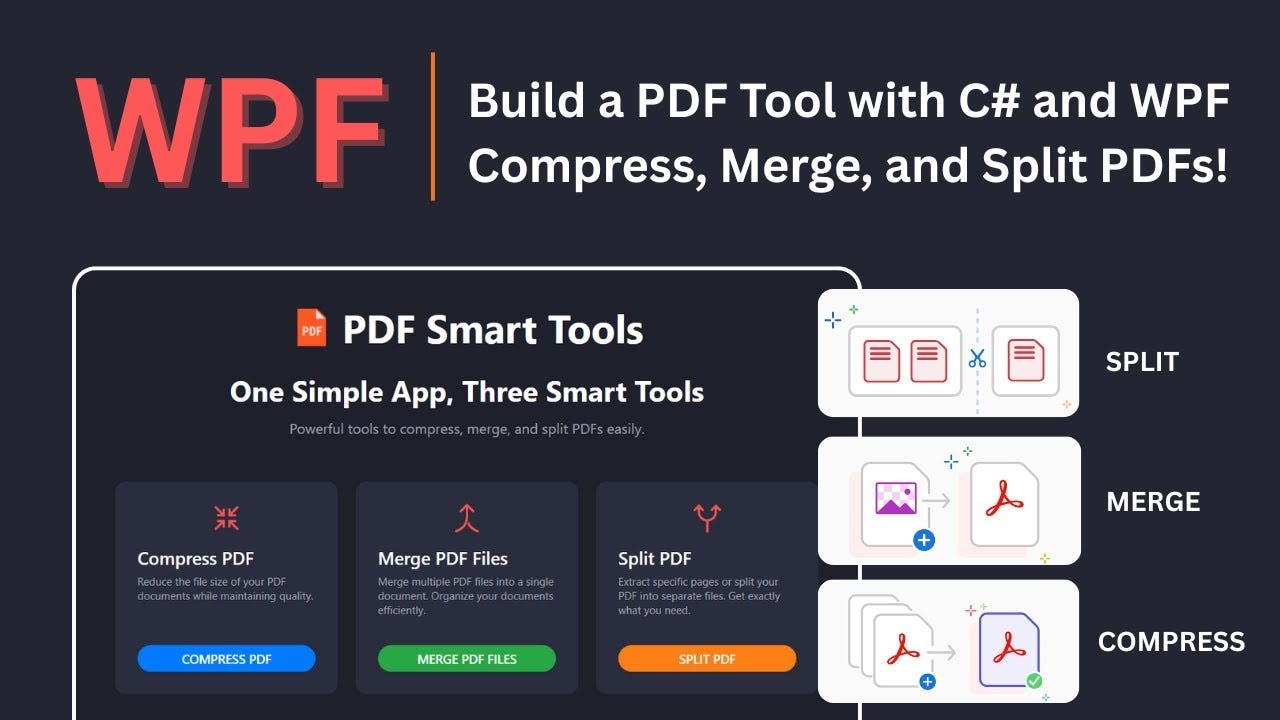
Recently, I was inspired by a fantastic set of UI mockups for a PDF utility. The design was clean, intuitive, and had a professional dark theme — a far cry from the standard, boring interfaces we often see. This sparked an idea: Why not turn this vision into a real, working application?
In this article, I’ll walk you through the entire process of building that exact application using C# and Windows Presentation Foundation (WPF). We’ll cover everything from setting up the project and styling the UI to implementing the core PDF logic.
Our Tech Stack:
- C# and .NET Framework: The logic behind our application.
- WPF: For creating the rich, modern user interface.
- PDFsharp: A powerful, free, open-source library for processing PDF files in .NET.
Let’s get started!
Step 1: Project Setup & Installing Dependencies
First, we need to create our project in Visual Studio and add the PDFsharp library, which will do all the heavy lifting for our PDF operations.
- Create a New Project: Open Visual Studio and create a new WPF App (.NET Framework) project. Let’s name it
PdfTool. - Install PDFsharp: In the Solution Explorer, right-click your project, select Manage NuGet Packages…, go to the Browse tab, and search for
PDFsharp. Install the package by empira Software GmbH.
That’s it for the setup. Now for the fun part.
Step 2: The Blueprint — Crafting the UI with XAML
The goal is to replicate the mockup’s modern, view-based navigation instead of using a traditional TabControl. We'll have a main dashboard and separate "views" for each tool that we can show or hide as needed.
Here’s how the main MainWindow.xaml is structured:
- Window.Resources: This is where we define our entire color palette (dark theme colors, accent colors for buttons) and reusable styles. We create a
BaseButtonstyle and then derive specific styles likePrimaryButton,SuccessButton, etc., to keep our UI consistent. We also define vector icons for a sharp, scalable look. - View Containers: We use
Gridelements (DashboardView,MergeView, etc.) to hold each screen. We'll control theirVisibilityfrom the C# code to switch between them. - The Dashboard: This is the main screen, using
StackPanelandBorderelements to create the three tool selection cards. - Tool Views: Each view (Merge, Split, Compress) has a header, a content area with a drag-and-drop zone, and a footer with action buttons.
- Drag-and-Drop: We enable drag-and-drop by setting
AllowDrop="True"on our drop zones and defining event handlers.
Here is the complete XAML for the user interface.
<!-- PdfTool/MainWindow.xaml -->
<Window x:Class="PdfTool.MainWindow"
        xmlns="[http://schemas.microsoft.com/winfx/2006/xaml/presentation](http://schemas.microsoft.com/winfx/2006/xaml/presentation)"
        xmlns:x="[http://schemas.microsoft.com/winfx/2006/xaml](http://schemas.microsoft.com/winfx/2006/xaml)"
        xmlns:d="[http://schemas.microsoft.com/expression/blend/2008](http://schemas.microsoft.com/expression/blend/2008)"
        xmlns:mc="[http://schemas.openxmlformats.org/markup-compatibility/2006](http://schemas.openxmlformats.org/markup-compatibility/2006)"
        xmlns:local="clr-namespace:PdfTool"
        mc:Ignorable="d"
        Title="PDF Smart Tools" Height="700" Width="900" MinHeight="650" MinWidth="800"
        WindowStartupLocation="CenterScreen"
        Background="#1E202C"
        FontFamily="Segoe UI">

    <Window.Resources>
        <!-- Colors & Styles -->
        <SolidColorBrush x:Key="PrimaryBackground" Color="#1E202C"/>
        <SolidColorBrush x:Key="SecondaryBackground" Color="#2A2D3E"/>
        <SolidColorBrush x:Key="CardBackground" Color="#373A4D"/>
        <SolidColorBrush x:Key="TextPrimary" Color="White"/>
        <SolidColorBrush x:Key="TextSecondary" Color="#A0A3B1"/>
        <SolidColorBrush x:Key="AccentBlue" Color="#007BFF"/>
        <SolidColorBrush x:Key="AccentGreen" Color="#28A745"/>
        <SolidColorBrush x:Key="AccentOrange" Color="#FD7E14"/>
        <SolidColorBrush x:Key="AccentRed" Color="#DC3545"/>

        <!-- Icons -->
        <PathGeometry x:Key="IconCompress" Figures="M18 3h-3v-3h-12v12h3v3h12v-12h-3v-3zm-4 4h-10v-10h10v10zm6 2h-10v-10h1v2h8v7h1v1z"/>
        <PathGeometry x:Key="IconMerge" Figures="M24 10h-10v-10h-14v14h10v10h14v-14zm-12 12h-10v-10h10v10zm12 0h-10v-10h10v10z"/>
        <PathGeometry x:Key="IconSplit" Figures="M24 10.999v13.001h-24v-24h13.021v2h-11.021v20h20v-11.001h2zm-12.021-10.999h11.021v11.021h-2v-7.586l-9.021 9.021-1.414-1.414 9.021-9.021h-7.586v-2z"/>
        <PathGeometry x:Key="IconUpload" Figures="M14 11h-3v10h-2v-10h-3l4-6 4 6zm10-1v13h-24v-13h9.879c-.587.658-1.028 1.458-1.24 2.362-1.285.253-2.63.149-3.879-.035v9.673h18v-9.673c-1.353.199-2.775.31-4.121.035-.212-.904-.653-1.704-1.24-2.362h9.361z"/>

        <!-- Button Styles -->
        <Style x:Key="BaseButton" TargetType="Button">
            <Setter Property="Padding" Value="15,10"/>
            <Setter Property="FontSize" Value="14"/>
            <Setter Property="FontWeight" Value="SemiBold"/>
            <Setter Property="Foreground" Value="{StaticResource TextPrimary}"/>
            <Setter Property="Cursor" Value="Hand"/>
            <Setter Property="BorderThickness" Value="0"/>
            <Setter Property="Template">
                <Setter.Value>
                    <ControlTemplate TargetType="Button">
                        <Border x:Name="border" CornerRadius="8" Background="{TemplateBinding Background}">
                            <ContentPresenter HorizontalAlignment="Center" VerticalAlignment="Center"/>
                        </Border>
                        <ControlTemplate.Triggers>
                            <Trigger Property="IsMouseOver" Value="True">
                                <Setter TargetName="border" Property="Opacity" Value="0.9"/>
                            </Trigger>
                            <Trigger Property="IsPressed" Value="True">
                                <Setter TargetName="border" Property="Opacity" Value="0.7"/>
                            </Trigger>
                        </ControlTemplate.Triggers>
                    </ControlTemplate>
                </Setter.Value>
            </Setter>
        </Style>
        <Style x:Key="PrimaryButton" TargetType="Button" BasedOn="{StaticResource BaseButton}".../> <!-- Styles omitted for brevity -->
    </Window.Resources>

    <Grid>
        <!-- VIEW 1: Dashboard (Code Omitted for Brevity) -->
        <Grid x:Name="DashboardView" Visibility="Visible"> ... </Grid>

        <!-- VIEW 2: Merge (Code Omitted for Brevity) -->
        <Grid x:Name="MergeView" Background="{StaticResource SecondaryBackground}" Visibility="Collapsed"> ... </Grid>

        <!-- VIEW 3: Split (Code Omitted for Brevity) -->
        <Grid x:Name="SplitView" Background="{StaticResource SecondaryBackground}" Visibility="Collapsed"> ... </Grid>

        <!-- VIEW 4: Compress (Code Omitted for Brevity) -->
        <Grid x:Name="CompressView" Background="{StaticResource SecondaryBackground}" Visibility="Collapsed"> ... </Grid>
    </Grid>
</Window>
Note: The full XAML is available in the Github repo. Link is in the video Description. Some sections are condensed here for readability.
Step 3: The Engine — The C# Code-Behind
Now we write the C# code in MainWindow.xaml.cs to power the UI. The code is responsible for:
- View Navigation: A simple
SwitchViewmethod hides all views and then shows only the one we want. - Data Binding: We implement
INotifyPropertyChangedto make sure the UI updates automatically when a file is selected. - Drag-and-Drop Logic: We handle the
Dropevents to get the file paths and update our properties. - Core PDF Functions: This is where
PDFsharpcomes in. The logic for merging, splitting, and compressing is surprisingly straightforward. For the "Split by Range" feature, we've added a helper function,ParsePageRange, to interpret user input like "1-3, 5, 8-10".
Here is the complete C# code-behind.
// PdfTool/MainWindow.xaml.cs
using Microsoft.Win32;
using PdfSharp.Pdf;
using PdfSharp.Pdf.IO;
using System;
using System.Collections.Generic;
using System.Collections.ObjectModel;
using System.ComponentModel;
using System.Diagnostics;
using System.IO;
using System.Linq;
using System.Windows;
using System.Windows.Controls;
using System.Windows.Input;

namespace PdfTool
{
    public partial class MainWindow : Window, INotifyPropertyChanged
    {
        // Enums for View and Option Management
        private enum AppView { Dashboard, Merge, Split, Compress }

        // Collections and Properties for Data Binding
        public ObservableCollection<string> FilesToMerge { get; set; } = new ObservableCollection<string>();
        private string _fileToSplit;
        public string FileToSplit
        {
            get => _fileToSplit;
            set { _fileToSplit = value; OnPropertyChanged(nameof(FileToSplitDisplayName)); }
        }
        public string FileToSplitDisplayName => string.IsNullOrEmpty(FileToSplit) ? "Click or drag and drop..." : Path.GetFileName(FileToSplit);
        // ... other properties

        public event PropertyChangedEventHandler PropertyChanged;
        protected void OnPropertyChanged(string propertyName) { ... }

        public MainWindow()
        {
            InitializeComponent();
            DataContext = this;
            SwitchView(AppView.Dashboard);
        }

        // --- Navigation Logic ---
        private void SwitchView(AppView view) { ... }
        private void GoToDashboard_Click(object sender, RoutedEventArgs e) => SwitchView(AppView.Dashboard);
        // ... other navigation clicks

        // --- Drag and Drop Handling ---
        private void FileDrop_DragEnter(object sender, DragEventArgs e) { ... }
        private void MergeFile_Drop(object sender, DragEventArgs e) { ... }
        // ... other drop handlers

        #region Merge PDF Logic
        private void MergeFiles_Click(object sender, RoutedEventArgs e)
        {
            if (FilesToMerge.Count < 2) { /*...*/ return; }
            SaveFileDialog saveFileDialog = new SaveFileDialog { /*...*/ };

            if (saveFileDialog.ShowDialog() == true)
            {
                using (PdfDocument outputDocument = new PdfDocument())
                {
                    foreach (string file in FilesToMerge)
                    {
                        using (PdfDocument inputDocument = PdfReader.Open(file, PdfDocumentOpenMode.Import))
                        {
                            for (int i = 0; i < inputDocument.PageCount; i++)
                            {
                                outputDocument.AddPage(inputDocument.Pages[i]);
                            }
                        }
                    }
                    outputDocument.Save(saveFileDialog.FileName);
                }
                // ... success message
            }
        }
        #endregion

        #region Split PDF Logic
        private void SplitFile_Click(object sender, RoutedEventArgs e) { ... }

        // Helper to parse page ranges like "1-3,5,7-9"
        private List<int> ParsePageRange(string range, int maxPage) { ... }
        #endregion

        #region Compress PDF Logic
        private void CompressFile_Click(object sender, RoutedEventArgs e)
        {
            // ... file checks
            using (PdfDocument document = PdfReader.Open(FileToCompress, PdfDocumentOpenMode.Import))
            {
                // PDFsharp's main compression is structural optimization
                document.Options.FlateEncodeMode = PdfFlateEncodeMode.BestCompression;
                document.Options.CompressContentStreams = true;
                document.Save(saveFileDialog.FileName);
            }
            // ... success message
        }
        #endregion
    }
}
Note: The full XAML is available in the Github repo. Link is in the video Description. Some sections are condensed here for readability.
Conclusion and Next Steps
And there you have it! We’ve successfully taken a beautiful UI concept and turned it into a fully functional desktop application with powerful PDF manipulation capabilities. We learned how to structure a modern WPF application, style it professionally, and integrate a third-party library to handle complex tasks.
This project is a fantastic starting point. You could extend it by:
- Adding more tools like PDF to Word conversion or watermarking (which may require different libraries).
- Implementing more advanced compression options.
- Showing file previews within the application.
Happy coding!
If you enjoyed this tutorial, feel free to leave a clap and follow for more content on software development and design!
메타데이터
- post_id
- 979e33b2f4f9
- slug
- from-mockup-to-app-building-a-modern-pdf-utility-with-c-and-wpf-979e33b2f4f9
- url
- https://medium.com/@artillustration391/from-mockup-to-app-building-a-modern-pdf-utility-with-c-and-wpf-979e33b2f4f9
- canonical_url
- https://medium.com/@artillustration391/from-mockup-to-app-building-a-modern-pdf-utility-with-c-and-wpf-979e33b2f4f9
- author_url
- https://medium.com/@artillustration391
- status
- ok
- fetched_at
- 2026-06-24 11:06:28




