“This App is blocked” error in Google Earth Engine
Recently, Google’s OAuth 2.0 authorization server began explicitly refusing to issue security tokens when developers attempt to…
“This App is blocked” error in Google Earth Engine
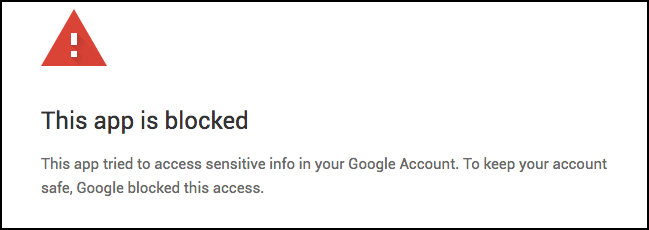
Recently, Google’s OAuth 2.0 authorization server began explicitly refusing to issue security tokens when developers attempt to authenticate Google Earth Engine on a remote virtual machine.
The screen displays a warning stating that the application tried to access sensitive info in your Google Account and was blocked to keep your account safe.
The Technical Mechanics of the Error
This error is triggered by a security mechanism designed to prevent phishing and man-in-the-middle attacks. Here is exactly what happens under the hood to cause it:
- Detection of a Headless Environment: When you run an authentication command on a virtual machine, the command-line interface (CLI) cannot open a local browser. It instead generates a link for you to copy and paste into your personal computer’s browser.
- Context Mismatch: When you open that link on your local machine and log in, Google’s security backend analyzes the authentication request. It notes that a human user is attempting to grant sweeping, high-risk permissions (access to Google Earth Engine and Google Drive data) to an unverified, generic command-line application operating from a remote, cloud-hosted IP address.
- Policy Enforcement: Google’s current security protocols strictly forbid the use of the legacy Out-of-Band (OOB) “copy-paste” authorization flow for sensitive, non-vetted applications. Because the remote CLI cannot establish a secure, local cryptographic loopback connection to your browser, Google flags the request as an unverified external application attempt and blocks it entirely.
How did it work before
Before Google tightened its security policies, the authentication process relied on a simpler mechanism often called the Out-of-Band (OOB) or “copy-paste” authorization flow. Here is exactly how it used to work step-by-step:
- The Legacy Command: When you ran
earthengine authenticateon a remote server, the Earth Engine CLI would recognize that it was running in a headless environment. Instead of looking for a local browser, it would generate a specific authentication URL and print it directly to your terminal screen. - The Manual Copy-Paste: You would copy that URL from your VM’s terminal, paste it into the web browser on your personal laptop, and log in with your Google account. After you clicked “Allow” to grant permissions, Google wouldn’t try to send a hidden token back to a local background server. Instead, it would literally display a long, alphanumeric authorization code right on the web page.
- Handing over the Key: You would copy that authorization code from your browser, go back to your VM’s terminal window, paste the code into the waiting prompt, and hit Enter. The VM would then send that code back to Google’s authorization servers to exchange it for long-term access tokens, storing them locally in a hidden folder (like
~/.config/earthengine/credentials). From that point forward, your VM was authenticated as you.
Why Google Changed It
While this manual copy-paste flow was incredibly convenient for developers working on remote servers, it had a massive security flaw: it was highly vulnerable to phishing attacks.
Malicious actors could set up fake websites or scripts that generated these URLs, tricking users into pasting authorization codes into unauthorized platforms. Because the code was visible in plain text on a screen, it was easy to intercept.
To eliminate this vulnerability, Google deprecated the OOB flow for sensitive APIs. Now, Google’s security protocols require a secure, direct application-to-application loopback (which doesn’t work on a headless VM) or the explicit use of Service Accounts, which are cryptographically secured and designed specifically for machine-to-machine communication.
What is the current Fix
Shifting from User Identity to Machine Identity. Stop trying to log in as “you” and let the VM log in as “itself” using Application Default Credentials (ADC) and its built-in Service Account.
Step-by-Step Resolution:
- Locate the default Compute Engine service account email (
...-compute@developer.gserviceaccount.com). - Register that service account on the Earth Engine registration portal.
- Run the Python initialization code using
google.auth.default(), completely bypassing the interactive login screens.
import ee
import google.auth

# Automatically pull credentials based on the environment type
credentials, project = google.auth.default(
    scopes=['https://www.googleapis.com/auth/cloud-platform']
)

# Initialize using the detected credentials type
PROJECT_ID = "projectXXXX"
ee.Initialize(credentials=credentials, project=PROJECT_ID)
Headless cloud infrastructure requires cloud-native authentication, not browser-based user logins.
메타데이터
- post_id
- 98c268e8deda
- slug
- this-app-is-blocked-error-in-google-earth-engine-98c268e8deda
- url
- https://medium.com/@sarbani.bhadra/this-app-is-blocked-error-in-google-earth-engine-98c268e8deda
- canonical_url
- https://medium.com/@sarbani.bhadra/this-app-is-blocked-error-in-google-earth-engine-98c268e8deda
- author_url
- https://medium.com/@sarbani.bhadra
- status
- ok
- fetched_at
- 2026-07-27 11:43:05