nocodb Traefik : Complete NocoDB Installation Guide
This document provides a step-by-step guide to install and configure NocoDB on a Linux server (e.g., Ubuntu) using Docker, Docker Compose…
nocodb Traefik : Complete NocoDB Installation Guide
This document provides a step-by-step guide to install and configure NocoDB on a Linux server (e.g., Ubuntu) using Docker, Docker Compose, a Traefik reverse proxy with SSL, and a PostgreSQL database.
- All examples use placeholder values for domains and credentials — be sure to replace them with your actual information.
1. Overview
NocoDB is an open-source no-code platform that converts any SQL database (PostgreSQL, MySQL, etc.) into a user-friendly spreadsheet interface similar to Airtable. It automatically generates REST and GraphQL APIs, and includes built-in automation and collaboration features.
2. Prerequisites
- A Linux server (Ubuntu 20.04+ recommended) with root or sudo privileges.
- Docker (version 20.10+) and Docker Compose installed.
- A registered domain name (e.g.,
nocodb.yourdomain.com) pointing to your server’s IP. - A Traefik instance configured as a reverse proxy with HTTPS (Let’s Encrypt).
- A running PostgreSQL instance (Docker container).
3. Install Docker & Docker Compose
# Update and upgrade packages
sudo apt update && sudo apt upgrade -y
# Install Docker
sudo apt install -y docker.io
sudo systemctl enable --now docker# Install Docker Compose
sudo curl -L "https://github.com/docker/compose/releases/download/1.29.2/docker-compose-$(uname -s)-$(uname -m)" \
-o /usr/local/bin/docker-compose
sudo chmod +x /usr/local/bin/docker-compose4. Configure PostgreSQL
You can use either a Docker container or an existing PostgreSQL server.
4.1. Deploy PostgreSQL with Docker Compose
Create a folder (e.g., postgres/) and add this docker-compose.yml:
services:
  db:
    image: postgres:14
    environment:
      - POSTGRES_USER=<PG_USER>
      - POSTGRES_PASSWORD=<PG_PASSWORD>
      - POSTGRES_DB=<PG_DATABASE>
    volumes:
      - pg_data:/var/lib/postgresql/data
    restart: unless-stopped
volumes:
  pg_data:
Launch it:
docker-compose up -d db4.2. Create NocoDB Database and User
Connect to PostgreSQL and run:
psql -h <PG_HOST> -U <PG_USER> -d <PG_DATABASE> -c "\
CREATE DATABASE nocodb; \
CREATE USER nocodb_user WITH ENCRYPTED PASSWORD '<NOCODB_DB_PASSWORD>'; \
GRANT ALL PRIVILEGES ON DATABASE nocodb TO nocodb_user;"
5. Prepare NocoDB Docker Compose
Create a directory, e.g., /opt/nocodb/, and add the following docker-compose.yml:
services:
  nocodb:
    image: nocodb/nocodb:latest
    env_file: docker.env
    restart: unless-stopped
    volumes:
      - ./nocodb_data:/usr/app/data
    labels:
      - "traefik.enable=true"
      - "traefik.docker.network=traefik_proxy"
      - "traefik.http.routers.nocodb.rule=Host(`nocodb.yourdomain.com`)"
      - "traefik.http.routers.nocodb.entrypoints=websecure"
      - "traefik.http.routers.nocodb.tls=true"
      - "traefik.http.routers.nocodb.tls.certresolver=<YOUR_RESOLVER>"
      - "traefik.http.services.nocodb.loadbalancer.server.port=8080"
    networks:
      - traefik_proxy
      - nocodb_backend
networks:
  traefik_proxy:
    external: true
  nocodb_backend:
    driver: bridge
6. Define Environment Variables
Create a docker.env file alongside docker-compose.yml:
# PostgreSQL connection string for NocoDB
NC_DB=pg://<PG_HOST>:5432?u=nocodb_user&p=<NOCODB_DB_PASSWORD>&d=nocodb
# Alternative standard URL
# DATABASE_URL=postgres://nocodb_user:<NOCODB_DB_PASSWORD>@<PG_HOST>:5432/nocodb
# Redis (optional for caching and sessions)
# NC_REDIS_URL=redis://:<REDIS_PASSWORD>@<REDIS_HOST>:6379/0
# JWT secret to persist sessions across restarts
NC_AUTH_JWT_SECRET=<YOUR_LONG_RANDOM_JWT_SECRET>
# Public URL of your NocoDB instance
NC_PUBLIC_URL=https://nocodb.yourdomain.com
Replace all <PLACEHOLDERS> with your actual values. Without NC_DB, NocoDB will default to SQLite. Without NC_AUTH_JWT_SECRET, user sessions will reset on each restart.
7. Configure Traefik
Ensure your Traefik configuration (static file or command flags) includes:
providers:
  docker:
    exposedByDefault: false
entryPoints:
  web:
    address: ":80"
  websecure:
    address: ":443"
certificatesResolvers:
  <YOUR_RESOLVER>:
    acme:
      email: <YOUR_EMAIL>
      storage: /letsencrypt/acme.json
      httpChallenge:
        entryPoint: web
The Docker labels in the NocoDB service will instruct Traefik to route and secure traffic.
8. Deploy NocoDB
cd /opt/nocodb
# Create internal network for Postgres <-> NocoDB
docker network create nocodb_backend || true
# Connect existing Postgres container if needed
docker network connect nocodb_backend <PG_CONTAINER_NAME>
# Start NocoDB
docker-compose up -d nocodb9. Verify Installation
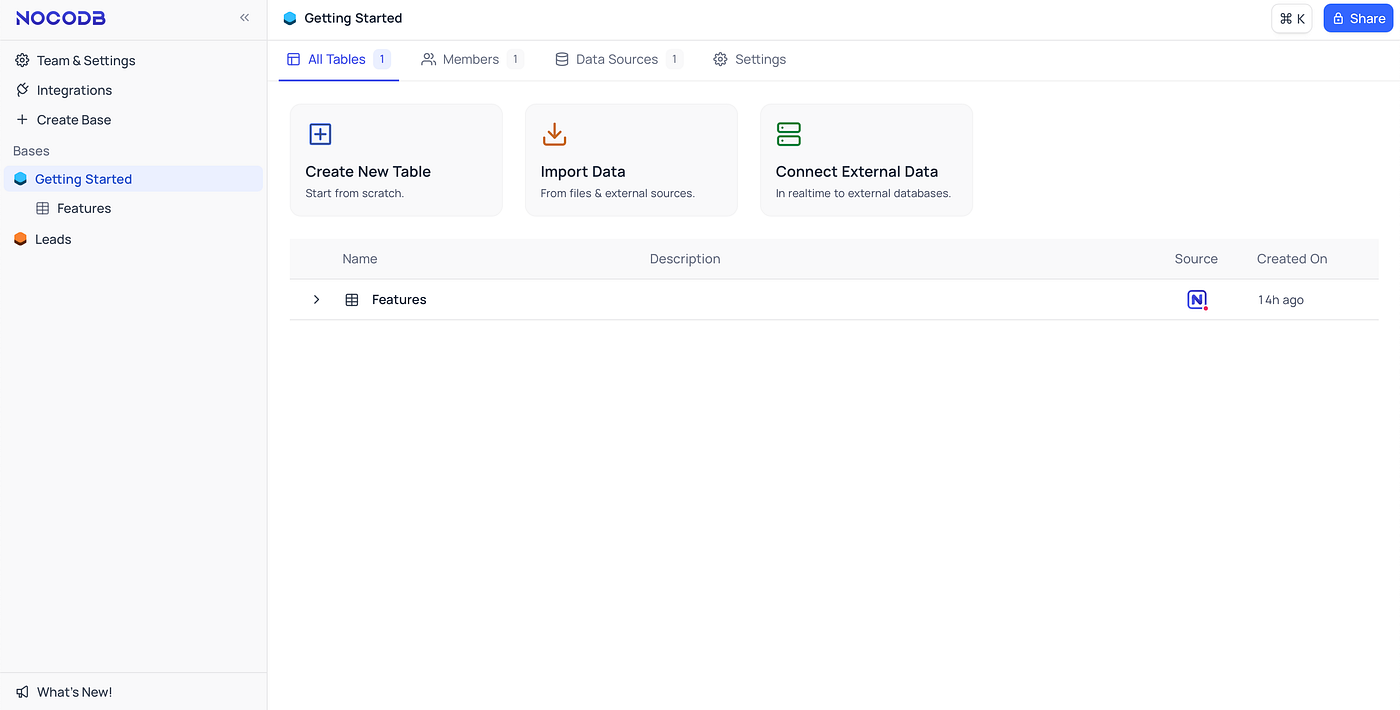
- Check logs:
docker-compose logs -f nocodb - Verify container status:
docker-compose ps nocodb - Access web UI:
[https://nocodb.yourdomain.com](https://nocodb.yourdomain.com) - On first run, create the admin user.
- In Settings → Database Connections, test your PostgreSQL connection.
10. Backup & Migration
- Export database:
pg_dump -h <PG_HOST> -U nocodb_user -d nocodb > nocodb_dump.sql - Archive data volume:
tar czf nocodb_data.tar.gz ./nocodb_data - To migrate, import the SQL dump and restore the volume on the target server.
11. Updating NocoDB
To safely update NocoDB using Docker Compose, first pull the latest image by running:
docker compose pullThen, apply the update and restart the service with:
docker compose up -d --remove-orphans⚠️ Warning: This will restart your NocoDB container and may cause brief downtime. Make sure to back up your data volume (nocodb-data) before proceeding, to avoid any risk of data loss in case of failure.
12. Updates
- Use Watchtower for automatic image updates.
- Rerun the Auto-Upstall script for the latest configurations in a temporary directory.
13. References
- NocoDB Docs: https://docs.nocodb.com/
- NocoDB GitHub: https://github.com/nocodb/nocodb
- Traefik Docs: https://doc.traefik.io/traefik/
- PostgreSQL Docker: https://hub.docker.com/_/postgres
메타데이터
- post_id
- 98ec092eb8af
- slug
- nocodb-traefik-complete-nocodb-installation-guide-98ec092eb8af
- url
- https://medium.com/@rentierdigital/nocodb-traefik-complete-nocodb-installation-guide-98ec092eb8af
- canonical_url
- https://medium.com/@rentierdigital/nocodb-traefik-complete-nocodb-installation-guide-98ec092eb8af
- author_url
- https://medium.com/@rentierdigital
- status
- ok
- fetched_at
- 2026-06-09 15:37:30