How to Build a Dynamic Price Calculator in WordPress (No Code Required)
A couple of months ago a client asked me to build a booking form for their workshop. Nothing crazy — just pick a date, choose a package…
How to Build a Dynamic Price Calculator in WordPress (No Code Required)
A couple of months ago a client asked me to build a booking form for their workshop. Nothing crazy — just pick a date, choose a package, enter the number of people, and get the total. The tricky part was the pricing: different packages had different base rates, add-ons changed the total, and groups over 10 people got a discount.
If you’ve ever tried to do this with a regular WordPress form plugin, you know the pain. Contact Form 7 needs half a dozen extensions. WPForms locks calculations behind their most expensive plan. Gravity Forms can do it, but you’re paying yearly.
I went with a plugin I’ve been using for years — Calculated Fields Form — and had the whole thing running in under an hour. No subscriptions, no code, no headaches.
Here’s exactly how I did it, and how you can do the same.
What we’re building
A simple, real-world price calculator. The user selects a service package, enters a quantity, and sees the total update instantly. If they order more than 10 units, a 10% discount kicks in automatically. Like this:
Package: [Premium Workshop ▼]
Quantity: [______5___________]
Total: $449.50
No page reloads. No JavaScript to write. Just fields and a formula.
Step 1: Install the plugin
If you don’t have Calculated Fields Form yet, grab it from WordPress.org — it’s free, and the free version handles everything I’m about to show you. Install and activate it like any other plugin.
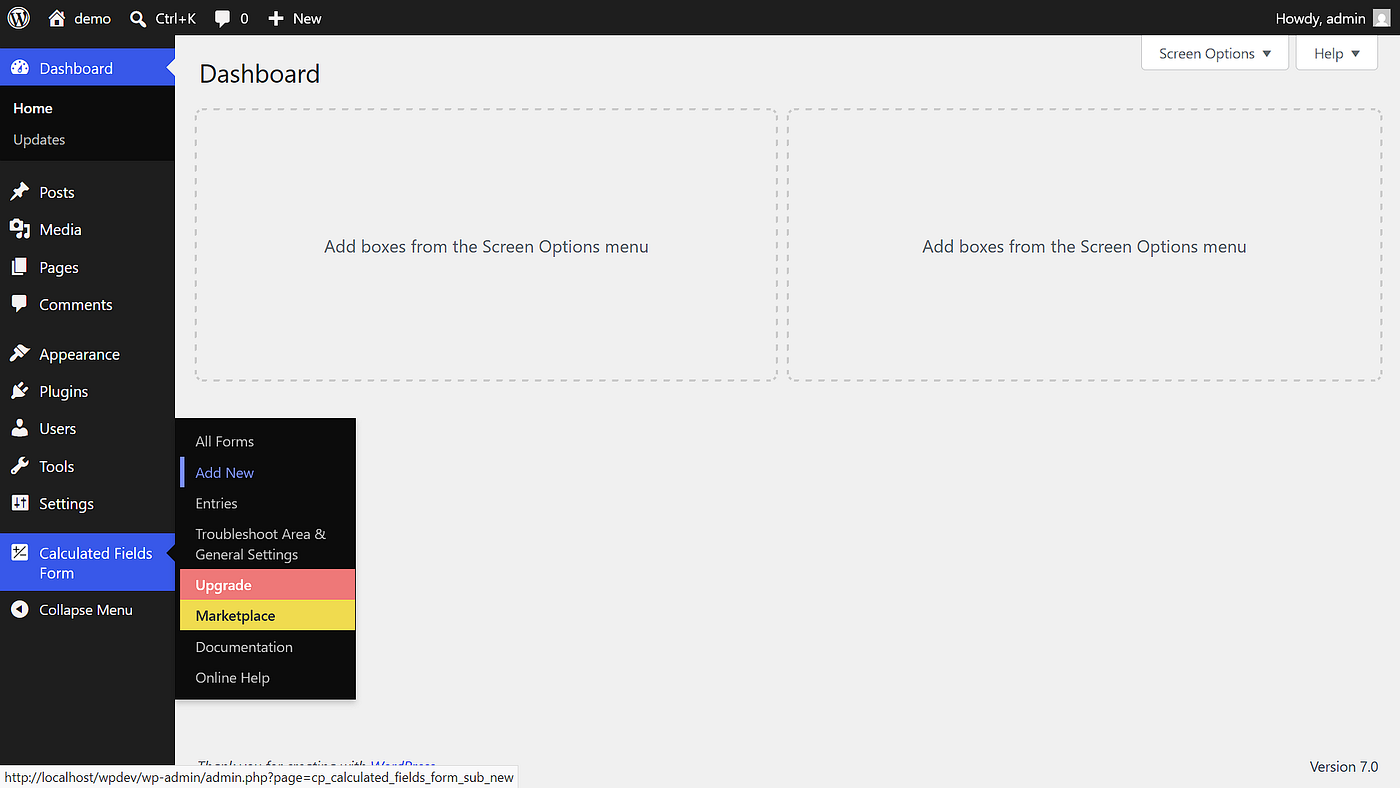
After activation you’ll see a new menu item in your WordPress admin: Calculated Fields Form.
Step 2: Create a new form
Click Calculated Fields Form → Add New. Give it a name like “Price Calculator” and you’ll land in the visual form builder.
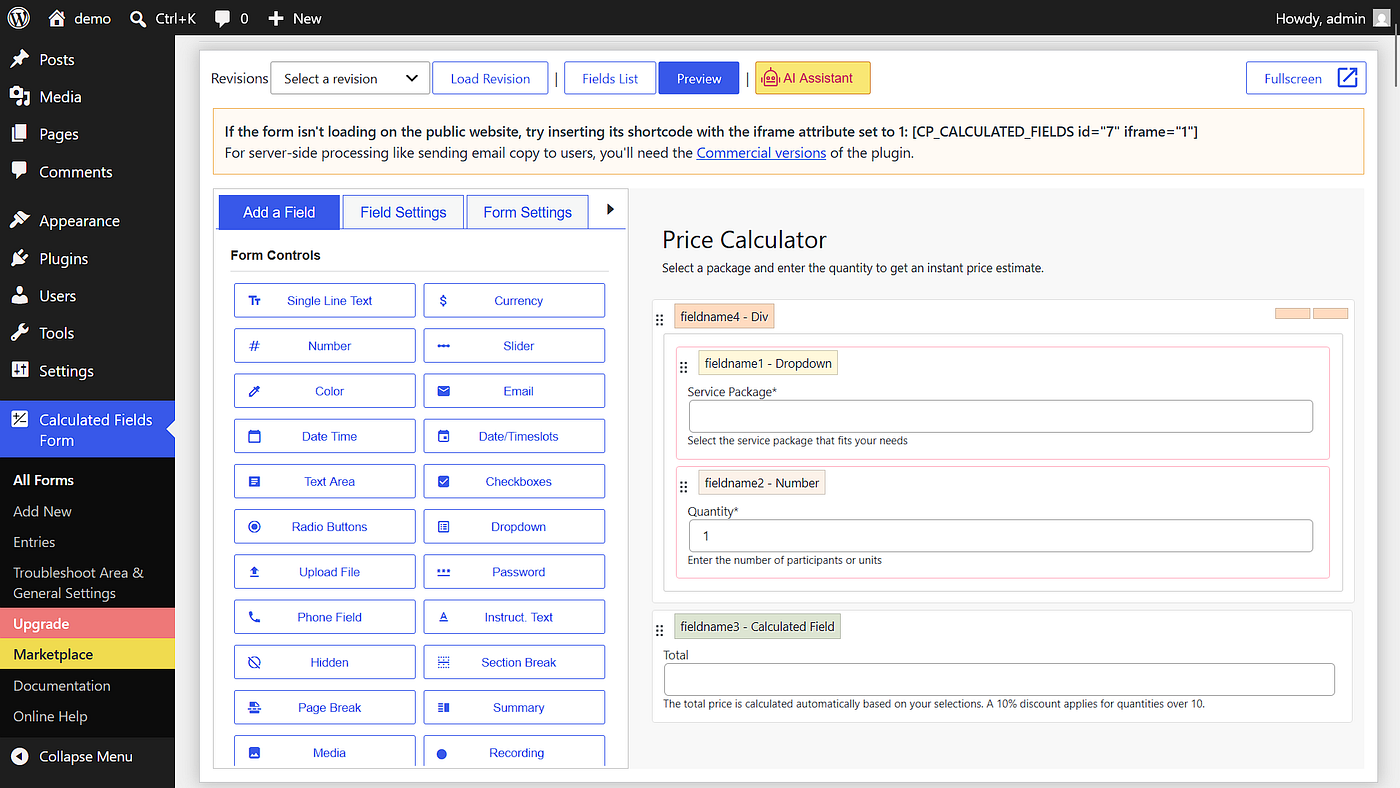
This is where the magic happens. It’s a drag-and-drop interface — you pick controls from the left panel and drop them onto the canvas. If you’ve ever used a page builder like Elementor or Divi, this will feel familiar.
Step 3: Add the service selection
First thing the user needs is to pick a service package. Drag a Dropdown control onto the canvas.
In its settings, enter the options:
Option label | Option value
Basic Consultation | 50
Standard Workshop | 150
Premium Workshop | 299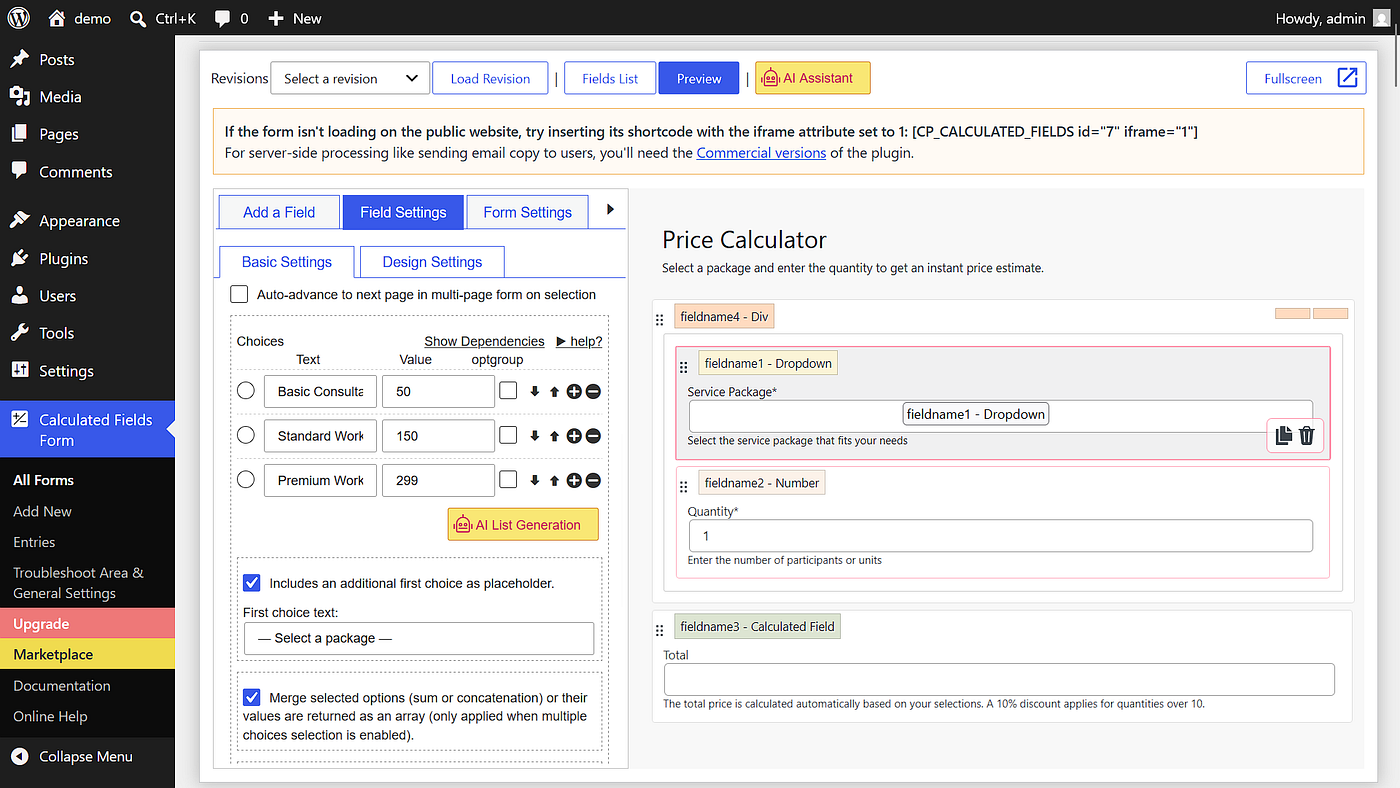
The label is what the user sees. The value is what the calculation uses behind the scenes. Keep it simple.
The plugin will assign this field a name like fieldname1. You’ll see it at the top of the field settings. Write it down — you’ll need it for the formula.
Step 4: Add the quantity input
Drag a Number field right below the dropdown. Set its default value to 1 and minimum to 1. This is fieldname2.
That’s it. Users can type a number or use the spinner arrows.
Step 5: The calculated field — where everything comes together
Here’s the part that looks like magic but is actually just math.
Drag a Calculated Field onto the canvas. This field doesn’t accept user input — it displays a result based on other fields.
In the Equation box, enter:
fieldname1 * fieldname2That’s it. The total is the package price multiplied by the quantity. The result appears in real time as the user changes either value.
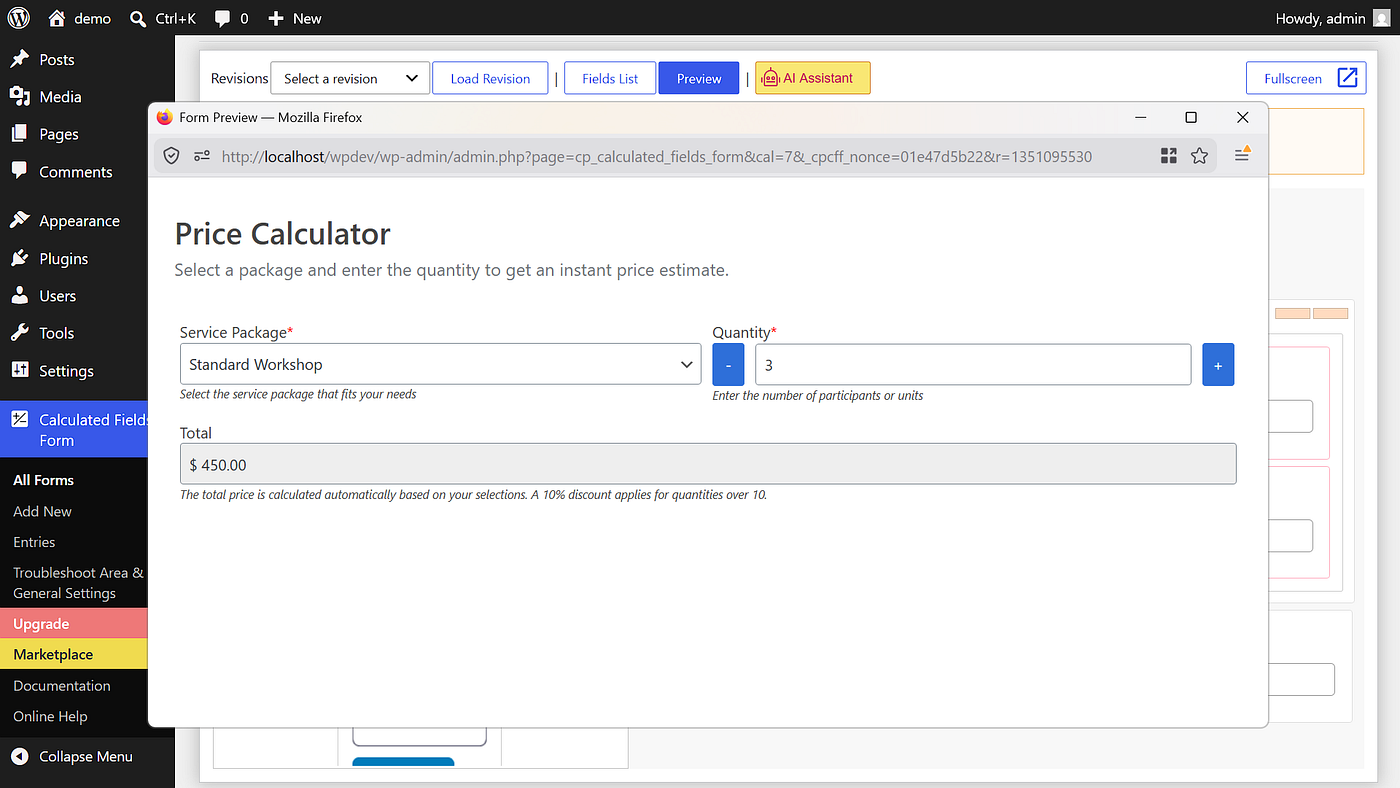
You can already test it. Save the form, grab the shortcode, and paste it into any page. Open the page and you’ll see the total update as you pick a package and type a quantity. No page reload. No button to press.
Step 6: Add the discount rule
This is where things get interesting. What if you want to offer a 10% discount when someone orders more than 10 units? You can do that with a simple conditional formula.
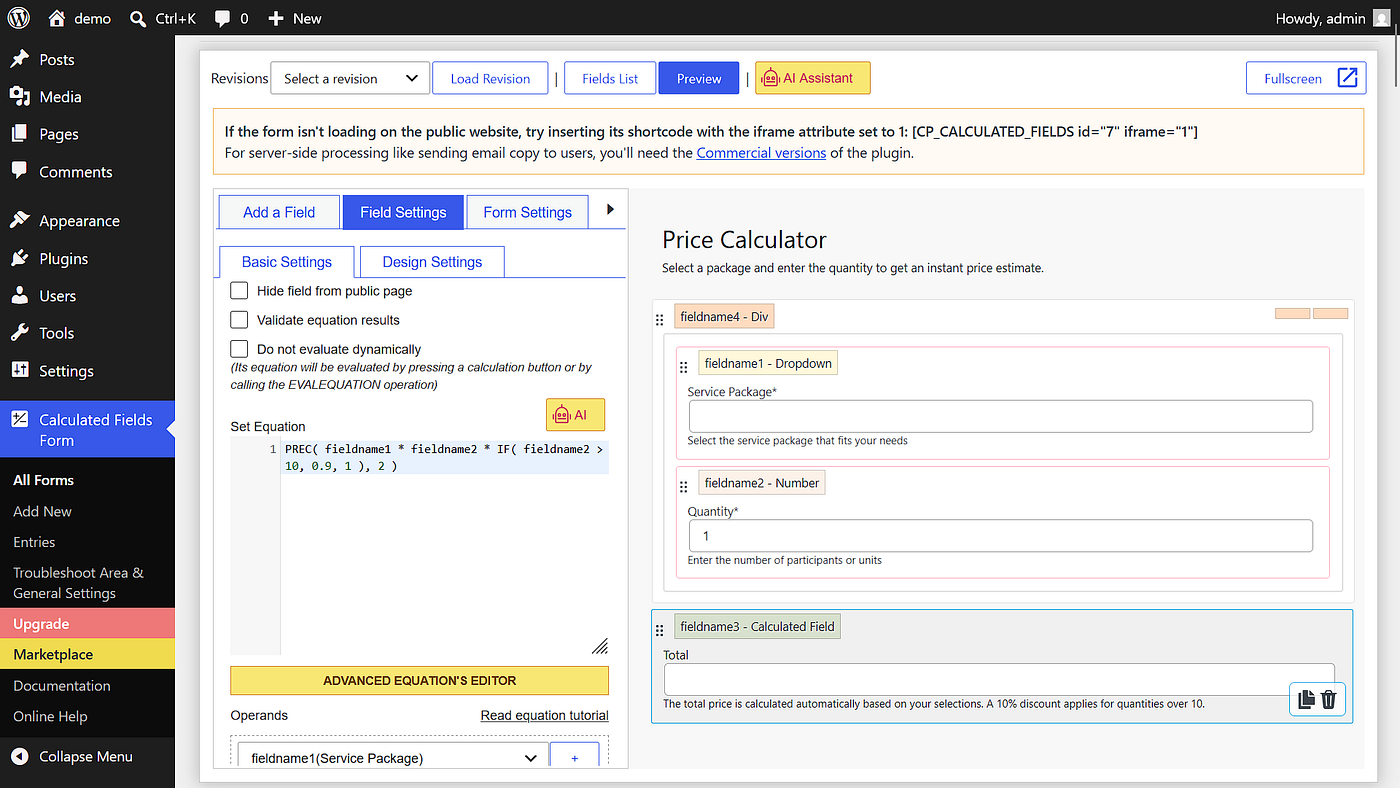
Update the equation in your calculated field to:
PREC( fieldname1 * fieldname2 * IF( fieldname2 > 10, 0.9, 1 ), 2 )Let me break that down:
-
fieldname1 fieldname2* — the base total, same as before
-
IF( fieldname2 > 10, 0.9, 1 ) — if quantity is over 10, multiply by 0.9 (10% off), otherwise multiply by 1 (no change)
-
PREC( … , 2 ) — round the result to 2 decimal places, because we’re dealing with money
So if someone selects Premium Workshop ($299) and enters 12 people, the formula calculates 299 × 12 × 0.9 = $3,229.20 instead of $3,588.00. The discount is applied instantly as they type.
You can make the condition as complex as you want. Need tiered pricing? No problem:
IF( fieldname2 > 50, 0.8, IF( fieldname2 > 20, 0.85, IF( fieldname2 > 10, 0.9, 1 ) ) )That gives 20% off for 50+, 15% off for 20+, 10% off for 10+. All in one line.
Step 7: Make it look good
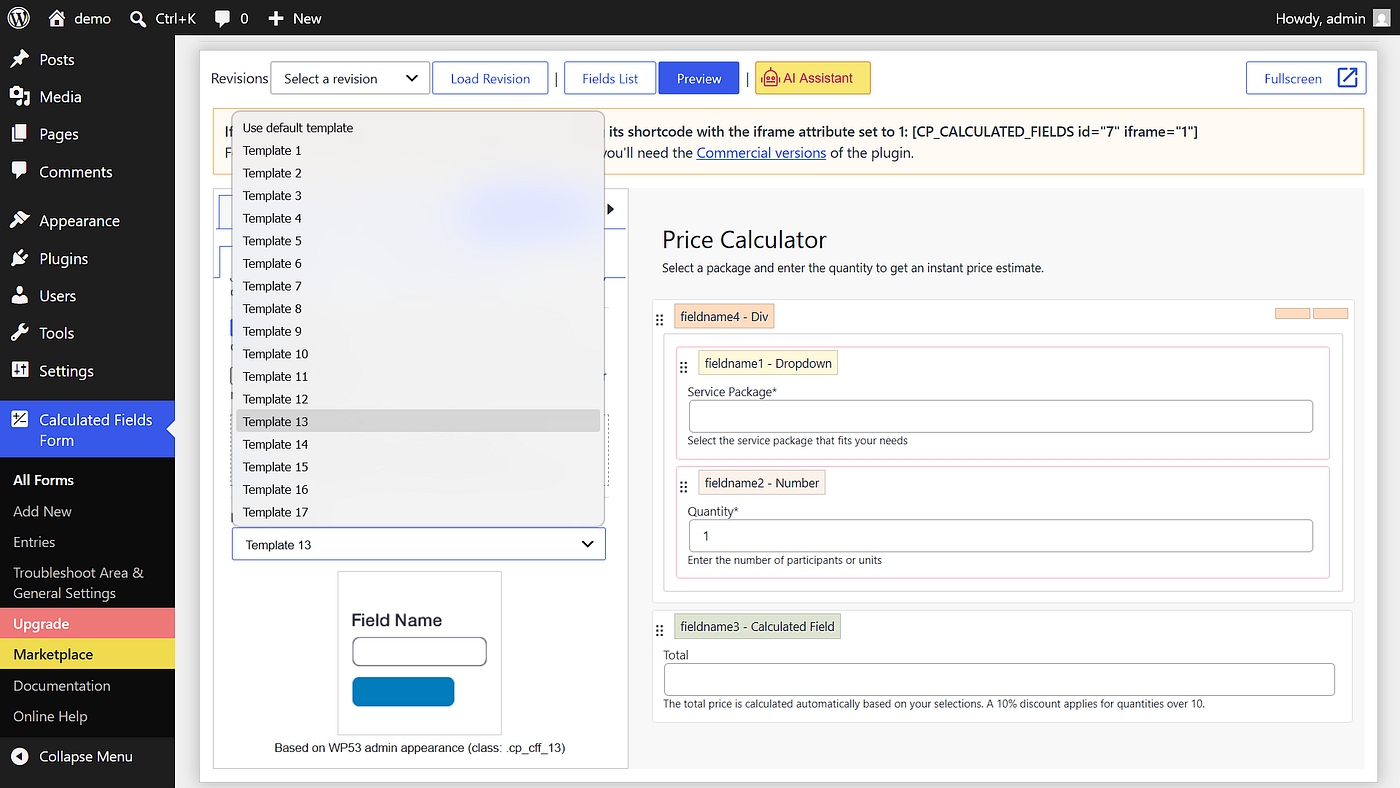
By default the form uses a clean layout, but you can customize the design from the Form Settings → Customize Form Design tab. You can change colors, fonts, spacing — whatever matches your site.
There’s also a handful of predefined templates (Clean, Decorative, Elegant, Professional) that you can apply with one click from the form builder. I usually go with Professional and adjust the accent color to match the brand.
A note about naming
I used fieldname1 and fieldname2 in this tutorial because that’s what the plugin assigns by default. Your actual field names will depend on the order you added them. You can see each field’s name at the top of its settings panel.
Taking it further
Once you have the basics down, there’s a lot more you can do:
-
Date-based pricing: add a date picker and calculate the number of days between two dates, then multiply by a daily rate. Perfect for hotel bookings or equipment rentals.
-
WooCommerce integration: pass the calculated total directly to the WooCommerce cart and let the user check out with their custom price. The add-on for this comes bundled with the Developer version.
-
Payment gateways: connect Stripe or PayPal to charge the calculated amount automatically. Again, available in the commercial versions.
-
Data sources: pull real-time exchange rates, product prices from a database, or even Google Sheets values into your calculations.
The free version alone covers most use cases. The paid versions unlock payment processing and external data integrations — and unlike most form plugins, they’re a one-time purchase, not a subscription.
Why I use this over Gravity Forms or WPForms
I’ve used both Gravity Forms and WPForms on client projects. They’re solid products. But for anything involving real-time calculations, CFF wins every time:
-
Gravity Forms can do calculations, but you need the Elite plan ($259/year) or third-party add-ons for anything beyond basic math. Conditional formulas like IF() aren’t supported natively.
-
WPForms hides calculations behind their Pro plan ($199/year).
-
Calculated Fields Form gives you the full calculation engine in the free version. The paid versions are a one-time purchase starting at €29.99.
The calculation syntax is also much more flexible. CFF accepts any valid JavaScript expression, which means you’re not limited to a few predefined operations. I’ve built loan amortization calculators, BMI calculators, even a distance-based shipping estimator — all with the same formula field.
Go build something
That’s really all there is to it. Three fields, one formula, and you have a working price calculator on your WordPress site. No developer needed, no annual subscription, no frustration.
If you run into trouble or want to build something more specific, the documentation at cff.dwbooster.com covers pretty much everything. And if you’re the type who learns by watching, there are video tutorials on their YouTube channel that walk through the same process.
Now go build that calculator you’ve been putting off. It’s easier than you think.
메타데이터
- post_id
- 98ff459a7482
- slug
- how-to-build-a-dynamic-price-calculator-in-wordpress-no-code-required-98ff459a7482
- url
- https://medium.com/@cff_26172/how-to-build-a-dynamic-price-calculator-in-wordpress-no-code-required-98ff459a7482
- canonical_url
- https://medium.com/@cff_26172/how-to-build-a-dynamic-price-calculator-in-wordpress-no-code-required-98ff459a7482
- author_url
- https://medium.com/@cff_26172
- status
- ok
- fetched_at
- 2026-06-29 01:02:39