Azure Table Storage Operations in .NET – Beginner Guide
Cloud applications often require a storage solution that is scalable, cost-effective, and capable of handling large volumes of structured...
Azure Table Storage Explained: Working with Entities, PartitionKey, and RowKey
Cloud applications often require a storage solution that is scalable, cost-effective, and capable of handling large volumes of structured data. Azure Table Storage provides a NoSQL key-value storage service designed for storing massive datasets with fast access. It allows developers to store entities using a flexible schema without the complexity of relational databases. In this article, we will explore how to perform an insert operation in Azure Table Storage using .NET and understand how entities are stored using partition and row keys.
When and Why to Use It
Azure Table Storage is useful when applications need to store large volumes of structured but non-relational data. It is commonly used for logging systems, user profile data, telemetry data, and metadata storage where schema flexibility is required. Since it uses PartitionKey and RowKey for indexing, it provides fast lookups and efficient data retrieval. It is also a cost-effective solution compared to traditional relational databases when handling large datasets. Developers often choose this storage option when they need high scalability, low cost, and simple key-based access to data in cloud applications built on Azure.
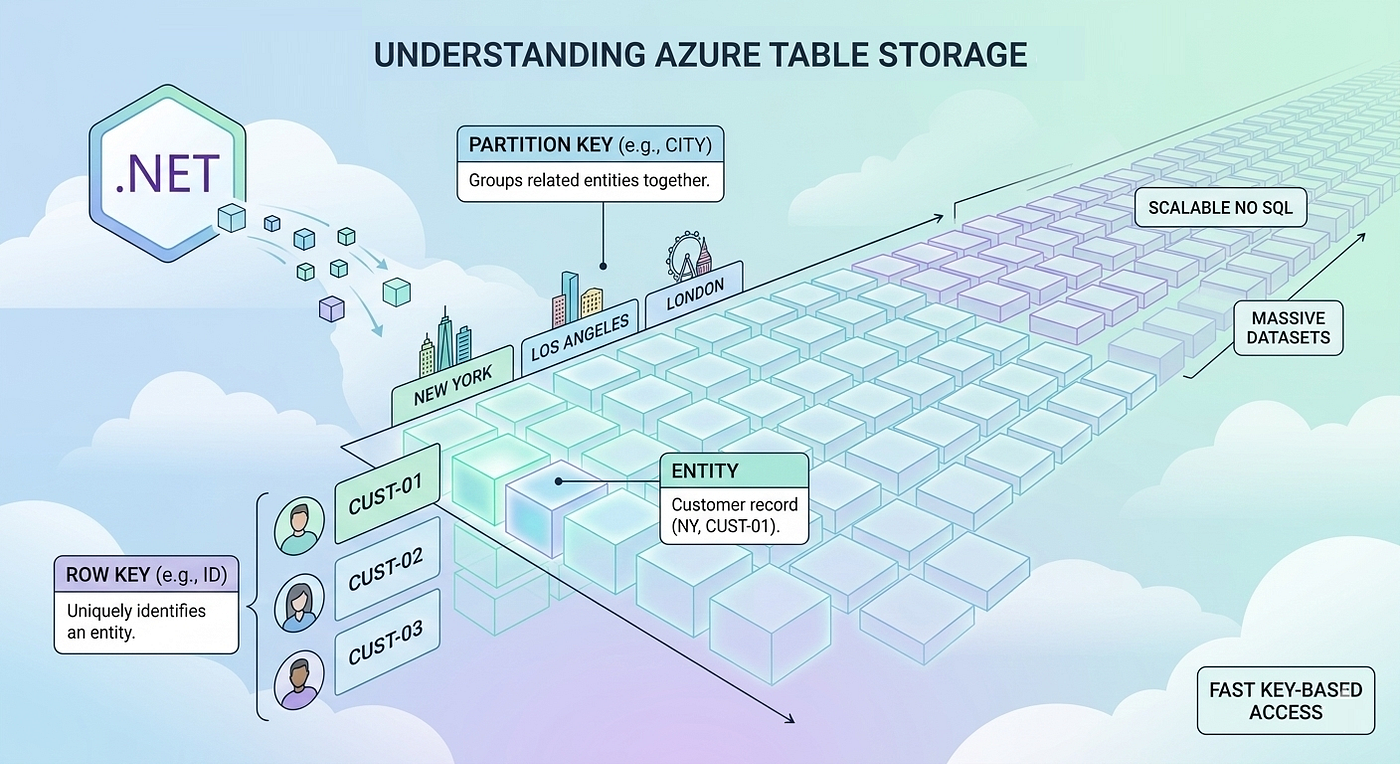
Imagine an application that stores customer information in a table.

Entities in Azure Table Storage are uniquely identified using a combination of PartitionKey and RowKey.
- PartitionKey groups related entities together.
- In this example, the city is used as the partition key.
- RowKey uniquely identifies an entity within a partition.
- Here, CustomerId acts as the RowKey.
- Each record stored in the table is called an Entity.
Lab Practice —
I have created a console application in .Net to demonstrate the same.
In your solution you will need to install the below Nuget package. Azure.Data.Tables

Azure.Data.Tables
Note — Previsouly Microsoft.Azure.Cosmos.Table was used as nuget package, it is no longer supported by microsoft.

Microsoft.Azure.Cosmos.Table
We have created a simple Class to create table and add objects in it.
 internal class TableStorage
 {
     private static string connection_string = "Your connection string";
     private static string table_name = "employees";
     public async Task CreateTable()
     {
         try
         {
             var serviceClient = new TableServiceClient(connection_string);
             var tableClient = serviceClient.GetTableClient(table_name);

             var tbl = await tableClient.CreateIfNotExistsAsync();

             List<TableEntity> employees = new List<TableEntity>();

             // Employee 1
             var emp1 = new TableEntity("IT", "1")
         {
             { "Name", "Arron" },
             { "Role", "Senior Developer" },
             { "EmployeeId", 1 },
             { "PhoneNumber", "0987654321" }
         };
             employees.Add(emp1);

             // Employee 2
             var emp2 = new TableEntity("HR", "2")
         {
             { "Name", "Smahi" },
             { "Role", "HR Manager" },
             { "EmployeeId", 2 },
             { "PhoneNumber", "0987654312" }
         };
             employees.Add(emp2);

             // Employee 3
             var emp3 = new TableEntity("Finance", "3")
         {
             { "Name", "Nitya" },
             { "Role", "Accountant" },
             { "EmployeeId", 3 },
             { "PhoneNumber", "0987651234" }
         };

             employees.Add(emp3);

             foreach (var emp in employees)
             {
                 await tableClient.AddEntityAsync(emp);
             }

             Console.WriteLine("Operation success..!!");
         }
         catch (Exception ex)
         {

             Console.WriteLine("Error " + ex.Message);
         }

     }
 }
Here is a simple explanation step by step.
1️⃣ Create Table Service Client
var serviceClient = new TableServiceClient(connection_string);This line creates a TableServiceClient using the storage account connection string.
The TableServiceClient acts as the entry point for interacting with Azure Table Storage at the storage account level.
You can get connection string form Your storage account-> Security + networking + Access keys

2️⃣ Get Table Client
var tableClient = serviceClient.GetTableClient(table_name);Here, a TableClient is created for a specific table. This client allows you to perform operations such as:
- Insert entities
- Update entities
- Delete entities
- Query entities
on the specified table.
3️⃣ Create Table if it Does Not Exist
var tbl = await tableClient.CreateIfNotExistsAsync();This line checks whether the table already exists in Azure Table Storage.
- If the table does not exist, it will be created automatically.
- If the table already exists, no action is taken.
This ensures that your application does not fail due to a missing table before performing operations like insert or query.
4️⃣ Adding data into Table.
// Employee 1
             var emp1 = new TableEntity("IT", "1")
         {
             { "Name", "Arron" },
             { "Role", "Senior Developer" },
             { "EmployeeId", 1 },
             { "PhoneNumber", "0987654321" }
         };
             employees.Add(emp1);

             // Employee 2
             var emp2 = new TableEntity("HR", "2")
         {
             { "Name", "Smahi" },
             { "Role", "HR Manager" },
             { "EmployeeId", 2 },
             { "PhoneNumber", "0987654312" }
         };
             employees.Add(emp2);

             // Employee 3
             var emp3 = new TableEntity("Finance", "3")
         {
             { "Name", "Nitya" },
             { "Role", "Accountant" },
             { "EmployeeId", 3 },
             { "PhoneNumber", "0987651234" }
         };

             employees.Add(emp3);

             foreach (var emp in employees)
             {
                 await tableClient.AddEntityAsync(emp);
             }

             Console.WriteLine("Operation success..!!");
This code inserts employee records as entities into a table in Azure Table Storage. Three TableEntity objects are created, each representing an employee with a PartitionKey (department like IT, HR, Finance) and a RowKey (unique identifier). Additional properties such as Name, Role, EmployeeId, and PhoneNumber are added to each entity. All entities are stored in a collection and inserted into the table using AddEntityAsync() inside a loop. Finally, a message is printed indicating that the insert operation completed successfully.
Now in storage browser, the table is created & the data is also inserted.

Git Repo —
Conclusion —
Azure Table Storage offers a simple yet powerful way to store structured data in the cloud without relying on a traditional relational database. By organizing data using PartitionKey and RowKey, applications can efficiently store and retrieve large datasets at scale. Performing insert operations using .NET is straightforward and integrates well with modern cloud applications. When used appropriately, Azure Table Storage can provide a highly scalable and cost-effective solution for managing structured NoSQL data in Azure environments.

Related Articles —
메타데이터
- post_id
- 9910bc2fd838
- slug
- azure-table-storage-operations-in-net-beginner-guide-9910bc2fd838
- url
- https://medium.com/@rp99452/azure-table-storage-operations-in-net-beginner-guide-9910bc2fd838
- canonical_url
- https://medium.com/@rp99452/azure-table-storage-operations-in-net-beginner-guide-9910bc2fd838
- author_url
- https://medium.com/@rp99452
- status
- ok
- fetched_at
- 2026-06-15 20:49:13