I Ditched Cursor for Neovim and Almost Lost My Mind Getting LocatorJS to Work
Today was supposed to be the day I finally started my One2n Go bootcamp. The tab has been pinned in my browser so long that it’s lost its…
I Ditched Cursor for Neovim and Almost Lost My Mind Getting LocatorJS to Work
Today was supposed to be the day I finally started my One2n Go bootcamp. The tab has been pinned in my browser so long that it’s lost its favicon.
Around 6 pm, I wrapped up the feature. Tea in hand, I took one last look at the UI before raising the PR. The plan was simple: raise the PR, hit the gym, take an evening walk, come back, and finally write some Go.
There it was. A button. Three pixels off. The kind of thing 99% of users never notice and 100% of developers cannot unsee.
I could have ignored it. Raised the PR, started Go, became a full-stack engineer, built distributed systems, touched grass. I could have done all of that.
Instead, I Option-clicked it. LocatorJS fired, jumped straight to the component, fixed the padding, and raised the PR. Two minutes. That’s the whole point of LocatorJS — click anything in the browser, land directly on the code that rendered it.
Except this time, something strange happened. Cursor opened.
Cursor hadn’t been my active editor for barely a week. It woke up from the dead because LocatorJS still had it configured. Neovim doesn’t have a URL scheme. As far as macOS is concerned, it’s just a process running inside your terminal, not something you can “open a file in” from the browser.
This is how I fixed it. Writing it down mostly for future me — but if you’re in the same situation, hi.
Why I Left Cursor
I’ve been a frontend dev for a while. Like most people, I lived inside VS Code for years, then migrated to Cursor when the AI hype hit. And Cursor was great — the autocomplete felt like magic, the vibes were immaculate.
But Cursor on an M3 MacBook Air turned into a slow, hot mess. Thermal throttling, sluggish file switching, a memory footprint that makes you question your life choices. A fanless machine being cooked alive by an Electron app.
So I did what any reasonable developer does when their tools are letting them down — I spent a week setting up a new editor instead of shipping features. Welcome to Neovim.
The First Week
The first week was genuinely great. Snappy. Lightweight. My laptop stayed cool. I felt like a hacker in a movie. I started with NvChad as my base config — it comes with lazy.nvim, Telescope, LSP, and Treesitter all pre-wired. Got up and running faster than I expected.
Most VS Code extensions had solid Neovim equivalents. The ecosystem was way richer than I expected.
But then I opened my browser.
The One Thing I Couldn’t Replace: LocatorJS
If you’ve never used LocatorJS, let me explain why it ruins you for normal development.
You hold Option, click anything in your browser — a button, a div, a tooltip that’s been broken for three sprints — and it opens your editor at the exact component that rendered it. Exact file. Exact line. No hunting through folders. No grep. Just click → code.
It works with VS Code and Cursor out of the box because both register custom URL schemes with macOS — vscode:// and cursor://.
When LocatorJS generates a link, the browser fires it, macOS routes it to the editor, and the editor opens the file.
The whole thing takes about 200ms and feels like witchcraft.
Neovim doesn’t have a URL scheme. It’s a terminal program. macOS has no idea how to “open a link in Neovim” — as far as the OS is concerned, Neovim is just some process running inside Ghostty.
So I had to build the bridge myself.
I eventually got it working, but not before leaving a small graveyard of failed attempts behind.
The Graveyard of Failed Attempts
I want to document what didn’t work, because future me will probably try these again, and I want to save us both the time.
Attempt #1 — Automator
My first instinct was Automator — it’s built into macOS, it can create app bundles, and I vaguely remembered it being useful for this kind of thing.
The plan was to create an Automator Application that accepted URLs, ran a shell script, and opened Neovim. Simple enough in theory.
The problem is Automator applications don’t natively handle URL schemes. An Automator app responds to on run — it can receive files, text, whatever you drag onto it. But on open location, the AppleScript handler that gets triggered when a custom URL scheme fires? Automator doesn't expose that. There's no "Run when URL is opened" action in the library.
I tried wrapping it in a Run AppleScript action inside Automator to handle the URL event. That almost worked, but the AppleScript context inside Automator is weirdly sandboxed and the URL event never propagated correctly. Two hours, nothing to show for it. Abandoned.
Attempt #2 — AppleScript App — The Empty App Problem
The right approach for custom URL schemes on macOS is actually a proper AppleScript Application — not an Automator workflow. You write an on open location handler, export it as an Application, register the URL scheme in its Info.plist, and macOS routes matching URLs to it.
So I wrote the script in Script Editor:
on open location this_URL
    do shell script "/bin/bash ~/.local/bin/nvim-url-handler.sh " & quoted form of this_URL
end open location
Registered nvim:// in the plist, ran lsregister to tell Launch Services about it, tested with open "nvim://..." — and nothing happened.
Added logging to the shell script. The log file was never created. The handler was never firing.
I spent an embarrassing amount of time on this before I found the issue: I had been saving the script with File → Save, which saves it as a .scpt file and then wraps it in an app bundle — but the resulting MacOS/ folder inside the bundle was empty. No executable. The app was a beautiful hollow shell. macOS would "launch" it, find nothing to run, and quietly give up.
The fix: File → Export, set format to Application. That actually compiles the script into a proper executable. One word difference in the menu, one hour of my life gone.
Attempt #3 — System Events Keystrokes — The Permission Labyrinth
With the app actually launching correctly, I tried the most direct approach: use AppleScript’s System Events to focus Ghostty and literally type the nvim command into it.
tell application "Ghostty" to activate
delay 0.3
tell application "System Events"
    keystroke "nvim +10 /path/to/file.js"
    key code 36
end tell
This worked perfectly when I ran it manually from the terminal. But when the URL handler triggered it:
osascript is not allowed to send keystrokes. (1002)Fine. Went to System Settings → Privacy & Security → Accessibility. Added NvimURLHandler. Added Ghostty. Added Script Editor for good measure.
Same error.
The issue is a macOS permission scoping problem. When osascript is called as a subprocess from within an app that was launched via a URL scheme event, it runs in a different trust context than when you call it from your terminal. The Accessibility permission that was granted to your terminal session doesn't carry over to the app-launched subprocess. The only fix is for the app itself to have the permission — but the app is an AppleScript applet, and its permission is separate from the subprocess it spawns.
I went down a rabbit hole of trying to fix this — using do shell script withwith administrator privileges, using launchctl to set environment variables, various combinations of wrapping and unwrapping the calls. Nothing worked reliably.
Attempt #4 — The Swift App
At this point, I figured the right move was to write a proper native macOS app in Swift. Handle the URL scheme the “correct” way using NSApplicationDelegate:
func application(_ application: NSApplication, open urls: [URL]) {
    for url in urls {
        let process = Process()
        process.executableURL = URL(fileURLWithPath: "/usr/bin/python3")
        process.arguments = ["/your/username/.local/bin/nvim-handler.py", url.absoluteString]
        try? process.run()
    }
}
Compiled it with swiftc, built the app bundle manually, registered the URL scheme in Info.plist, ran lsregister.
Ran open "nvim://...". Nothing.
The application(_:open:) delegate method was not being called. After some digging, I found that this delegate method is intended for file URLs — for custom scheme URLs, macOS uses the older Carbon Apple Event system (kInternetEventClass / kAEGetURL), not the modern NSApplicationDelegate method. The two systems are separate, and my Swift app was only listening to one of them.
Fixing it properly would have required wiring up NSAppleEventManager and the old Carbon event APIs — at which point the "clean native Swift app" was starting to look a lot like archaeology. Moved on.
What Actually Worked
The solution turned out cleaner than any of the failed attempts once I stopped overthinking it.
The architecture:
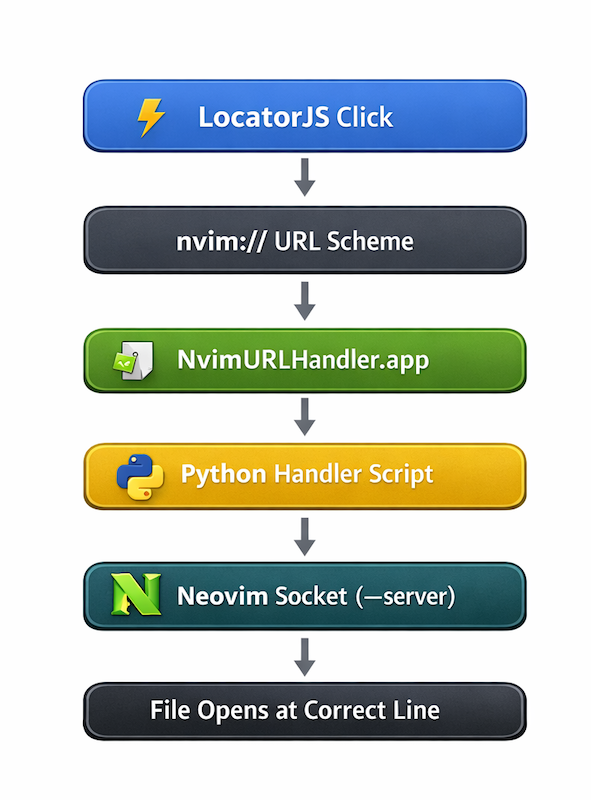
Browser click (LocatorJS)
    → fires 'nvim://file/path/to/file.js:42:7'
        → macOS routes to NvimURLHandler.app (AppleScript)
            → calls nvim-handler.py (Python)
                → talks to running Neovim via Unix socket
                    → file opens at line 42 ✅
Two things made this work where everything else failed:
1. Python subprocess has the right permission context. When Python callsosascript, it inherits the correct trust context from the AppleScript app that launched it. The same call that failed from a shell script works fine from Python. It's a quirk of how macOS propagates Apple Event permissions through process hierarchies — Python sits close enough to the calling app that the permission carries through.
2. Neovim’s --server / --remote flags. Neovim can listen on a Unix socket and accept commands from other processes. Start nvim with, --listen /tmp/nvim.sock and you can send it files and commands from anywhere using nvim --server /tmp/nvim.sock --remote filename. No new terminal windows. No keystrokes. Just direct IPC.
The Setup
Here’s the full setup from scratch.
What you need
Step 1 — Create the Python handler
mkdir -p ~/.local/bin
nano ~/.local/bin/nvim-handler.py
#!/usr/bin/env python3
import sys
import subprocess
import os
url = sys.argv[1]
path = url.replace("nvim://file", "")
parts = path.split(":")
file_path = parts[0]
line = parts[1] if len(parts) > 1 else "1"
sock = "/tmp/nvim.sock"
if os.path.exists(sock):
# Send to existing nvim instance via socket
subprocess.run(["/opt/homebrew/bin/nvim", "--server", sock, "--remote", file_path])
subprocess.run(["/opt/homebrew/bin/nvim", "--server", sock, "--remote-send", f":{line}<CR>"])
subprocess.Popen(["osascript", "-e", 'tell application "Ghostty" to activate'])
else:
# Fallback: open a new Ghostty window
subprocess.Popen(["open", "-na", "Ghostty.app", "--args", "-e", "/opt/homebrew/bin/nvim", f"+{line}", file_path])bashchmod +x ~/.local/bin/nvim-handler.pyStep 2 — Make nvim listen on a socket
Add this function in ~/.zshrc
nvim() {
  local sock="/tmp/nvim.sock"
  if [ -S "$sock" ]; then
    /opt/homebrew/bin/nvim --listen "/tmp/nvim-$$.sock" "$@"
  else
    /opt/homebrew/bin/nvim --listen "$sock" "$@"
  fi
}
source ~/.zshrcUsing an alias causes a conflict if you try to open a second nvim instance, since both would compete for the same socket path. A function lets the first instance claim /tmp/nvim.sock (which LocatorJS targets), while any subsequent instances get a unique socket and open without errors.
Step 3 — Build the URL handler app
Open Script Editor → File → New, paste this (replace YOUR_USERNAME with your actual username — run whoami in the terminal to check):
on open location this_URL
    do shell script "/usr/bin/python3 /Users/YOUR_USERNAME/.local/bin/nvim-handler.py " & quoted form of this_URL
end open location
File → Export → Format: Application → Name: NvimURLHandler → Save to /Applications.
Register the nvim:// scheme:
/usr/libexec/PlistBuddy -c "Add :CFBundleURLTypes array" /Applications/NvimURLHandler.app/Contents/Info.plist
/usr/libexec/PlistBuddy -c "Add :CFBundleURLTypes:0 dict" /Applications/NvimURLHandler.app/Contents/Info.plist
/usr/libexec/PlistBuddy -c "Add :CFBundleURLTypes:0:CFBundleURLSchemes array" /Applications/NvimURLHandler.app/Contents/Info.plist
/usr/libexec/PlistBuddy -c "Add :CFBundleURLTypes:0:CFBundleURLSchemes:0 string nvim" /Applications/NvimURLHandler.app/Contents/Info.plist

/System/Library/Frameworks/CoreServices.framework/Frameworks/LaunchServices.framework/Support/lsregister -f /Applications/NvimURLHandler.app

open /Applications/NvimURLHandler.app
Step 4 — Grant permissions
Go to System Settings → Privacy & Security → Accessibility and toggle NvimURLHandler on. Also, check Automation and make sure Ghostty → System Events is enabled.
Step 5 — Configure LocatorJS
Click the LocatorJS gear → Custom link → paste:
nvim://file/${projectPath}${filePath}:${line}:${column}Step 6 — Test
open "nvim://file/Users/YOUR_USERNAME/.zshrc:10:1"Your .zshrc should open at line 10 in your running Neovim.
Daily Workflow
- Open Ghostty, type
nvim .as normal - Browse your app in the browser
- Hold Option, click any element
- Neovim jumps to the exact file and line
If nvim isn’t running when you click, it’ll open a new Ghostty window as a fallback. But honestly, just keep nvim open — that’s kind of the whole point.
Was It Worth It?
Yes. Genuinely.
The setup took way longer than it should have — 6 pm tea to 2 am is not a ratio I’m proud of. macOS URL scheme handling is fiddly in ways that aren’t well documented, and I hit basically every edge case before something clicked.
But the result is identical to what I had in Cursor. Option+click in the browser, file opens in the editor, cursor on the right line.
Except now my M3 Air stays cool. Silent. Unbothered. The way Apple intended. And when a button is three pixels off, I can still Option-click it and fix it in two seconds.
No Electron. No fans. No drama.
The Go journey starts tomorrow. Probably.
메타데이터
- post_id
- 99e1ddab2a58
- slug
- i-ditched-cursor-for-neovim-and-almost-lost-my-mind-getting-locatorjs-to-work-99e1ddab2a58
- url
- https://medium.com/@amitkrsingh102/i-ditched-cursor-for-neovim-and-almost-lost-my-mind-getting-locatorjs-to-work-99e1ddab2a58
- canonical_url
- https://medium.com/@amitkrsingh102/i-ditched-cursor-for-neovim-and-almost-lost-my-mind-getting-locatorjs-to-work-99e1ddab2a58
- author_url
- https://medium.com/@amitkrsingh102
- status
- ok
- fetched_at
- 2026-07-12 01:08:50