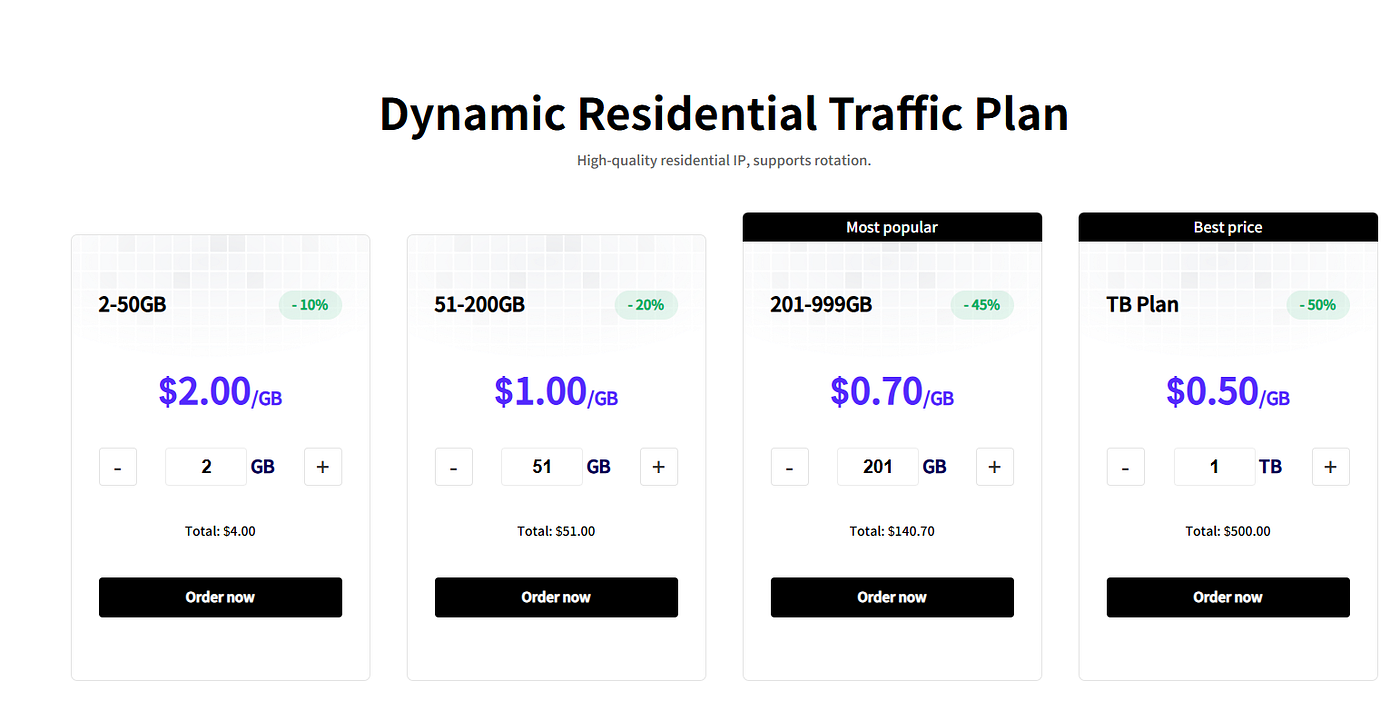
How to Set Up Novproxy Dynamic Residential Proxies in AdsPower: A Step-by-Step Guide
If you’re managing multiple social media accounts, running e-commerce stores, or scraping web data, maintaining robust digital privacy is…
How to Set Up Novproxy Dynamic Residential Proxies in AdsPower: A Step-by-Step Guide
If you’re managing multiple social media accounts, running e-commerce stores, or scraping web data, maintaining robust digital privacy is non-negotiable. Combining an anti-detect browser like **AdsPower with clean residential proxies from Novproxy** creates an isolated, highly believable browsing environment that bypasses anti-scraping systems and account flags.
While proxy extraction supports both API and username/password methods, username/password authentication is the most reliable approach for fingerprint browsers.
Here is the complete step-by-step walkthrough to get your environment up and running smoothly.
Phase 1: Extract Proxy Details from Novproxy
First, log in to your dashboard to generate the proxy credentials needed for your browser profile.
1. Account Access & Product Selection
- Log in to the Novproxy Official Website.
- Navigate to the left menu and select your required product (e.g., Dynamic Residential Proxies).
2. Configure Extraction Parameters
In the extraction settings panel, set the following parameters:
- Quantity: Set to
1(or your required amount). - Country/Region: Choose your target location (e.g., US, UK, Japan)
- State/City: Specify if your operations require precise geotargeting.
- Protocol: Select HTTP or SOCKS5.
- Session Type:
- Rotation: Changes IP with every request. Ideal for web scraping.
- Sticky (Recommended): Keeps the same IP for a set period (e.g., 30–120 minutes). Best for account warming, e-commerce, and social media management.
- Generate: Click Generate to create your proxy credentials.
3. Parse Your Generated Credentials
Once generated, your proxy output string will look like this:
Plaintext
us.novproxy.io:1000:user-abc12345-region-US-st-CA:pass67890Break down the parameters as follows:
- Host/Address:
us.novproxy.io - Port:
1000 - Username:
user-abc12345-region-US-st-CA - Password:
pass67890
Phase 2: Configure Proxies in AdsPower
Now that you have your credentials, configure your fingerprint browser profile.
+-------------------------------------------------------------+
|                     AdsPower Configuration                  |
|                                                             |
|  [ Proxy Type ]     --->  HTTP / SOCKS5                     |
|  [ Proxy Host ]     --->  us.novproxy.io                    |
|  [ Proxy Port ]     --->  1000                              |
|  [ Proxy Account]   --->  user-abc12345-region-US-st-CA    |
|  [ Proxy Password]  --->  pass67890                         |
+-------------------------------------------------------------+
1. Create a New Profile
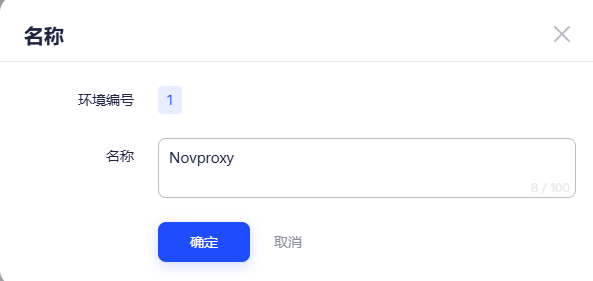
- Launch your **AdsPower** client.
- Click + New Profile in the top-left corner.
2. Set Up Basic Information
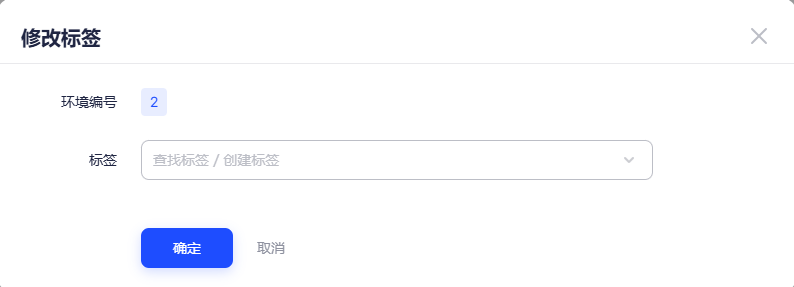
- Name: Assign a recognizable label (e.g.,
TikTok-Account-01). - Group: Organize into your preferred category.
- Browser Kernel: Match the target platform’s requirements (Chrome or Firefox).
- Operating System: Match your native desktop OS for optimal consistency.
3. Fill in Proxy Details
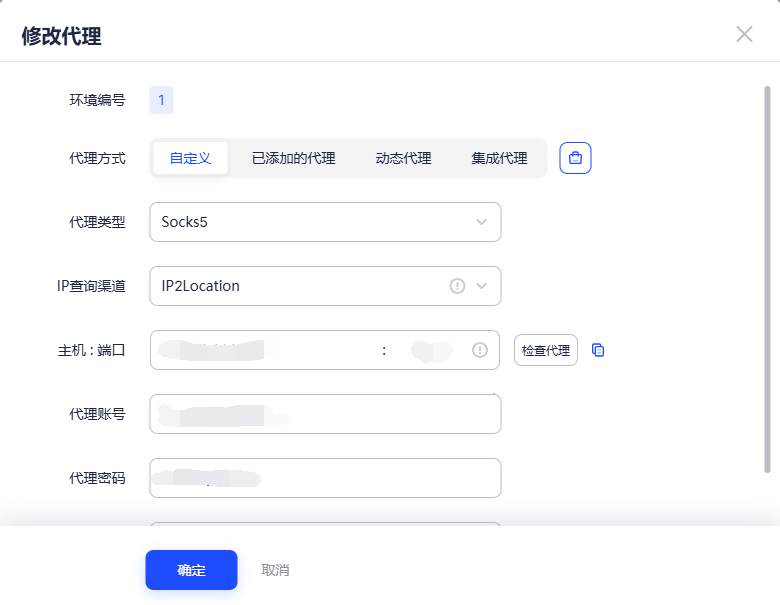
Scroll down to the Proxy Settings section:
- Proxy Type: Select HTTP or SOCKS5 (must match your choice in Novproxy).
- Proxy Host: Paste
us.novproxy.io. - Proxy Port: Enter
1000. - Proxy Account: Paste the generated username string.
- Proxy Password: Paste the password string.
4. Run a Connection Test
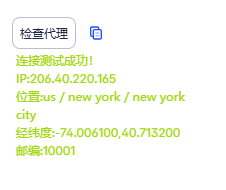
Click Check Proxy:
- Green success message: Indicates a proper connection (e.g.,
Connection successful, IP: 172.xx.xx.xx, Country: US). - Connection failed: Troubleshoot using the quick checks below.
Troubleshooting Connection Errors:
- Ensure no extra trailing spaces were included when pasting credentials.
- Verify that your Novproxy bandwidth balance is active.
- If you are on a corporate network, ensure local firewalls are not blocking custom proxy ports.
Phase 3: Launch and Verify Fingerprint Disguise
Never skip environment checks when managing sensitive accounts.
- Save Settings: Click OK at the bottom of the page to save the profile.
- Launch Environment: Locate the newly created profile in your list and click Open.
- Double Check Fingerprint Consistency:
- Once the browser opens, go to Whoer.net or ipinfo.io.
- Verify that the detected geographic location, time zone, and zip code align with your Novproxy extraction settings.
- Aim for a anonymity/disguise score above 90%. Ensure AdsPower’s Auto-match Timezone & Language setting is enabled.
Pro Tips for Novproxy & AdsPower Users
- Static ISP IPs for High-Value Accounts: If you are managing Amazon stores or warming up long-term Facebook ad accounts, consider purchasing Static Residential ISP IPs from **Novproxy**. They remain fixed over time, building trust scores faster. Configuration is identical, except the host uses a dedicated numerical IP (e.g.,
1.2.3.4). - Manage Data Consumption: Dynamic residential proxies are billed per gigabyte. Avoid streaming HD video or downloading large files inside your AdsPower environment to prevent unexpected bandwidth consumption.
- Sub-Account Setup for Teams: If you run an agency or operate with a team, create Sub-Accounts inside your Novproxy dashboard. Assign distinct sub-accounts to different AdsPower browser profiles to track bandwidth usage per team member cleanly.
Troubleshooting Quick Note: IP Whitelisting
If you ever encounter an “Invalid Proxy” error while using API extraction, verify your IP Whitelist settings in the **Novproxy backend. However, using the Username & Password** authentication method covered in this guide bypasses the need for IP whitelisting, making it the most flexible setup for remote teams.
메타데이터
- post_id
- 9b49b6693189
- slug
- how-to-set-up-novproxy-dynamic-residential-proxies-in-adspower-a-step-by-step-guide-9b49b6693189
- url
- https://medium.com/@chevaliersadou312/how-to-set-up-novproxy-dynamic-residential-proxies-in-adspower-a-step-by-step-guide-9b49b6693189
- canonical_url
- https://medium.com/@chevaliersadou312/how-to-set-up-novproxy-dynamic-residential-proxies-in-adspower-a-step-by-step-guide-9b49b6693189
- author_url
- https://medium.com/@chevaliersadou312
- status
- ok
- fetched_at
- 2026-08-02 20:14:45