7 iPhone Settings You Must Change Right Now for Better Battery Life
Because your battery shouldn’t tap out before you do.
7 iPhone Settings You Must Change Right Now for Better Battery Life
Because your battery shouldn’t tap out before you do.
This image was generated in Copilot.
Nothing drains my will to live faster than watching my iPhone battery slide from 42% to 29% in five minutes because I decided to check Instagram “just for a second.”
It’s that moment when you’re out, the day is going great, and suddenly your phone gives you the look, that red-battery look, like it’s judging you for existing.
Over the years, I’ve learned something important:
Apple gives you amazing hardware… and then turns on a bunch of settings you absolutely don’t need.
Settings that quietly nibble at your battery like little digital piranhas.
So here’s the truth, if you want better battery life, you don’t need hacks, rituals, or coconut-oil-level magic.
You just need to tweak a few things Apple buries in Settings.
These are the 7 settings I change on every iPhone I set up, mine, my friends’, strangers who hand me their phones and say, “Why is my battery dying??”
Take these seriously and your iPhone will actually survive the day.
Click here to read free
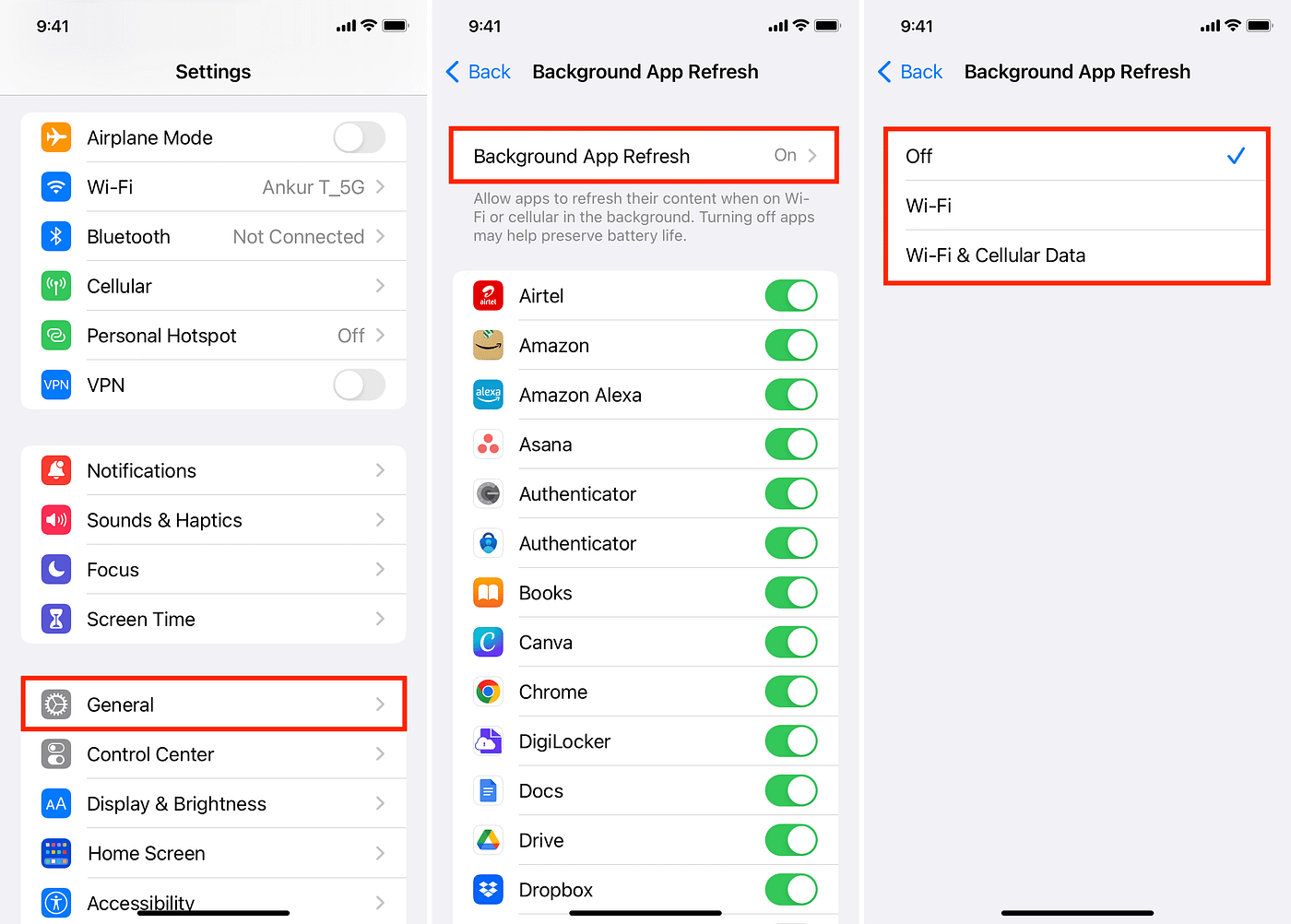
1. Turn Off Background App Refresh (Or At Least Control It)
Your apps don’t need to live like hyperactive toddlers who must stay updated every second.
Most people don’t realise how many apps silently refresh in the background.
I used to keep everything on because “convenience.”
Then I checked the battery stats and saw Facebook using battery at 3 a.m. when I was asleep. Not okay.
Go to Settings → General → Background App Refresh and turn most of it off.
Keep essentials: Maps, maybe Notes, maybe WhatsApp.
Everything else? Off.
Result: My battery stopped crashing during the day, and apps still work fine when I open them.
And if they take an extra second to load? I consider it patience training.
2. Disable Location Services for Apps That Don’t Need Them
If your weather app needs “Always” location access… it doesn’t.
If your shopping app wants your location… it really doesn’t.
I once found a wallpaper app tracking my location always.
A wallpaper app.
What was it going to do — show me more mountain wallpapers if I’m near a hill?
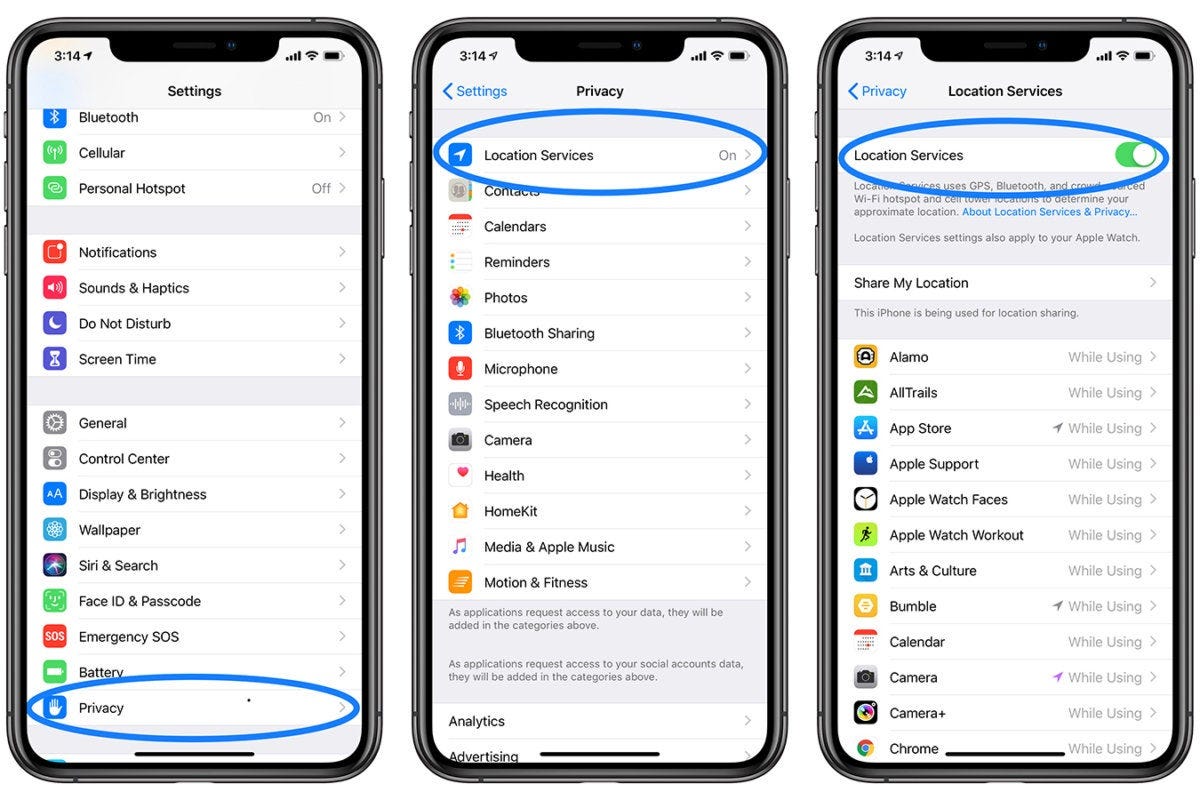
Go to Settings → Privacy & Security → Location Services and set most apps to While Using or Never.
Your phone stops wasting battery pinging satellites in the sky to tell a random app where you are.
3. Reduce Motion (Your Eyes Won’t Notice, But Your Battery Will)
I love Apple’s animations. They’re smooth, elegant, buttery.
But they also quietly tax your GPU.
I switched this off during a long trip once when I was desperate for battery life.
Honestly… I didn’t miss the animations at all.
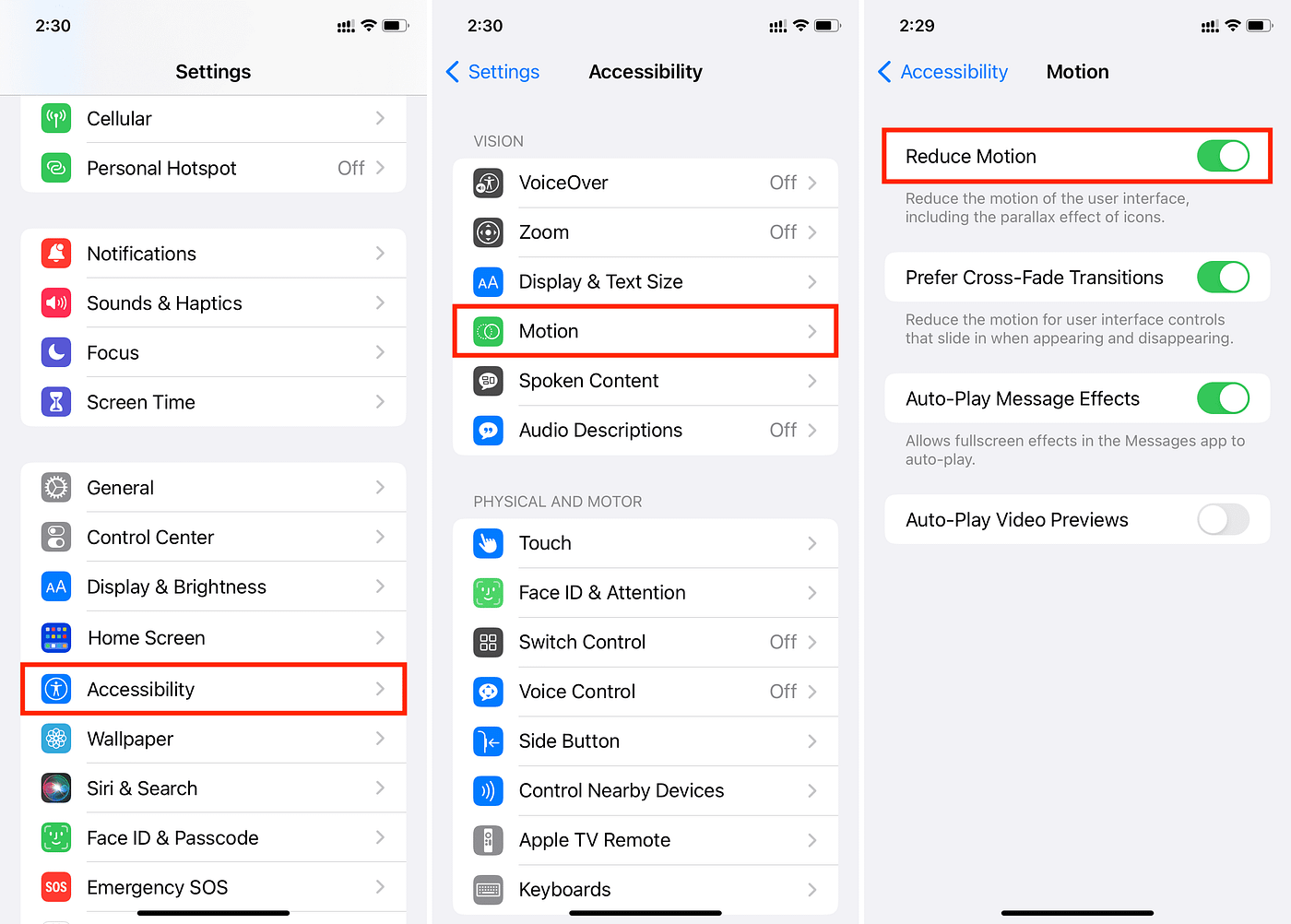
Go to Settings → Accessibility → Motion → Reduce Motion.
Your battery gets a break, and you still get the same iPhone, just slightly less dramatic.
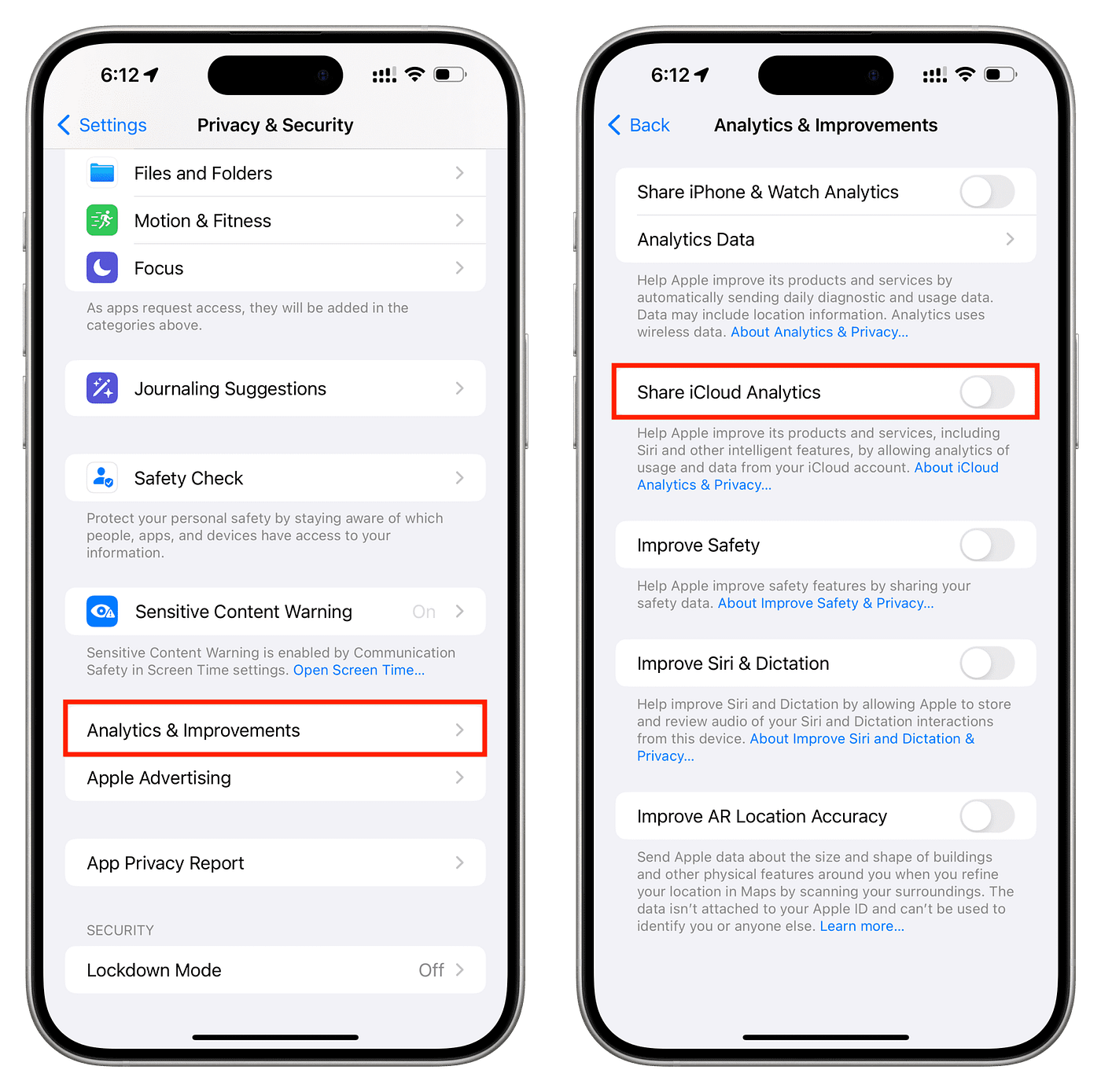
4. Turn Off “Share iPhone Analytics”
This one’s simple: you don’t need to donate battery life to help Apple collect usage data.
Head to Settings → Privacy & Security → Analytics & Improvements and turn it all off.
Your iPhone stops sending diagnostic data in the background, and you get more minutes of screen time back.
5. Disable Push Email (Unless You Actually Need Instant Emails)
Most emails are not urgent. And yet, many people have their Mail app set to push new emails constantly.
I changed this years ago and it genuinely boosted my battery life.
Go to Settings → Mail → Accounts → Fetch New Data.
- Turn off Push.
- Set Fetch to 30 minutes or manually.
Do this and watch your battery, and your sanity, improve.
6. Turn Off Bluetooth and AirDrop When You Don’t Need Them
Bluetooth isn’t the villain people think it is, but keeping it on 24/7 does drain small amounts of battery, especially if you’re around lots of devices.
AirDrop, though?
That’s a battery gremlin when left on “Everyone.”
Swipe down to Control Center, and
- Turn off Bluetooth when you’re not using AirPods or accessories.
- Set AirDrop to Receiving Off.
Your battery won’t magically double, but these little savings add up.
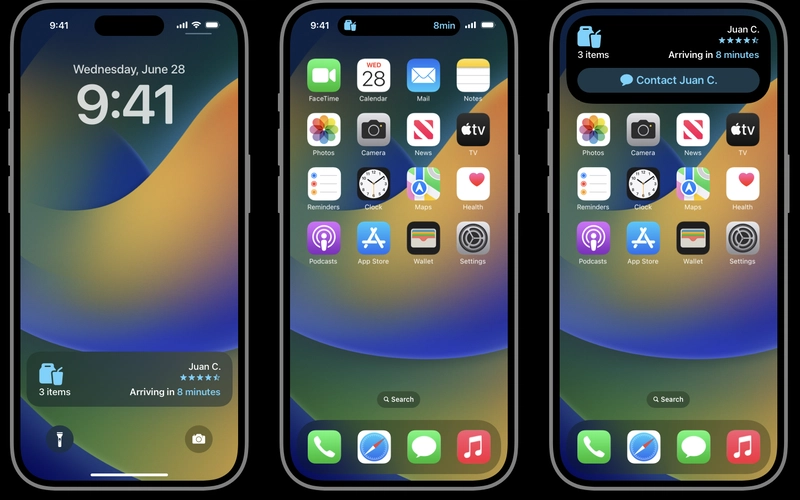
7. Limit Widgets and Live Activities on the Lock Screen
Widgets are cute. Live Activities are cool. But both constantly pull data.
I once went widget crazy during iOS 16, and my battery lasted about as long as a TikTok trend.
Simplify your Lock Screen. Pick one or two widgets you actually use.
Go to Settings → Wallpaper → Customize → Lock Screen.
Your phone will feel calmer. Your battery will feel happier.
Finally
Here’s something I’ve realised after helping too many people with battery issues: it’s not one big setting that drains your battery, it’s twenty little ones.
Apple gives you a lot of features. Beautiful features. Powerful features. B
ut every feature wants a sip of power.
And if you don’t set boundaries, your iPhone will burn battery like it’s at an all-you-can-eat buffet.
Change these 7 settings and your phone will finally feel like a tool again — not a needy digital toddler screaming for power.
If this helped you, save the article, share it with another iPhone user, and tell me,
what’s the one setting you always change on every new Apple device?
Let’s make battery anxiety a thing of the past.
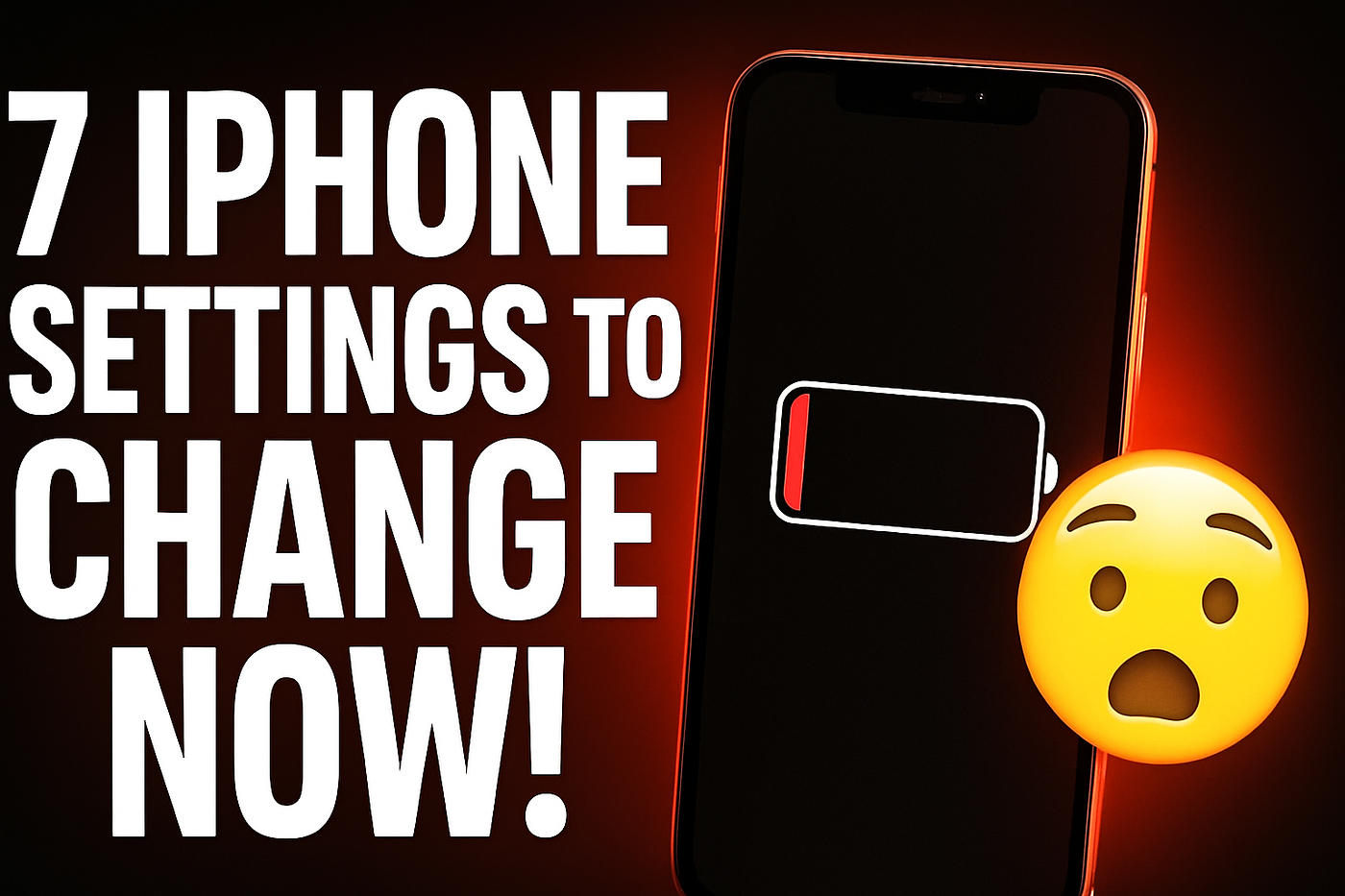
This image was generated in Copilot.
메타데이터
- post_id
- 9cdec3cfdd38
- slug
- 7-iphone-settings-you-must-change-right-now-for-better-battery-life-9cdec3cfdd38
- url
- https://medium.com/macoclock/7-iphone-settings-you-must-change-right-now-for-better-battery-life-9cdec3cfdd38
- canonical_url
- https://medium.com/macoclock/7-iphone-settings-you-must-change-right-now-for-better-battery-life-9cdec3cfdd38
- author_url
- https://medium.com/@thanuyanloshan
- status
- ok
- fetched_at
- 2026-07-15 09:23:51