ColdFusion PDF Not Displaying in Browser: Causes, Fixes & Best Practices
Why Your ColdFusion PDF Breaks in the Browser — And How to Render It Cleanly
ColdFusion PDF Not Displaying in Browser: Causes, Fixes & Best Practices
Why Your ColdFusion PDF Breaks in the Browser — And How to Render It Cleanly
ColdFusion PDF Not Displaying in Browser: Causes, Fixes & Best Practices
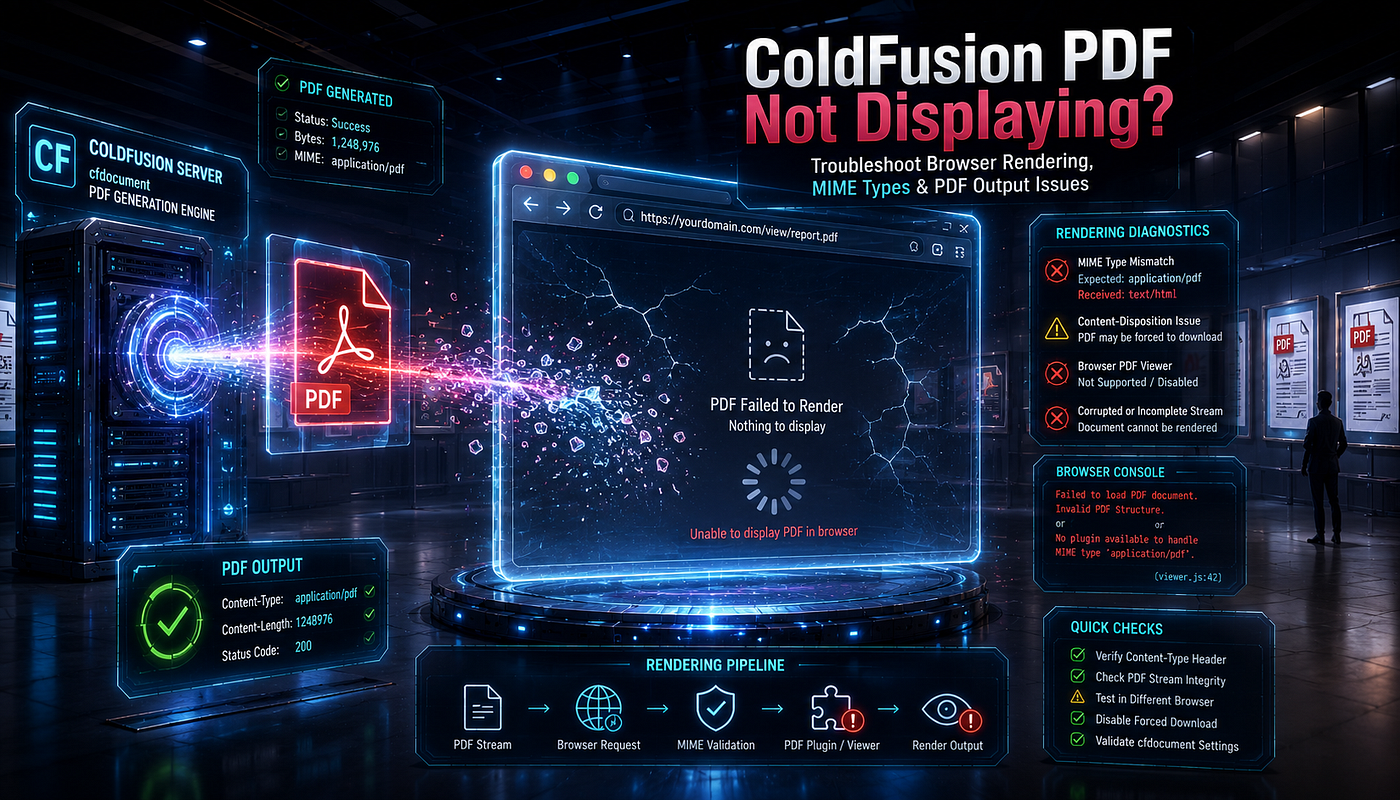
ColdFusion generates PDFs for invoices, reports, statements, and contracts. Therefore, reliable PDF delivery sits at the core of many enterprise apps. Yet developers often watch a cfdocument output fail in the browser. The page shows a blank frame, a download prompt, or corrupted bytes.
A broken PDF undermines trust and disrupts critical workflows. Users expect a clean, viewable document on every click. Instead, they meet garbled characters or an endless spinner. Consequently, this small rendering bug can stall an entire business process.
This guide explains every common cause behind PDF display failures. Moreover, it provides production-tested fixes, debugging steps, and configuration patterns. We will progress from fundamentals to advanced streaming concerns. Lucid Outsourcing Solutions has resolved this exact problem across many enterprise ColdFusion systems. Therefore, this article reflects real production experience, not guesswork.
How Does ColdFusion Generate and Deliver PDFs?
ColdFusion builds PDFs primarily through the cfdocument and cfpdf tags. The cfdocument tag converts HTML and CSS into a PDF binary. Meanwhile, cfpdf manipulates existing PDF files. Both produce binary data that the browser must interpret correctly.
The browser relies on accurate HTTP headers to render that binary. Specifically, the Content-Type header tells the browser to expect a PDF. If the header is wrong or missing, the browser guesses. Consequently, it may download, display raw bytes, or fail entirely.
The full delivery chain involves several moving parts:
- ColdFusion generates the PDF binary in memory or on disk.
- The server sets HTTP response headers.
- The browser reads the headers and the binary stream.
- A PDF viewer renders the document inside the browser.
A failure at any stage breaks the final display. Therefore, understanding this chain guides effective debugging. Each link offers a distinct point of failure.
What Is the Difference Between cfdocument and cfcontent?
The cfdocument tag creates the PDF, while cfcontent controls its delivery. Many developers confuse these roles. Consequently, they apply the wrong fix to a delivery problem.
- cfdocument — Generates the PDF binary from HTML content.
- cfcontent — Streams binary data to the browser with a specified type.
- cfheader — Sets custom response headers like the filename.
You generate the document first, then you deliver it. The cfdocument tag can output directly or save to a variable. When you save to a variable, you control delivery with cfcontent. This separation gives precise control over headers and disposition.
<cfdocument format="pdf" name="myReport">
    <h1>Quarterly Report</h1>
    <p>Generated on #dateFormat(now(), "yyyy-mm-dd")#</p>
</cfdocument>

<cfheader name="Content-Disposition" value="inline; filename=report.pdf">
<cfcontent type="application/pdf" variable="#toBinary(myReport)#" reset="true">
This pattern generates the PDF into the myReport variable. Then cfcontent streams it with the correct type. Note the toBinary call: cfdocument produces a native PDF type, so you convert it to a byte array before streaming. The reset="true" attribute clears prior output buffers. As a result, no stray HTML corrupts the binary stream.
Why Does a ColdFusion PDF Fail to Display in the Browser?
A failed display almost always traces to corrupted output or wrong headers. The browser receives bytes it cannot interpret as a valid PDF. Therefore, it falls back to downloading or showing raw content. Several distinct conditions trigger this behavior.
The most common causes include:
- Extra whitespace or HTML before the PDF binary
- Missing or incorrect
Content-Typeheaders - Wrong
Content-Dispositionvalue forcing a download - Output buffer contamination from earlier code
- Incorrect character encoding settings
- Server-side errors injected into the response
- Browser PDF viewer limitations or blocking
- Caching and proxy interference
Let us examine each cause carefully. Additionally, we will pair every cause with a direct fix.
Is Extra Whitespace Corrupting the PDF Binary?
Whitespace is the single most common cause of broken PDFs. A PDF binary must start with the %PDF signature. However, any character before that signature corrupts the file. Even a single space or newline breaks the document.
ColdFusion templates often leak whitespace from tags and includes. For example, a trailing newline after a cfcomponent adds bytes. Consequently, those bytes prepend to the PDF and break the header. The browser then sees an invalid file and refuses to render it.
Therefore, suppress whitespace aggressively in PDF-generating templates. Use the reset="true" attribute on cfcontent to clear prior output. Additionally, control whitespace with the right tools at the page level:
<cfsetting enablecfoutputonly="true">
<cfdocument format="pdf" name="cleanPDF">
    <cfoutput><h1>Clean Output</h1></cfoutput>
</cfdocument>
<cfcontent type="application/pdf" variable="#toBinary(cleanPDF)#" reset="true">
<cfsetting enablecfoutputonly="false">
The cfsetting enablecfoutputonly="true" directive blocks all text outside cfoutput tags. Therefore, stray template whitespace never reaches the buffer. ColdFusion also offers cfsilent and cfprocessingdirective suppresswhitespace="true" for finer control. Additionally, set output="false" on every cfcomponent and cffunction in the request path.
ColdFusion exposes a server-wide whitespace management option in the Administrator. Therefore, enable it under Server Settings to strip excess whitespace globally. Combine these techniques with reset="true" on cfcontent. As a result, the PDF signature lands at byte zero. Always verify the first bytes of the output during debugging.
Are the Content-Type Headers Set Correctly?
The Content-Type header tells the browser how to interpret the response. For a PDF, it must equal application/pdf. A missing or wrong type forces the browser to guess. Consequently, the document may download or display as text.
Set the type explicitly through cfcontent. Never rely on the browser to infer it. Moreover, ensure no earlier code already set a conflicting type. The following pattern enforces the correct header:
<cfheader name="Content-Disposition" value="inline; filename=invoice.pdf">
<cfcontent type="application/pdf" variable="#pdfBinary#" reset="true">
The type="application/pdf" value is mandatory for inline display. Meanwhile, reset="true" clears any previously set headers. Therefore, this combination guarantees a clean PDF response. Confirm the header value in the browser network inspector.
Does Content-Disposition Force a Download Instead of Display?
The Content-Disposition header controls inline display versus download. The inline value asks the browser to render the PDF. Conversely, the attachment value forces a file download. Developers often set attachment by mistake.
Use inline when you want the PDF to display in the browser. Use attachment only when you intend a direct download. The filename still appears in both cases. Therefore, choose the disposition based on the desired behavior:
<!--- Display in browser --->
<cfheader name="Content-Disposition" value="inline; filename=statement.pdf">

<!--- Force download --->
<cfheader name="Content-Disposition" value="attachment; filename=statement.pdf">
Pick one disposition deliberately for each endpoint. Additionally, test the behavior across target browsers. Some browsers honor inline differently based on settings. Consequently, document your expected behavior clearly for the team.
Is Output Buffer Contamination Breaking the Stream?
ColdFusion buffers output before sending it to the browser. Therefore, earlier code can inject bytes into that buffer. A debug statement, a cfdump, or a stray tag pollutes the stream. Then the PDF binary arrives corrupted.
This problem hides easily in large applications. For example, an included header file may output HTML. Consequently, that HTML prepends to the PDF binary. The browser then rejects the malformed file.
To prevent contamination, reset the buffer before streaming. The reset="true" attribute on cfcontent clears all prior output. Additionally, isolate PDF endpoints from shared layout includes:
<cfsetting enablecfoutputonly="true">
<cfdocument format="pdf" name="cleanPDF">
    <cfoutput><h1>Clean Output</h1></cfoutput>
</cfdocument>
<cfcontent type="application/pdf" variable="#toBinary(cleanPDF)#" reset="true">
The enablecfoutputonly setting suppresses non-output text. As a result, only intended content reaches the buffer. This discipline keeps PDF endpoints clean and predictable.
How Do You Debug a Broken ColdFusion PDF?
Effective debugging isolates the failure point methodically. First, determine whether ColdFusion generates a valid binary. Then check whether the headers reach the browser correctly. Finally, confirm the browser viewer can render the file.
Follow this structured debugging sequence:
- Save the PDF to disk and open it directly.
- Inspect the first bytes for the
%PDFsignature. - Check the HTTP response headers in the browser tools.
- Disable shared includes and layouts temporarily.
- Review server logs for injected errors.
- Test the endpoint in multiple browsers.
How Do You Inspect the PDF Binary Directly?
Saving the PDF to disk separates generation from delivery. Therefore, a valid file on disk proves the generation works. Then you know the problem lives in the delivery layer. Write the binary to a file and open it manually:
<cfdocument format="pdf" name="testPDF">
    <h1>Diagnostic PDF</h1>
</cfdocument>

<cffile action="write"
        file="#expandPath('./test-output.pdf')#"
        output="#testPDF#"
        nameconflict="overwrite">
Open the saved file in a desktop PDF viewer. A valid file confirms clean generation. Consequently, you focus debugging on headers and streaming. A corrupt file points back to the generation stage instead.
How Do You Verify the Binary Signature?
A valid PDF starts with the bytes %PDF. Therefore, inspect the leading bytes to confirm integrity. Extra characters before the signature reveal whitespace contamination. Remember that cfdocument output is a native PDF type, so convert it to binary first:
<cfdocument format="pdf" name="checkPDF">
    <h1>Signature Check</h1>
</cfdocument>

<cfset pdfBytes = toBinary(checkPDF)>
<cfset firstBytes = left(charsetEncode(pdfBytes, "utf-8"), 8)>
<cfoutput>
    First bytes: #firstBytes#<br>
    Valid signature: #(left(firstBytes, 4) eq "%PDF")#
</cfoutput>
The toBinary call converts the PDF variable into a usable byte array. Then charsetEncode exposes the leading bytes for inspection. A false result confirms prepended contamination. Consequently, you target whitespace and buffer issues directly. This single test eliminates the most common cause fast.
How Do You Inspect Response Headers?
Headers tell the full delivery story. First, open the browser developer tools and select the Network tab. Then trigger the PDF request and inspect the response. Confirm the Content-Type equals application/pdf.
Watch for these specific header problems:
- A
Content-Typeoftext/htmlinstead ofapplication/pdf - A
Content-Dispositionofattachmentblocking inline display - A missing
Content-Lengthheader for large files - A
Content-Encodingmismatch from compression
Compare the actual headers against your intended values. A mismatch here explains most display failures. Therefore, header inspection resolves many cases immediately. Fix the headers, then retest the endpoint.
What Tools Help Troubleshoot PDF Display Issues?
The right tools accelerate root-cause analysis. Moreover, they expose problems that code review alone misses.
- Browser developer tools — Inspect headers, network responses, and viewer behavior.
- Desktop PDF viewers — Validate saved binaries outside the browser.
- ColdFusion server logs — Review
application.logfor injected errors. - Network proxy tools — Capture full request and response headers.
- FusionReactor — Monitor request behavior and memory during generation.
FusionReactor proves valuable for production diagnosis. It reveals slow or memory-heavy PDF generation. Therefore, it exposes timeouts that corrupt large documents. Combine these tools for fast, confident troubleshooting.
Why Do Large or Complex PDFs Fail to Render?
Large PDFs introduce timing and memory challenges. ColdFusion must hold the binary in memory during generation. Therefore, a heavy document can exhaust available heap. Consequently, generation fails midway and produces a truncated file.
Complex HTML and CSS also strain the PDF engine. Heavy tables, large images, and intricate styles slow rendering. Then the request may time out before completion. The browser receives an incomplete binary and fails to display it.
How Do You Handle Memory for Large PDF Generation?
Memory pressure causes silent PDF failures at scale. Therefore, manage memory deliberately for large documents. Write large PDFs to disk instead of holding them in memory. Then stream the file in controlled chunks:
<cfdocument format="pdf"
            filename="#expandPath('./large-report.pdf')#"
            overwrite="true">
    <cfloop from="1" to="500" index="i">
        <p>Report row #i#</p>
    </cfloop>
</cfdocument>

<cfheader name="Content-Disposition" value="inline; filename=large-report.pdf">
<cfcontent type="application/pdf" file="#expandPath('./large-report.pdf')#" deletefile="true">
The filename attribute writes directly to disk. Consequently, ColdFusion avoids holding the full binary in memory. The deletefile="true" attribute cleans up after streaming. As a result, large PDFs deliver reliably without heap exhaustion.
Should You Adjust Request Timeouts for PDF Endpoints?
A short request timeout truncates long-running PDF generation. Therefore, raise the timeout for heavy endpoints. ColdFusion enforces a default timeout that may cut generation short. Set a higher timeout explicitly for PDF requests:
<cfsetting requesttimeout="120">

<cfdocument format="pdf" name="heavyPDF">
    <!--- Complex content here --->
</cfdocument>
The requesttimeout value extends the allowed processing time. Consequently, complex documents finish before the server aborts. However, avoid excessive timeouts that mask real performance problems. Balance generous limits with sound performance tuning.
How Do Browser and Caching Issues Affect PDF Display?
Browsers handle PDFs through built-in or plugin-based viewers. Therefore, viewer behavior varies across browsers and versions. Some browsers block inline PDFs based on user settings. Consequently, the same code displays differently across environments.
Caching and proxies add another layer of complexity. A stale cached response may serve a corrupted file. Meanwhile, a proxy may strip or alter critical headers. Both conditions break display even when the code is correct.
How Do You Prevent Caching Problems with PDFs?
Aggressive caching serves outdated or corrupted PDFs. Therefore, control caching explicitly for dynamic PDF endpoints. Set cache-control headers to force fresh delivery. The following headers prevent stale PDF responses:
<cfheader name="Cache-Control" value="no-cache, no-store, must-revalidate">
<cfheader name="Pragma" value="no-cache">
<cfheader name="Expires" value="0">
<cfheader name="Content-Disposition" value="inline; filename=fresh.pdf">
<cfcontent type="application/pdf" variable="#pdfBinary#" reset="true">
These headers instruct the browser to skip the cache. Consequently, every request fetches a freshly generated PDF. This approach suits dynamic documents like invoices and statements. Apply it whenever the PDF content changes per request.
What Are the Best Practices for Reliable PDF Delivery?
Prevention beats debugging every time. Therefore, apply disciplined patterns from the start. The following practices eliminate most PDF display failures.
- Always set the correct Content-Type — Use
application/pdfexplicitly. - Reset the output buffer — Apply
reset="true"oncfcontent. - Suppress whitespace — Enable output-only settings on PDF endpoints.
- Isolate PDF endpoints — Keep them free of shared layout includes.
- Write large PDFs to disk — Avoid in-memory generation for big files.
- Set appropriate timeouts — Raise limits for complex documents.
- Control caching — Send no-cache headers for dynamic PDFs.
- Test across browsers — Confirm consistent inline display everywhere.
How Should You Structure a Reusable PDF Component?
A reusable component centralizes correct PDF delivery. Therefore, every endpoint inherits clean, tested behavior. Encapsulate the headers and streaming logic in one place. Then call it consistently across the application:
component {
public void function streamPDF(
        required binary pdfData,
        string fileName = "document.pdf",
        boolean download = false
    ) {
        var disposition = arguments.download ? "attachment" : "inline";
        cfheader(
            name = "Content-Disposition",
            value = "#disposition#; filename=#arguments.fileName#"
        );
        cfheader(name = "Cache-Control", value = "no-cache, no-store, must-revalidate");
        cfcontent(
            type = "application/pdf",
            variable = arguments.pdfData,
            reset = true
        );
    }
}
This component enforces correct headers everywhere. Consequently, individual endpoints stay simple and consistent. Pass binary data, the filename, and the disposition flag. When the source is cfdocument output, convert it first with toBinary before calling streamPDF. As a result, PDF delivery behaves predictably across the system.
How Do You Validate PDF Output Before Streaming?
Defensive validation catches corrupt binaries before delivery. Therefore, verify the signature before streaming to the browser. A failed check lets you log the error instead of serving garbage. Validate the binary first, then stream confidently:
<cfscript>
function isValidPDF(required binary pdfData) {
    var signature = left(charsetEncode(arguments.pdfData, "utf-8"), 4);
    return signature eq "%PDF";
}

if (isValidPDF(myPDF)) {
    streamPDF(myPDF, "report.pdf");
} else {
    writeLog(file="pdf_errors", text="Invalid PDF binary generated");
}
</cfscript>
This guard prevents corrupted files from reaching users. Moreover, it captures failures in the logs for review. Combine validation with clean generation patterns. Consequently, users always receive a valid, viewable document.
How Do Modern ColdFusion Versions Improve PDF Handling?
ColdFusion has refined its PDF engine across recent versions. Newer releases improve HTML and CSS rendering fidelity. Therefore, older templates may render differently after an upgrade. Layouts that worked before can shift unexpectedly.
Watch for these changes after any ColdFusion upgrade:
- Updated CSS support may alter page layout.
- Stricter binary handling may expose hidden whitespace.
- New
cfdocumentattributes may offer better control.
Therefore, retest every PDF endpoint after an upgrade. Review rendering, headers, and binary integrity carefully. Lucid Outsourcing Solutions manages these upgrade migrations routinely. Consequently, clients avoid surprise rendering regressions in production.
Bringing It All Together for Flawless PDF Delivery
ColdFusion PDF display failures almost always trace to corrupted binaries or wrong headers. The browser receives bytes it cannot read as a valid PDF. Therefore, the fix usually lives in whitespace control, header configuration, or buffer management.
Work through the causes systematically. First, confirm a valid binary by saving it to disk. Next, verify the Content-Type and Content-Disposition headers. Then eliminate whitespace and buffer contamination. Finally, handle memory and timeouts for large documents. This disciplined approach delivers clean PDFs every time.
Enterprise applications cannot tolerate broken document delivery. Failed PDFs disrupt invoicing, reporting, and compliance workflows. Consequently, robust PDF handling is a business requirement, not a nicety.
Partner With ColdFusion Experts Who Get PDFs Right
Stop fighting intermittent PDF rendering failures alone. **Lucid Outsourcing Solutions** delivers deep ColdFusion expertise and enterprise-grade engineering. We diagnose PDF display issues fast, then we fix them at the root. Moreover, we harden your entire document pipeline for scale and reliability.
Connect with Lucid Outsourcing Solutions today to:
- Resolve ColdFusion PDF and performance issues completely
- Improve application scalability across high-volume document workloads
- Enhance long-term maintainability with clean, modern CFML
Reach out to **Lucid Outsourcing Solutions** and turn broken PDFs into flawless, viewable documents. Your users, your team, and your business will feel the difference immediately.
메타데이터
- post_id
- 9ce8bec2abe1
- slug
- coldfusion-pdf-not-displaying-in-browser-causes-fixes-best-practices-9ce8bec2abe1
- url
- https://medium.com/@Deepak-Sir/coldfusion-pdf-not-displaying-in-browser-causes-fixes-best-practices-9ce8bec2abe1
- canonical_url
- https://medium.com/@Deepak-Sir/coldfusion-pdf-not-displaying-in-browser-causes-fixes-best-practices-9ce8bec2abe1
- author_url
- https://medium.com/@Deepak-Sir
- status
- ok
- fetched_at
- 2026-07-23 11:12:48