Querying Centralized CloudTrail Logs with Amazon Athena
In the previous article, we set up a centralized logging architecture that collects CloudTrail management events from all accounts in an…
Querying Centralized CloudTrail Logs with Amazon Athena

In the previous article, we set up a centralized logging architecture that collects CloudTrail management events from all accounts in an AWS Organization into a single S3 bucket. Now it is time to make those logs searchable.
Amazon Athena lets you run SQL queries directly against data stored in S3 — no infrastructure to manage, no data to load. Combined with AWS Glue as the metadata catalog, you can create a table that maps the CloudTrail JSON log structure and query it using standard SQL.
In this article, I walk through the complete setup: creating a dedicated bucket for query results, configuring a Glue database, building a partitioned table for organization trail logs, and running practical queries to analyze API activity across all accounts.
Prerequisites
- Centralized CloudTrail logs already being delivered to an S3 bucket (as configured in the previous article)
- Access to the Log account (delegated administrator) with permissions to use Athena, Glue, and S3
Step 1: Create an S3 Bucket for Athena Query Results
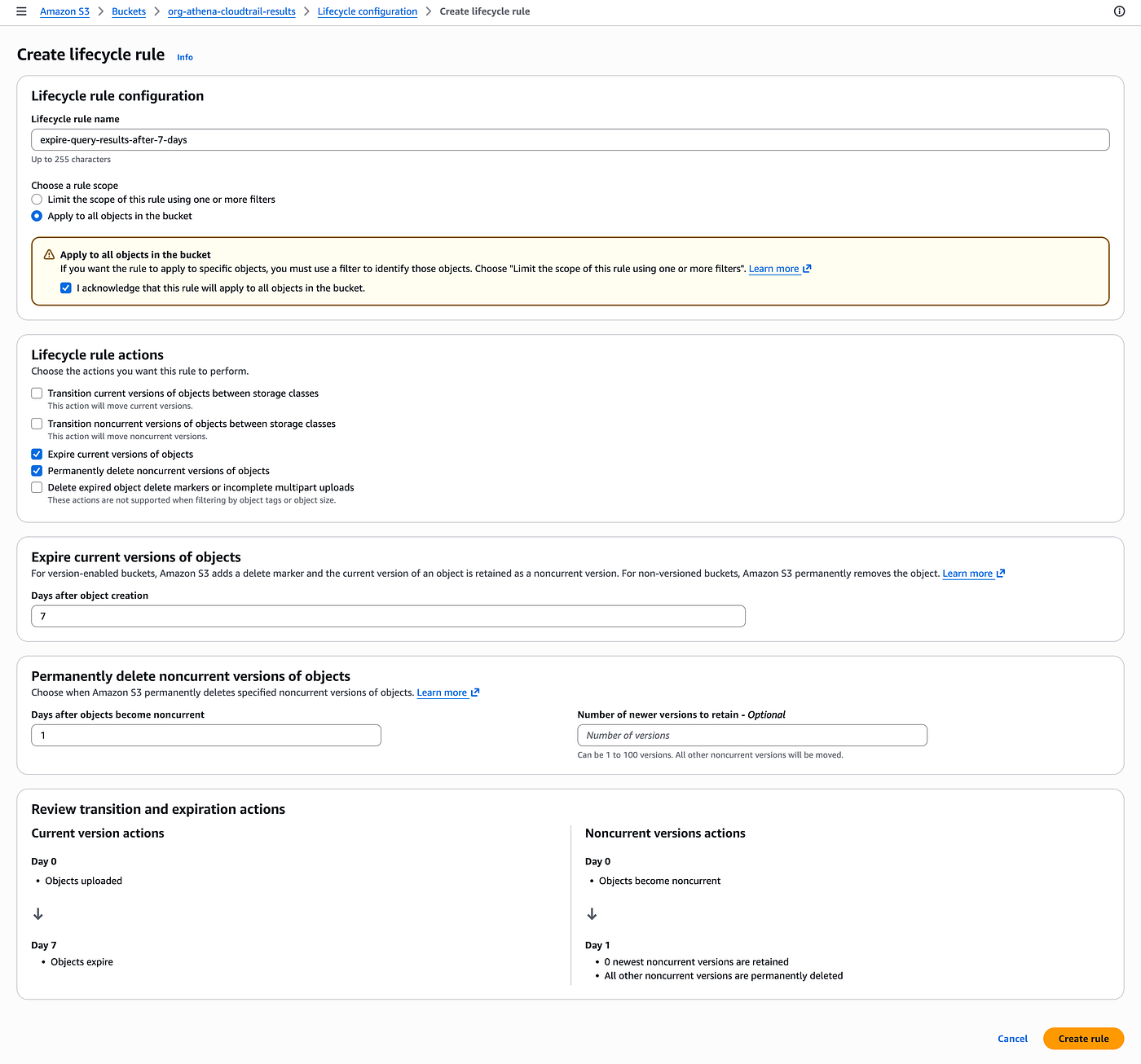
Amazon Athena requires an S3 location to store query results. We create a dedicated bucket for this purpose with a lifecycle policy to automatically clean up results after 7 days — since query results are ephemeral and can always be regenerated.
1.1 Create the Bucket
1.1.1. Sign in to the AWS Management Console using your Log account
1.1.2. Open the S3 console and choose Create bucket
1.1.3. Enter a bucket name (e.g., <your-athena-results-bucket>)
1.1.4. Select the same region where your CloudTrail logs are stored (e.g., us-east-1)
1.1.5. Keep Block all public access enabled (default)
1.1.6. Choose Create bucket
1.2 Configure a Lifecycle Policy
1.2.1. Open the bucket you just created
1.2.2. Go to the Management tab
1.2.3. Under Lifecycle rules, choose Create lifecycle rule
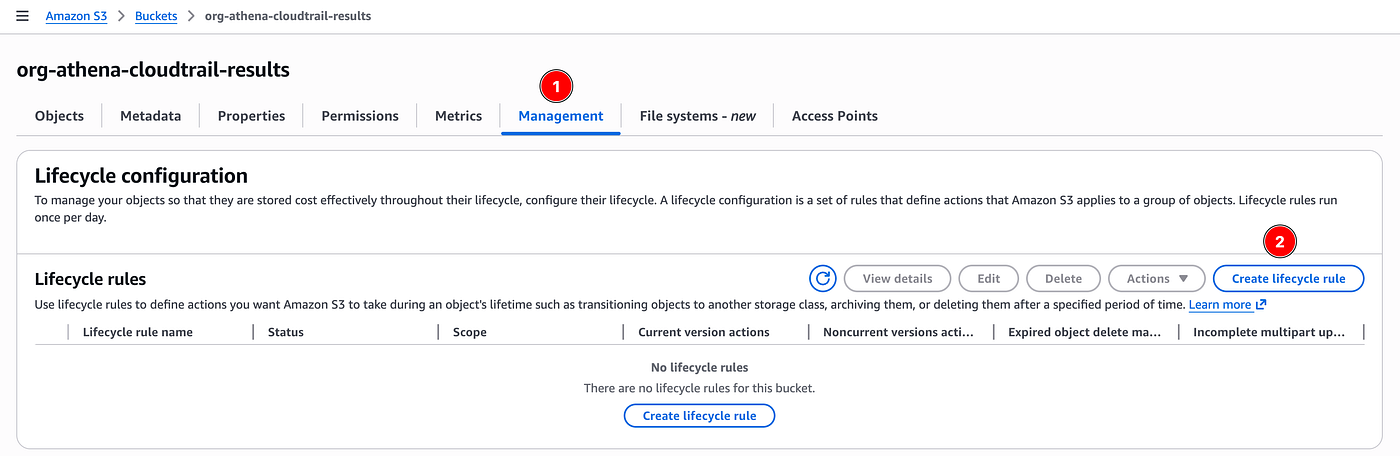
1.2.4. Enter a rule name (e.g., expire-query-results-after-7-days)
1.2.5. For Rule scope, select Apply to all objects in the bucket
1.2.6. Check the acknowledgment box
1.2.7. Under Lifecycle rule actions, select Expire current versions of objects and Permanently delete noncurrent versions of objects
1.2.8. In Days after object creation, enter 7
1.2.9. In Days after objects become noncurrent, enter 1
1.2.10. Choose Create rule
Step 2: Create a Glue Database
AWS Glue Data Catalog serves as the metadata store for Athena. We need a database to organize our CloudTrail table.
2.1 Create the Database
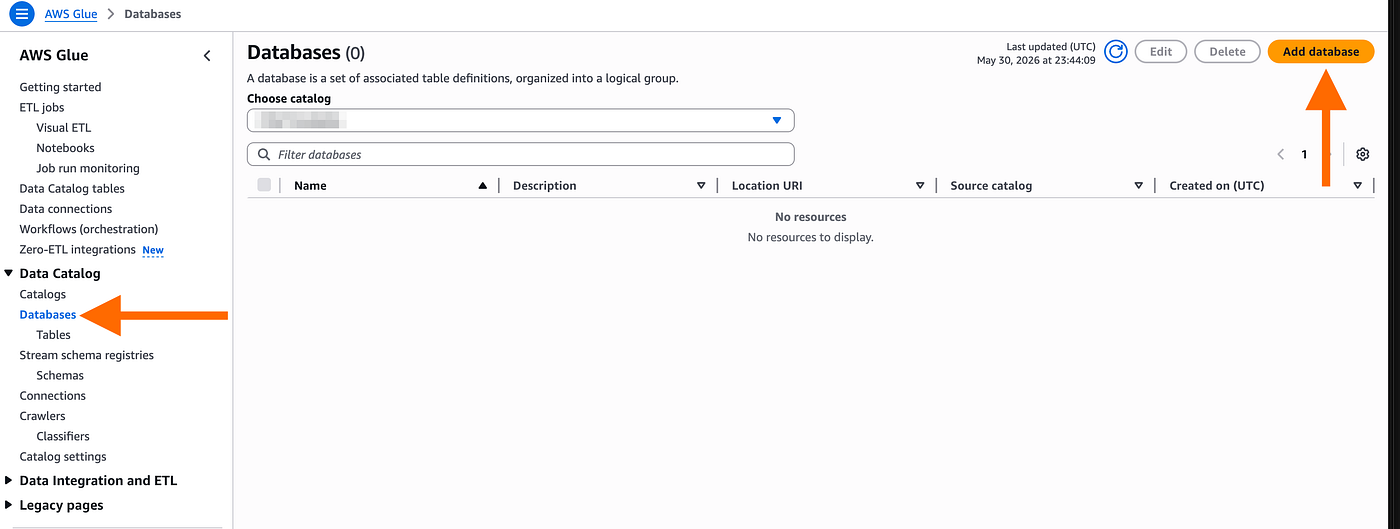
2.1.1. Open the AWS Glue console at https://console.aws.amazon.com/glue/
2.1.2. In the left navigation pane, under Data Catalog, choose Databases
2.1.3. Choose Add database
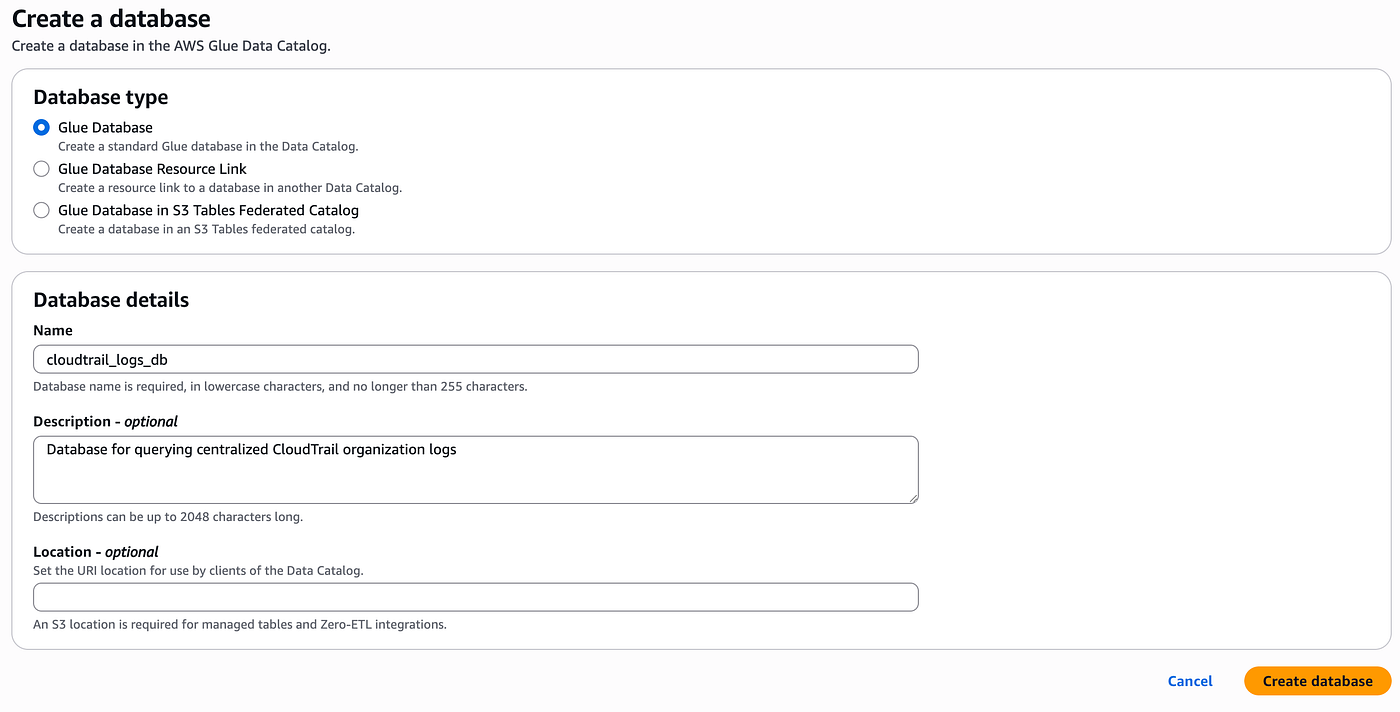
2.1.4. Enter a database name (e.g., cloudtrail_logs_db)
2.1.5. Optionally, enter a description (e.g., Database for querying centralized CloudTrail organization logs)
2.1.6. Choose Create database
Step 3: Configure the Athena Query Result Location
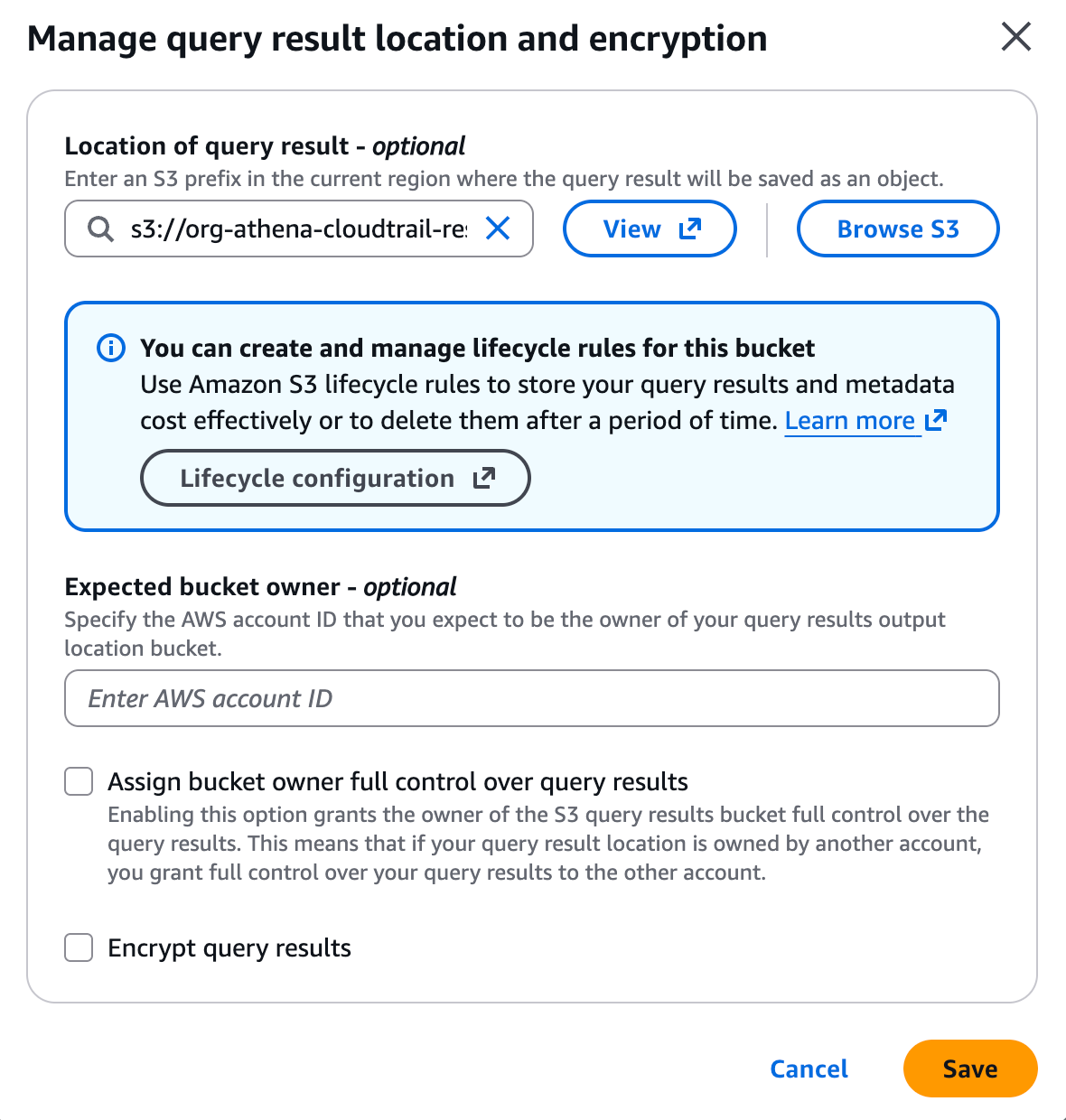
Before running queries, Athena needs to know where to store results.
3.1 Set the Output Location
3.1.1. Open the Athena console at https://console.aws.amazon.com/athena/
3.1.2. If this is your first time using Athena, you will see a banner prompting you to set up a query result location. Choose Edit settings
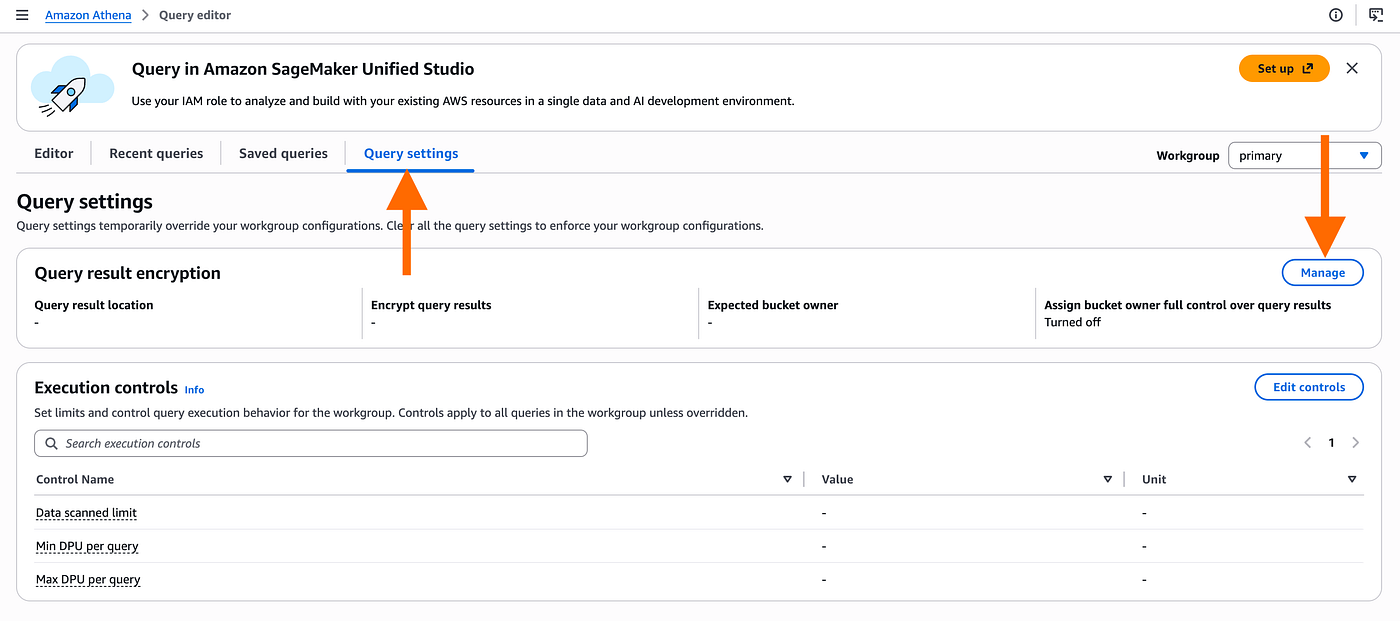
3.1.3. In Query result location, enter the S3 path: s3://<your-athena-results-bucket>/
3.1.4. Choose Save
Step 4: Create a Partitioned Table for Organization CloudTrail Logs
Now we create an external table in Athena that maps the CloudTrail log structure. The table uses partition projection — a feature that lets Athena automatically calculate partition locations without requiring manual ALTER TABLE ADD PARTITION commands. This approach follows the official AWS guide for creating a CloudTrail table with partition projection.
With partition projection, you define the partition schema (accounts, regions, and date range) in the table properties, and Athena resolves partitions at query time. This eliminates the need to manually register partitions every time you want to query a new date or account.
4.1 Run the CREATE TABLE Statement
4.1.1. In the Athena query editor, make sure the database cloudtrail_logs_db is selected
4.1.2. Paste and run the following DDL statement:
CREATE EXTERNAL TABLE cloudtrail_org_logs (
    eventversion STRING,
    useridentity STRUCT<
        type: STRING,
        principalid: STRING,
        arn: STRING,
        accountid: STRING,
        invokedby: STRING,
        accesskeyid: STRING,
        username: STRING,
        onbehalfof: STRUCT<
            userid: STRING,
            identitystorearn: STRING>,
        sessioncontext: STRUCT<
            attributes: STRUCT<
                mfaauthenticated: STRING,
                creationdate: STRING>,
            sessionissuer: STRUCT<
                type: STRING,
                principalid: STRING,
                arn: STRING,
                accountid: STRING,
                username: STRING>,
            ec2roledelivery: STRING,
            webidfederationdata: STRUCT<
                federatedprovider: STRING,
                attributes: map<string,string>>
        >
    >,
    eventtime STRING,
    eventsource STRING,
    eventname STRING,
    awsregion STRING,
    sourceipaddress STRING,
    useragent STRING,
    errorcode STRING,
    errormessage STRING,
    requestparameters STRING,
    responseelements STRING,
    additionaleventdata STRING,
    requestid STRING,
    eventid STRING,
    readonly STRING,
    resources ARRAY<STRUCT<
        arn: STRING,
        accountid: STRING,
        type: STRING>>,
    eventtype STRING,
    apiversion STRING,
    recipientaccountid STRING,
    serviceeventdetails STRING,
    sharedeventid STRING,
    vpcendpointid STRING,
    vpcendpointaccountid STRING,
    eventcategory STRING,
    addendum STRUCT<
        reason: STRING,
        updatedfields: STRING,
        originalrequestid: STRING,
        originaleventid: STRING>,
    sessioncredentialfromconsole STRING,
    edgedevicedetails STRING,
    tlsdetails STRUCT<
        tlsversion: STRING,
        ciphersuite: STRING,
        clientprovidedhostheader: STRING>
)
PARTITIONED BY (account string, region string, `timestamp` string)
ROW FORMAT SERDE 'org.apache.hive.hcatalog.data.JsonSerDe'
STORED AS INPUTFORMAT 'com.amazon.emr.cloudtrail.CloudTrailInputFormat'
OUTPUTFORMAT 'org.apache.hadoop.hive.ql.io.HiveIgnoreKeyTextOutputFormat'
LOCATION 's3://<your-org-cloudtrail-bucket>/AWSLogs/<your-organization-id>/'
TBLPROPERTIES (
    'projection.enabled'='true',
    'projection.account.type'='enum',
    'projection.account.values'='<account-id-1>,<account-id-2>',
    'projection.region.type'='enum',
    'projection.region.values'='af-south-1,ap-east-1,ap-east-2,ap-northeast-1,ap-northeast-2,ap-northeast-3,ap-south-1,ap-south-2,ap-southeast-1,ap-southeast-2,ap-southeast-3,ap-southeast-4,ap-southeast-5,ap-southeast-6,ap-southeast-7,ca-central-1,ca-west-1,eu-central-1,eu-central-2,eu-north-1,eu-south-1,eu-south-2,eu-west-1,eu-west-2,eu-west-3,il-central-1,me-central-1,me-south-1,mx-central-1,sa-east-1,us-east-1,us-east-2,us-west-1,us-west-2',
    'projection.timestamp.type'='date',
    'projection.timestamp.format'='yyyy/MM/dd',
    'projection.timestamp.range'='2026/01/01,NOW',
    'projection.timestamp.interval'='1',
    'projection.timestamp.interval.unit'='DAYS',
    'storage.location.template'='s3://<your-org-cloudtrail-bucket>/AWSLogs/<your-organization-id>/${account}/CloudTrail/${region}/${timestamp}'
);
Replace the placeholders:
<your-org-cloudtrail-bucket>— the bucket where CloudTrail delivers organization logs<your-organization-id>— your organization ID (format:o-xxxxxxxxxx)<account-id-1>,<account-id-2>— comma-separated list of all account IDs in your organizationprojection.timestamp.range— adjust the start date to when your organization trail began collecting logs
The easiest way to find the full path including your organization ID is to navigate into the S3 bucket where CloudTrail delivers logs and browse to any day’s log files. The path will reveal the organization ID, for example: s3://org-cloudtrail-centralized-logs/AWSLogs/o-467pjw0s2u/720215340263/CloudTrail/us-east-1/2026/05/30/
The storage.location.template tells Athena how to map partition values to S3 paths. The ${account}, ${region}, and ${timestamp} variables are replaced at query time with the actual partition values. The NOW keyword in the timestamp range means new dates are automatically available without any table changes.
Step 5: Run Queries Against Your CloudTrail Logs
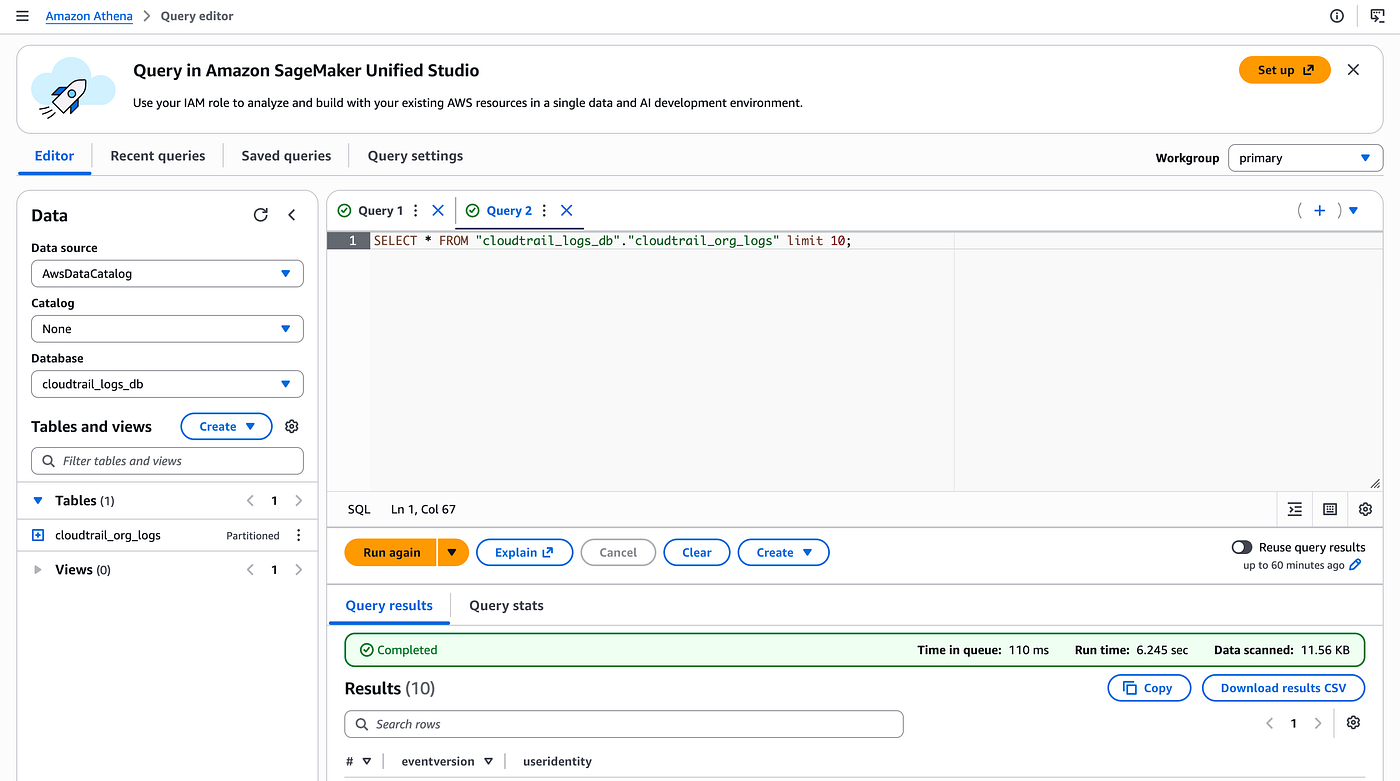
With the table in place, you can now run SQL queries to analyze API activity across your organization. Use the timestamp partition to filter by date range.
5.1 Verify the Table Works
Run a simple query to confirm the table is correctly configured and returning data:
SELECT * FROM cloudtrail_org_logs LIMIT 10;If this returns results, your table and partition projection are working correctly.
5.2 Find a Specific API Call
As a practical test, search for the CreateBucket event — the S3 bucket we created earlier in this tutorial should appear in the logs:
SELECT
  eventtime,
  useridentity.arn,
  eventname,
  eventsource,
  awsregion
FROM cloudtrail_org_logs
WHERE eventname = 'CreateBucket'
ORDER BY eventtime DESC
LIMIT 10;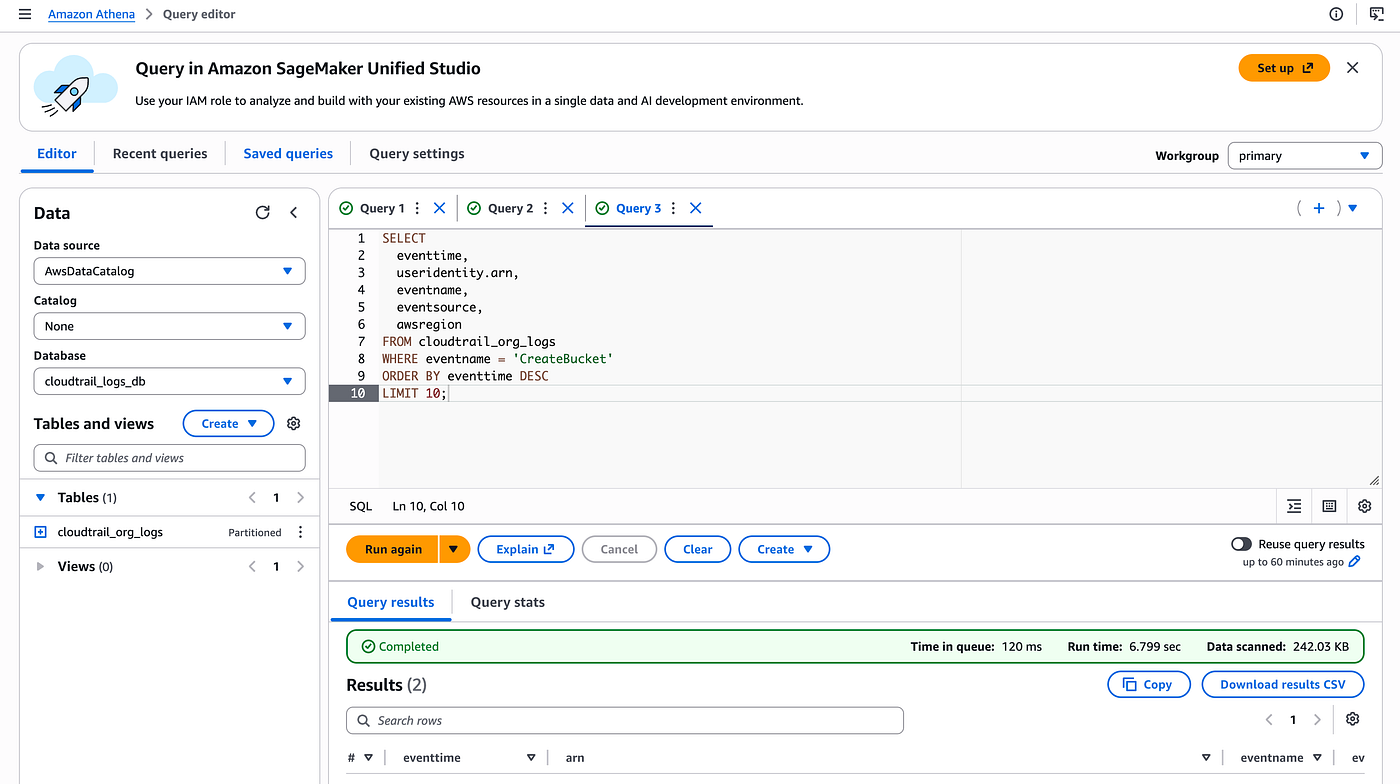
Conclusion
With Athena and partition projection configured on top of your centralized CloudTrail bucket, you now have a zero-maintenance query environment that covers all accounts and regions in your organization. This is extremely useful when you need to investigate security incidents — you can quickly trace who did what, from which IP, and in which account, using simple SQL queries as we demonstrated.
In the next article, I show how to build an autonomous monitoring system using EventBridge and Lambda that automatically analyzes CloudTrail events in real time. We will implement a geo-alerting example that detects API calls originating from unexpected countries — demonstrating a pattern you can extend with fully custom analysis logic written in any Lambda-supported language (Python, Node.js, Java, Go, and others).
Stay Connected
If you found this guide helpful and want to learn more about AWS security, centralized logging, multi-account architectures, and compliance automation, follow the author for future content and tutorials:
- LinkedIn: https://www.linkedin.com/in/biagolini
- Medium: https://medium.com/@biagolini
- GitHub: https://github.com/biagolini
- YouTube (PT-BR): https://www.youtube.com/@BiagoliniTech
Stay tuned for more practical walkthroughs and solutions for cloud architecture and security challenges.
Happy building in the cloud!
메타데이터
- post_id
- 9d496963cb82
- slug
- querying-centralized-cloudtrail-logs-with-amazon-athena-9d496963cb82
- url
- https://awstip.com/querying-centralized-cloudtrail-logs-with-amazon-athena-9d496963cb82
- canonical_url
- https://awstip.com/querying-centralized-cloudtrail-logs-with-amazon-athena-9d496963cb82
- author_url
- https://medium.com/@biagolini
- status
- ok
- fetched_at
- 2026-07-09 06:11:55