🪝 Git’s pre-commit & commit-msg Hooks
From Zero to Your First Hook — The Essential Starting Point
🪝 Git’s pre-commit & commit-msg Hooks
From Zero to Your First Hook — The Essential Starting Point
Git hooks are tiny scripts that run automatically before or after specific Git actions, like committing or pushing. They help you enforce standards, prevent mistakes, and automate checks — right at the source.
In this guide, we start from stone zero: setting up simple local hooks, understanding how they trigger, and taking your first steps toward smarter automation inside your repositories.

Let’s Get Started
Note: if you get stuck, please see my repo.
- Create a new blank project in VS Code (name it however you like).
mkdir hook_test
cd hook_test
code .- Open the integrated terminal and initialize Git:
git init- Open the newly created
.gitdirectory
code .git— inside it, you’ll find a hooks folder:
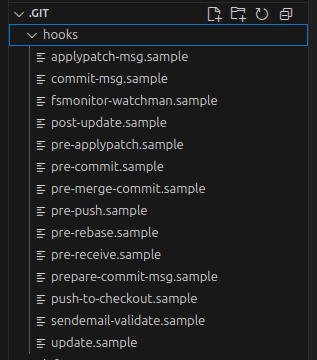
Expand it and you’ll see several sample hook files ( . sample ).*
Alternatively use:
vim .git/hooks/

# To quit type: :q- Let’s make our first hook! Just rename
pre-commit.sampletopre-commit— basically, drop the.sampleextension.
Autorize ¹ this script to run:
sudo chmod a+x .git/hooks/pre-commitOur bash script will check for whitespace issues — if it finds any, it’ll list the problem files and block the commit.
Let’s give it a try!
5.Create a file (main.rb) and intentionally add some trailing spaces and lines to generate the whitespace error.
cat << 'EOF' > main.rb
puts "Hi from main!"
# TODO: This is a placeholder for credentials functionalities.
EOF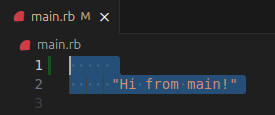
Intentionally adding lines and trailing spaces to activate the pre-commit hook.
Save it.
6.Then run the first commit:
git add main.rb
git status
git commit -m "first commit"
You should see an ERROR:

Nice! The pre-commit hook just ran and stopped your first commit — exactly what we wanted.
git statusAnd you will see:
No commits yetLet’s keep going!
Go ahead and clean up those extra lines and spaces, then try adding and committing again. This time, it should go through smoothly!
Now it should work fine!
- Rename
pre-commitback topre-commit.sampleto disable it — we’ll create our own from scratch.
Inside .git/hooks, create a new file named pre-commit and paste the following:
touch .git/hooks/pre-commit
sudo chmod a+x .git/hooks/pre-commit
Paste inside the newly created file :
.git/hooks/**pre-commit**
#!/bin/sh

echo "Hello hooks!"

# --- Check for TODOs in staged files ---
if git diff --cached --name-only | xargs grep -Hn 'TODO' 2>/dev/null; then
  echo "⚠️ Commit warning: TODO comments found in the staged changes."
  # no exit here - just a warning
fi
Re-run the command (or use the File Explorer interface instead):
sudo chmod a+x .git/hooks/pre-commit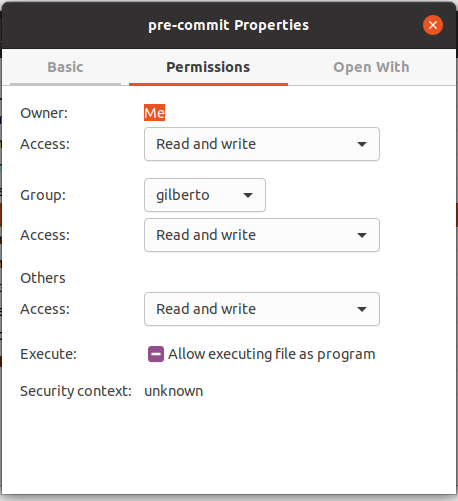
On some machines, we must force access to others. Don’t ask me why!
- Add this line to your
main.rbfile so you can stage the changes again:
# Let’s test our custom hook!
# TODO: refactor this- Run your commit — the message from your hook should appear.
git add main.rb
git commit -m "Second commit"
Hello hooks!
main.rb:2:# TODO: This is a placeholder for credentials functionalities.
⚠️ Commit warning: TODO comments found in the staged changes.
[master 84bae5b] second commit
1 file changed, 1 insertion(+):/ There’s a TODO list waiting — let’s tackle it!
- Let’s walk through a quick test — saving hardcoded credentials to the repo. Never, ever do this in production !— I’ll show you exactly why it’s risky.
Delete TODO note.
Add this hardcoded snippet to your main.rb:
# Never, ever do this in production!
aws_access_key_id = "AKIA1234567890ABCDE"
aws_secret_access_key = "wJalrXUtnFEMI/K7MDENG/bPxRfiCYEXAMPLEKEY"
Now, let’s write a hook to prevent this type of commit from being pushed to the repository.
Past it inside .github/hooks/pre-commit :
...

# --- Check for hardcoded secrets in staged content only ---
if git diff --cached | grep -I -n -i -E "(key|secret|token|password)\s*[:=]\s*['\"]?[A-Za-z0-9/+=._-]+"; then
  echo "❌ Commit aborted: Hardcoded secret detected!"
  exit 1
fi

exit 0
Let’s run the hook and watch it work:
git add main.rb
git commit -m "Committing secrets"
Hello hooks!
10:+aws_secret_access_key = "wJalrXUtnFEMI/K7MDENG/bPxRfiCYEXAMPLEKEY"
❌ Commit aborted: Hardcoded secret detected!Your commit will be blocked — exactly what we want! 😤
To make it work, let’s apply the same techniques from this post — but this time, using pure Ruby.
- Create a script that can encrypt and decrypt the credentials:
touch encrypt_secrets.rbencrypt_secrets.rb
#!/usr/bin/env ruby
require "json"
require "lockbox"

# --- Configuration ---
KEY = "c0a4b3ff1e4e1a22b89b0b93783d4ab9ff9f47b739b2d9a9df70e33a0b7f3a3e" # replace with your own
FILE = "./config/secrets.enc"

lockbox = Lockbox.new(key: KEY)

def usage
  puts "Usage:"
  puts "  ruby encrypt_secrets.rb --encrypt   # Encrypt config/secrets.json -> secrets.enc"
  puts "  ruby encrypt_secrets.rb --decrypt   # Decrypt config/secrets.enc -> print values"
  exit
end

mode = ARGV[0]
usage unless ["--encrypt", "--decrypt"].include?(mode)

if mode == "--encrypt"
  unless File.exist?("./config/secrets.json")
    puts "❌ secrets.json not found. Create one first, e.g.:"
    puts '{ "api_key": "abc123", "password": "supersecret" }'
    exit
  end

  data = File.read("./config/secrets.json")
  encrypted = lockbox.encrypt(data)
  File.write(FILE, encrypted)
  puts "✅ Encrypted and saved to #{FILE}"

elsif mode == "--decrypt"
  unless File.exist?(FILE)
    puts "❌ #{FILE} not found."
    exit
  end

  decrypted = lockbox.decrypt(File.read(FILE))
  secrets = JSON.parse(decrypted)
  puts "🔑 Decrypted secrets:"
  secrets.each { |k, v| puts "  #{k}: #{v}" }
end
This script provides functionality similar to the Rails credentials editor command: EDITOR="code --wait" rails credentials:edit.
12.Add dependency Lib:
touch GemfileGemfile
source 'https://rubygems.org'

gem 'lockbox'
Run:
bundle install- Create your
.gitignore:Paste in your terminal:
cat << 'EOF' > .gitignore
# macOS-specific
.DS_Store
# Common Linux / VS Code / editor files
*~
*.swp
*.swo
# VS Code and JetBrains project settings
.vscode/
.idea/

# Local scripts and key material - never commit sensitive files
encrypt_secrets.rb
lockbox_key.txt
lockbox_key_base64.txt
encrypted_lockbox_key.txt
encrypted_lockbox_key_base64.txt
decrypt_lockbox_key_script.rb
encrypt_lockbox_key_script.rb
lockbox_test.rb
lockbox_test_decrypted.txt

# Ignore bundler config.
/.bundle
/vendor/bundle/
/vendor/cache/
Gemfile.lock

# Lockbox and Rails secret management files
config/initializers/lockbox.rb
config/master_key.txt
config/secrets.json
EOF
Git will ignore encrypt_secrets.rb and not track or commit it — as long as it hasn’t already been added to the repo.
If the file was never committed, you’re good — Git will skip it.
If it was already committed, you need to remove it from tracking first:
git rm --cached encrypt_secrets.rb- Delete this from:
main.rb
# Never, ever do this in production!
aws_access_key_id = "AKIA1234567890ABCDE"
aws_secret_access_key = "wJalrXUtnFEMI/K7MDENG/bPxRfiCYEXAMPLEKEY"- Transfer the credentials to
config/secrets.jsonfile
mkdir config
touch config/secrets.json
secrets.json
{
  "aws_access_key_id": "AKJJHGBDBasadaaSLS",
  "aws_secret_access_key": "wJalrXUtnFEMI/K7MDENG/bPxRfiCYEXAMPLEKEY"
}- run
ruby encrypt_secrets.rb --encrypt✅ Encrypted and saved to ./config/secrets.encGenerates an encrypted ./config/secrets.enc file in the repository root directory.
You can commit it 🙌:
- The
secrets.encfile is securely encrypted using a strong script that's not stored in the repository. - The decryption code is safely kept on the developer’s machine (and excluded via
.gitignore). - This setup allows collaborators or CI/CD pipelines to decrypt it securely when needed.
Great — now let’s move on to handling pre-commit messages.
- Let’s keep going!
In this step, we’ll create a commit-msg hook to enforce consistent commit message prefixes.
touch .git/hooks/commit-msg.git/hooks/**commit-msg**
#!/usr/bin/env bash
# Simple commit message check for beginners

msg_file="$1"
msg=$(cat "$msg_file")

# Check if message is empty
if [[ -z "$msg" ]]; then
  echo "❌ Commit message cannot be empty."
  exit 1
fi

# Check if message is too short
if [[ ${#msg} -lt 10 ]]; then
  echo "⚠️ Commit message too short. Please describe your change briefly."
  exit 1
fi

# Enforce starting with a type like fix:, feat:, etc.
if ! [[ "$msg" =~ ^(feat|fix|docs|chore|test|refactor|style|perf): ]]; then
  echo "❌ Commit message must start with a valid type (feat:, fix:, ci:, docs:, chore:, test:, etc.)"
  echo "Example: feat: add user login form"
  exit 1
fi

# Optional: encourage a simple format like "type: short description"
# if ! [[ "$msg" =~ ^[a-zA-Z]+: ]]; then
#   echo "💡 Tip: Start your message with a type, e.g.: fix:, feat:, docs:, chore:, test:"
#   echo "Example: feat: add user login form"
# fi

exit 0
Give permissions:
sudo chmod a+x .git/hooks/commit-msg- Modify:
main.rb
Puts "Message should start with a tyoe: fix, feat, docs, chore, test "- Run on Terminal:
git add main.rb
git status
git commit -m "third commit"
Error:
Hello hooks!
❌ Commit message must start with a valid type (feat:, fix:, ci:, docs:, chore:, test:, etc.)
Example: feat: add user login form- Run again, prefix w/ type:
git commit -m "test: third commit"Now it is OK:
Hello hooks!
[master 6f884dc] test: third commit
 1 file changed, 2 insertions(+), 1 deletion(-)
Now for the final touch!
20. Promoting Local to Global Scope
Everything we did was local — but what if we want to make it global?
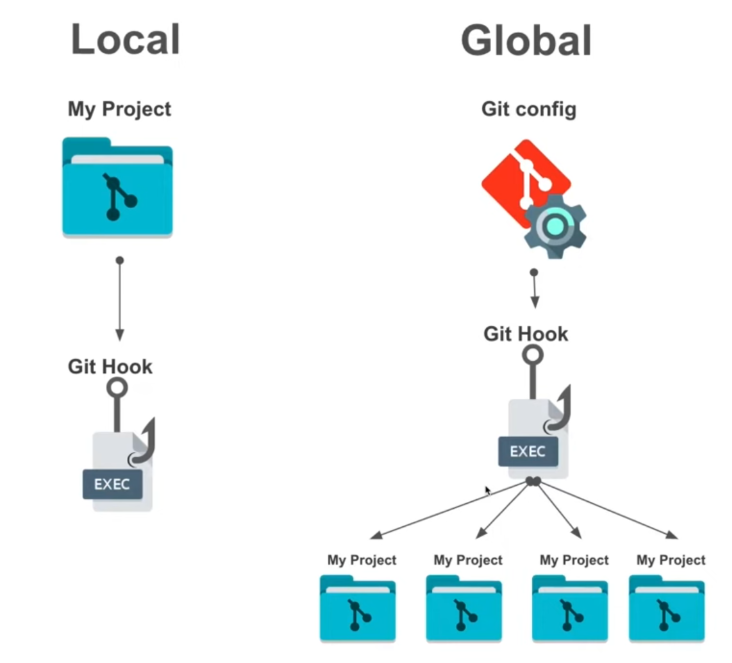
Image Credits goes for: Complete guide to GitHooks — Creating your own pre-commit hooks by GitGuardian
Here is a neat way to promote your local Git hooks to global scope.
🧩 Commands (setup phase)
mkdir ~/.git
mkdir ~/.git/hooks
Creates a .git/hooks directory inside your home folder, which will serve as your global hooks directory — reusable across all repos.
touch ~/.git/hooks/pre-commitCreates an empty pre-commit file that will contain your global hook logic.
chmod u+x ~/.git/hooks/*Makes all files in the ~/.git/hooks folder executable, so Git can actually run them as scripts.
⚙️ Global hook configuration
git config --global core.hookspath ~/.git/hooksTells Git to look for hooks in this global directory (~/.git/hooks) instead of using each repo’s .git/hooks.
💡 Global pre-commit logic
Inside ~/.git/hooks/pre-commit:
#!bin/sh

echo "Hello Global Hooks!"
if [ -f .git/hooks/pre-commit ]; then
  if ! .git/hooks/pre-commit "$@"; then
    echo 'Local pre-commit hook failed; Please fix it before continuing!'
    exit 1
  fi
fi
Explanation:
-
#!bin/sh→ Should actually be#!/bin/sh(note the missing slash). It specifies the shell interpreter. -
echo "Hello Global Hooks!"→ Prints a message confirming the global hook is running. -
The
ifblock checks whether the local repository still has its own.git/hooks/pre-commit. -
If that local hook exists, it runs it:
.git/hooks/pre-commit "$@" -
If the local hook fails (exit code ≠ 0), it shows a warning and aborts the commit.
-
Otherwise, the global hook completes successfully.
In short: You’ve set up a global pre-commit hook manager that runs on every repo, optionally chaining to each repo’s local hook if present.
Summary:
mkdir ~/.git
mkdir ~/.git/hooks
touch ~/.git/hooks/pre-commit
chmod u+x ~/.git/hooks/*
then:
git config --global core.hookspath ~/.git/hooksThank you for reading! I appreciate you taking the time to explore this guide — your support means a lot. Wishing you success with your project ahead!
Note ¹
To give execution permission (or any permission) to other users — not just yourself — you use the chmod command with the o flag (for “others”).
1️⃣ Allow “others” to execute (run) the file:
chmod o+x .git/hooks/pre-commitThis means:
- User (you) — no change
- Group members — no change
- Other users — now can execute the script
2️⃣ To let “others” also read (see the file contents):
chmod o+r .git/hooks/pre-commit3️⃣ Combine both (read + execute):
chmod o+rx .git/hooks/pre-commit🧠 Full permission overview
| Symbol | Stands for   | Example          | Meaning                             |
| ------ | ------------ | ---------------- | ----------------------------------- |
| `u`    | user (owner) | `chmod u+x file` | add execute for you                 |
| `g`    | group        | `chmod g+x file` | add execute for your group          |
| `o`    | others       | `chmod o+x file` | add execute for everyone else       |
| `a`    | all          | `chmod a+x file` | add execute for user, group, others |
⚙️ Typical Git hook setup
For Git hooks, the usual permission is:
chmod a+x .git/hooks/pre-commitThat ensures any user (including Git when running hooks) can execute the script.
메타데이터
- post_id
- 9d541bb6dffd
- slug
- gits-pre-commit-commit-msg-hooks-9d541bb6dffd
- url
- https://medium.com/jungletronics/gits-pre-commit-commit-msg-hooks-9d541bb6dffd
- canonical_url
- https://medium.com/jungletronics/gits-pre-commit-commit-msg-hooks-9d541bb6dffd
- author_url
- https://medium.com/@jaythree
- status
- ok
- fetched_at
- 2026-07-13 06:23:13