Level Up Your Go: The 4-Step Guide to Installing AI Analysis Software (KataGo + Sabaki) 🚀
Learn how to configure the powerful KataGo AI engine and the Sabaki GUI in 4 simple steps for deep, professional-level Go game analysis. 💡
Level Up Your Go: The 4-Step Guide to Installing AI Analysis Software (KataGo + Sabaki) 🚀
AI GO ANALYSIS SETUP
I mean, if you’ve been playing Go, or Baduk, for a bit, you know the feeling, right? You just finished one of those games where your palms were sweating, but then you look back at the SGF file and you’re like, “Where, exactly, did I blow it?” Was it that cheeky shoulder hit? Or maybe that weird endgame reduction? Before, you’d have to beg a really strong player to review it for you.
Honestly, that’s just too much work.
Thanks to the AI revolution that AlphaGo kicked off, we don’t have to wait anymore. The biggest, baddest brain in the room is KataGo, and it’s totally free. It doesn’t just tell you if you won or lost; it breaks down your score in terms of points and gives you this unbelievably sharp critique of every single move. As Golang developers, we love having control over our systems, so why pay for a service when you can just install the most powerful open-source tool locally?
This is my super-casual guide for setting up that whole pro-level analysis rig on your own machine. We’re pairing the simple-to-use Sabaki GUI with the absolute beast, the KataGo AI engine. It’s only four steps, and I swear, once you see your own game reviewed by this thing, you’re going to feel like you just got a cheat code. Ready to stop guessing and actually learn what’s up? Let’s get this installation rolling! 👇
Your AI Go Toolkit: The Essential Pair 🛠️
So, to make this work, you basically need two main programs. Think of it like a client-server setup, which we Golang folks know all about. It’s the front end and the back end.
- The Interface (GUI): We need something pretty to look at. A cool program that lets us load our SGF files and shows us all those sweet, sweet AI suggestions. Sabaki is my personal favorite here. It’s clean, modern, and honestly, setting up the engine is dead simple. Sure, there are others, but Sabaki just works without a fuss.
- The Engine (AI): This is the brains, the absolute heavy-lifter. We’re using KataGo. It’s the strongest public AI engine, period. What I really dig about KataGo is its ability to estimate score in territory (like, “Black is up by 3.5 points”), which is way more helpful for human learning than just a cold win probability.
Step 1: Install Your Go Interface (Sabaki) 💻
This part is honestly a breeze. Sabaki is cross-platform, so whether you’re on a Mac, Windows, or even Linux, the process is kind of the same.
- Hit up the Sabaki website. A quick search for “Sabaki Go Editor” should get you there instantly. No sweat.
- Download the installer file that matches your operating system. Make sure it’s the latest one!
- Install it like you would any other app, you know? It’s just a regular double-click and follow-the-prompts situation.
Once it’s installed, give it a quick launch. You should see a nice, clean, empty Go board. Okay, front end is done! Now for the messy, powerful engine part.
Step 2: Download the KataGo Engine and Model 🧠
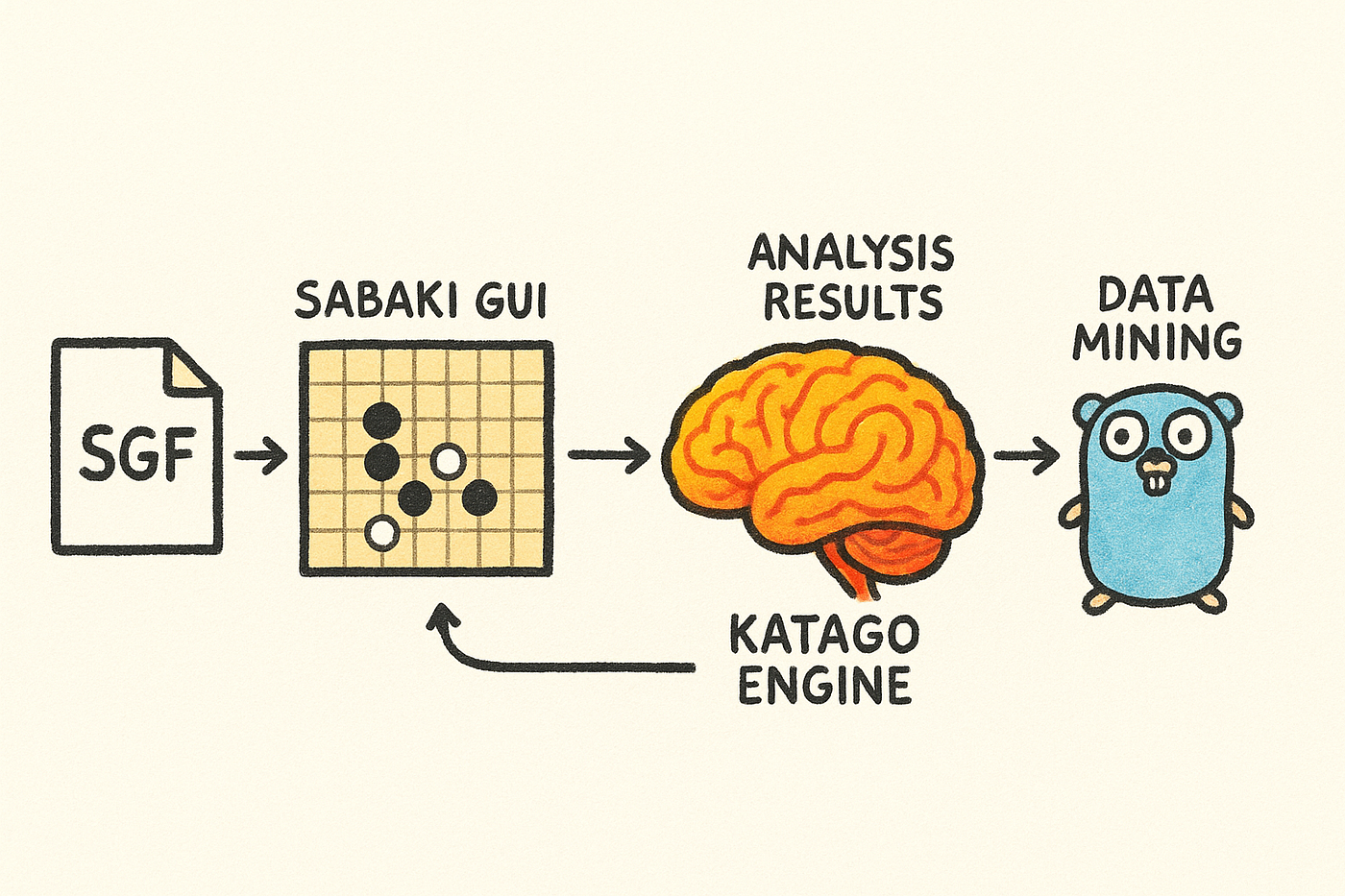
AI Analysis Pipeline — from SGF to insights.
Alright, time to grab the AI’s “brain.” KataGo is really two pieces: the actual program that runs the calculations (the executable) and the ginormous file of data it learned from (the network model).
- Find the KataGo Release: Head over to the official KataGo GitHub repository (just search “lightvector KataGo GitHub”). Click that
Releasestab. We want the latest stable build, which, as of late 2025, is usually around v1.16.3 or whatever the newest version they have out is. - Download the Engine Executable:
- Look for the latest version number.
- Here’s the tricky bit: You gotta pick the right one for your graphics card (GPU). If you have a decent NVIDIA or AMD card, grab the file with
openclorcudain the name. OpenCL is often the easiest path, IMO. If your machine is older or you only have the CPU, then go for theeigenorcpuversion. - Download the zip file for your OS, obviously (e.g.,
katago-v1.16.3-opencl-windows-x64.zip).
- Download the Neural Network Model & Config:
- Go find the links for the latest KataGo networks. They end in
.bin.gz. You want the strongest model you can run, probably a b40c or even the newer b28 series. Download that bad boy and save it. - This is important: Make sure you also download the
gtp_example.cfgfile. You'll thank me later-it's essential for getting the performance right.
- Organize: Unzip the engine file and put the executable (
katago), the network model (.bin.gz), and that littlegtp_example.cfgfile all together in a new, easy-to-find folder, likeC:\GoAI\KataGoor~/GoAI/KataGo. I actually keep mine right in my Documents folder so I can always find it.
🔥 Hot Tip: No, seriously, a strong GPU is a total game-changer for speed. If your analysis is crawling, check the GPU usage. It should be working hard!
Step 3: Connect KataGo to Sabaki (The GTP Configuration) 🔌
This is the real “programmer’s moment.” Sabaki needs to talk to KataGo using something called the GTP (Go Text Protocol). We’re telling the GUI exactly what command to run to start the engine. It all comes down to the Arguments line.
- Open Sabaki: Start it up.
- Access Engine Management: Head over to Engines > Manage Engines…
- Add a New Engine: Click that Add button (the little
+sign).
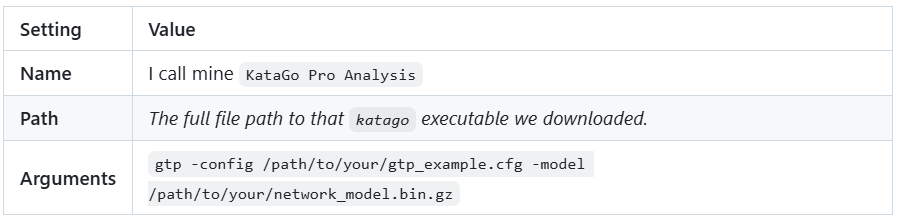
Example Arguments (Don’t copy this; replace the paths with yours!):
gtp -config C:\GoAI\KataGo\gtp_example.cfg -model C:\GoAI\KataGo\g170-b40c256x2-sXXXXXX.bin.gz-
Seriously, that
-configfile matters! Thegtp_example.cfgis basically a performance tuning file. It tells KataGo how many threads to use and how much memory to chew up. Go open that file later! Seriously, read the comments in it to make sure it's set up nicely for your specific machine. -
Save and Close: Hit OK to save it. You’ve basically wired the engine into the interface. Give yourself a high-five.
Step 4: Run Your First AI Game Analysis 🌟
We did it! Time to test this beast out.
- Load a Game: Open an SGF file for a game you played that you want to check out (File > Open…).
- Enable the Engine: Go to Engines > Attach Engine… and pick the
KataGo Pro Analysissetup you just created. If a little window pops up or the name shows up in the sidebar without an error, YOU'RE GOLDEN. The connection worked! - Start Analysis:
- Move to any move in the game. Any point where you felt confused is a great start.
- Find the “Analyse” option in the Sabaki engine sidebar and click it, or just click around on the board.
- The engine is running now. Give it a few seconds or a minute for the “Visits” number to climb. This number is key-it tells you how deep the AI is thinking. More visits equals more accurate analysis.
Boom! You should now be seeing crazy colorful overlays showing you win rates, score changes, and a list of the best possible moves according to the AI. This is like getting professional coaching on every single move. It’s AMAZING.
The Golang Edge: Customizing Analysis with SGF Parsers ⚙️
Okay, so this is where our Golang skills come in handy. We’re programmers, not just users! The whole point of running this analysis is to learn, right? Well, KataGo saves all that juicy data (the win rates, the best moves, the score differences) right back into the SGF file.
If you’re like me, you probably have a huge folder of analyzed games, and manually checking them all for “moves that tanked my win rate by 15% or more” is a nightmare. That’s a perfect job for a custom Go utility!
Go is just fantastic for this kind of file processing-it’s fast, concurrency is easy, and dealing with text files is a total pleasure.
For an SGF parser, skip the placeholders. I use github.com/seehuhn/go-sgf. It’s reliable and gets the job done.
Here’s how you start the tool that will eventually mine all your learning data. It’s the foundation of your custom Go tutor!
package mainimport (
    "fmt"
    "os"
    // This library is great for SGF files, IMO
    "github.com/seehuhn/go-sgf"
)func main() {
    sgfPath := "path/to/my/favorite_game_analyzed.sgf"

    // Gotta open the file first, you know?
    f, err := os.Open(sgfPath)
    if err != nil {
        fmt.Println("Ugh, error opening SGF file:", err)
        return
    }
    defer f.Close() // Parse the whole game tree structure
    coll, err := sgf.Parse(f)
    if err != nil {
        fmt.Println("Jeez, error parsing SGF:", err)
        return
    }   // Assuming the game is the first one in the collection (it usually is)
    game := coll.GameTrees[0]

    // Now we can loop through and read all the AI comments!
    fmt.Printf("Success! Loaded a game with %d total nodes. Time to find the blunders.\n", game.TreeSize())
    // You'd write the actual Go logic here to hunt for the AI's data properties!
}
See? This is where your coding skills really blend with the game. You’re not just a player; you’re automating your own improvement.
Wrapping Up: From Theory to Practice 💡
[embed]Via Giphy
Wow! You actually did it. You just set up a top-tier, world-class AI analysis tool for Go. You bypassed the subscriptions and built the whole rig yourself. That’s awesome, and frankly, it’s a huge step up from just relying on your gut feeling.
My quick take on what you just pulled off:
- The setup is all about the dream team: Sabaki for the board and KataGo as the super-smart engine.
- The most important step, seriously, is getting those GTP arguments right, especially linking that little
-configfile for max performance. - And for all my fellow Golang developers, don’t just use the GUI! Use a library like
go-sgfto write custom tools that turn your analysis files into pure, actionable learning data.
What is KataGo going to expose as your biggest bad habit? I’m excited for you to find out!
Go run your first analysis and tell me what the AI thinks of your favorite opening move. Share in the comments below: What’s the biggest “Aha!” moment you’ve had in Go thanks to AI analysis? Seriously, let’s chat about our favorite revelations! 👇
메타데이터
- post_id
- 9d641e66bb2d
- slug
- level-up-your-go-the-4-step-guide-to-installing-ai-analysis-software-katago-sabaki-9d641e66bb2d
- url
- https://medium.com/@puneetpm/level-up-your-go-the-4-step-guide-to-installing-ai-analysis-software-katago-sabaki-9d641e66bb2d
- canonical_url
- https://medium.com/@puneetpm/level-up-your-go-the-4-step-guide-to-installing-ai-analysis-software-katago-sabaki-9d641e66bb2d
- author_url
- https://medium.com/@puneetpm
- status
- ok
- fetched_at
- 2026-07-16 22:52:43