Getting Hands-On with PostgreSQL on an Azure Linux VM
When learning databases, nothing beats real-world practice. Instead of staying purely theoretical, I decided to build my own PostgreSQL lab…
Getting Hands-On with PostgreSQL on an Azure Linux VM
When learning databases, nothing beats real-world practice. Instead of staying purely theoretical, I decided to build my own PostgreSQL lab environment using the Azure free trial. This gave me the flexibility to explore Linux, PostgreSQL installation methods, and core administration commands.
Here’s a walkthrough of what I set up and what I learned along the way.
Setting Up the Practice Environment
Using the Azure free trial, I created a Linux Virtual Machine
Login details for vm
Username: pgadmin
Password: password
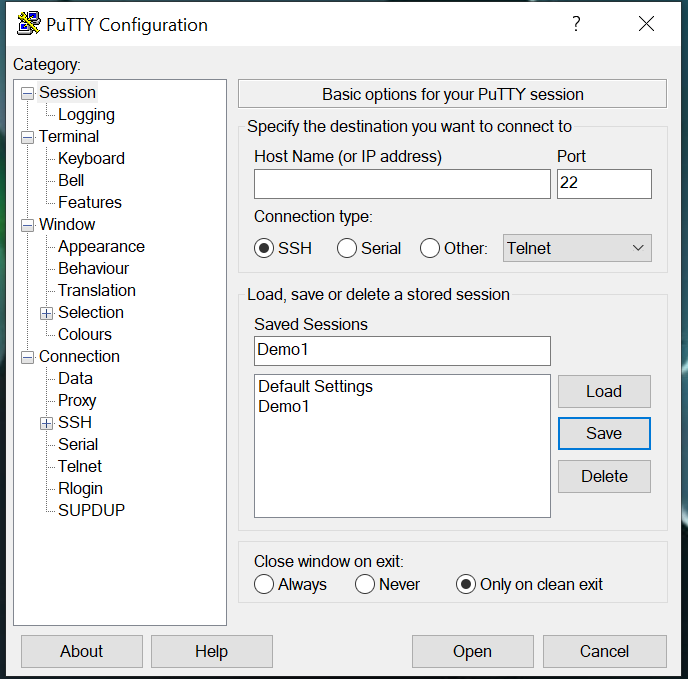
Before that install putty on your local machine
connected to it via PuTTY.
Fill Host name :
PostgreSQL Installation Methods
There are two primary ways to install PostgreSQL on Linux:
1. Repository-Based Installation (APT / YUM / RPM)
2. Source Code Installation
1. Repository-Based Installation (APT / YUM / RPM)
This is the most common and recommended approach.
PostgreSQL provides official repositories that ensure
- Secure packages
- Version control
- Easy updates
Reference: https://www.postgresql.org/download/linux/ubuntu/
The execute the below commands : it will set up the PostgreSQL fetching form repository ,identify the any os updates and download encryption for security and set up the environment
>sudo apt install curl ca-certificates sudo install -d /usr/share/postgresql-common/pgdg sudo curl -o /usr/share/postgresql-common/pgdg/apt.postgresql.org.asc — fail https://www.postgresql.org/media/keys/ACCC4CF8.asc
. /etc/os-release sudo sh -c “echo ‘deb [signed-by=/usr/share/postgresql-common/pgdg/apt.postgresql.org.asc] https://apt.postgresql.org/pub/repos/apt $VERSION_CODENAME-pgdg main’ > /etc/apt/sources.list.d/pgdg.list” sudo apt update
sudo apt install postgresql-18

# verifying the version
> psql — vesrion
## ps -ef |grep postgres → most used for postgres to verify and identify postgres directories path

## Start / Stop / Restart / Reload
## uisng pg_ctl → we can start /stop / restart / reload uisng data directory
pg_ctl start -D “ data directory name “
Using systemctl :
sudo systemctl status postgresql —> . it shows the postgres service is running or not
sudo systemctl stop postgresql → for stooping or shutdown the postgresql server /cluster
sudo systemctl start postgresql → For start the postgresql server
sudo systemctl retsart postgresql → for restart the server
sudo systemctl reload postgresql → for reload the server when we configure parameters in config / hba conf files
Final Thoughts
Setting up PostgreSQL on an Azure Linux VM turned out to be an incredibly valuable exercise. It wasn’t just about installing a database — it was about understanding
For anyone starting with PostgreSQL administration, I highly recommend building your own sandbox environment. The learning gained from breaking, fixing, and experimenting is unmatched.
메타데이터
- post_id
- 9de67d4b356c
- slug
- getting-hands-on-with-postgresql-on-an-azure-linux-vm-9de67d4b356c
- url
- https://medium.com/@sandeepsam0909/getting-hands-on-with-postgresql-on-an-azure-linux-vm-9de67d4b356c
- canonical_url
- https://medium.com/@sandeepsam0909/getting-hands-on-with-postgresql-on-an-azure-linux-vm-9de67d4b356c
- author_url
- https://medium.com/@sandeepsam0909
- status
- ok
- fetched_at
- 2026-07-07 07:11:48


