Build My First JavaScript Project : A Weather App
Hi everyone! I am Saranshi, a college student who is completely new to the world of programming. Up until now, most of my coding experience…
Build My First JavaScript Project : A Weather App
Hi everyone! I am Saranshi, a college student who is completely new to the world of programming. Up until now, most of my coding experience has been restricted to simple college lab manuals and youtube videos. But recently, I wanted to step out of my comfort zone and build something real — a project that actually uses live data from the internet and lives on a public link for anyone to see.
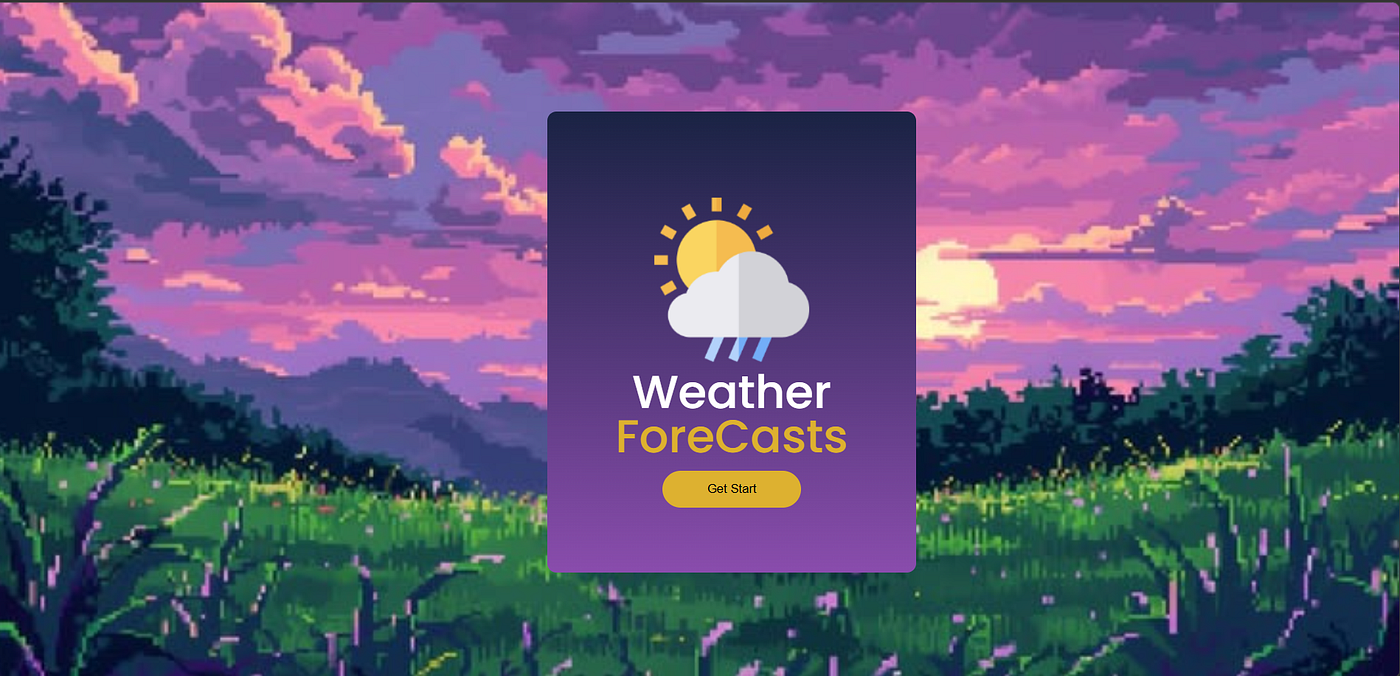
I decided to build a simple, responsive Weather Application that looks up the live weather for any city in the world. Live Project Link: https://saranshi-13.github.io/weather-app/
What I Used ( Tech Stack)
Because I wanted to truly understand how web development works before jumping into complicated frameworks, I stuck to the basics:
- HTML: To set up the text boxes, buttons, and layout.
- CSS: To design a nice purple-gradient theme and make sure it looks good on mobile screens.
- JavaScript: The “brain” of the app that handles user clicks and pulls data from the internet.
- OpenWeatherMap API: A free online service that sends over the live weather data.
- GitHub Pages: A free platform to host the project online. Breaking Down the JavaScript Logic
As someone still learning JavaScript, trying to connect a website to live data felt intimidating. However, I learned that breaking the code into small, single-purpose blocks makes things much easier.
1. Fetching Data from the Internet
Instead of hardcoding the weather, I wrote a function that pauses for a brief second, reaches out to the OpenWeatherMap server using a unique API key, and downloads the city’s real-time info into a readable format
let finalUrl = `${url}q=${city}&appid=${apiKey}`;
let weatherData = await fetch(finalUrl).then(res => res.json());
2. Planning for Mistakes
One of the biggest lessons I learned as a beginner is that you always have to expect user errors. If someone mistypes a city name, the internet server returns a 404 (Not Found) error. I added a small check to immediately swap to an error screen instead of letting the entire app crash
if(weatherData.cod == 404){
    mainBox2.classList.add("inactive");
    mainBox3.classList.remove("inactive");
    return; // Stops the script safely right here
}
3. Swapping Icons Automatically
I wanted the app to look dynamic, so I built an icon-swapping rule. The code checks the weather status (like Clouds, Rain, or Clear) and instantly matches it to the right image file path in my project folder
let icons = {
    Clouds: "images/clouds.png",
    Rain: "images/rain.png",
    Clear: "images/clear.png"
};
icon.src = icons[weatherMain] || "images/clear.png";
The “Broken Image” Mystery: My First Big Debugging Lesson
When I opened the files on my local computer, everything looked flawless. But the exact moment I uploaded it to GitHub Pages and visited my live link, every single weather icon disappeared, leaving behind ugly broken image icons.

As a beginner, fixing this was a massive learning experience. By inspecting the broken elements in my browser, I learned two important rules about deploying websites:
1. Watch the Slashes: Locally, using a slash like /images/clear.png worked fine. But online, that leading slash tells the browser to look at the absolute root of the entire website domain, missing the project folder entirely. Changing it to a relative path (images/clear.png) fixed it.
2. Capital Letters Matter: My computer’s operating system didn’t care about capital letters in filenames, but GitHub’s hosting servers are strictly case-sensitive. If a file is named drizzle.png but your code looks for Drizzle.png, it breaks completely online.
Once I matched the case perfectly and updated my paths via Git, the icons popped up beautifully!
Final Thoughts
Building this weather app helped me see how classroom coding theory translates into building actual things people can interact with. I learned how to use browser developer tools, handle API errors, and use Git commands properly.
This is just the first step in my coding journey, and I can’t wait to build more!
메타데이터
- post_id
- 9e3d97d0df8e
- slug
- build-my-first-javascript-project-a-weather-app-9e3d97d0df8e
- url
- https://medium.com/@saranshirathor/build-my-first-javascript-project-a-weather-app-9e3d97d0df8e
- canonical_url
- https://medium.com/@saranshirathor/build-my-first-javascript-project-a-weather-app-9e3d97d0df8e
- author_url
- https://medium.com/@saranshirathor
- status
- ok
- fetched_at
- 2026-07-28 00:01:27