How to Add WooCommerce Checkbox to Product Page
WooCommerce does a solid job of helping you sell products online, but it has a gap that quietly costs stores revenue every day. There’s no…
How to Add WooCommerce Checkbox to Product Page
WooCommerce does a solid job of helping you sell products online, but it has a gap that quietly costs stores revenue every day. There’s no built-in way to add a checkbox field to a product page. If your store relies on simple yes-or-no choices or multiple optional add-ons, customers have no structured way to select them before checkout.
The PH Product Add-ons for WooCommerce plugin fills that gap. It lets you add checkbox fields to any product page without code. Customers tick what they want, the price updates live, and every selection flows automatically into the cart, order summary, and confirmation email.
For more details, you can refer to the *original article.*
What WooCommerce Checkbox Product Options Actually Are
Checkbox product options are selectable fields that sit directly on the product page, letting customers opt into extras, confirm preferences, or pick from a set of independent add-ons before adding an item to their cart.
They work differently from WooCommerce product variations, which handle fixed attributes like size or colour. A checkbox is built for moments where the customer simply decides: yes, I want this, or no, I don’t. And when there are several independent options to choose from, three food toppings, two service upgrades, a warranty and gift wrapping, a checkbox group lets them select as many as they want, each with its own label and price.
Where Checkboxes Make the Most Sense
Checkboxes work best when a customer needs to opt into something independently, where selecting more than one should be possible. Unlike dropdowns or radio buttons that limit buyers to a single choice, each checkbox option stands completely on its own.
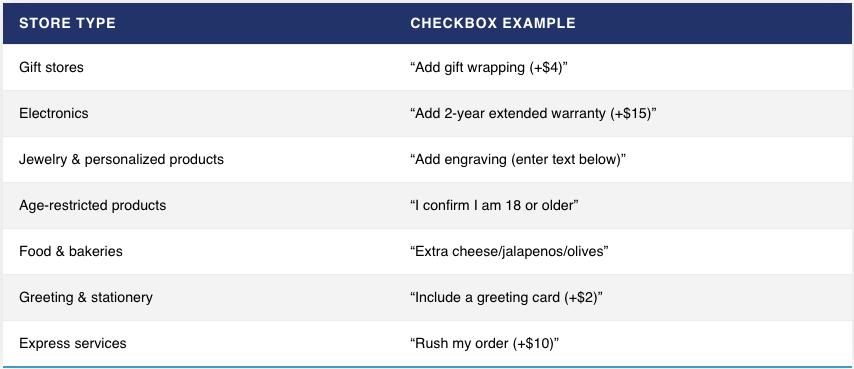
Placing these choices on the product page rather than at checkout or in order notes keeps orders clean from the start, reduces support back-and-forth, and increases average order value without creating new products.
How to Add a Checkbox to Your WooCommerce Product Page
Before starting, make sure the PH Product Add-ons plugin is installed and active. The setup guide covers the full installation walkthrough.
Create an Add-on Group and assign it to products: Go to Product Add-ons → Add New Group in your WordPress dashboard. Give it a clear name like “Gift Options” or “Order Extras,” then assign it to the relevant products or categories. Set it up once, and it works across your entire store.
Add your Checkbox field: Inside the group, add a new field and select Checkbox as the field type. Give it a specific label, the exact text your customer sees, like “Add Gift Wrapping.” For a checkbox group with multiple options, add each option separately and assign individual pricing. Toggle it as required if needed and add a short description for context.
For pricing, choose from a flat fee, a percentage of the product price, a quantity-based fee, or a percentage of the combined product and add-on total. The price updates live on the product page, and the full breakdown carries through to the cart, checkout, and order confirmation email.
Use Conditional Logic to keep the page clean: If you want a second field to appear only after a checkbox is ticked, the plugin’s conditional logic handles this neatly. A text input or additional field becomes visible only when a specific option is selected, keeping the product page focused for every customer.
As shown in the example below, customers can select gift wrapping and choose a wrap colour, with the price updating instantly on the product page.
Real-World Example: WooCommerce Bakery Store
An online bakery selling custom celebration cakes wants to offer extras, such as a custom message, premium decoration, and a gift box, but WooCommerce gives customers no way to request these on the product page. Orders come in incomplete, details get chased over email, and fulfilment slows down.
With PH Product Add-ons, checkboxes like “Add a custom message (+$3),” “Add premium decoration (+$8),” and “Add a gift box (+$5)” are assigned to all cake products in one step. Customers tick their choices on the product page, the price updates in real time, and a message text field appears via conditional logic only when that option is selected. Every selection flows automatically into the cart and order confirmation. Every order arrives in the dashboard complete and ready for production, no follow-up needed.
Tips Worth Following Once Your Checkboxes Are Live
- Set a maximum selection limit — the plugin lets you cap how many options a customer can select, useful when offering tiered extras that shouldn’t all apply at once
- Add a short description to high-value options — one line explaining what the customer gets is often enough to push them to tick it
- Mark compliance checkboxes as required — for age confirmations or terms acceptance, making the field required ensures customers can’t proceed without ticking it
- Build once, assign everywhere — create your group once and apply it across all relevant products or categories; any future edits reflect across your entire catalogue instantly
- Keep paid add-ons optional — customers who feel pushed into paying extra push back; customers who choose willingly are far more likely to complete the purchase and return
Conclusion
Adding checkbox product options to your WooCommerce product pages is one of the most practical ways to give customers more choice while recovering revenue from services you’re already offering. The PH Product Add-ons for WooCommerce plugin handles the entire flow — from the checkbox on the product page to the order confirmation email — with no code and no complexity. If you need help configuring checkbox fields on your store, the PluginHive support team is ready to assist.
메타데이터
- post_id
- 9ec8af443cee
- slug
- how-to-add-woocommerce-checkbox-to-product-page-9ec8af443cee
- url
- https://medium.com/pluginhive/how-to-add-woocommerce-checkbox-to-product-page-9ec8af443cee
- canonical_url
- https://medium.com/pluginhive/how-to-add-woocommerce-checkbox-to-product-page-9ec8af443cee
- author_url
- https://medium.com/@vandhana_22442
- status
- ok
- fetched_at
- 2026-06-10 22:59:55