This Free GitHub Project Made My Mac Feel Like Linux — in the Best Way.
20K-star GitHub repo., a tree-based tiling model, and the rough edges nobody mentions
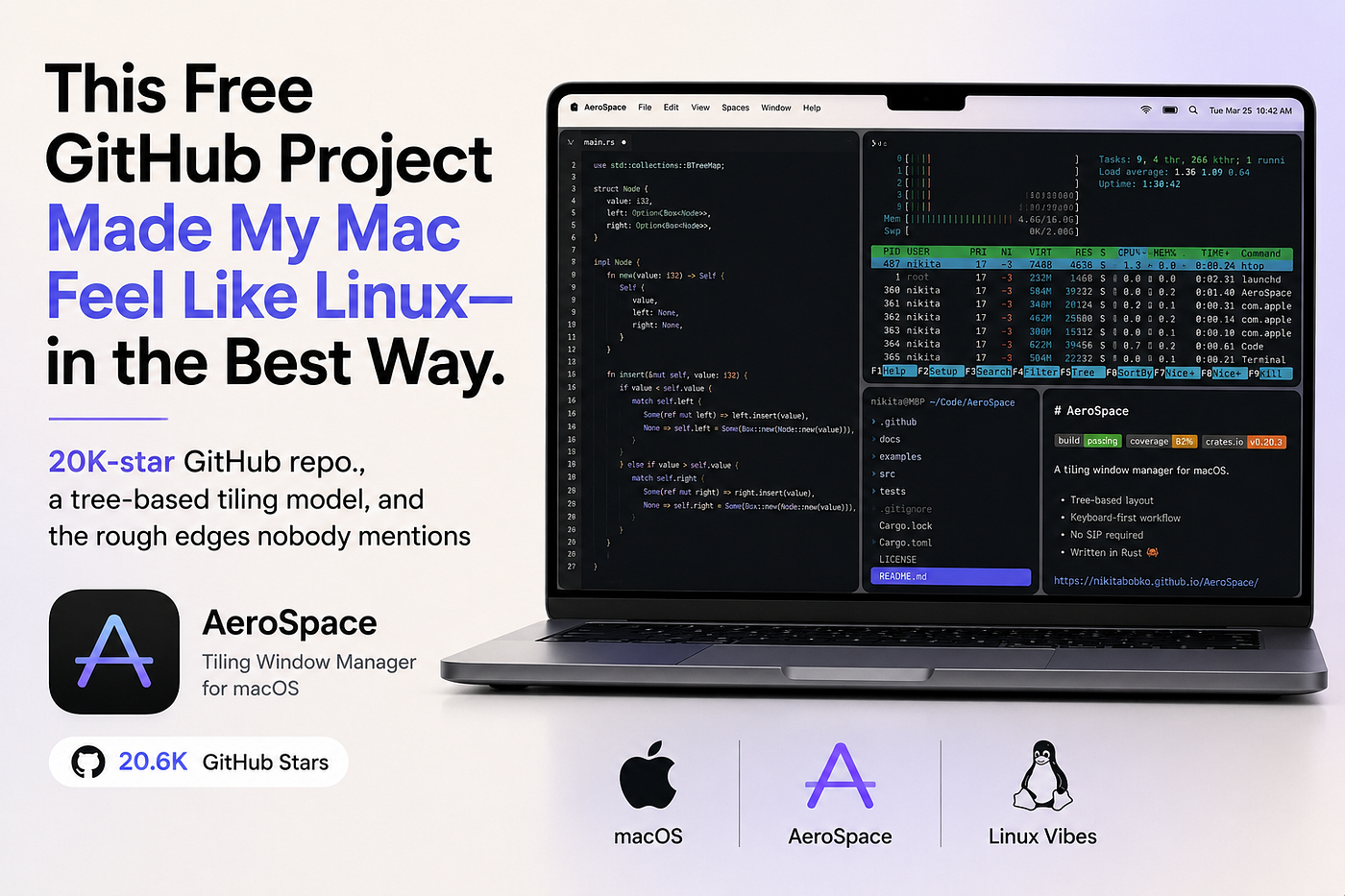
This Free GitHub Project Made My Mac Feel Like Linux — in the Best Way.
20K-star GitHub repo., a tree-based tiling model, and the rough edges nobody mentions
In March 2026, AeroSpace shipped v0.20.3-Beta, a routine point release for a tiling window manager most Mac users have never heard of, let alone installed.
That’s not because it’s obscure. It sits at 20,600 GitHub stars and 512 forks as of this writing, up from roughly 20,500 stars in May. It’s not because it’s broken. Three weeks ago I made it my only window manager and I’m still running it. It’s because the entire category — tiling window management on macOS — carries a reputation problem that’s almost entirely inherited from tools that came before it.
Here’s the contrarian part: most Mac power users who insist they don’t need tiling window management have never actually tried a version that didn’t cost them something. For years, “keyboard-driven tiling on a Mac” meant disabling System Integrity Protection, running a background daemon with elevated privileges, and hoping the next macOS point release didn’t quietly break your setup. That’s not a workflow upgrade. That’s a security tradeoff dressed up as a productivity tip, and most builders correctly decided it wasn’t worth it.
AeroSpace doesn’t ask for that trade. This is the config I’m running, the tree model underneath it, what actually broke in three weeks, and the honest comparison against the tools you’ve probably already half-tried.
The SIP Tax Nobody Talks About
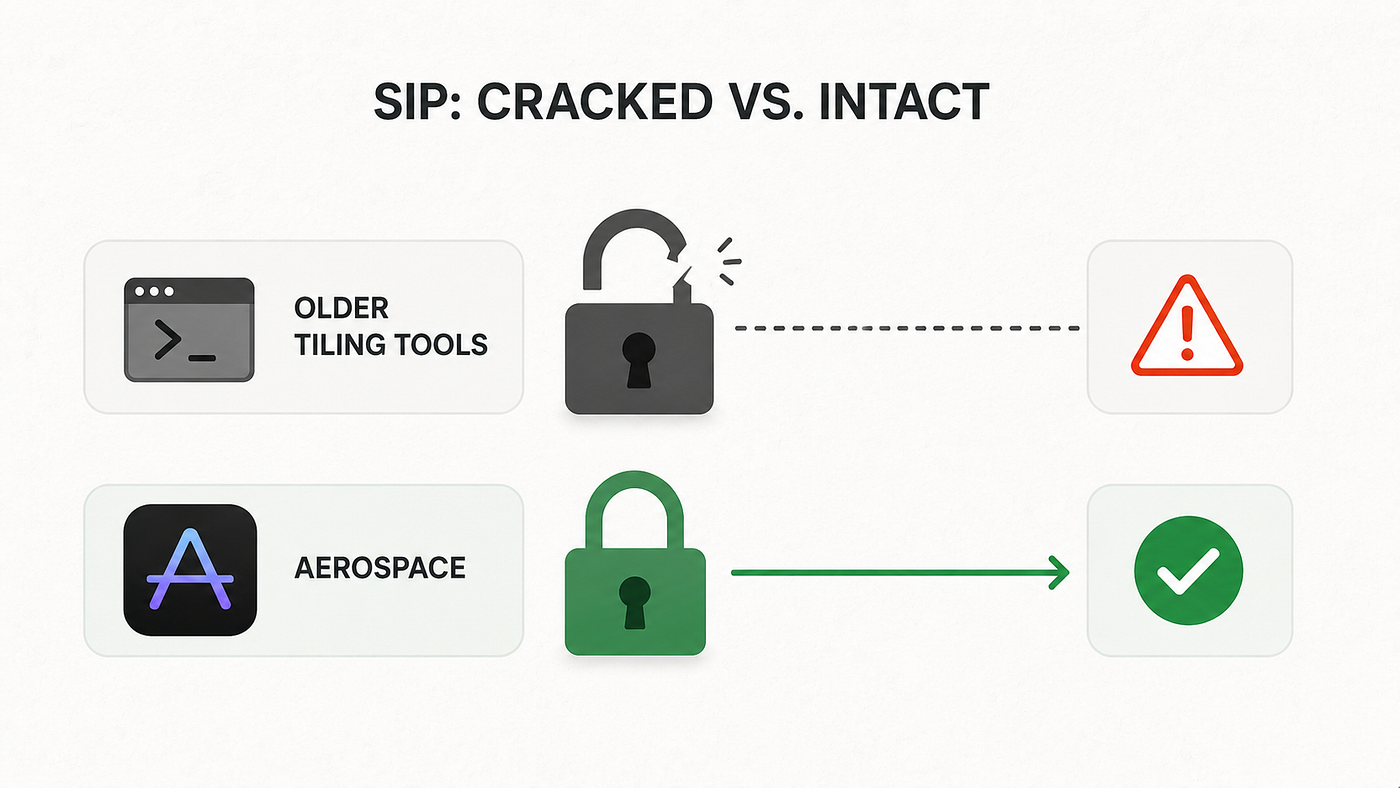
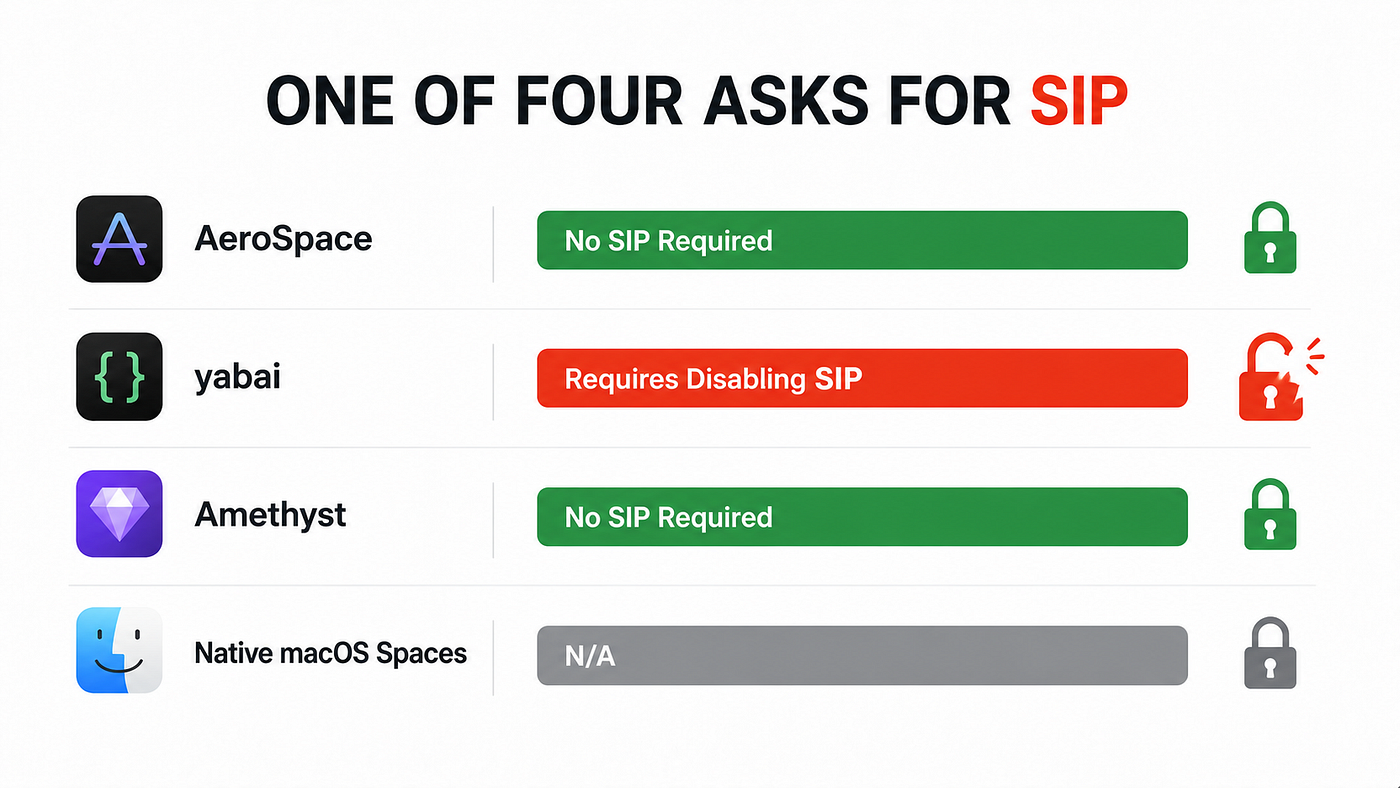
System Integrity Protection is the macOS feature that stops any process, including ones running as root, from tampering with protected system files and kernel extensions. It’s been on by default since El Capitan. It’s also the thing that older tiling window managers on macOS — yabai’s scripting-addition mode being the best-known example — ask you to partially disable so they can inject code deep enough into the window server to do real tiling.
That’s a real cost. Disabling SIP, even partially, widens the blast radius of anything that goes wrong on your machine, from a bad brew formula to a compromised dependency in some Electron app you installed for a client demo. Most builders who evaluate that tradeoff once, correctly, walk away and go back to dragging windows with a mouse.
AeroSpace’s README states the design constraint directly: “AeroSpace will never require you to disable SIP.” Digging into how, the project uses exactly one private API, _AXUIElementGetWindow, to resolve a window's numeric ID. Everything else — moving windows, resizing them, tracking focus, detecting new windows — runs through Apple's public Accessibility API, the same one VoiceOver and every screen-reader-adjacent tool on macOS uses.
Tiling window management doesn’t fail on macOS for lack of good tools. It fails because trying one used to mean explaining to IT why you disabled System Integrity Protection for a window manager.
That single-private-API design decision is also why AeroSpace ships without notarization, and the maintainer, nikitabobko, is upfront about why in the README: “I don’t have anything against notarization as a concept. I specifically don’t like the way Apple does notarization. I don’t have time to deal with Apple.” The Homebrew cask handles the quarantine attribute automatically, so in practice you don’t see the “Apple cannot check this for malicious software” dialog at all. But it’s worth knowing that tradeoff exists before you install it on a work machine with a strict security policy.
How AeroSpace’s Tree Actually Works
AeroSpace’s tiling model is a direct port of i3’s tree paradigm, and once it clicks, everything else about the tool makes sense.
Every workspace has a single root node. Every non-leaf node is a “container,” and every container has two properties: a layout (tiles or accordion) and an orientation (horizontal or vertical). Windows are always leaf nodes — they can't have children. Combine layout and orientation and you get four practical shapes: h_tiles, v_tiles, h_accordion, and v_accordion, the last two behaving like i3's tabbed and stacked layouts.
You don’t drag borders to resize this tree. You use join-with to graft a window into a neighboring container, move to shift a node in a cardinal direction, and resize smart ±N to grow or shrink whatever's focused. AeroSpace also runs two normalizations by default: single-child containers get flattened automatically, and nested containers are forced into opposite orientations so the tree never gets a redundant h_tiles sitting directly inside another h_tiles. Unless you're the kind of i3 user who has opinions about that specifically, leave both on.
Workspaces are the second half of the model, and this is where AeroSpace diverges from native macOS Spaces on purpose. The README lists Apple’s own limitations bluntly: Spaces switching has an animation you can’t fully disable, you’re capped near 16 Spaces per monitor, and there’s no public API to create, delete, or reorder them programmatically. AeroSpace sidesteps all of it by reimplementing workspaces itself — when a workspace isn’t visible, its windows get pushed just off-screen into a monitor’s bottom corner, then slid back the instant you switch to it. No animation, because nothing is animating; the windows were never gone.
The catch, and it’s a real one: this only works cleanly if every monitor has genuine free space in a bottom corner. Get your monitor arrangement wrong in System Settings and you’ll see a sliver of a “hidden” window bleeding onto a neighboring display. The docs walk through this with diagrams. I ignored them the first time. I paid for it with a full afternoon convinced my second monitor had a rendering bug, before I re-read the monitor-arrangement section and fixed my display layout in under two minutes.
The Config File That Replaces Your Mouse
AeroSpace looks for its config at ~/.aerospace.toml, or under ${XDG_CONFIG_HOME}/aerospace/aerospace.toml if you prefer XDG conventions. It's plain TOML, which means version control, diffing, and copying someone else's dotfiles all work the way you'd expect from a text file, not a GUI preference pane the project explicitly refuses to ever build.
Here’s a trimmed version of what I’m actually running, adapted from the shipped default config, with app-based workspace routing added for a typical builder’s stack — terminal, editor, browser:
# ~/.aerospace.toml
config-version = 2
start-at-login = true
auto-reload-config = true

enable-normalization-flatten-containers = true
enable-normalization-opposite-orientation-for-nested-containers = true

accordion-padding = 30
default-root-container-layout = 'tiles'
default-root-container-orientation = 'auto'

gaps.inner.horizontal = 8
gaps.inner.vertical   = 8
gaps.outer.left   = 8
gaps.outer.bottom = 8
gaps.outer.top    = 8
gaps.outer.right  = 8

# Route new windows to a workspace by bundle ID the moment they open
## on-window-detected = [
  { if = 'test %{app-bundle-id} = com.googlecode.iterm2', run = 'move-node-to-workspace T' },
  { if = 'test %{app-bundle-id} = com.google.Chrome', run = 'move-node-to-workspace W' },
  { if = 'test %{app-bundle-id} = com.microsoft.VSCode', run = 'move-node-to-workspace E' },
]

[mode.main.binding]
  alt-h = 'focus left'
  alt-j = 'focus down'
  alt-k = 'focus up'
  alt-l = 'focus right'

  alt-shift-h = 'move left'
  alt-shift-j = 'move down'
  alt-shift-k = 'move up'
  alt-shift-l = 'move right'

  alt-minus = 'resize smart -50'
  alt-equal = 'resize smart +50'

  alt-slash  = 'layout tiles horizontal vertical'
  alt-comma  = 'layout accordion horizontal vertical'

  alt-1 = 'workspace 1'   # general
  alt-t = 'workspace T'   # terminal
  alt-w = 'workspace W'   # web
  alt-e = 'workspace E'   # editor

  alt-shift-1 = 'move-node-to-workspace 1'
  alt-shift-t = 'move-node-to-workspace T'

  alt-tab = 'workspace-back-and-forth'
  alt-shift-semicolon = 'mode service'

[mode.service.binding]
  esc = ['reload-config', 'mode main']
  r = ['flatten-workspace-tree', 'mode main']
  f = ['layout floating tiling', 'mode main']
  backspace = ['close-all-windows-but-current', 'mode main']
Three lines earn their place there beyond the obvious. auto-reload-config = true means edits to this file take effect the moment you save, no restart, no CLI reload command — genuinely five minutes saved every time you tune a keybinding. The on-window-detected block is what makes the workspace model feel automatic instead of manual: open iTerm anywhere and it lands on workspace T without you touching a key. And mode.service.binding gives you an i3-style modal layer — hit the leader key once, then a single letter does a heavier operation like flattening a messed-up tree, without permanently occupying a keybinding in your main mode.
One tip straight from the project’s own README that isn’t in any config file: run defaults write -g NSWindowShouldDragOnGesture -bool true once in Terminal, and you can move any window by holding ctrl+cmd and dragging anywhere on it, not just the title bar. It has nothing to do with AeroSpace directly. It makes the floating windows AeroSpace doesn't tile — system dialogs, mostly — much less annoying to deal with.
What Actually Broke in Three Weeks
AeroSpace calls itself a Public Beta, and the project is specific, almost uncomfortably specific, about what’s blocking a 1.0 release. Reading the roadmap in the repo is more honest than most “stable” tools’ changelogs.
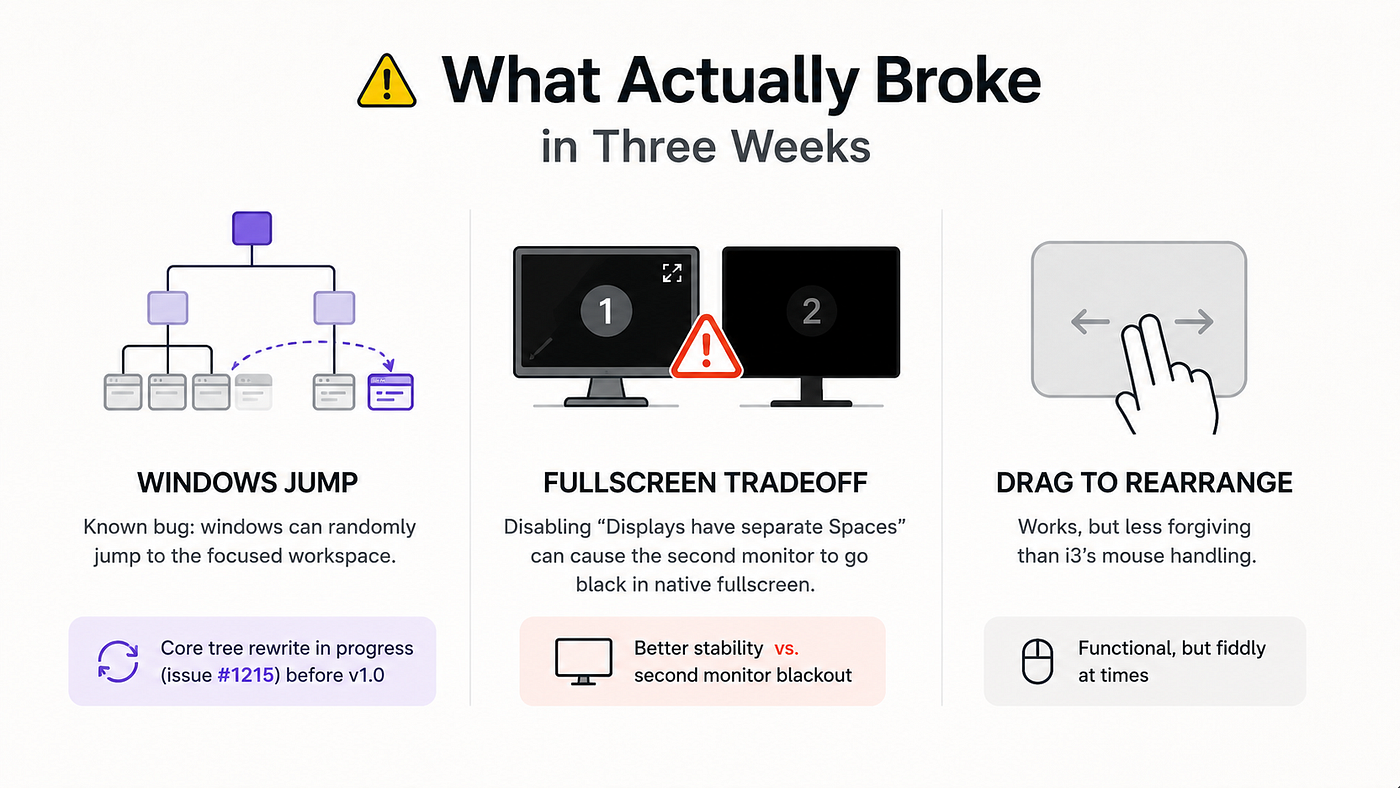
The core tree data structure is still mutable and double-linked, and the maintainers have an open, tracked plan (issue #1215) to rewrite it as an immutable, single-linked persistent tree before 1.0. Until that lands, there’s a known, acknowledged bug where windows can randomly jump to whatever workspace currently has focus. I hit this twice in three weeks — both times while rapidly switching workspaces during a screen-share, which is exactly the moment you don’t want a window to relocate itself. Native macOS tab support for apps is explicitly blocked on that same refactor.
I have not touched the branch doing that rewrite, and I don’t plan to until it ships. Running pre-1.0 software with an active core-architecture rewrite in flight is exactly the kind of dependency I don’t want sitting in the middle of a work sprint.
The other rough edge is interaction with native macOS fullscreen, and it’s a real tradeoff, not a bug. AeroSpace’s own docs recommend disabling “Displays have separate Spaces” for better overall stability — but their own comparison table admits that with it disabled, putting your first monitor into native fullscreen turns your second monitor into an unusable black screen. I found this out the hard way running a fullscreen Keynote deck during a client call with a second monitor showing speaker notes. The notes monitor went black mid-presentation. I now keep fullscreen for video calls only, on a single monitor, and treat AeroSpace’s tiling as the default state everywhere else.
There’s a smaller annoyance worth naming honestly: drag-to-rearrange, the thing you’d do instinctively with a trackpad to reorder tiles, works, but it’s noticeably less forgiving than i3’s mouse handling. Most of the time I don’t miss it, because the point of the tool is to stop reaching for the trackpad. The few times I wanted a quick visual rearrange, it fought me a little.
AeroSpace vs Everything Else You’ve Half-Tried
If you’ve poked at Mac tiling before, you’ve probably brushed against one of three other names. Here’s where AeroSpace actually sits against them, not the marketing version.
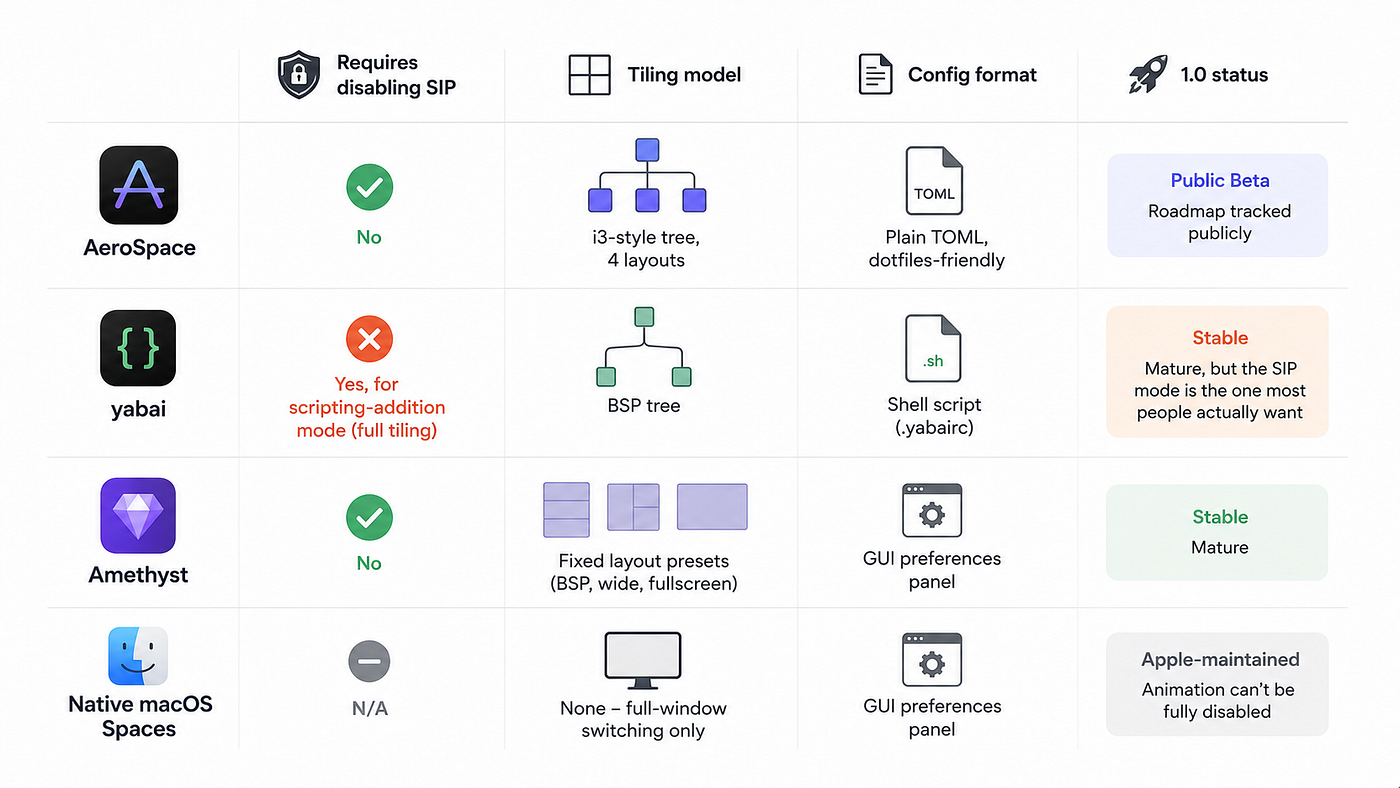
Amethyst is the honest alternative if you want zero SIP risk and don’t need a real tree model — it’s been stable for years and asks nothing of your security settings. But its layouts are fixed presets, not a tree you shape yourself, which is a meaningfully different mental model once you’re running more than three or four windows at once. yabai without the scripting addition is comparable, but the version most people actually install — the one with real BSP tiling and window rules — is the version that wants SIP partially disabled. That’s the exact tax AeroSpace was built to avoid.
What to Ship by Friday
This isn’t a rebuild-your-workflow article. It’s a twenty-minute detour that either sticks or doesn’t.
- Run
brew install --cask nikitabobko/tap/aerospaceand let it install. - Open System Settings → Displays → Arrange and confirm every monitor has free space in a bottom corner — this is the one setup step that isn’t optional.
- Copy the default config to
~/.aerospace.tomlwithcp /Applications/AeroSpace.app/Contents/Resources/default-config.toml ~/.aerospace.toml, then open it in your editor. - Add three
on-window-detectedrules for your actual daily apps — terminal, browser, editor — using their bundle IDs (find them withaerospace list-appswhile they're running). -
- Set
auto-reload-config = trueat the top of the file so every edit takes effect on save.
- Set
- Spend one real 90-minute work block using only
alt-h/j/k/lto move focus andalt-1throughalt-9to jump workspaces — no mouse for window management. - If your setup includes two monitors, check “Displays have separate Spaces” against the tradeoff table in this article before you decide which way to set it.
By step 6 you’ll know whether this is a keeper. Most builders do.
Where This Goes From Here
This isn’t a new discovery. Josean Martinez has a well-watched setup walkthrough. roguelazer wrote a sharp field-notes post on running it day to day. The official docs are genuinely good. AeroSpace has been sitting in plain sight, at 20,600 stars, for a while now — the gap isn’t awareness among people who already read tiling-window-manager blog posts. It’s the much larger group of Mac builders who’ve never tried tiling at all and assume, incorrectly, that trying it means a security tradeoff.
If you want the smallest possible test, install it today and just watch the tray icon change as you hit alt-1 through alt-4 a few times. No config edits, no commitment, five minutes.
This week, take the config above and route your actual three or four daily apps into named workspaces. You’ll hit one of the two real rough edges I described — the workspace-jump bug or the fullscreen-blackout tradeoff — within the first few days if you use fullscreen or multi-monitor setups. That’s the real test, not the demo.
Over the next month, the harder move is dropping the mouse for window management entirely and treating drag-to-arrange as the exception, not the default. There’s no product of mine attached to this — no repo to plug, no course. The only vehicle is the config file above and twenty minutes.
For years, the tiling tax on macOS was paid in disabled security features. Now it’s paid in twenty minutes and a TOML file you’ll actually read.
🔗 Resources
Resource                                                   │  Link
───────────────────────────────────────────────────────────┼───────────────────────────────────────────────────────────────────────────
AeroSpace GitHub repository                                │  https://github.com/nikitabobko/AeroSpace
AeroSpace official guide (config, tree model, workspaces)  │  https://nikitabobko.github.io/AeroSpace/guide
Josean Martinez — AeroSpace setup walkthrough              │  https://www.josean.com/posts/how-to-setup-aerospace-tiling-window-manager
roguelazer — field notes on running AeroSpace              │  https://www.roguelazer.com/blog/2026-02-aerospace/
메타데이터
- post_id
- 9efbc4e070ae
- slug
- this-free-github-project-made-my-mac-feel-like-linux-in-the-best-way-9efbc4e070ae
- url
- https://medium.com/macoclock/this-free-github-project-made-my-mac-feel-like-linux-in-the-best-way-9efbc4e070ae
- canonical_url
- https://medium.com/macoclock/this-free-github-project-made-my-mac-feel-like-linux-in-the-best-way-9efbc4e070ae
- author_url
- https://medium.com/@anup.karanjkar08
- status
- ok
- fetched_at
- 2026-07-13 06:23:13