SSH Connection with GitHub (Windows)
Introduction
SSH Connection with GitHub (Windows)
Introduction
SSH (Secure Shell) allows you to securely connect your local system to GitHub without entering your username and password every time.
There are two common types of SSH keys:
- RSA (Rivest–Shamir–Adleman) — widely used in organizations
- ED25519 (EdDSA) — modern, faster, and more secure
👉 You can use either, but ED25519 is recommended, while RSA is still commonly used in companies.
An SSH key pair consists of:
- Private Key → Must be kept secret
- Public Key → Can be shared with GitHub or organizations
Step-by-Step Setup (Windows)
💡 Use Git Bash/Power Shell for all commands below
Step 1: Check Existing SSH Keys
ls ~/.ssh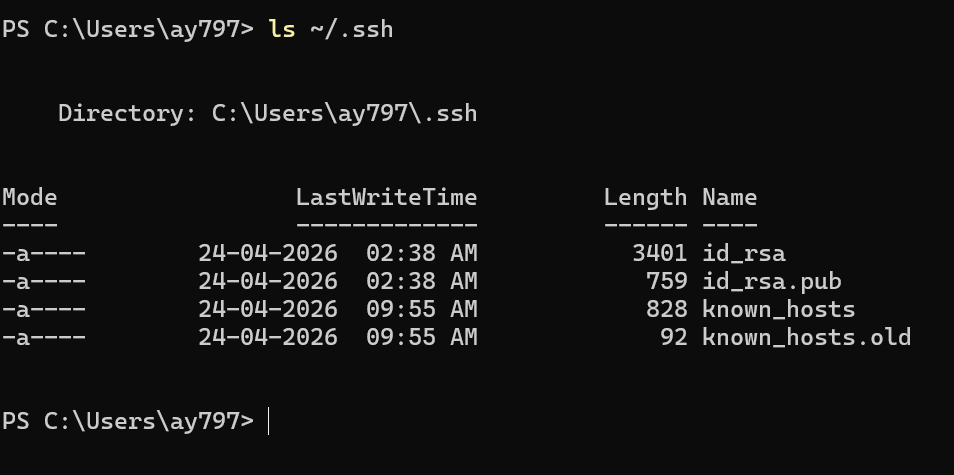
Generate a New SSH Key
Recommended (ED25519):
ssh-keygen -t ed25519 -C "your_email@example.com"Alternative (RSA):
ssh-keygen -t rsa -b 4096 -C "your_email@example.com"Press Enter to save in default location.
Optional passphrase:
- Press Enter to skip
- Or set for extra security
Step: Verify the Newly Created SSH Key
Run the following command:
ls ~/.ssh
View Your Public Key
cat ~/.ssh/id_rsa.pub
Now copy this and add it your github manually
-
Go to settings

then go to SSH and GPG keys

add the new SSH key, and you will see your key over here.
Congratulations! Your SSH key has been successfully added to your GitHub account.
git@github.com:XYZ/Clone_git_repo_using_SSH.gitthis will help you to clone private repo if you have permission.
메타데이터
- post_id
- 9f3362001fc0
- slug
- ssh-connection-with-github-windows-9f3362001fc0
- url
- https://medium.com/@akash22836/ssh-connection-with-github-windows-9f3362001fc0
- canonical_url
- https://medium.com/@akash22836/ssh-connection-with-github-windows-9f3362001fc0
- author_url
- https://medium.com/@akash22836
- status
- ok
- fetched_at
- 2026-07-24 12:01:37



