Excel Cell Split: One Column to Multiple (VBA + Python)
In Excel data processing, splitting one column into multiple columns is a frequent task. You often need to break text concatenated with…
Excel Cell Split: One Column to Multiple (VBA + Python)
In Excel data processing, splitting one column into multiple columns is a frequent task. You often need to break text concatenated with delimiters like commas, spaces, or vertical bars into separate fields.
Manual splitting with Excel’s built-in tool is slow and error‑prone for large datasets. VBA macros are limited to Windows and require coding skills.
This tutorial shows you how to automate Excel column splitting using Python — cross‑platform, dependency‑free, and ideal for batch processing. We also compare Python with Excel’s native “Text to Columns” wizard and VBA, so you can choose the best method for your workflow.
1. Traditional Excel Split Methods
Before using Python, let’s quickly review two native Excel approaches.
1.1 Excel “Text to Columns” Wizard
Steps: Select column → Data → Text to Columns → Choose delimiter or fixed width.
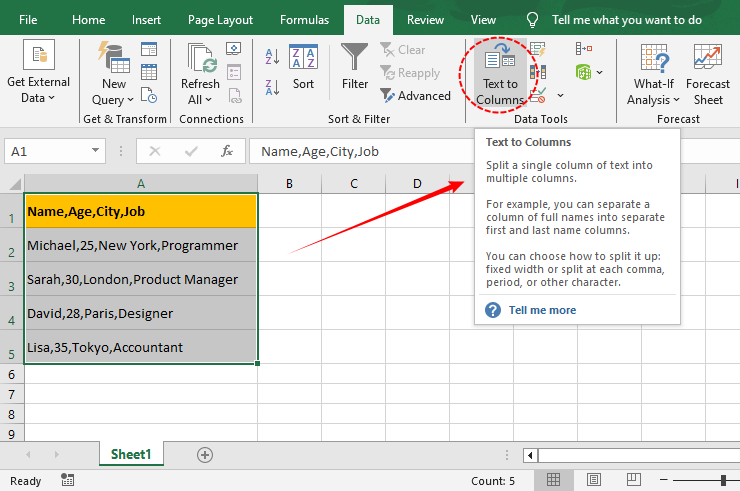
✅ Pros: No code, intuitive, good for one‑time tasks. ❌ Cons: Manual only, not automatable, must redo after data changes.
1.2 VBA Macro for Splitting Columns
The VBA Split function can automate the process. Example code:
Sub SplitColumn()
    Dim rng As Range, cell As Range
    Dim splitArr() As String
    Dim i As Integer

    Set rng = Range("A1", Range("A" & Rows.Count).End(xlUp))

    For Each cell In rng
        splitArr = Split(cell.Value, ",")
        For i = LBound(splitArr) To UBound(splitArr)
            cell.Offset(0, i + 1).Value = Trim(splitArr(i))
        Next i
    Next cell

    Columns("B:" & Chr(64 + UBound(splitArr) + 2)).AutoFit
End Sub
✅ Pros: Automatable, fast, tightly integrated with Excel. ❌ Cons: Windows + Excel only, not cross‑platform, requires VBA knowledge.
When to use: For one‑off tasks or pure Windows/Excel environments.
2. Python: Split One Column into Multiple Columns
For cross‑platform, no‑Excel‑installation, batch automation, we use Free Spire.XLS for Python — a free library that handles Excel files without needing Microsoft Excel.
2.1 Install the Free Python Library
Run this command in your terminal:
pip install Spire.Xls.Free⚠️ Free version has some limitations (e.g., max 5 sheets per workbook, 200 rows per sheet for xls files). Perfect for small to medium datasets.
2.2 Basic Python Code (Comma Delimiter)
The following script loads an Excel file, splits the first column by commas, writes the parts into the adjacent columns, and saves a new file.
from spire.xls import *

# Load Excel file
workbook = Workbook()
workbook.LoadFromFile("data.xlsx")
# Get first worksheet
sheet = workbook.Worksheets[0]
# Loop through all rows with data
for i in range(sheet.LastRow):
    cell_text = sheet.Range[i + 1, 1].Text
    split_parts = cell_text.split(',')

    # Write from column B (index 2)
    for j, value in enumerate(split_parts):
        sheet.Range[i + 1, j + 2].Text = value.strip()
# Save result
workbook.SaveToFile("split_data.xlsx", ExcelVersion.Version2016)
workbook.Dispose()
2.3 Code Explanation
sheet.LastRow— automatically finds the last non‑empty row; no need to hardcode a range.split(',')— splits the string by the given delimiter.strip()— removes extra spaces around each item, keeping data clean.sheet.Range[row+1, j+2].Text— writes starting from column B (index 2) while preserving the original column A.Dispose()— releases resources to avoid memory leaks.
Result: Original column A remains; split data goes into columns B, C, D, … in split_data.xlsx.

3. Advanced: Dynamic Delimiters with Regular Expressions
Real data often mixes delimiters, e.g., "apple, banana; orange grape". Use Python’s re module to split by multiple delimiters.
import re
from spire.xls import *

workbook = Workbook()
workbook.LoadFromFile("data.xlsx")
sheet = workbook.Worksheets[0]
for i in range(sheet.LastRow):
    original_text = sheet.Range[i + 1, 1].Text
    # Split by comma, semicolon, or space (handles consecutive delimiters)
    parts = re.split(r'[,; ]+', original_text.strip())

    for j, val in enumerate(parts):
        sheet.Range[i + 1, j + 2].Text = val
sheet.AllocatedRange.AutoFitColumns()
workbook.SaveToFile("multi_delimiter_split.xlsx", ExcelVersion.Version2016)
workbook.Dispose()
Customize the regex: Add \| for vertical bar, \t for tab, etc. Example: r'[,; \|\t]+'.
4. Python vs. Excel vs. VBA: Which One to Choose?
- One‑time, small dataset: 👉 Excel Text to Columns
- Repeated task, Windows only: 👉 VBA Macro
- Batch automation, cross‑platform, no Excel installation: 👉 Python + Free Spire.XLS
- Complex delimiters/regex: 👉 Python +
re
Verdict: For data pipelines, scheduled jobs, or when you don’t have Excel installed, Python is the best long‑term solution.
메타데이터
- post_id
- a07893f5baf5
- slug
- excel-cell-split-one-column-to-multiple-vba-python-a07893f5baf5
- url
- https://medium.com/@andrewwil/excel-cell-split-one-column-to-multiple-vba-python-a07893f5baf5
- canonical_url
- https://medium.com/@andrewwil/excel-cell-split-one-column-to-multiple-vba-python-a07893f5baf5
- author_url
- https://medium.com/@andrewwil
- status
- ok
- fetched_at
- 2026-06-16 19:09:56