[Particle System] Create a Flame
Cluster Creators Guide
[Particle System] Create a Flame
Cluster Creators Guide
In this article, we will show you an example of how to represent a flame in a World.
Let’s create a simple flame using Unity’s Particle System.
Parameter settings
The following is a list of parameters we will be setting this time.
We will explain them one by one later, so for now, try setting them up in the same way!
Create a new Particle System object by right-clicking on the Hierarchy or selecting Effect > Particle System from the GameObject menu.
In the Inspector of the Particle System, set the parameters as follows. Make sure the Emission, Shape, Color over Lifetime, and Size over Lifetime modules are checked and enabled.
- Start Lifetime: 3
- Start Speed: 0
- Gravity Modifier: -0.1
- Emission module Rate over Time: 30
- Shape module Radius: 0.5
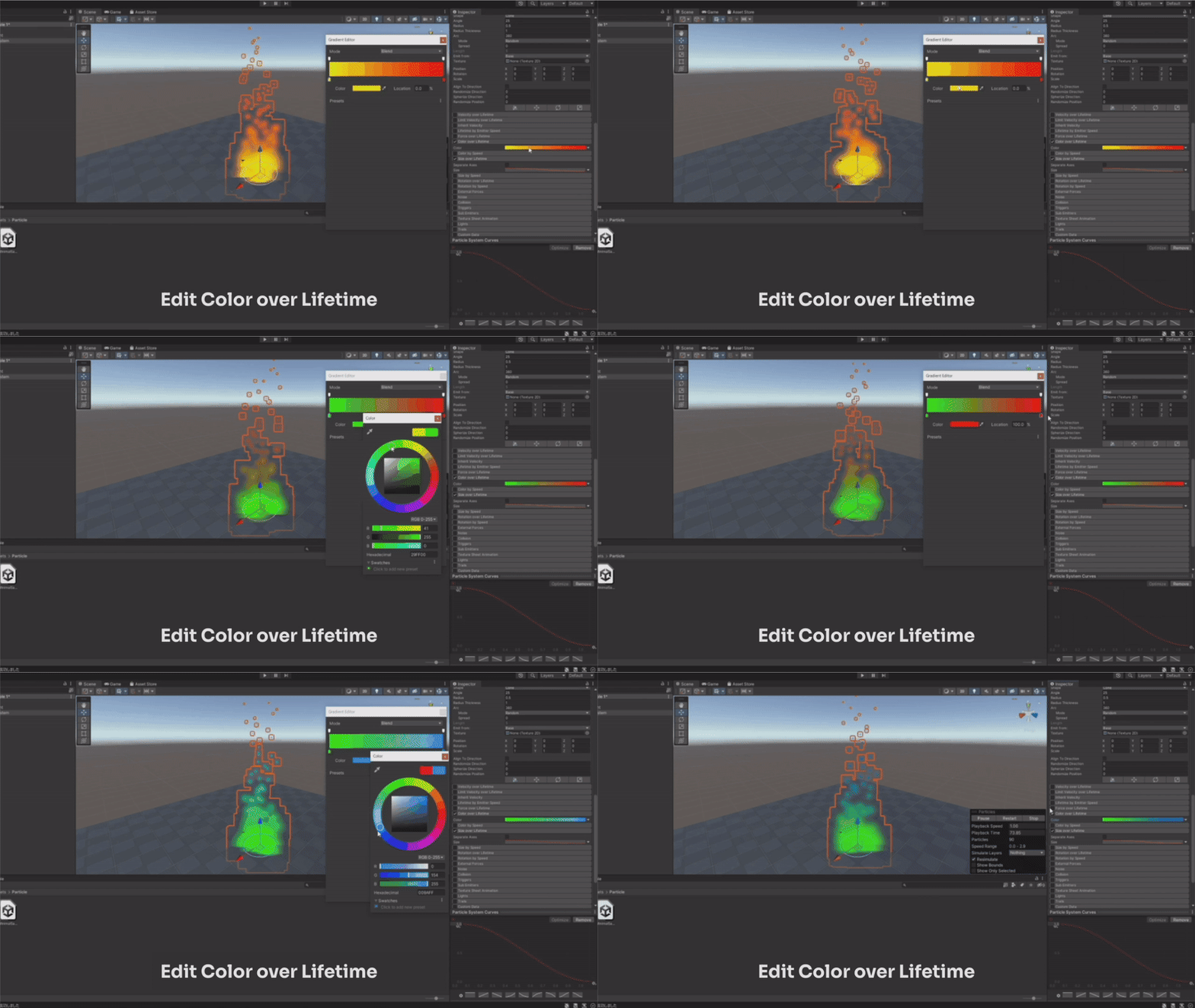
- Color over Lifetime module Color: Click and open the Gradient Editor and set the left side to yellow, right side to red
- Size over Lifetime module Size: Click and open the Curve Editor and select the right descending curve
Once you have set it up, run it to see how it looks.
Explanation of each Parameter
From here on, we will explain each Parameter.
You can make various adjustments by changing different Parameters and testing them out as you go.
Start Lifetime: Change the height of the flame
Sets the number of seconds between when the Particle is created and when it disappears.
In this example, the height of the flame will change.
Start Speed: Change the momentum of the flame
Set the velocity at which the Particle is fired. In this case, set it to 0, and adjust the speed in the next Gravity Modifier.
You may want to set it to a value other than 0 if you want a vigorous flame, such as for a flamethrower.
Gravity Modifier: Change the speed at which the flame rises
Sets the magnitude of the effect of gravity on the Particle. In this case, we set a negative value so that the Particle will rise rather than fall.
Changing the value will change how fast the flame rises. You may want to try setting a smaller absolute value for a calmer flame and a larger value for a more intense flame.
Emission module (Rate over Time): Change the density of the flame
Sets the number of Particles generated per second.
The density of Particles changes, so if the density becomes low when you change the speed, for example, increase the density.
Shape module (Radius): Change the area of the flame
Sets the radius of where the Particles will be generated. You can change the area where the flame rises.
Color over Lifetime module (Color): Change the color of the flame
Set how the Particle’s color changes from the time it is created until it disappears. In this case, the color is set to gradually change from yellow to red.
Changing the color may be used to express a flame color reaction, for example.
Size over Lifetime module (Size): Gradually reduce or increase the size of the flame
Sets how the size of the Particle will change from the time it is created until it disappears.
In this case, we have chosen a downward-sloping curve so that the size of the Particle will gradually decrease.
Select a curve that suits your desired effect. If you want more control, you can manually adjust the curve yourself.

[Application] Let’s make a more realistic flame
There are many parameters in the Particle System. By adjusting various parameters, we will make a more realistic flame.
Express the flickering of the flame
First, we want the Particles to vary in size and the time until they disappear.
Click the ▼ symbol next to the Start Lifetime and Start Size input boxes and select “Random Between Two Constants” from the list that appears. Enter the following information in the two input fields.
- Start Lifetime: 2, 4
- Start Size: 0.5, 1
If set to Random Between Two Constants, it will be a random value between the two values set.
Then, check the Velocity over Lifetime module.
- Select “Curve” from the ▼ symbol to the right of Orbital; the X, Y, and Z input fields will change to curves, so select Z and choose a gently increasing curve.
- Additionally, change the maximum value to “5.”
The Velocity over Lifetime module allows you to change the velocity of the Particle, and the Orbital item allows you to set the motion to rotate around the center.
- Also, set the Radial item to “-0.2.”
This parameter allows you to set the speed from the center to the outside, and negative values allow you to create a movement toward the center.
Finally, check the Noise module.
- Set Strength to “0.5” and Frequency to “10.” The Noise module allows you to add random fluctuations to the Particle’s movement.
Let’s check it out!
The flame is more realistic, with detailed flickering and swirling movements caused by the rising air currents.
Change the material for a flame-like texture
For those of you who would like to go further, let’s also try changing the Material.
- Right-click on the Project window and select Create > Material. For the Material created, change the Shader to “Particles/Standard Unlit” and set the Rendering Mode to “Additive.”
- Select a texture from the ◎ button on the left side of Albedo, and choose “Default-ParticleSystem.”
- In the Renderer module at the bottom of the Inspector of the Particle System, drag and drop this material into the Material field.
Let’s run it and check it. The way the flame looks has changed.
Try changing textures and other elements to experiment and find your favorite flame!
In this article, we introduced how to create a simple flame using the Particle System.
The Particle System allows for various expressions by adjusting parameters such as size, speed, and color. Please feel free to try changing not only the values introduced but also other values to explore the limitless possibilities!
메타데이터
- post_id
- a1ff6569fa8d
- slug
- particle-system-create-a-flame-a1ff6569fa8d
- url
- https://medium.com/@cluster_official/particle-system-create-a-flame-a1ff6569fa8d
- canonical_url
- https://medium.com/@cluster_official/particle-system-create-a-flame-a1ff6569fa8d
- author_url
- https://medium.com/@cluster_official
- status
- ok
- fetched_at
- 2026-07-28 05:13:04