How to Test a Flutterflow App Before you ship it : A QA Playbook for No-Code Mobile Apps
A FlutterFlow app can be production ready , but only after you test the six layes FlutterFlow abstract away functional logic , Firebase…
How to Test a Flutterflow App Before you ship it : A QA Playbook for No-Code Mobile Apps
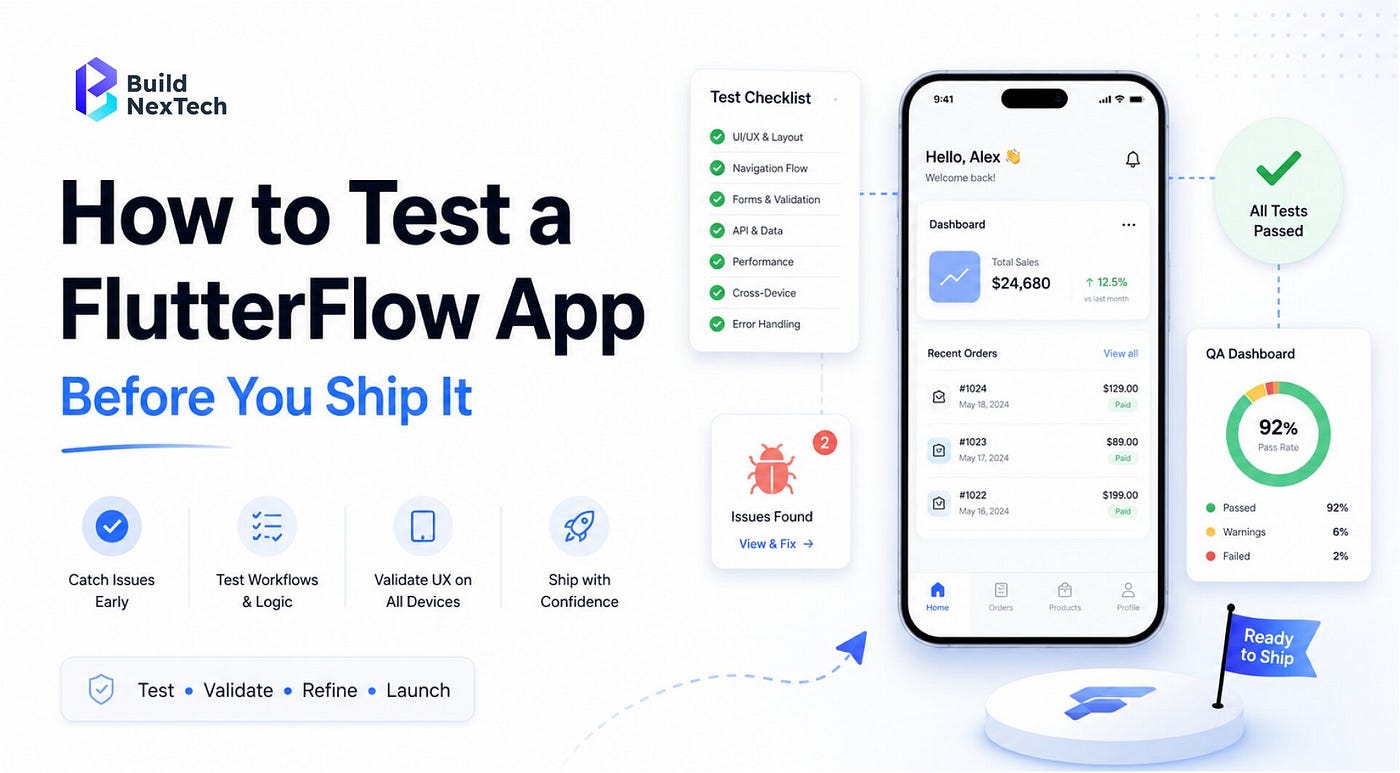
A FlutterFlow app can be production ready , but only after you test the six layes FlutterFlow abstract away functional logic , Firebase backend, integrations , cross-device rendering , performance , and security. The builder makes shipping fast,and that speed is exactly the trap. Teams see a clean live preview, assume the app works , and push it live. That they skip is testing on real devices, under real load, and against a hostile user.
That gap matters more every year. The low-code development platform market is projected to reach $65.15 billion by 2027, growing at a 26.1% CAGR (Brandessence Market Research). More teams are shipping real products from no-code builders, and most of them are skipping the QA step a traditional development team would treat as non-negotiable. This playbook is the checklist we use at BuildNexTech before we call a FlutterFlow app.
Can a FlutterFlow App Be Production-Ready?
Yes. FlutterFlow apps run on real Flutter and Dart code, so a well-tested FlutterFlow build is as production-ready as any native Flutter app. The catch is that “well-tested” means testing the layers the visual builder hides from you.
What FlutterFlow tests for you automatically
FlutterFlow’s Test Mode runs a web version of your app with hot reload, so UI changes appear instantly. Its Debug Info panel shows every variable and its current value in real time. Together they cover layout, styling, and basic navigation, and they catch the obvious visual breakage (a button that won’t render, a page that won’t route) while you build.
What still breaks in production (and why preview mode hides it)
Preview mode runs on FlutterFlow’s infrastructure with clean test data and a fast connection. Production doesn’t. Firebase security rules that were never enforced in preview start rejecting reads. API calls that returned instantly during a demo time out on a spotty mobile network. A list that scrolled fine with ten records stutters at ten thousand. Preview mode confirms the app looks right; it says nothing about whether it holds up. If you’re still deciding whether FlutterFlow or native Flutter is the right base for your project, BuildNexTech’s FlutterFlow vs Flutter breakdown covers that decision. This playbook picks up after you’ve chosen FlutterFlow.
What Should You Test in a FlutterFlow App? The 6 Layers
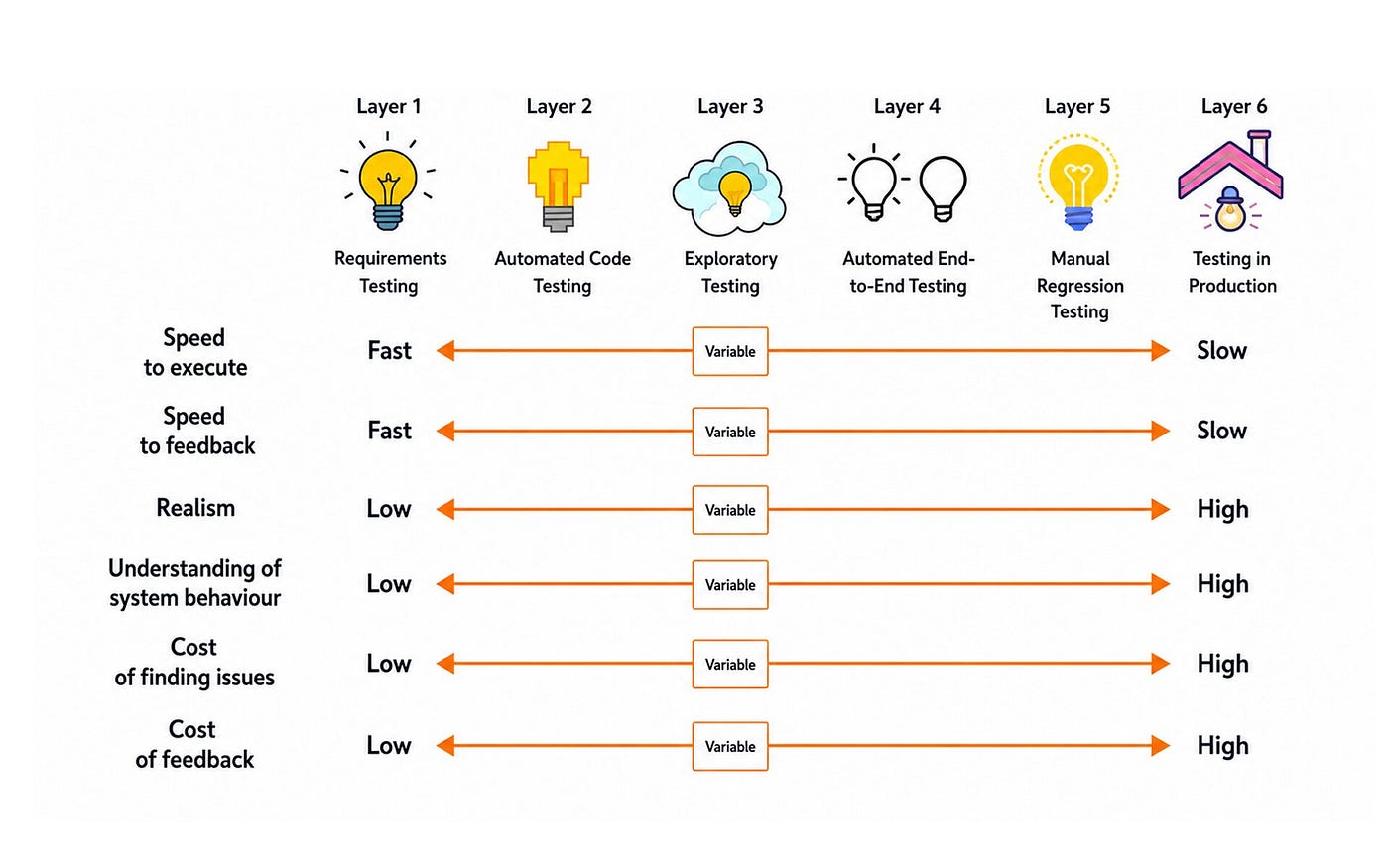
There are six testing layers every FlutterFlow app needs before launch: functional and workflow, Firebase backend, API and integrations, cross-device rendering, performance, and security. Skip any one and you ship a known blind spot.
Functional & workflow testing
Functional testing verifies that your Action Flows, navigation, and state actually do what the design implies. FlutterFlow’s Action Flow Editor makes it easy to wire complex logic visually, and just as easy to leave a branch unhandled. Walk every path a user can take: what happens when a required field is empty, when a back button interrupts a save, when a conditional action hits the branch nobody clicked during the demo. State bugs live here too: a variable that doesn’t reset, a page that holds stale data.
Firebase & backend testing
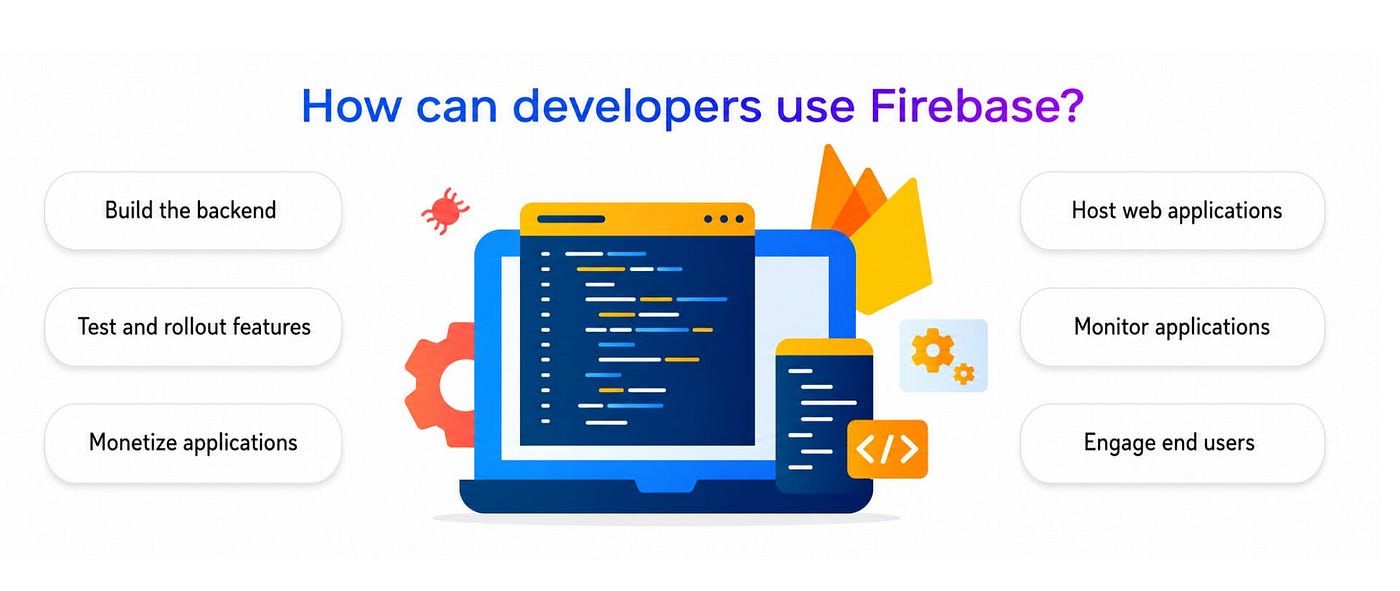
Backend testing confirms your Firestore reads and writes, authentication, and security rules behave correctly for both authorized and unauthorized users. Test sign-up, login, password reset, and session expiry as separate flows. Then test your security rules directly using Firebase’s rules simulator: try to read a document you shouldn’t be able to read. If it succeeds, your data is public no matter how locked the UI looks.
API & third-party integration testing
Integration testing checks every external call (REST APIs, Stripe, webhooks) for both success and failure responses. The mistake teams make is testing only the happy path. Test the timeout, the 500 error, the declined card, the malformed response. A payment flow that has no handling for a failed charge is not a payment flow; it’s a support ticket waiting to happen.
Cross-device & responsive testing
Cross-device testing verifies that your app renders and functions correctly across Android, iOS, and web breakpoints on real hardware. Emulators lie about text scaling, notches, keyboard behavior, and safe areas. Test on at least one small Android phone, one recent iPhone, and a desktop browser at multiple widths if you ship a FlutterFlow web app.
Performance & load testing
Performance testing measures how the app behaves under realistic data volume and usage, not the tidy dataset you built with. Check cold-start time, scroll performance on long lists, and memory on image-heavy screens. Compress assets and enable lazy loading before you test, then confirm the app stays smooth when a list holds thousands of records instead of ten.
Security testing
Security testing looks for exposed keys, weak authentication, and leaky data rules. Export your code and scan it for hard-coded API keys or secrets that shouldn’t ship in a client bundle. Confirm auth tokens are stored and refreshed correctly, and re-check that your Firebase rules deny by default. For anything touching payments or personal data, this layer is not optional.
How Do You Test a FlutterFlow App Step by Step?
Test a FlutterFlow app in four stages: inside the builder, on the exported code, across a real-device matrix, and then continuously through a CI/CD pipeline. Run them in order; each stage catches a different class of bug.
Step 1 — In-builder testing (Test Mode, debug panel, local run)
Start in Test Mode with the Debug Info panel open, watching your variables update as you move through each flow. Use the Floating Window to test and adjust at the same time. For a fuller check with live data, switch to Run Mode, which runs a functional version of the app against your real backend. This stage clears the visual and logic bugs cheaply, before code ever leaves FlutterFlow.
Step 2 — Testing the exported Dart code in run mode
Export your project with the FlutterFlow CLI (flutterflow export-code) and run it locally. This is where you write and run real Flutter tests, unit and widget tests with flutter test, against the generated Dart. It’s also where you catch anything the builder’s preview environment masks, from dependency conflicts to platform-specific rendering.
Step 3 — The pre-release real-device matrix
Install the build on a defined set of physical devices and run your critical flows end to end. Keep the matrix small but honest: a low-end Android, a current iPhone, and web if you ship it. Sign in, complete the core task, trigger a payment or write, and force a network drop mid-action on each one.
Step 4 — Does FlutterFlow support CI/CD? Wiring automated pipelines
Yes. FlutterFlow supports CI/CD through the FlutterFlow CLI and GitHub integration. Push your exported code to a GitHub repository, then trigger a GitHub Action (or Codemagic) on every push to build, run your flutter test suite, and deploy. Use FlutterFlow’s Dev, Staging, and Production environments so each pipeline stage runs against the right keys and database. Once this is in place, every change is tested before it reaches users instead of after.
The FlutterFlow Production-Readiness Scorecard
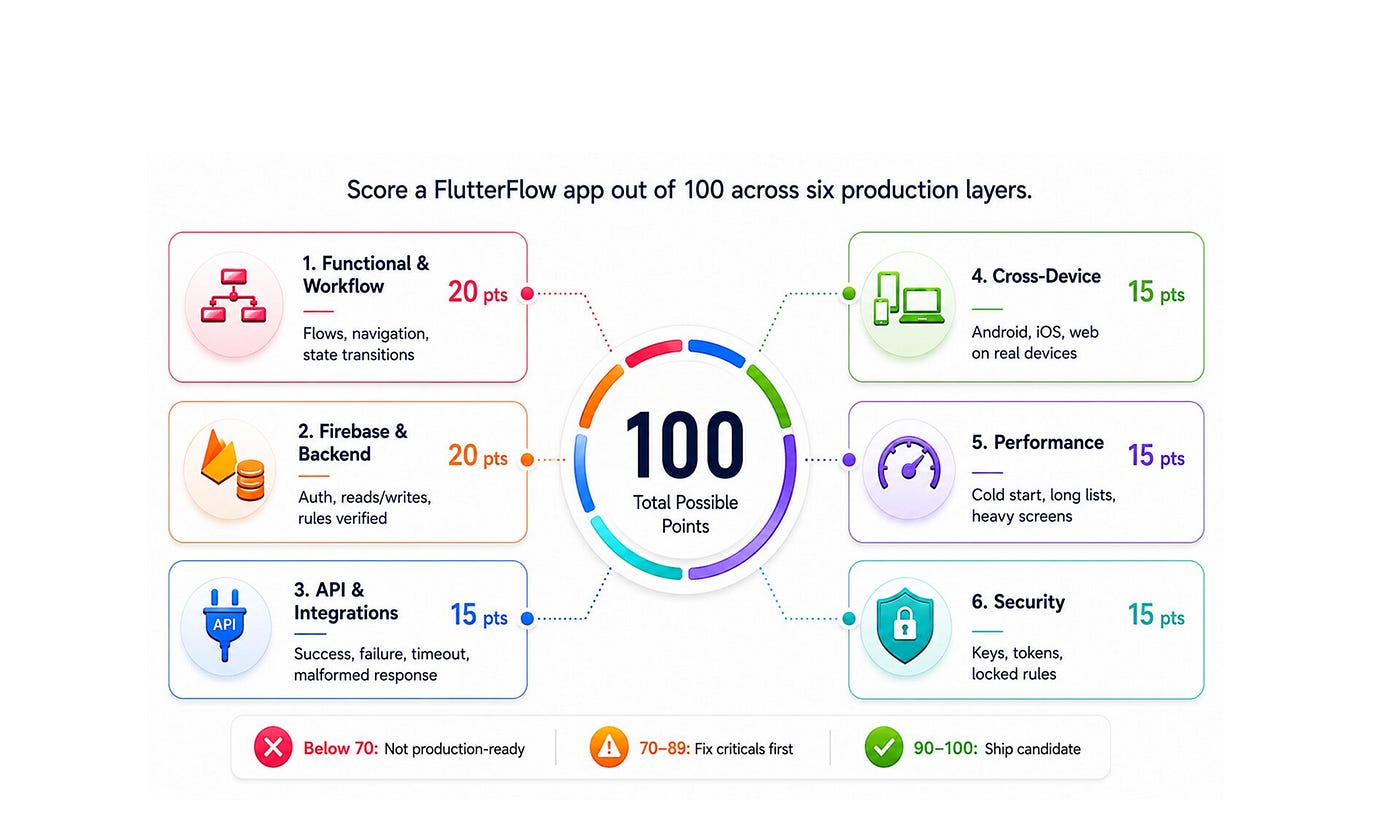
Score a FlutterFlow app out of 100 across the six layers to decide, objectively, whether it’s ready to ship. Full marks in a category mean that the layer has been tested against real conditions, not preview data. Below 70, the app is not production-ready; 70–89 means fix the criticals first; 90–100 is a ship candidate.
- Functional & workflow — 20 points. Every Action Flow, navigation path, and state transition passes, including empty-field, interrupted-save, and untested-branch cases.
- Firebase & backend — 20 points. Firestore reads/writes verified, all auth flows tested, and security rules confirmed to deny unauthorized access in the rules simulator.
- API & integrations — 15 points. Every external call tested for success and failure: timeouts, errors, declined payments, malformed responses.
- Cross-device — 15 points. Verified on at least three real devices spanning Android, iOS, and web breakpoints.
- Performance — 15 points. Cold start, long lists, and image-heavy screens tested under realistic data volume with no jank or memory spikes.
- Security — 15 points. No exposed keys in the exported bundle, tokens handled correctly, Firebase rules locked by default.
Run the scorecard before every release. A number forces a decision that “it looked fine in preview” never will.
What Are the Most Common FlutterFlow Testing Mistakes?
The most common FlutterFlow testing mistakes all come from trusting the builder’s convenience over real verification:
- Trusting the live preview. Preview runs on clean data and a fast connection; production is neither.
- Skipping Firebase security rules. A locked-down UI with open rules means your data is exposed regardless of how the app looks.
- Testing on a single device. One emulator tells you nothing about notches, keyboards, or low-end performance.
- Ignoring cold-start and API failures. The happy path always works in a demo. Real users hit timeouts and errors.
- No regression pass after editing AI-generated flows. FlutterFlow’s AI can generate an action flow in seconds, and it can quietly change behavior you already tested. Re-test anything it touches.
When Should You Use Dedicated QA for a No-Code App?
Bring in dedicated QA when your FlutterFlow app handles money, health data, or anything with compliance and security stakes. A prototype or internal tool can live on the scorecard and a real-device pass. A fintech payment flow or a healthcare record system needs manual exploratory testing plus automated regression, because the cost of a missed bug is a chargeback, a breach, or a regulator. And yes, you can run automated tests on a FlutterFlow app: export the code and run standard Flutter unit, widget, and integration tests in your pipeline. No-code on the surface doesn’t mean no automation underneath.
Conclusion
No-code doesn’t mean no-QA. FlutterFlow removes the effort of writing UI code; it doesn’t remove the responsibility to test what you shipped. The teams who ship reliable FlutterFlow apps are the ones who treat the builder’s preview as the start of testing, not the end, and who run the six layers before every release. If you’re weighing whether FlutterFlow or native Flutter fits your next build, BuildNexTech’s FlutterFlow vs Flutter guide walks through that call. And if you’d rather have a QA team pressure-test your app before launch, book a free 30-minute call and we’ll walk through what to check for your specific use case.
메타데이터
- post_id
- a39c8cc10ccd
- slug
- how-to-test-a-flutterflow-app-before-you-ship-it-a-qa-playbook-for-no-code-mobile-apps-a39c8cc10ccd
- url
- https://medium.com/@info_82384/how-to-test-a-flutterflow-app-before-you-ship-it-a-qa-playbook-for-no-code-mobile-apps-a39c8cc10ccd
- canonical_url
- https://medium.com/@info_82384/how-to-test-a-flutterflow-app-before-you-ship-it-a-qa-playbook-for-no-code-mobile-apps-a39c8cc10ccd
- author_url
- https://medium.com/@info_82384
- status
- ok
- fetched_at
- 2026-08-02 13:39:12