How to Do A/B Testing of ML Models with Seldon Core 2 on Kubernetes (Complete Walkthrough)
If you’re an MLOps practitioner or aspiring ML engineer looking to deploy machine learning models in a production-like setup with A/B…
How to Do A/B Testing of ML Models with Seldon Core 2 on Kubernetes (Complete Walkthrough)
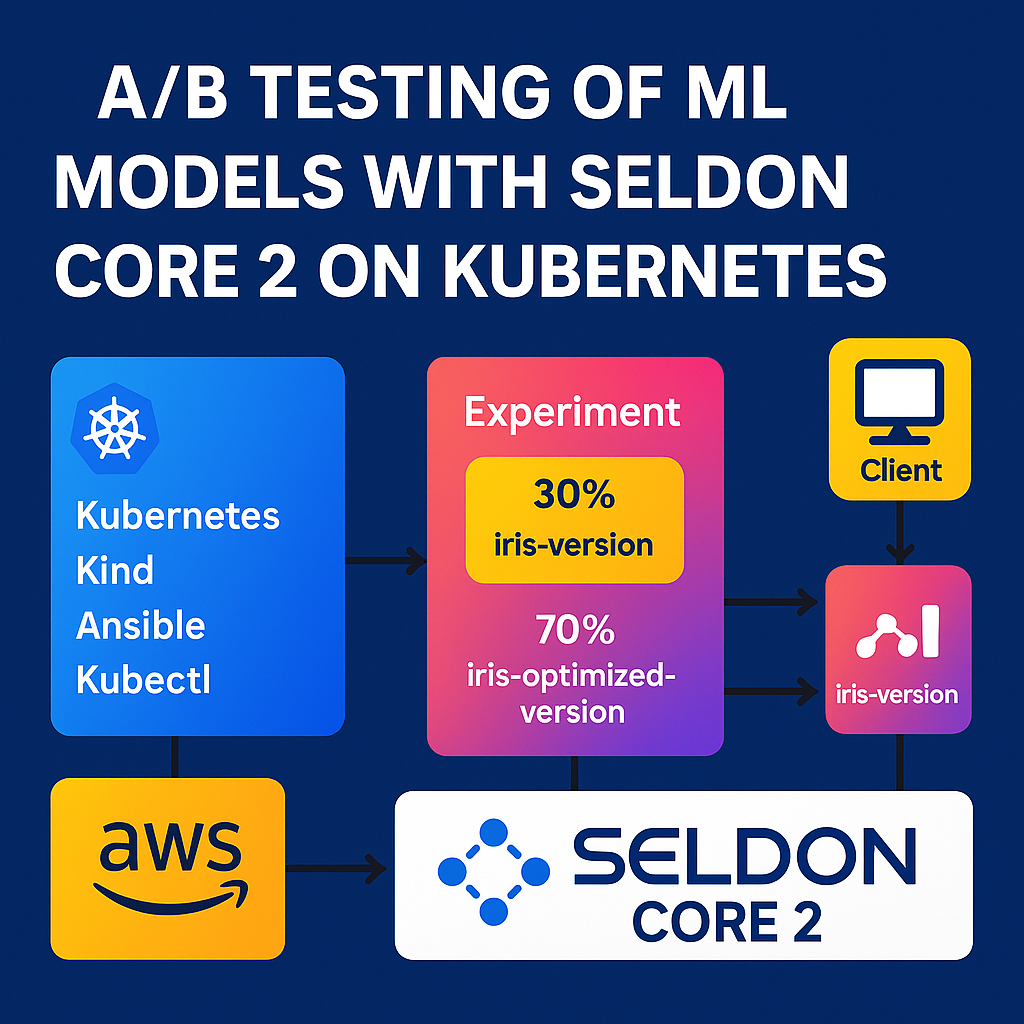
If you’re an MLOps practitioner or aspiring ML engineer looking to deploy machine learning models in a production-like setup with A/B testing, you’re in the right place. In this step-by-step guide, I’ll walk you through how I successfully deployed and tested multiple ML models using Seldon Core 2, Kubernetes, Ansible, and an AWS EC2 instance. By the end, you’ll have a fully functional A/B testing setup for comparing ML model performance in a scalable environment.
Tools You’ll Need
To follow this tutorial, you’ll need the following tools:
- AWS EC2: A cloud computing instance to host your setup.
- Kubernetes: We’ll use Kind for local clusters.
- Ansible: To automate Kubernetes and Seldon Core setup.
- Seldon Core 2: A powerful MLOps platform for serving ML models at scale.
- Kubectl: Kubernetes command-line tool.
- Seldon CLI: Easy interface for deploying models and experiments.
Step 1: Set Up Your EC2 Instance
Start by launching an EC2 instance on AWS:
- Choose Ubuntu 22.04 as the operating system.
- Select an instance type with at least 32 GB RAM (e.g.,
t3.xlarge). - Configure security groups to allow:
- SSH (port 22).
- Ports 8080 and 80 for Seldon Core and Kubernetes access.
SSH into your instance:
ssh -i <path-to-key.pem> ubuntu@<your-ec2-ip>Step 2: Set Up the Environment
Install the necessary prerequisites on your EC2 instance:
sudo apt update
sudo apt install -y python3.11 python3.11-venv git
Clone the Seldon Core repository and navigate to the Ansible directory:
git clone https://github.com/seldonio/seldon-core.git
cd seldon-core/ansible
Set up a Python virtual environment:
python3.11 -m venv seldon-env
source seldon-env/bin/activate
Install dependencies using the provided Makefile:
make install_deps_stableStart the Kubernetes cluster and Seldon Core ecosystem using Ansible:
ansible-playbook playbooks/seldon-all.yamlThis command sets up a local Kubernetes cluster with Kind and deploys Seldon Core components.

Checking all the pods are running after successful installation
Step 3: Install Istio Ingress Controller via Seldon Core Docs and Test the Installation
https://docs.seldon.ai/seldon-core-2/installation/production-environment/istio
Step 4: Deploy ML Models
Next, deploy two versions of an ML model (in this case, Iris classifiers) to compare via A/B testing. Create two YAML files for the models:
iris-version.yaml
apiVersion: mlops.seldon.io/v1alpha1
kind: Model
metadata:
  name: iris-version
spec:
  storageUri: "gs://seldon-models/mlserver/iris"
  requirements:
    - sklearn
iris-optimized-version.yaml
apiVersion: mlops.seldon.io/v1alpha1
kind: Model
metadata:
  name: iris-optimized-version
spec:
  storageUri: "gs://seldon-models/mlserver/iris"
  requirements:
    - sklearn
Load the models into Seldon Core:
seldon model load -f iris-version.yaml
seldon model load -f iris-optimized-version.yaml
Verify the models are deployed:
seldon model list
This lists all loaded models, confirming that iris-version and iris-optimized-version are ready.
Step 5: Set Up the A/B Testing Experiment
Create an experiment YAML file to define the A/B test (ab-default-model.yaml):
apiVersion: mlops.seldon.io/v1alpha1
kind: Experiment
metadata:
  name: ab-test
  namespace: seldon-mesh
spec:
  default: iris-optimized-version
  candidates:
    - name: iris-version
      weight: 30
    - name: iris-optimized-version
      weight: 70
This configuration:
- Sets
iris-optimized-versionas the default model. - Routes 30% of traffic to
iris-versionand 70% toiris-optimized-version.
Start the experiment:
seldon experiment start -f experiments/ab-default-model.yamlkubectl port-forward -n istio-system svc/istio-ingressgateway 8080:80.


Verify the experiment is running:
seldon experiment list
tanish-ab-test is the name of the experiment
Step 6: Run A/B Inference Requests
Send inference requests to test the A/B setup. Use curl to send a sample request:
curl -k http://localhost:8080/v2/models/iris-optimized-version/infer \
  -H "Host: seldon-mesh.inference.seldon" \
  -H "Content-Type: application/json" \
  -d '{
    "inputs": [
      {
        "name": "predict",
        "shape": [1, 4],
        "datatype": "FP32",
        "data": [[1.0, 2.0, 3.0, 4.0]]
      }
    ]
  }'
AB testing in action — 4 times it routed to optimized model (zoom and check model name)
The responses will be routed based on the experiment weights (70% to iris-optimized-version, 30% to iris-version).
Step 7: Observations & Troubleshooting Tips
- Endpoint: Always use the endpoint of the default model (
iris-optimized-versionin this case). - Monitor Experiment: Check the experiment status with
seldon experiment listto ensure it’s active.
Key Takeaways
- Seldon Core 2 simplifies ML model deployment and A/B testing with a robust, production-ready framework.
- A/B Testing allows you to compare model performance by splitting traffic between versions.
- Clear Naming and YAMLs are critical for smooth deployment and experiment management.
Next Steps
- Monitoring: Integrate Prometheus and Grafana to visualize model performance metrics.
- Advanced Experiments: Try canary releases or multi-armed bandit experiments for more sophisticated testing.
You’ve now built a scalable A/B testing setup for ML models using Seldon Core 2 on Kubernetes. Happy deploying!
Hi there! I’m Tanish Kandivlikar. I share hands-on tutorials on MLOps and machine learning to help you build production-grade ML systems. Follow me for more practical guides!
메타데이터
- post_id
- a606cd910d5c
- slug
- how-to-do-a-b-testing-of-ml-models-with-seldon-core-2-on-kubernetes-complete-walkthrough-a606cd910d5c
- url
- https://medium.com/@tanish.kandivlikar1412/how-to-do-a-b-testing-of-ml-models-with-seldon-core-2-on-kubernetes-complete-walkthrough-a606cd910d5c
- canonical_url
- https://medium.com/@tanish.kandivlikar1412/how-to-do-a-b-testing-of-ml-models-with-seldon-core-2-on-kubernetes-complete-walkthrough-a606cd910d5c
- author_url
- https://medium.com/@tanish.kandivlikar1412
- status
- ok
- fetched_at
- 2026-07-18 22:42:46

