My First Project… File Arranger (2)
Analyzing the Config File 📝
My First Project… File Arranger (2)
Analyzing the Config File 📝
The picture below shows the code inside my config file. (I blurred out my personal folder paths for privacy 🫣).
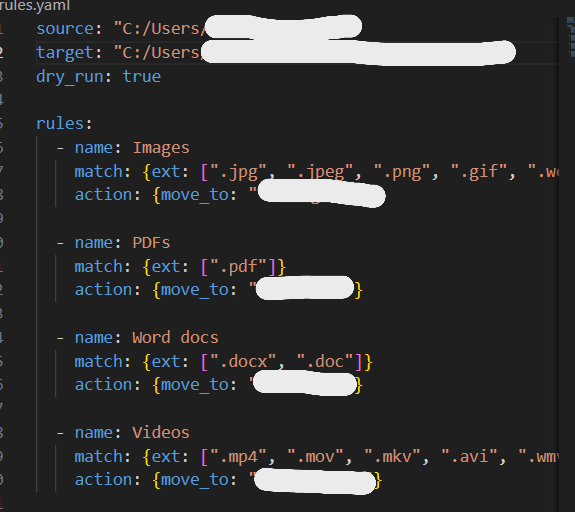
For my very first project, I built a simple program that organizes files by their extensions. Because of that, the config code doesn’t look too complicated. But now that the project is complete, it’s time to really go through this config file and understand what each line means.
Breaking Down the First Three Lines 👇

1. source The source path is the folder where the rules will be applied. All the files (and even subfolders) inside this directory become part of the scope. That means you should be careful 🛑 — if there are any folders you don’t want touched, make sure to exclude them in your code.
2. target The target is the destination where files will be moved whenever a rule uses move_to. In other words, this is the “organized” folder 📂 where your sorted files end up. ⚠️ Important: If your target folder is placed inside the source folder, you could accidentally create an infinite loop — files that were already moved get picked up again and moved endlessly. So always double-check this!
3. dry_run: true The dry_run option is basically a safe simulation mode 🛡️.
- When it’s set to true, the program doesn’t actually move anything. Instead, it just prints out logs showing what would happen.
- Once you’ve reviewed the output and you’re confident, you can switch it to false to actually apply the changes and move the files.
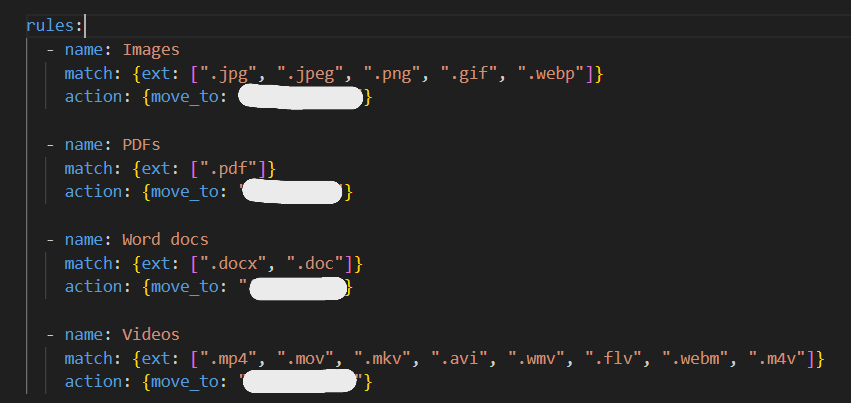
As you can see, the different rules in my config file all follow the same structure. So instead of explaining each one, I’ll just break down the Images rule as an example.
1. — name: Images This line is optional — it simply gives the rule a name 🏷️. It’s not strictly required for the program to work, but having a name makes it much easier to read the logs or debug later on.
2. match: {ext: [“.jpg”, “.jpeg”, “.png”, “.gif”, “.webp”]} The match field defines the condition for when this rule should apply. In my case, the condition is based on file extensions (ext). So whenever a file ends with .jpg, .jpeg, .png, .gif, or .webp, this rule will be triggered and treated as an “Image.” 🖼️
3. action: {move_to: “Images”} The action field describes what should happen when the rule is matched. In this case, I used the move_to key, which means the matching files will be moved into a folder named Images. Since my target folder was defined earlier, the final destination will be something like:
<target folder>/Images
So any matching images get neatly sorted into their own place 📂.

Because this was my very first project, I kept the functionality simple. That’s why the config file analysis ends here pretty quickly 😅. Next time, I’ll dive into the actual Python project file (arranger.py). Since I really like making things look nice, I added a GUI — which made the code much longer! It’ll probably take more time to go through, but writing these blog posts is already helping me organize my thoughts and feel more confident 💡.
메타데이터
- post_id
- a63e1af0bdb0
- slug
- my-first-project-file-arranger-2-a63e1af0bdb0
- url
- https://medium.com/@lialytics/my-first-project-file-arranger-2-a63e1af0bdb0
- canonical_url
- https://medium.com/@lialytics/my-first-project-file-arranger-2-a63e1af0bdb0
- author_url
- https://medium.com/@lialytics
- status
- ok
- fetched_at
- 2026-07-08 10:57:59