Data Science Series [2] — Molten.nvim Transforms NeoVim into a Jupyter-Like Experience
Thanks to the genius of benlubas, the creation of the molten-nvim plugin has made a full data science workflow in NeoVim possible.
Data Science Series [2] — Molten.nvim Transforms NeoVim into a Jupyter-Like Experience [Updated 2024.02.07]
Thanks to the genius of benlubas, the creation of the molten-nvim plugin has made a full data science workflow in NeoVim possible.
For years, I’ve been attempting data analysis in NeoVim, experimenting with vim-ipython-cell, iron, magma, jupynium, and jupytext. While I’m not saying these tools are inadequate, they couldn’t quite replicate the experience I needed from the Jupyter notebook.
Adding to the challenge of emulating a Jupyter-like experience — primarily maintaining an interactive running kernel — I frequently use tmux, which complicates image rendering with these tools.
Enough of the history, though. We finally have this incredible ecosystem of molten.nvim + jupytext.nvim + tmux + kitty + image.nvim that really allows us to move away from the web-based and VSCode-based Jupyter experience! Here’s a simple guide for setting this up.
(Screenshot taken from the molten-nvim repository)
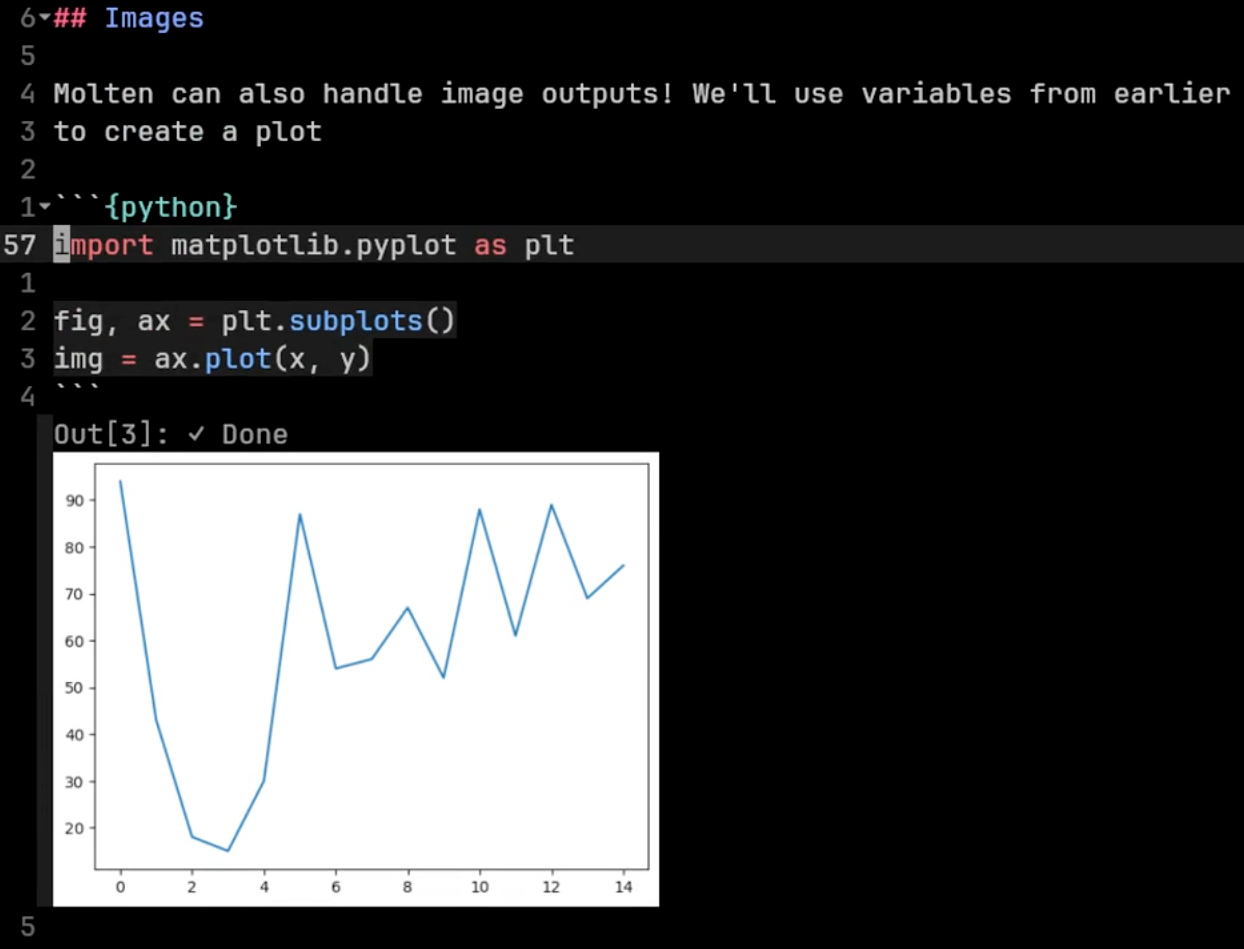
An example of how amazing this tool is: images are rendered inside NeoVim, thanks to image.nvim and the Kitty graphical protocol.
The following steps work on these specifications:
- Ubuntu 22.04.3 LTS
- Tmux 3.3a
- NeoVim 0.9.5 (using packer as package manager)
- image.nvim v1.1.0 (ImageMagick, magick LuaRock (install with
luarocks — local install magick) - Python 3.10 (With pynvim, jupyter_client, cairosvg, pnglatex, plotly, kaleido, pyperclip installed)
- Kitty 28.1
I̶ ̶r̶e̶p̶l̶i̶c̶a̶t̶e̶d̶ ̶t̶h̶e̶ ̶s̶a̶m̶e̶ ̶s̶e̶t̶u̶p̶ ̶o̶n̶ ̶m̶y̶ ̶M̶3̶ ̶M̶a̶x̶ ̶M̶B̶P̶.̶ ̶E̶v̶e̶r̶y̶t̶h̶i̶n̶g̶ ̶w̶o̶r̶k̶s̶ ̶f̶i̶n̶e̶,̶ ̶e̶x̶c̶e̶p̶t̶ ̶t̶h̶e̶ ̶i̶m̶a̶g̶e̶s̶ ̶a̶r̶e̶ ̶n̶o̶t̶ ̶r̶e̶n̶d̶e̶r̶e̶d̶.̶
[2024.02.07 Update]
Using Kitty 0.32.1, Molten.nvim v1.6.0 and image.nvim v.1.2.0 works perfectly fine for both MacOS and Ubuntu.
Setup Molten
The README is excellent. Just follow the Requirements section in the molten-nvim repository. Setting up image.nvim will take some time, but the README is comprehensive!
I won’t do a redundant job repeating what’s in the README files. Carefully read both documents for your setup. A reminder for setting up image.nvim: ensure you install magick with Lua5.1.
After completing the setup, you should be good to go. The next section is for advanced kernel usage.
Setup Kernels
Create Kernels
For the conda environment you want to access in Molten, install ipykernel with conda install ipykernel.
Then, activate that conda environment and use the following command to create a kernel: python -m ipykernel install --user --name [KernelName] --display-name, where variables in square brackets are your choice.
Afterward, run jupyter kernelspec list to see if the new kernel is created. For example:
jupyter kernelspec list Available kernels:
env1 /Users/username/Library/Jupyter/kernels/env1
Now, the kernels listed in jupyter kernelspec list are the kernels visible to Molten! You can stop here. However, note that every kernel initialized will be terminated after you exit the NeoVim session.
Bonus: Keep a Running Kernel
To keep your kernel running, you can start a kernel by executing jupyter kernel --kernel=[KernelFromJupyterKernelspecList]. This should produce an output like:
jupyter kernel — kernel=python3
# [KernelApp] Starting kernel ‘kernelname’
# [KernelApp] Connection file: /home/username/.local/share/jupyter/runtime/kernel-5094b45f-58e4–4fdc-9e68-baf52e7e76a9.json
# [KernelApp] To connect a client: — existing kernel-5094b45f-58e4–4fdc-9e68-baf52e7e76a9.json
In NeoVim, attach to this running kernel with :MoltenInit /home/username/.local/share/jupyter/runtime/kernel-5094b45f-58e4–4fdc-9e68-baf52e7e76a9.json. This means you can connect multiple NeoVim buffers to the same running kernel, and this kernel won’t be terminated after closing the file.
메타데이터
- post_id
- a6435e6f2db7
- slug
- data-science-series-2-molten-nvim-transforms-neovim-into-a-jupyter-like-experience-a6435e6f2db7
- url
- https://medium.com/@CompXBio/data-science-series-2-molten-nvim-transforms-neovim-into-a-jupyter-like-experience-a6435e6f2db7
- canonical_url
- https://medium.com/@CompXBio/data-science-series-2-molten-nvim-transforms-neovim-into-a-jupyter-like-experience-a6435e6f2db7
- author_url
- https://medium.com/@CompXBio
- status
- ok
- fetched_at
- 2026-06-17 19:05:49