VirtualBox vs VMware Workstation in 2026: A Student’s Practical Guide to Building Your Own Virtual…
There was a time when experimenting with different operating systems meant wiping your machine or buying another one. That limitation is…
VirtualBox vs VMware Workstation in 2026: A Student’s Practical Guide to Building Your Own Virtual Lab
There was a time when experimenting with different operating systems meant wiping your machine or buying another one. That limitation is gone. Today, with virtualization, a student can run multiple operating systems on a single laptop safely, cheaply, and repeatedly. For anyone entering cybersecurity, development, cloud, or DevOps, this is not just convenient, it’s foundational.
Two tools dominate the personal virtualization space in 2026: VMware Workstation and Oracle VM VirtualBox. Both let you run virtual machines (VMs), take snapshots, build lab networks, and simulate real-world environments. But they feel different in day-to-day use. Let’s break this down in a practical, student-first way.
What Virtualization Actually Gives You
A Type-2 hypervisor like VMware Workstation or VirtualBox runs on top of your host OS (Windows/Linux/macOS). It abstracts hardware and lets guest operating systems think they are running on real machines. With Intel VT-x or AMD-V enabled, performance is surprisingly close to native for most workloads.
What this means in practice:
- You can run Kali Linux without touching your main OS
- You can test malware samples in isolation
- You can build a mini SOC lab on a laptop
- You can snapshot → break → revert → repeat
It’s basically an infinite reset button for learning.
VMware Workstation: Performance and Professional Feel
VMware Workstation has long been the industry favorite, and since it became free for personal and educational use, students now get access to a professional-grade platform.
Where VMware shines:
- Better CPU and memory scheduling under load
- Stronger 3D acceleration (smoother Kali/Linux desktops)
- Clean tabbed VM interface
- Reliable snapshot and cloning system
- Enterprise-style networking controls
Real scenario: If you’re running a cybersecurity lab with a Kali attacker VM, a Windows victim VM, and a SIEM collector, VMware typically feels more responsive when all machines are running together. UI lag is lower and boot times are faster.
Trade-off: Downloading requires Broadcom portal registration, which can be annoying the first time.
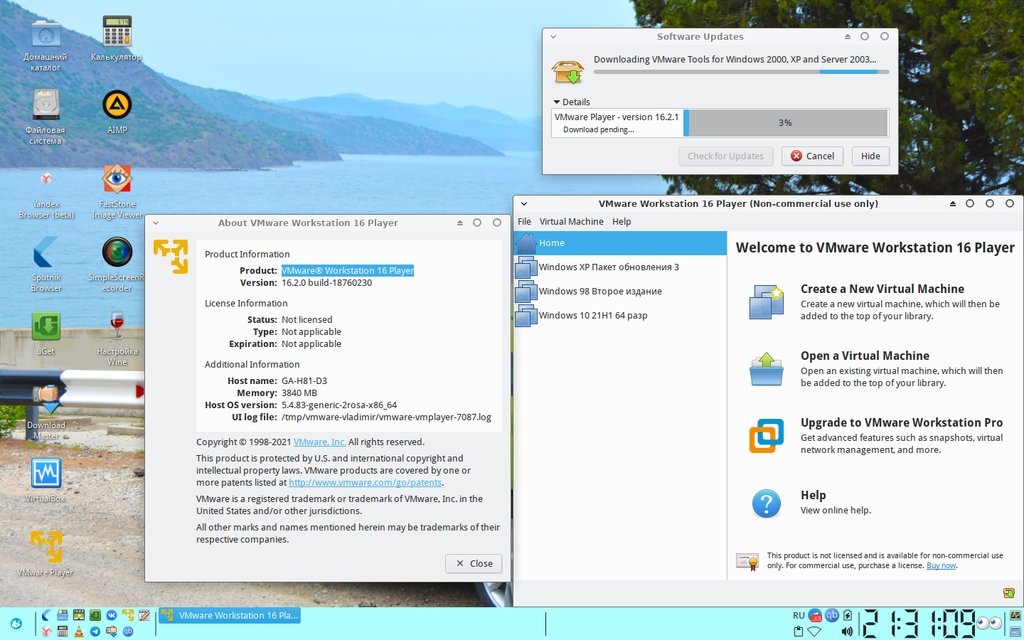
VMware Workstation Player UI with VM list + About window — good representation of VMware desktop hypervisor environment.
VirtualBox: Flexible, Open, and Beginner-Friendly
VirtualBox remains the most accessible virtualization platform. It’s open-source, widely supported, and runs on more host platforms — including macOS and niche systems.
Recent versions introduced Basic vs Expert UI modes, which is genuinely helpful for beginners.
Why students like VirtualBox:
- Free and open-source core
- Very easy installation
- Cross-platform host support
- Clean VM creation wizard
- Strong snapshot capability
- Good for lightweight labs
Real scenario: Many university labs use VirtualBox because students can install it quickly and run identical VM images. It’s also common for developers testing multiple Linux distributions or database stacks.
Important detail: Install the Extension Pack if you want USB 3.0 support and enhanced remote features.

Oracle VM VirtualBox Manager with multiple VMs listed and an Ubuntu 22.10 guest actively running — perfect visual for desktop virtualization and multi-VM lab setup.
Networking Modes — Where Learning Becomes Real
Understanding VM networking is where virtualization becomes powerful.
NAT Mode
- VM gets internet through host
- Hidden from local network
- Best default choice
Bridged Mode
- VM gets its own IP from router
- Visible on your LAN
- Useful for hosting test servers
Host-Only Mode
- VM isolated from internet
- Talks only to host and other lab VMs
- Ideal for malware and exploit testing
Example: A student building a penetration testing lab connects Kali + Metasploit using Host-Only networking and captures attack traffic using Wireshark on the host. No risk to the outside network, full visibility inside the lab.
Tools You Must Install After VM Setup
New users often think something is broken when their VM runs at 800×600 resolution and copy-paste doesn’t work. It’s not broken — drivers are missing.
Install:
- VMware Tools (VMware)
- Guest Additions (VirtualBox)
These enable:
- Clipboard sharing
- Dynamic resolution
- Drag-and-drop
- Better graphics drivers
This step dramatically improves usability.
Practical Hardware Advice for Students
Virtualization is RAM-hungry.
Minimum workable lab setup:
- 16 GB RAM preferred
- 4+ CPU cores
Use dynamically allocated disks and delete old snapshots to prevent disk bloat.
The Honest Verdict
There is no absolute winner — only a better fit for your workflow.
Choose VMware Workstation if:
- You want smoother performance
- You run heavier multi-VM labs
- You prefer a professional interface
Choose VirtualBox if:
- You want fastest setup
- You use macOS host
- You value open-source tools
- You’re just starting out
Final Thought
Virtualization is not just a tool — it’s a mindset shift. You stop being afraid to break systems because recovery is one click away. That confidence accelerates learning more than any tutorial ever will.
Start small: spin up an Ubuntu VM, take a snapshot, and explore. Your future lab and career grows from there.
메타데이터
- post_id
- a67dc438639e
- slug
- virtualbox-vs-vmware-workstation-in-2026-a-students-practical-guide-to-building-your-own-virtual-a67dc438639e
- url
- https://medium.com/@himadrisingh061/virtualbox-vs-vmware-workstation-in-2026-a-students-practical-guide-to-building-your-own-virtual-a67dc438639e
- canonical_url
- https://medium.com/@himadrisingh061/virtualbox-vs-vmware-workstation-in-2026-a-students-practical-guide-to-building-your-own-virtual-a67dc438639e
- author_url
- https://medium.com/@himadrisingh061
- status
- ok
- fetched_at
- 2026-06-09 15:37:30