GitHub Copilot Plan Mode: The Missing Layer Between Thinking and Coding
How a simple toggle is changing the way developers approach complex tasks
GitHub Copilot Plan Mode: The Missing Layer Between Thinking and Coding
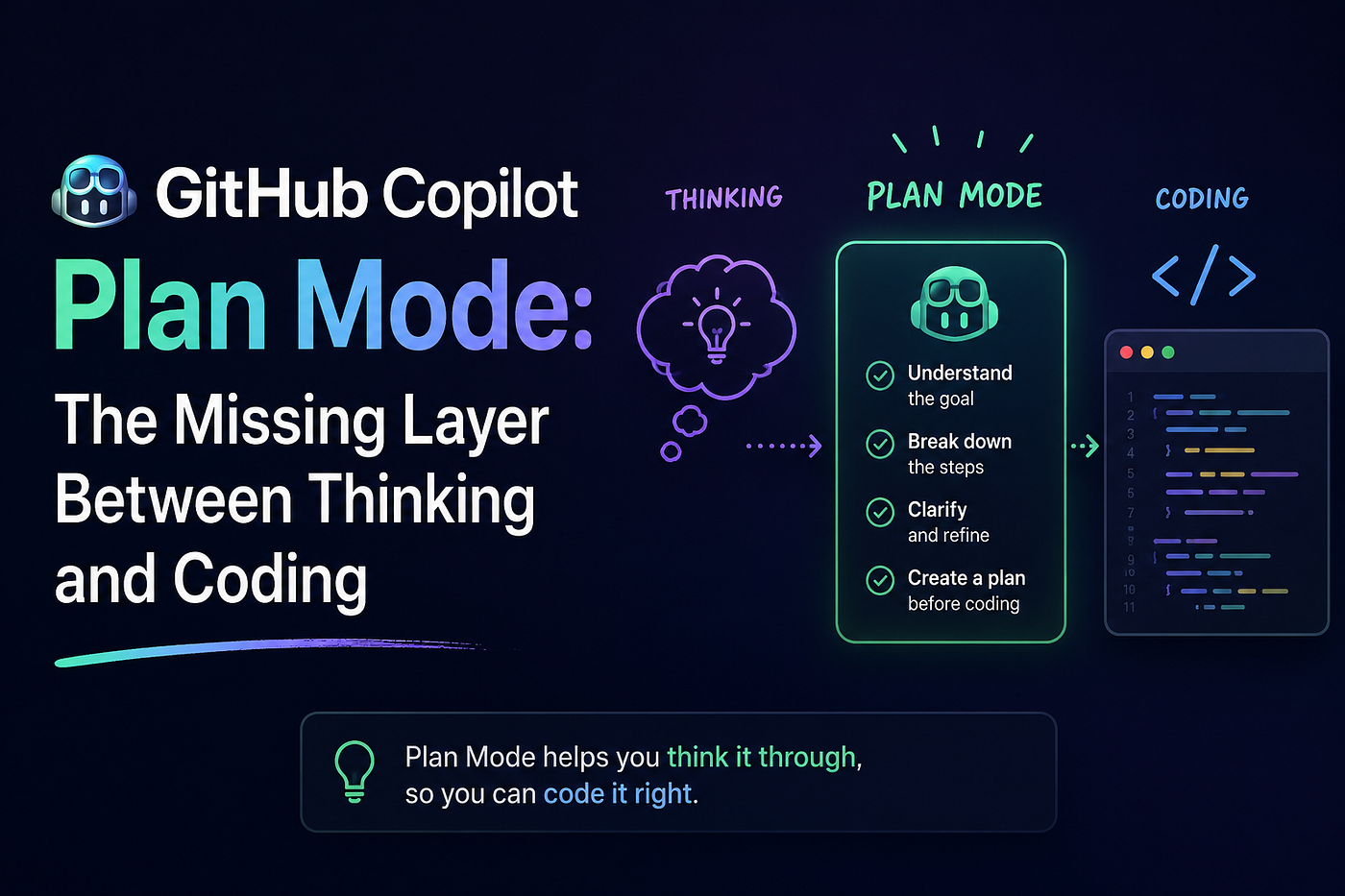
How a simple toggle is changing the way developers approach complex tasks
There's a problem that every developer knows but rarely names out loud: the gap between understanding what you need to build and actually starting to build it. You open your editor, you have a rough idea, and then you just… start typing. Sometimes that works. Often, especially on anything involving multiple files or unfamiliar territory, you end up rewriting half of it an hour later.
GitHub Copilot Plan mode is designed to close that gap. And if you've been sleeping on it, it's worth a closer look.
What Plan Mode Actually Is
Before diving in, let's be precise — because GitHub Copilot now has several overlapping "modes" and the naming can be confusing.
Here's the quick map:
- Ask mode conversational Q&A. You ask, Copilot answers. No code changes.
- Edit mode you pick the files, Copilot suggests targeted changes across them.
- Agent mode Copilot operates autonomously. It determines which files to touch, runs terminal commands, monitors build output, and iterates until the task is done.
- Plan mode Copilot analyzes your codebase and generates a detailed, step-by-step implementation plan before touching a single file. You review, refine, and only then hand it off for execution.
Plan mode is the pause button. It sits between your intention and the AI's action, giving you a structured blueprint to inspect and approve first.
As GitHub describes it, Plan mode "helps developers create, refine, and execute step-by-step implementation plans directly in their IDE." Critically, it does not make any code changes until you've reviewed and signed off on the plan.
The Problem It Solves
Agent mode is powerful, but power without clarity can be chaotic. Hand an agent a vague or complex prompt and you might watch it confidently charge off in the wrong direction — touching files you didn't intend, making assumptions you didn't sanction, spending your premium request budget on something you'd have caught in two minutes of thinking.
Plan mode forces a moment of structured reasoning. Instead of "here's the output," it says: "here's what I'm going to do, and here's why — do you agree?"
That structure matters most in a few specific situations:
Large, multi-step tasks. Adding a new feature that touches your API layer, your database schema, your frontend components, and your tests is not a one-liner. Plan mode breaks it into a sequenced checklist, so you can verify that the ordering makes sense before any work begins.
Unfamiliar codebases. Whether you’re onboarding to a new project or revisiting code you haven’t touched in months, having Copilot map out its understanding of your codebase before acting gives you a chance to catch misunderstandings early.
Risk-sensitive changes. Refactoring authentication logic or modifying shared utilities used across many services is exactly the kind of work where you want a second pair of eyes on the plan, not just the output.
Team collaboration. A generated plan is a shareable artifact. You can review it with a teammate, drop it into a ticket, or use it as the basis for a PR description. That’s a workflow benefit that goes beyond what any single agent session provides.
How to Use It
Plan mode is available across all major IDEs — VS Code, JetBrains, Eclipse, and Xcode — following its public preview expansion in November 2025.
In VS Code: Open the Copilot Chat panel and select "Plan" from the agents dropdown. Type
/planfollowed by your task to jump straight in. Describe what you want to build — a new feature, a refactor, a bug fix — and Copilot will analyze your codebase and return a structured, markdown-formatted plan.
From there you have two paths: "Start Implementation" (hands it to the agent) or "Open in Editor" (so you can edit the plan manually before anything runs).
The Plan agent automatically saves its work to a session memory file at /memories/session/plan.md, which you can inspect or edit at any time during the session.
In JetBrains, Eclipse, or Xcode: Open Copilot Chat, select "Plan mode" from the agents dropdown, describe your task, and review the generated plan before choosing whether to start implementation.
In Visual Studio: Enable it under Tools → Options → GitHub → Copilot → Enable Planning. Then switch to Agent mode in the chat window — planning kicks in automatically for complex, multi-step prompts.
Plan Mode vs. Agent Mode: When to Use Each
This is the question that actually matters for your day-to-day workflow.
Think of it along two axes: how well-defined is the task, and how much do you want to verify before the AI starts acting?
| Situation | Best mode |
|---|---|
| Quick, specific change to one or two files | Edit mode |
| Complex task where you want AI to just handle it | Agent mode |
| Complex task where you want to verify the approach first | Plan mode |
| You want to understand something before changing it | Ask mode |
Plan mode is not a replacement for agent mode — it's a complement. Use it when the stakes of going in the wrong direction are high, or when the task complexity means a wrong assumption at step one compounds through every subsequent step.
Some developers push back here: if you're already disciplined about writing clear, phased prompts to your agent, does Plan mode add anything? Honestly, not much — for those developers. But for most people, most of the time, the workflow guardrail has real value. Plan mode nudges you toward deliberate, phased thinking by default, rather than requiring you to impose that discipline yourself every time.
Real-World Use Cases
Feature development. "Add user profile pages with avatar upload, bio editing, and public/private toggle." A task like this touches multiple layers of your stack. Plan mode will surface assumptions (which storage service? what’s the auth model?) before writing a line of code, giving you a chance to correct them upfront.
Legacy code migration. "Migrate our Express.js API routes to the new controller pattern." In a large codebase, this could touch dozens of files. Plan mode maps the migration strategy, file by file, so you can confirm scope before committing.
Bug investigation. "The checkout flow is silently failing for users with expired cards." Plan mode can help you structure an investigation — which files to inspect, what tests to add, what edge cases to cover — before you start modifying anything.
The Bigger Picture
Plan mode is part of a broader shift in how GitHub is positioning Copilot — moving from autocomplete assistant to agentic collaborator. The full stack now includes in-IDE agents (real-time, synchronous), the cloud coding agent (asynchronous, PR-based), MCP server integrations (connecting Copilot to external tools and data), and Plan mode sitting as the deliberative layer that bridges human intent and automated execution.
The key insight GitHub is betting on: the bottleneck in AI-assisted development isn't the AI's ability to write code. It's the human's ability to verify that the AI understood the task correctly before it wrote that code.
Plan mode is GitHub's answer to that bottleneck.
Tips for Getting the Most Out of It
Be specific in your prompt. "Add authentication" is a weak starting point. "Add JWT-based authentication to the existing Express API, with login, logout, and token refresh endpoints, and protect the /user/* routes" gives the planner something to work with.
Treat the plan as a negotiation, not a deliverable. When you get a plan back, read it critically. Reorder steps if the sequencing is off. Remove steps that fall outside your intended scope. Add constraints the plan missed. The plan is a draft, not a decree.
Use it for onboarding. One underrated application: ask Plan mode to "add a small feature to this repo" in a codebase you’ve just joined. The generated plan will reveal how Copilot has understood the architecture — a useful proxy for whether your mental model of the codebase is accurate.
Pick the right model for planning vs. implementation. VS Code lets you configure separate models for the plan agent and the implementation agent. Reasoning-heavy models can be overkill for straightforward implementation — use them where they earn their cost.
Closing Thoughts
Software development has always had two distinct cognitive modes: the divergent thinking that happens when you're figuring out what to build, and the convergent focus needed to actually build it. For decades, tools have been almost exclusively optimized for the second phase — better autocomplete, faster compilers, smarter linters.
Plan mode is a rare attempt to support the first phase directly. It's not magic, and it doesn't replace good engineering judgment. But for complex tasks where the cost of misunderstanding is high, it's a meaningful addition to the workflow.
The best time to course-correct is before you've started. Plan mode makes that easier.
Have you started using Plan mode in your workflow? What’s working, what isn’t? Drop a comment — I’d love to hear how other developers are integrating it.
메타데이터
- post_id
- a68bea6b1c00
- slug
- github-copilot-plan-mode-the-missing-layer-between-thinking-and-coding-a68bea6b1c00
- url
- https://medium.com/@akhilgite/github-copilot-plan-mode-the-missing-layer-between-thinking-and-coding-a68bea6b1c00
- canonical_url
- https://medium.com/@akhilgite/github-copilot-plan-mode-the-missing-layer-between-thinking-and-coding-a68bea6b1c00
- author_url
- https://medium.com/@akhilgite
- status
- ok
- fetched_at
- 2026-06-15 20:49:13




