Stop Sleeping on Apple Numbers — 5 Creative Ways to Use It Beyond Spreadsheets
How I turned Apple’s ignored spreadsheet app into my creative workspace
Stop Sleeping on Apple Numbers — 5 Creative Ways to Use It Beyond Spreadsheets
How I turned Apple’s ignored spreadsheet app into my creative workspace
Non-members can read for free via the link in my Socials — X| Threads| Instagram| Bluesky 🔗
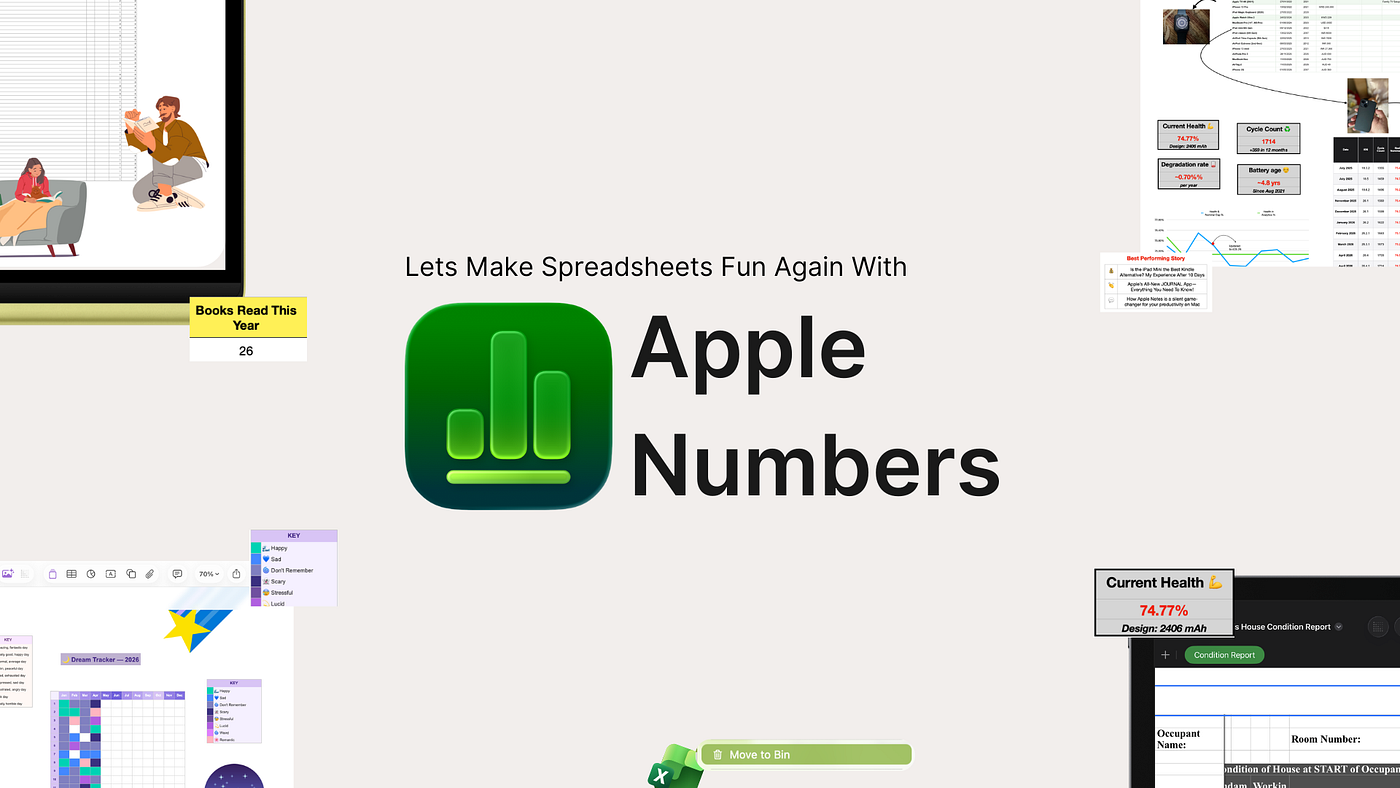
Source: Author | Apple Numbers — Story Cover Art
When we think of MS Excel, we instantly think of spreadsheets. Tabular rows and columns are meant for number crunching with their formulas and functions.
Dare anyone call them fun?
This social stigma around spreadsheets was a major reason I stayed away from exploring other spreadsheet apps. You can’t write poetry on a receipt. You can’t draw paintings on a calculator. In the same way, you can’t expect spreadsheets to be fun.
And that’s when I discovered Apple Numbers.
Yes, that free app that comes pre-installed on every Mac. The one you casually tend to ignore (or worse, uninstall) before heading to buy a Microsoft 365 plan. However, my strong belief in Apple kept me from uninstalling right away and from trying out this spreadsheet app before I made the final call.
And surprisingly enough, it’s the one that stuck. Not because it was a great spreadsheet app, but rather because it wasn’t. Apple had managed to somehow make a fun spreadsheet app for the creative thinkers — an app that doesn’t limit you to just rows and columns.
This is where Numbers won for me. I have been using the app for a good few months now. But I don’t use it for regular Excel tasks like taxes and listings. I am sure Excel excels in it. Numbers is the cool cousin whose powers have long been hidden and underutilized for personal and creative workflows. And that’s what I want to deep dive into with this story. Right from the first time I used Numbers to the last sheet I created yesterday, here are five fun ways I use Apple’s spreadsheet app.
Hey Readers!
This is Aditya here 🙋♂️ This story is the next entry in my Apple Maps Syndrome 🗺️🤒 series — where Dr. Darekar attempts to cure the Apple ecosystem’s most underrated apps one prescription at a time. We’ve already rethought Pages, Journal, Freeform and Books — and today Numbers is in the hot seat. If something in this story makes you reconsider an app you’ve been ignoring, do clap 👏, highlight 🖍️ that moment, and comment 💬 — it helps the cure reach more patients.
1. Rental House Inventory — Built Entirely in Numbers
We need to make a proper inventory for the house as part of the rental agreement.
When my dad decided to make an inventory list for our old house that was going on rent, his first app of choice was Apple Notes. It’s a one-stop app for all sorts of braindump and, in my dad’s case, good enough for grocery shopping, scanning & saving documents, writing draft emails or messages, and much more.
However, I felt Apple Notes would be a bit underpowered for this behemoth task of logging an inventory of the entire house, wall by wall, room by room, and section by section. So I decided to take over this task of creating the house inventory with him as we walked through it.
This is the first time I opened the Numbers app on my iPad. And my first impression was: Why is the table so small?
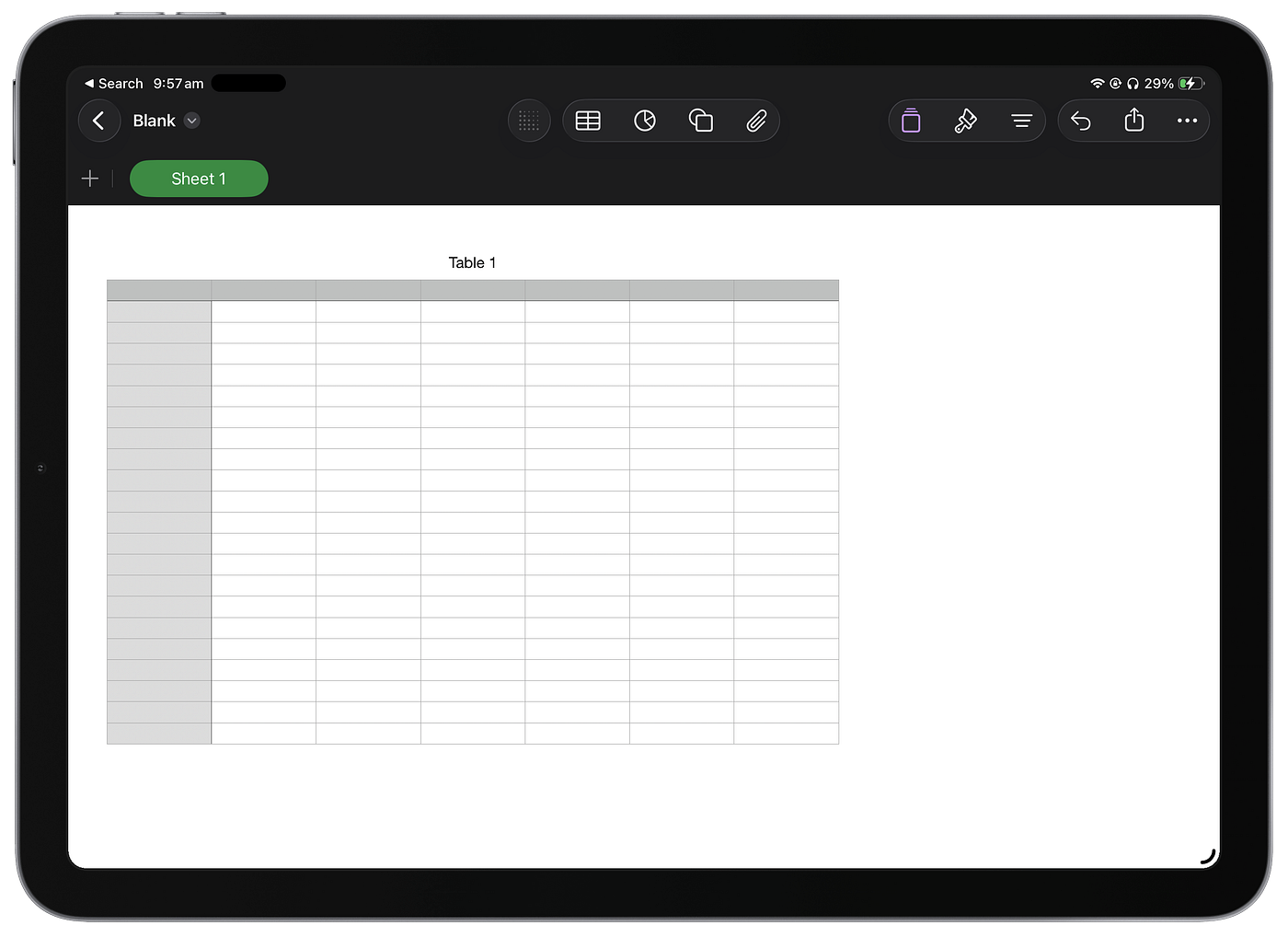
Source: Author | Numbers on iPad
That’s when I realized Numbers wasn’t like Excel. It wasn’t rows and columns across the screen. Rather, it was a blank canvas capable of housing as many tables as you could fit, with as many rows and columns as you could fit in each. It was a spreadsheet app for visualization rather than calculation. And that made it perfect for the house inventory logging I was about to do.
I decided to model the house inventory after a generic one I found online. Five minutes after asking ChatGPT to generate a Numbers sheet with a house inventory layout, I had a blueprint to work on within my own Numbers sheet for our house.
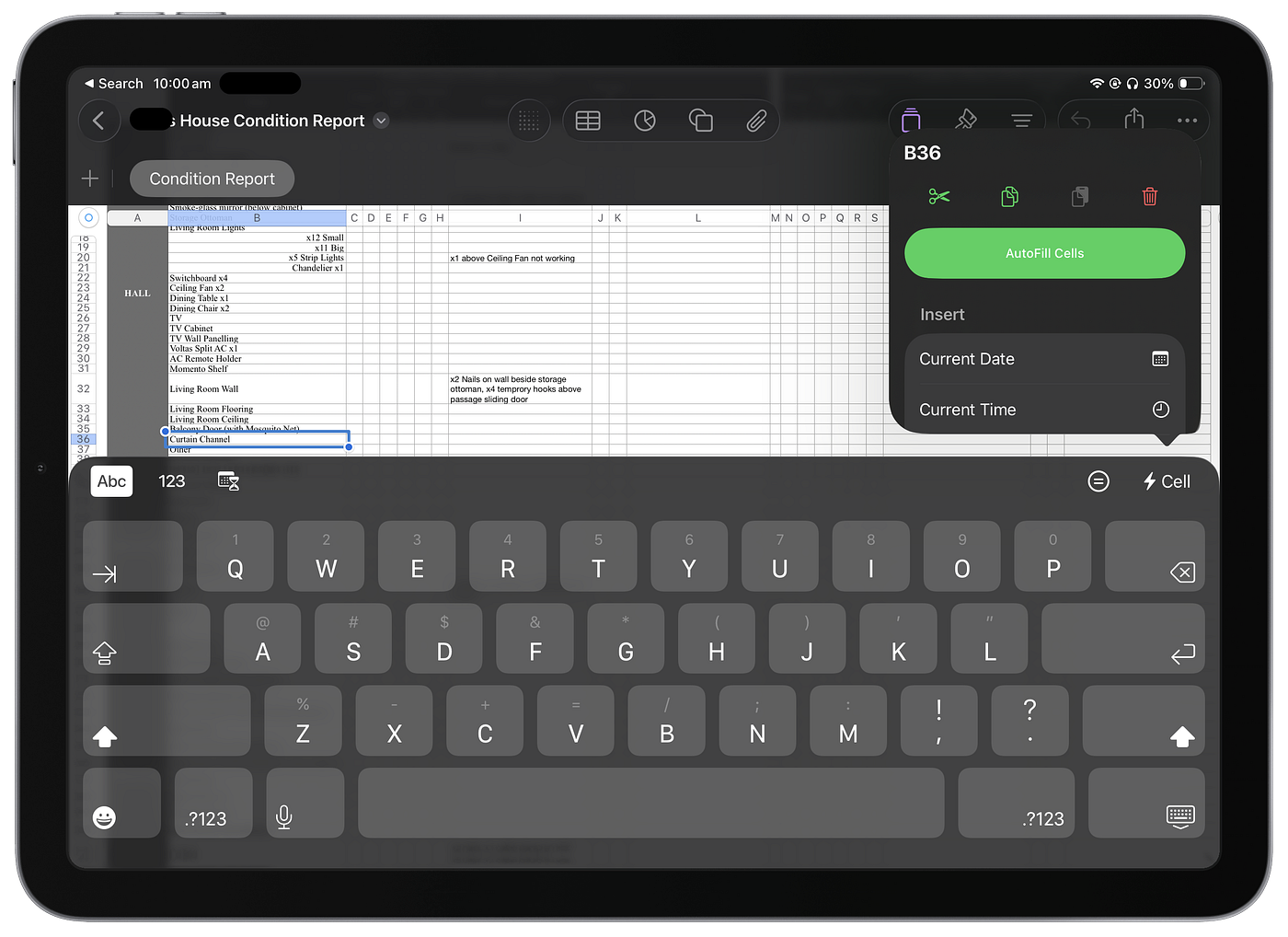
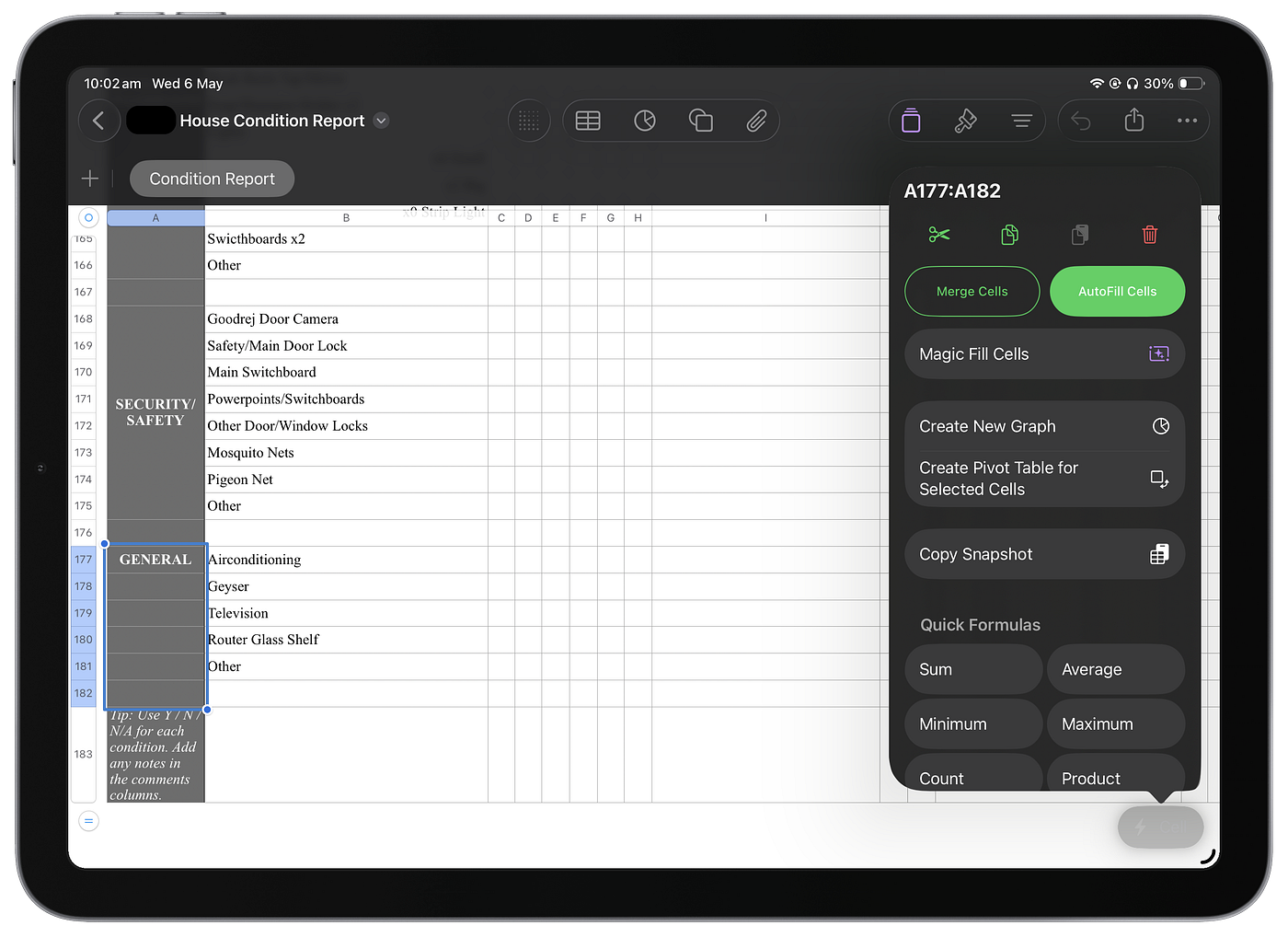
Source: Author | Creating a House Inventory using Numbers on iPad
Moving around the house with an iPad in hand and logging the necessary items in the sheet felt liberating. And that’s another advantage of the Apple ecosystem: native apps like Numbers come preinstalled and are free to use on all Apple devices.
Within two hours of exploring the nooks and corners of the house and logging them in the Numbers sheet, I had a perfect house inventory designed for our old house. The best part was that I didn’t have to switch to another app to add any further details, like date, time, or name, above or below the inventory table. With Numbers, you can work on a canvas to design your sheet however you like, then turn it into a PDF for printing right from the app.
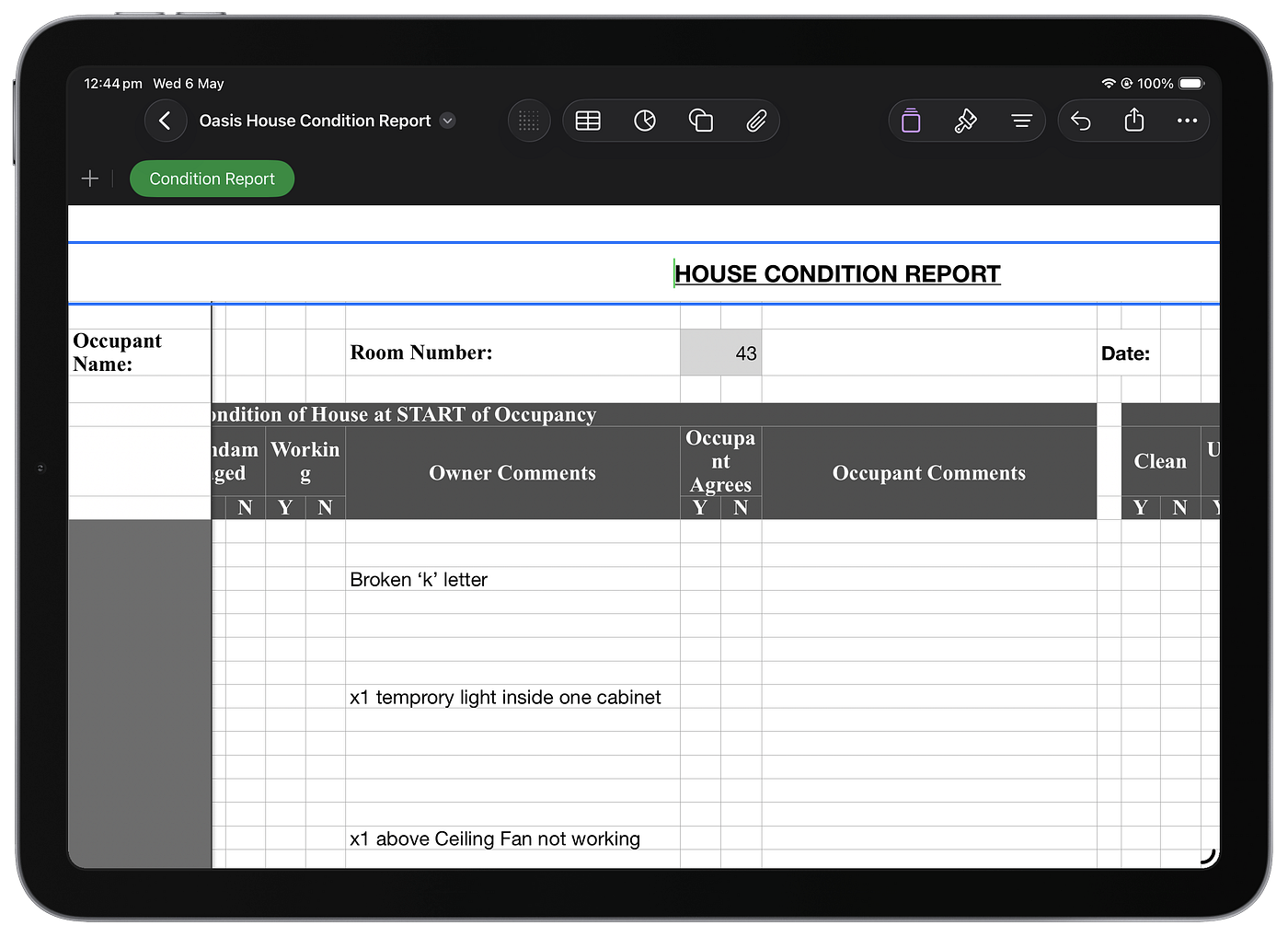
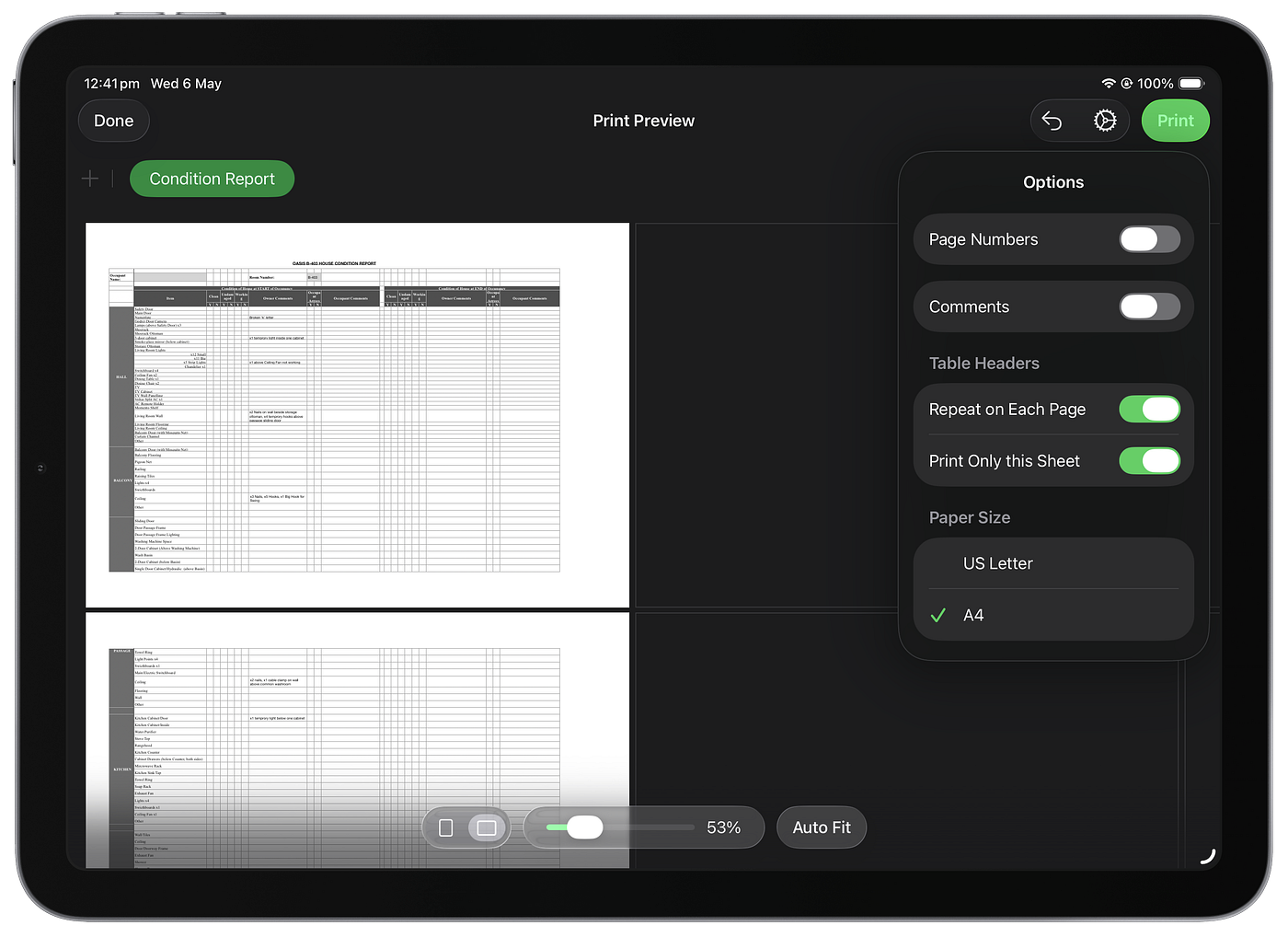
Source: Author | Formatting the House Inventory on Numbers (iPad)
A large part of the house agreement was drafted in a spreadsheet app, which is worth noting.
It was also the day I saw my dad, a lifelong Excel user, reinstall Numbers on his iPhone and Mac.
PS: If you are in the same boat as me, and want a house inventory template to get started with, you can download it for free (use code: MEDIUMREADER) from here:
2. Bullet Journaling with Numbers — Tracking Anxiety, Dreams, and Habits
Having discovered the blank canvas on Numbers, there was no stopping the writer within me.
For years, I had struggled with journaling. Putting down my thoughts was an extremely sacred act for me. Physical journals with diary entries gave me the shoulder-peeking jumpscare. So I switched to bullet journaling, but once again, its portability became an issue. It was only after I switched to Day One and later the Apple Journal app on iPhone that my mind felt a bit relaxed. But I still missed bullet journaling and making my own journal templates.
Numbers fit into the jig-saw right away with its canvas-level spreadsheet capabilities.
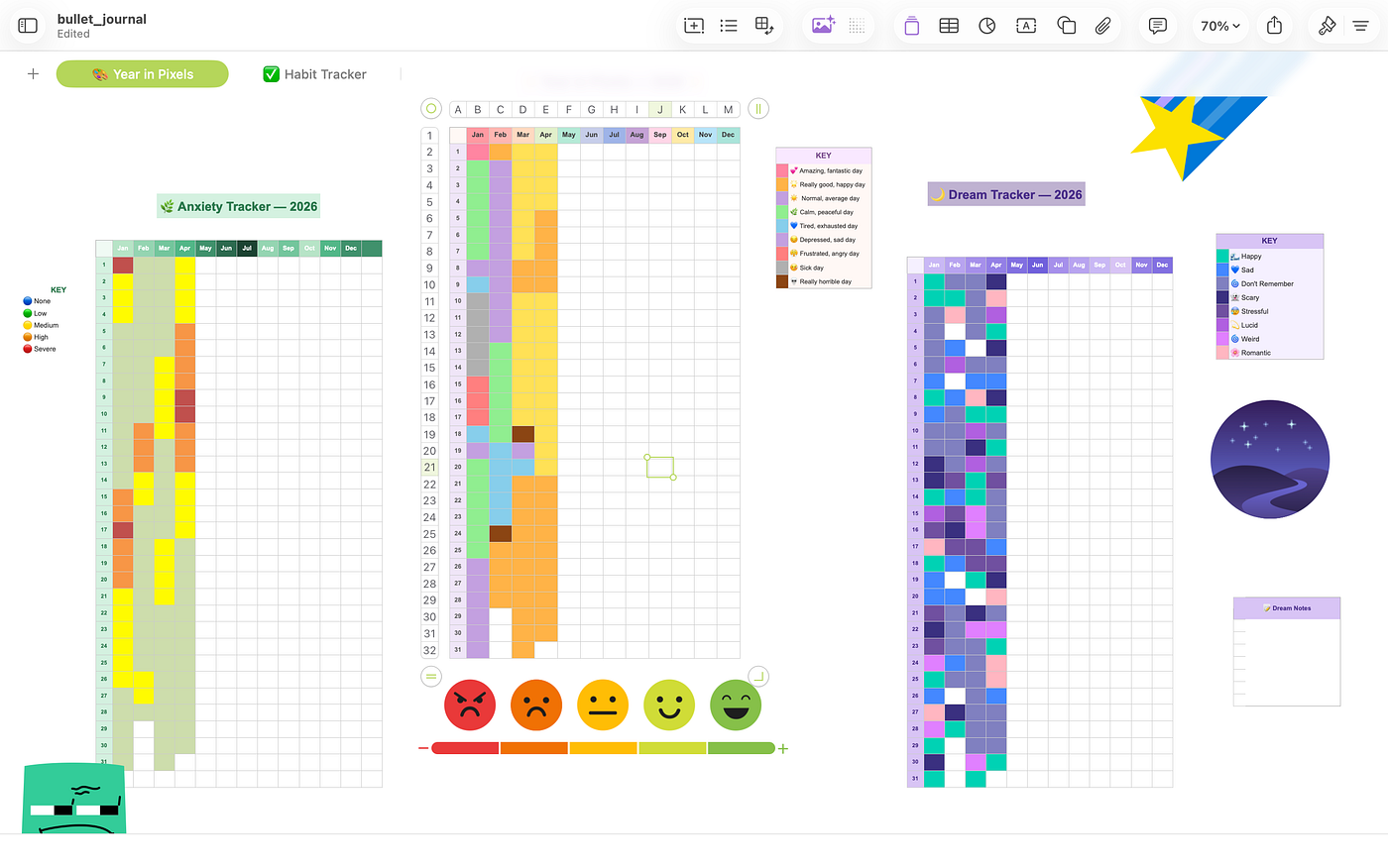
Source: Author | Bullet Journaling on Numbers
I have designed some BJo tracker templates specifically around tracking anxiety, dreams, and habits. The idea was to have a single glance of the entire year, and what better app to keep track of it all than the one you use to create spreadsheets?
I use color codes for the anxiety and dream tracker made possible with a simple conditional highlighting rule you can apply to all the table cells — in my anxiety tracker, ’l’ denotes low anxiety and changes the cell and text color to green, ‘m ’ (medium) to yellow, ‘h’ (high) to orange, and ’s’ (severe) to red. So even if I am on my iPhone or iPad, I can type a single letter on the keyboard to change the cell color and color the year in pixels. Alternatively, you could just copy the color from the key and paste it into the cell each time.
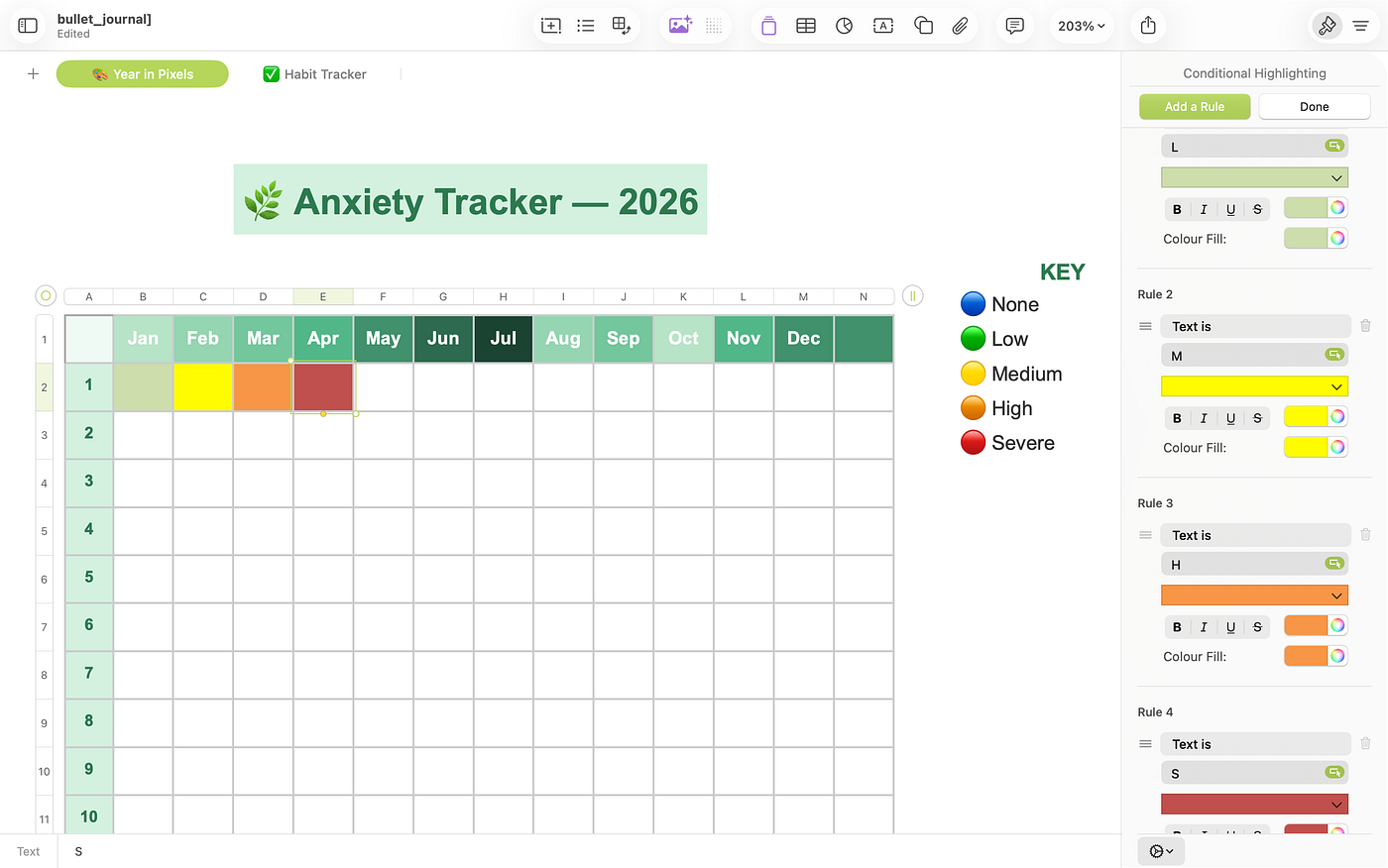
Source: Author | Conditional Highlighting Rules in Numbers
Another great feature of Numbers is the ability to add multimedia to your sheets. I have added a bunch of stock and AI-generated images from Content Hub (introduced with Apple Creator Studio subscription). It makes my BJo sheet look much more fun and exciting to use — like a physical bullet journal.
For my habit tracker, I have a dedicated sheet with twelve tables — one for each month of the year. I try to focus on five habits in a month — anything more burns me out and puts me off track. A single ‘✓’ denotes having tracked that habit for the day. By simply dragging the cell from the right-center, I can check and fill in the cells for other days of the month, too. Towards the end, there is a completion percentage that uses a formula to determine the number of checks for a habit in that particular month.
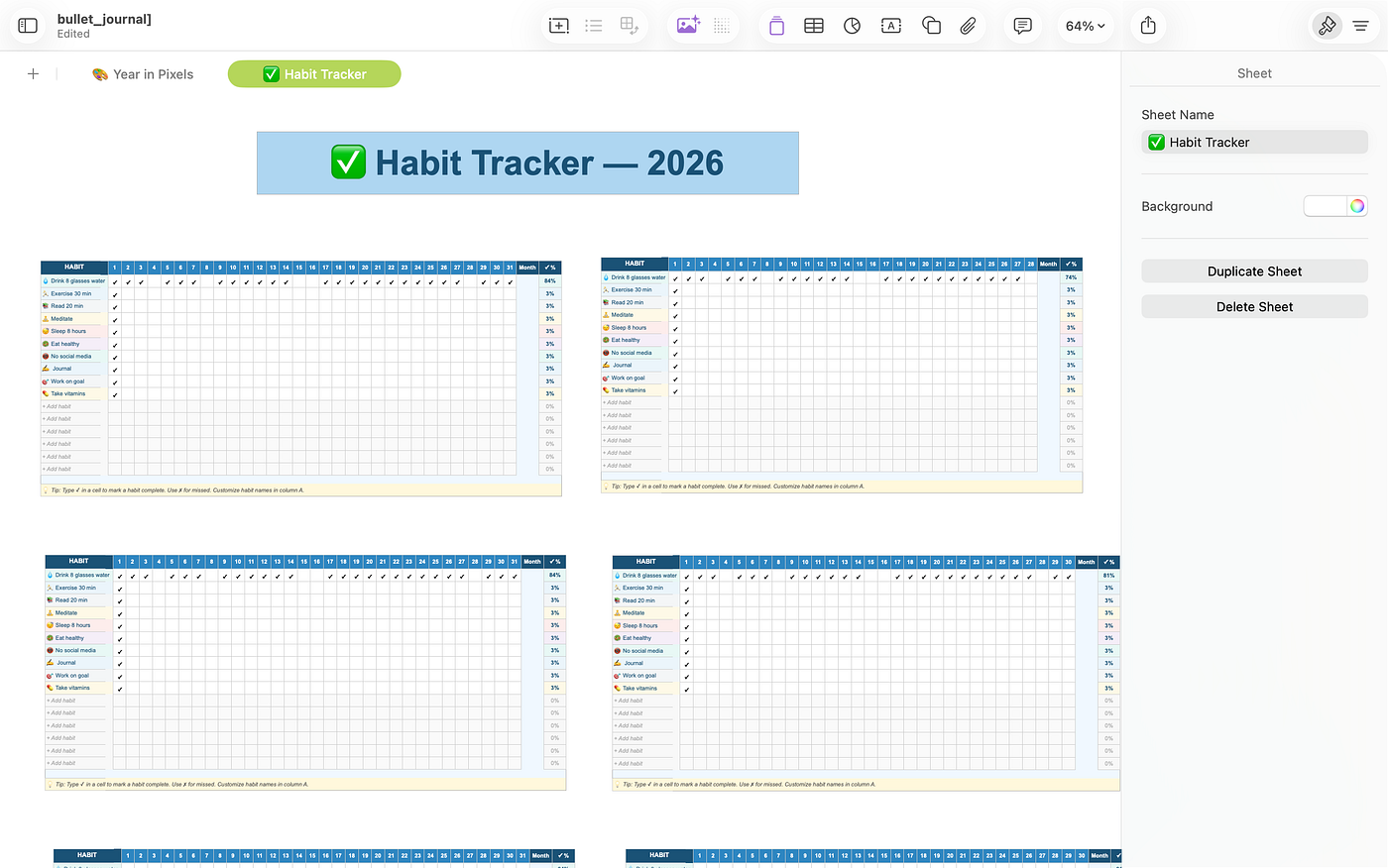
Source: Author | Habit Tracking in Numbers
The best part about doing this in Numbers is that I don’t have to worry about the file format’s compatibility in the future. I could save them as PDFs, convert them to CSV for Excel, or use another app of my choice. I can work on any device right now (iPhone, iPad, or Mac) and have my BJo trackers synced all across them.
You could even make your own BJo template, like me, and print it out to put it up on your bulletin board. If you like my BJo template by itself or would like to edit it and make it yours, you can download it from here (use code: MEDIUMREADER for a special discount):
This is one of the best phases my journaling has recently evolved into.
3. Beyond Reads & Claps — The Spreadsheet That Made Me a Better Writer
I am not the one who usually researches trending topics before writing about them. That’s not my style. If you have read enough of my stories, you know I like to write personal and deep stories about the products or apps I use.
So the only trend I like to keep track of is my own. Using a Claude-built web tool, I converted my Medium dashboard page into a spreadsheet containing all my story titles, word counts, publication dates, content types, and views and reads. Another sheet contains the monthly and lifetime earnings of my stories, generated by another HTML scraping web tool. Both of them together help me keep track of how a story performs during a particular time period.
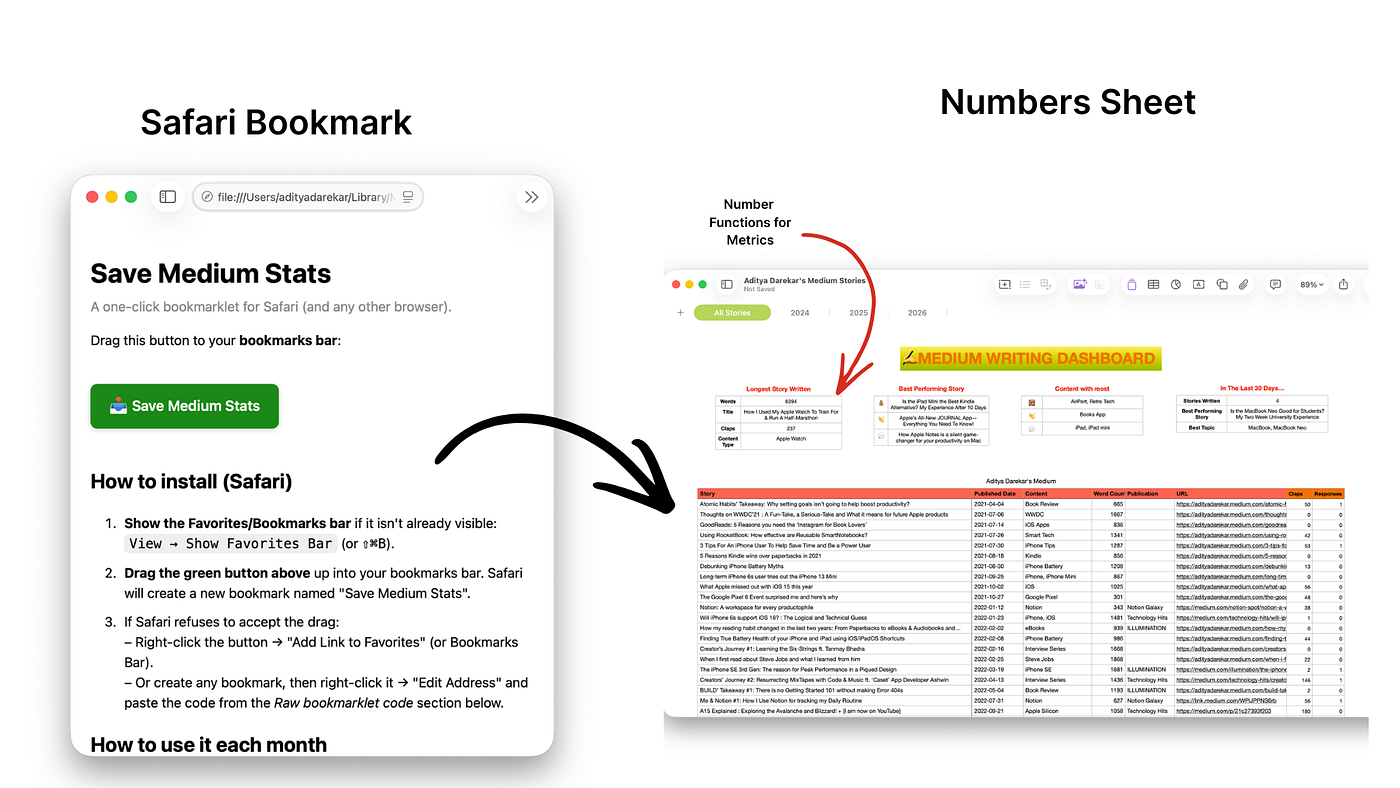
Source: Author | Using a Safari Bookmark to convert Medium Stats into CSV format for Numbers
I have some useful metric cards on what I call my Writing Dashboard that tells me the best-performing story (in terms of claps, comments, and earnings), the longest story I have written, and the most-clapped-to-content (Surprisingly, it’s the Books app). Sometimes, when the dashboard reminds me of how well a story did in the past, I like to revisit it and understand what connected well with the audience. Best of all, the data remains offline, on-device, and under my complete control.
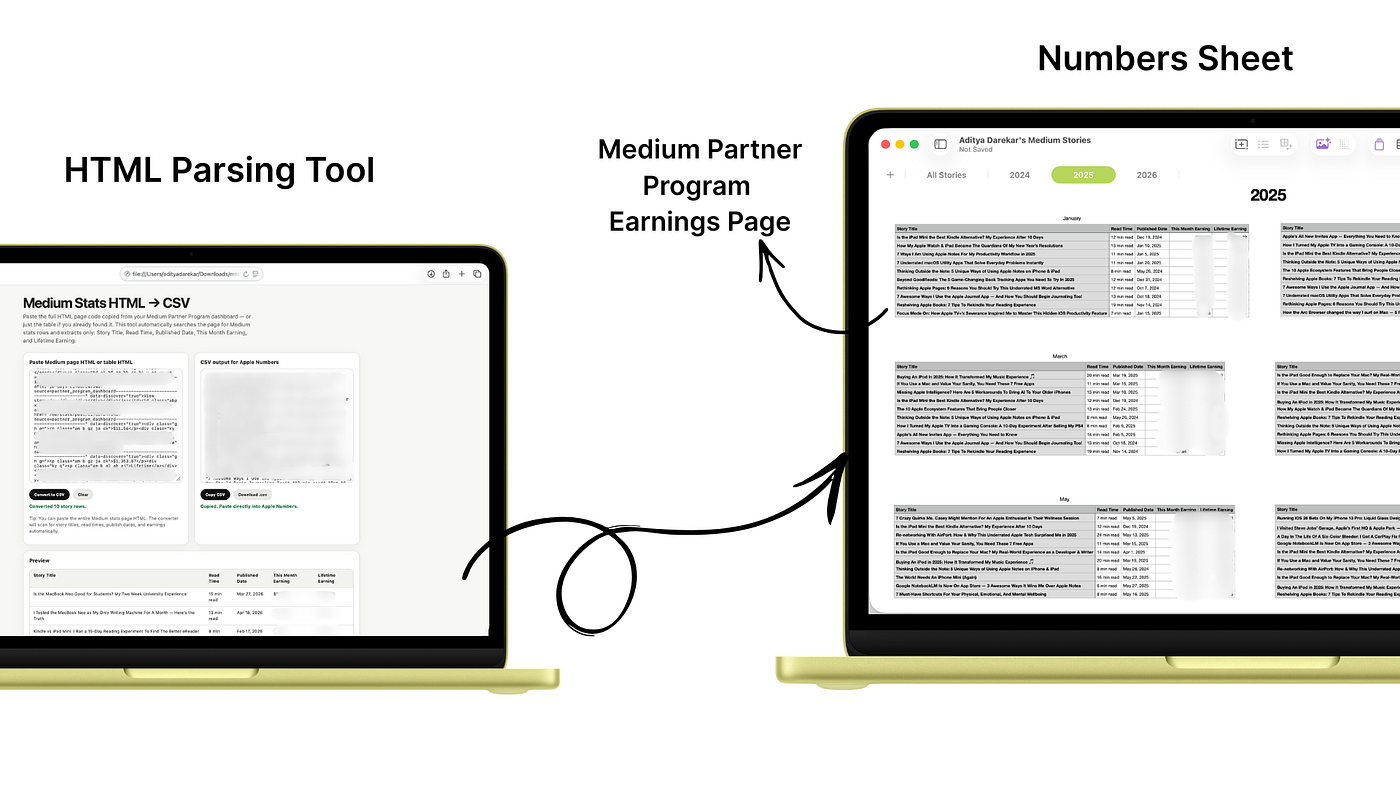
Source: Author | Using my own HTML Parser tool to convert MPP Earnings Page into CSV Format for Numbers
If you are a Medium writer too and want to build a similar Writing Dashboard for your stories on Numbers, I have just the right set of tools (including the two webtools mentioned above) that will help you build it in less than 5 minutes. Use code: MEDIUMREADER for a special discount:
4. My Apple Products Dashboard — A Love Letter in Rows and Columns
Everyone has some trend or hobby that they like to track. Something they enjoy keeping a track of just for their own sake. No fancy data extractions or formulations.
Unsurprisingly, mine is Apple. I have a spreadsheet to track all the Apple devices I have ever owned, from the very first iPod Touch to the latest MacBook Neo.
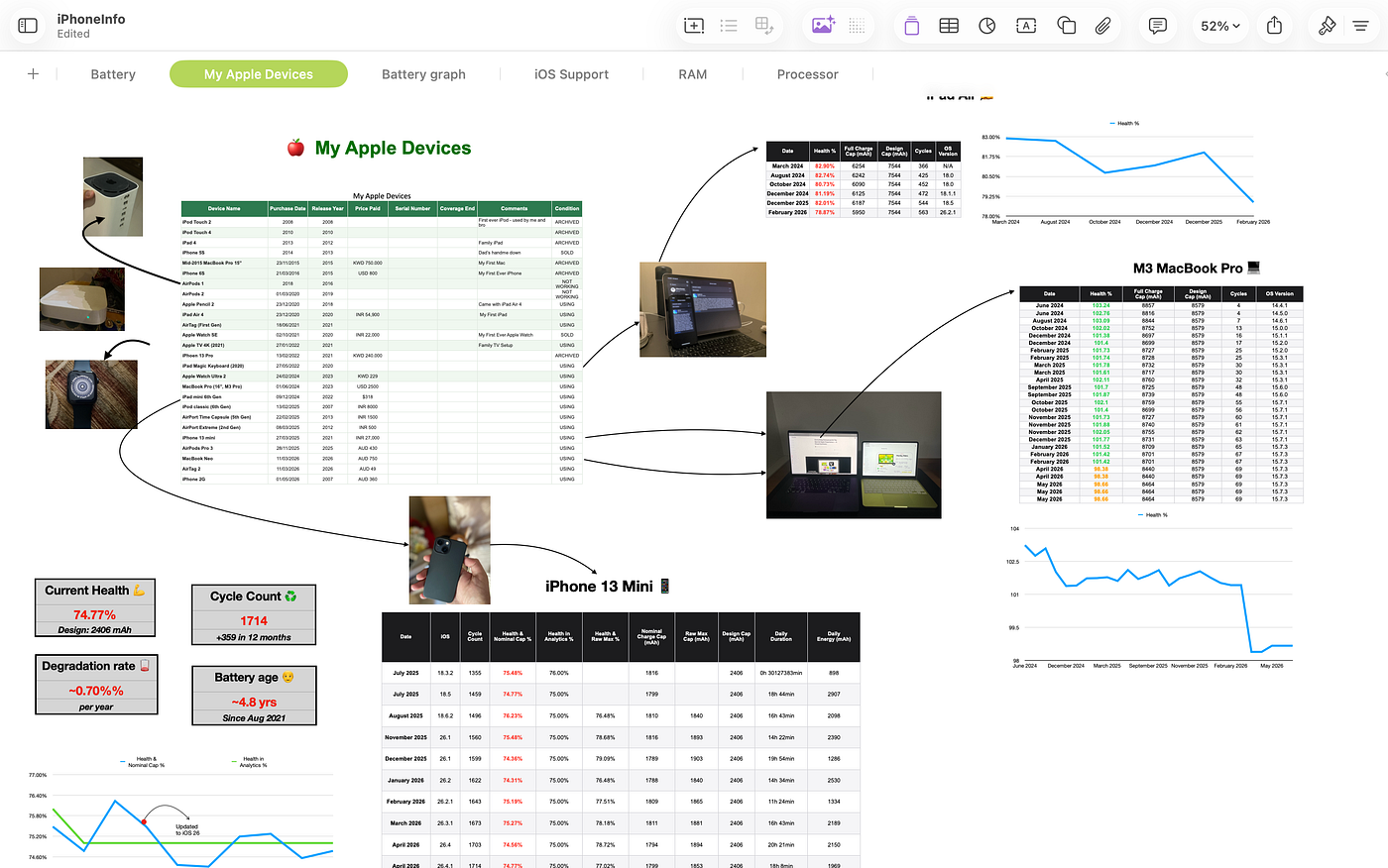
Source: Author | My Apple Devices Dashboard on Numbers
I also added a bunch of pictures of my Apple devices on the sheet to connect them further to more tables. Some of the recent devices that are still in use also have connections to their own tables that show their battery health and charge cycles over time (imported from Coconut Battery app). With one click, you can convert tables into beautiful graphs for easy visualization.
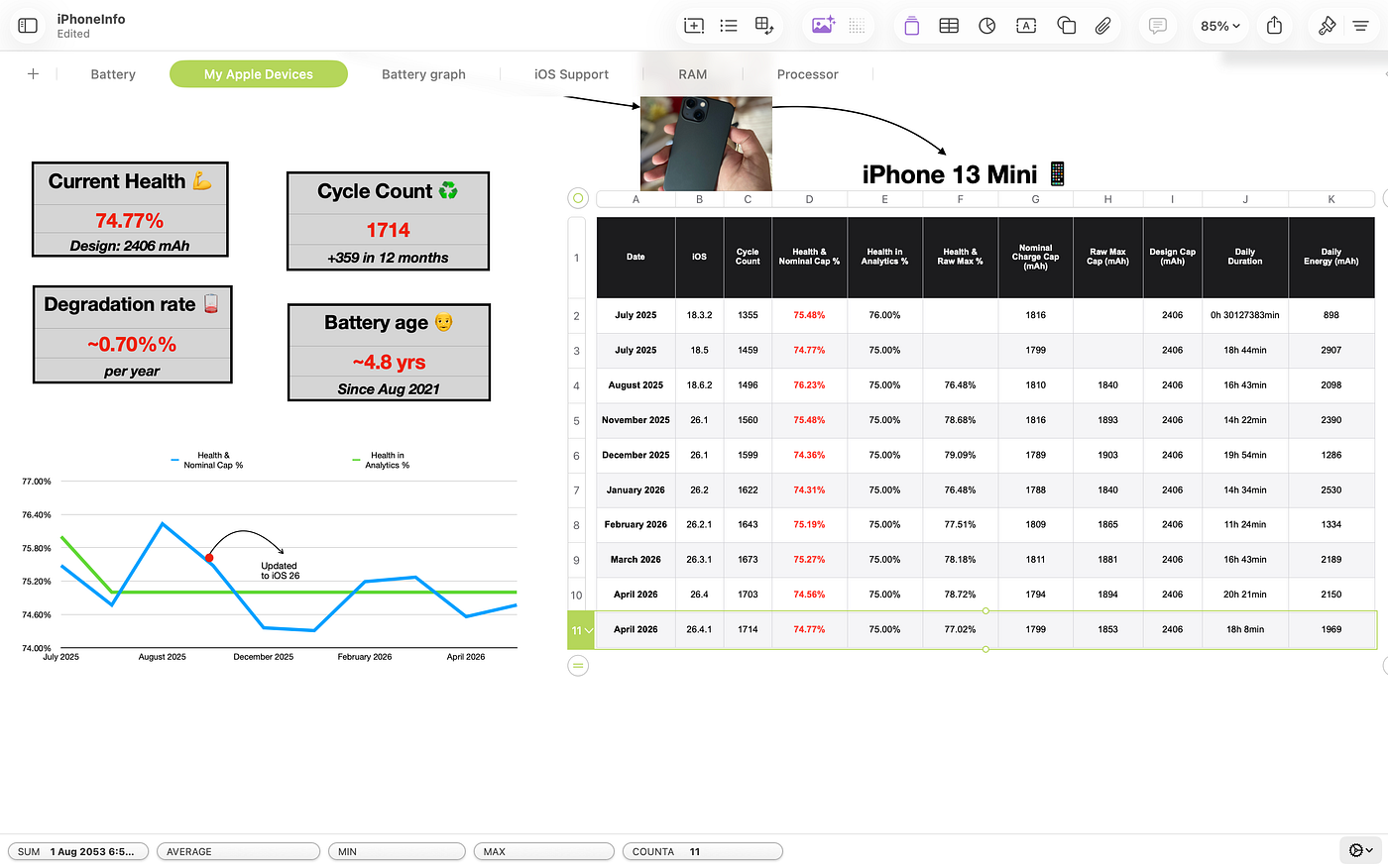
Source: Author | Creating Metric Cards using Functions on Numbers
I also have a metric card with functions that auto-update when new records are added to the table. Together, they make up my Apple Products Dashboard.
Want one too? You can get the template for free (using the code: MEDIUMREADER) from here:
Psst… I also have another sheet that tracks iPhones’ RAM and Battery Capacity over the years. I just like seeing how these tech trends mature over the years. Classic Apple Fanboy stuff, right?
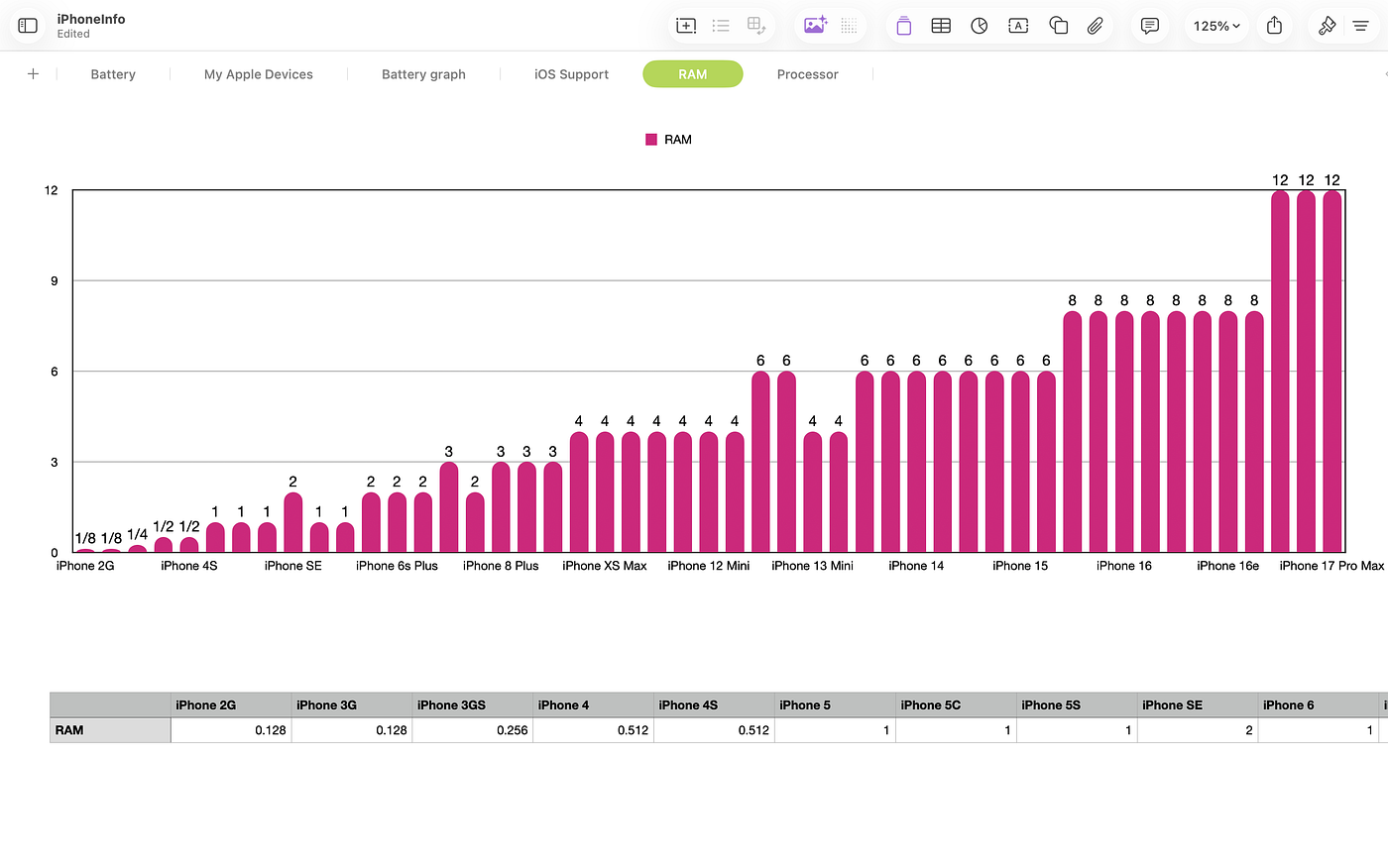
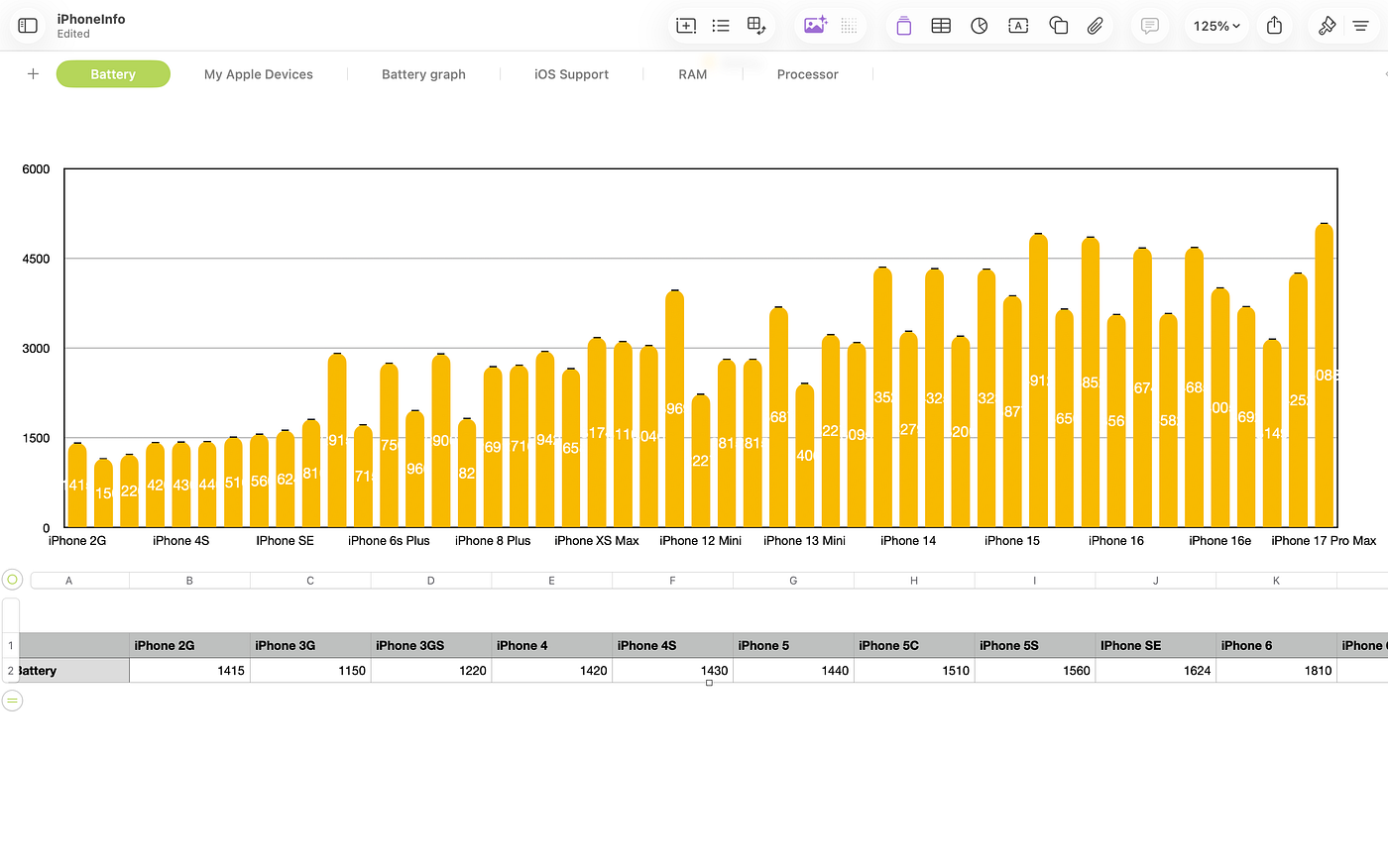
Source: Author | Some other trends I like to follow using Numbers
5. Offline Book Tracking — GoodReads Gave Me the Data. Numbers Gave It a Home
As an avid book reader, I have had my own tussle finding the best book-tracking app.
Among them, GoodReads maintains one of the best databases for your entire library, and there’s no doubt about it. While book-tracking apps vary in their UI and UX, most require an active internet connection.
No doubt, having your own on-device spreadsheet gives you the chance to make the changes you want, whenever you want. Once you export your data from GoodReads, it’s all yours to play around with in any spreadsheet app of your choice. And if that spreadsheet app happens to be Numbers, then you are in luck because you won’t be limited to just rows and columns. For once, without any coding knowledge, you can design a book tracking app page just for yourself.
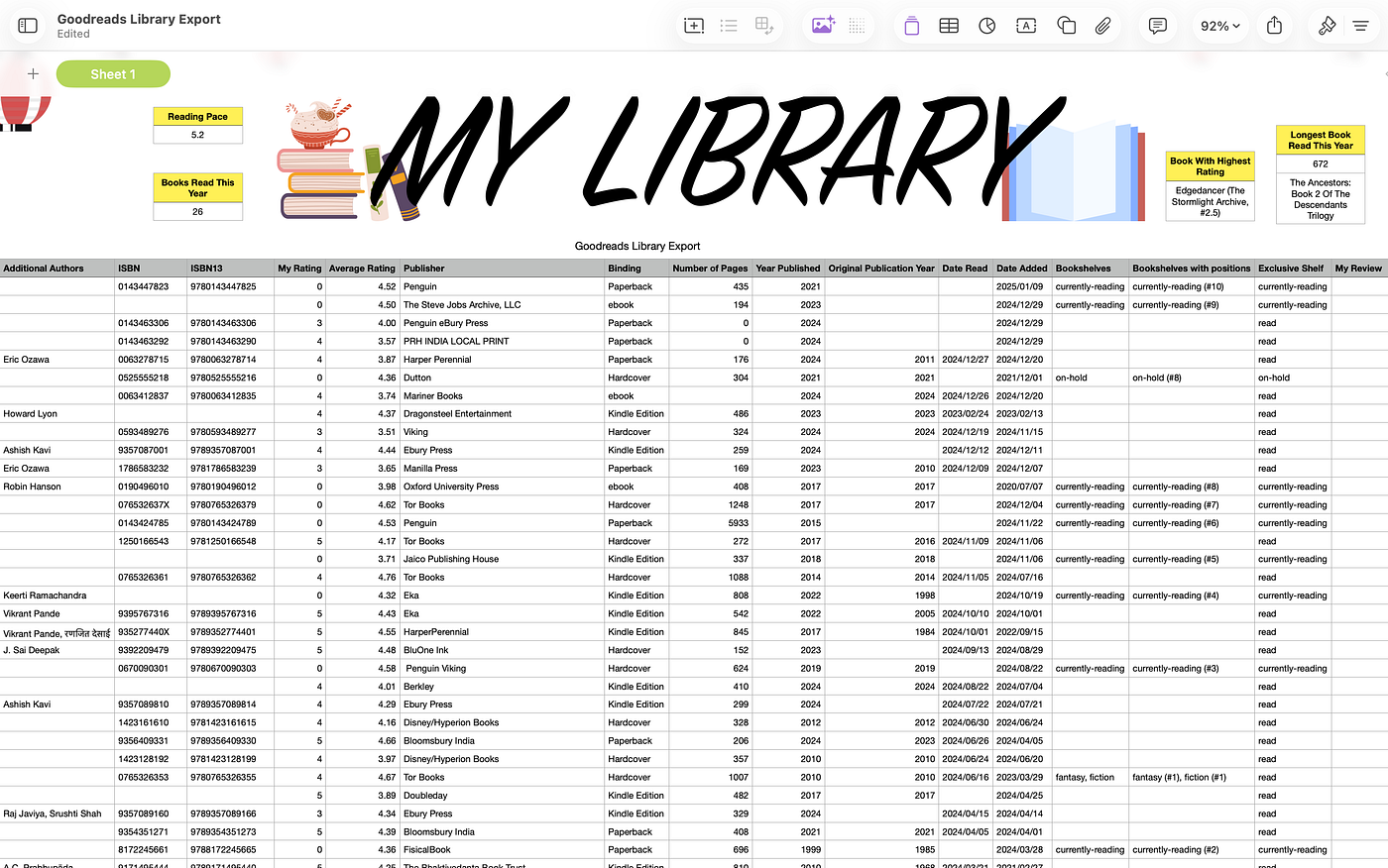
Source: Author | Creating an offline book tracker using Numbers
Some of the metrics I like tracking are:
- Books Read This Year
- Longest Book Read This Year
- Book With Highest Rating
- Reading Pace (Per Month)
Of course, as you get used to Numbers functions, you would want to create some good metrics of your own. But until then, feel free to use the Library template I have for Numbers (use code: MEDIUMREADER for a special discount):
Spreadsheets have no business being this much fun.
But Numbers has done the impossible. Since I started using Numbers a few months ago, I have been enjoying not just making spreadsheets but also writing functions for their metric cards. The semantic naming in Numbers makes it really easy to write functions compared to the ‘A1,B2, C3…’ naming in Excel.
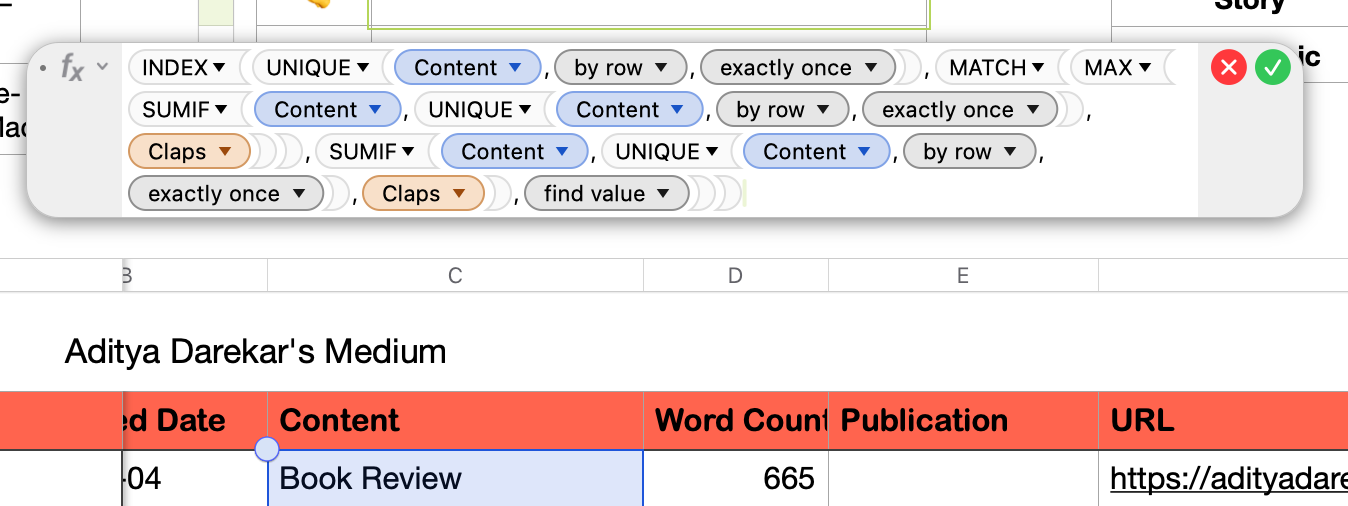
Source: Author | Writing functions in Numbers feels so much more humane
Numbers feels like a spreadsheet app made for the rest of us — those who don’t want to be limited to just thinking in rows and columns for the sake of it. Those who want to connect ideas across different domains and visualize their data.
That’s what I’ve been trying to do for the last few months, and Numbers has supported me well in that endeavor.
Having said that, Numbers isn’t just limited to personal creative use cases. It can very well be used for all sorts of expense tracking and tax calculations too. Maybe just on par with Excel. That deserves a story of its own. Would you like to read that too? Then get subscribed to my email newsletter and follow me here on Medium to get notified as soon as that story goes live.
-Aditya Darekar
메타데이터
- post_id
- a6d0e42d1ee5
- slug
- stop-sleeping-on-apple-numbers-5-creative-ways-to-use-it-beyond-spreadsheets-a6d0e42d1ee5
- url
- https://medium.com/macoclock/stop-sleeping-on-apple-numbers-5-creative-ways-to-use-it-beyond-spreadsheets-a6d0e42d1ee5
- canonical_url
- https://medium.com/macoclock/stop-sleeping-on-apple-numbers-5-creative-ways-to-use-it-beyond-spreadsheets-a6d0e42d1ee5
- author_url
- https://medium.com/@adityadarekar
- status
- ok
- fetched_at
- 2026-07-30 19:08:48