How Your Device Gets an IP Address: DHCP
Imagine you walk into a hotel.
How Your Device Gets an IP Address: DHCP
Imagine you walk into a hotel.
You don’t choose a room randomly, right?
You go to the reception.
- You: “Hi, I need a room.”
- Receptionist: “Here’s room 101.”
- You: “Okay, I’ll take it.”
- Receptionist: “Great, it’s assigned to you.”
Now you have:
- A room number
- A place to stay
- A way for others to find you
This is exactly what happens when your device connects to Wi-Fi.
Instead of a room number, your device gets an IP address.
And the “receptionist” here is called DHCP.
What Is DHCP?
DHCP stands for:
Dynamic Host Configuration Protocol
Sounds complex, but it simply means:
“A system that automatically gives your device an IP address.”
Why Do We Need DHCP?
Before your device can:
- Open a website
- Send messages
- Talk to other devices
It needs an identity.
That identity = IP address
Without DHCP:
- You would have to manually assign IPs 😓
- Conflicts could happen (two devices same IP)
- Network would become messy
DHCP makes everything automatic and smooth.
What Happens When You Connect to Wi-Fi?
The moment you connect:
Your device does NOT have an IP yet.
So it sends a message:
“Hey, is there anyone who can give me an IP address?”
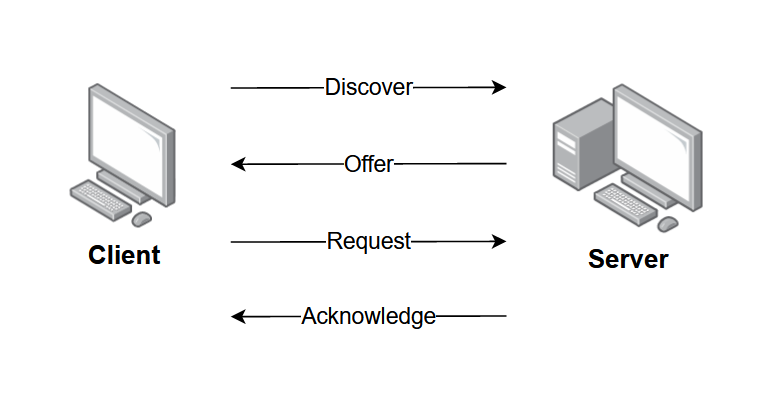
This starts the famous DORA process.
The DORA Process (Step-by-Step):
1. Discover (Looking for DHCP Server): Device -> Network Your device broadcasts: “Is there any DHCP server available?” It sends this to everyone because it doesn’t know who the server is yet.
2. Offer (Server Responds): Router (DHCP Server) -> Device Router replies: “Yes! I can give you this IP address: 192.168.1.10”
3. Request (Device Accepts): Device -> Router Your device says: “I want this IP address.”
4. Acknowledge (Final Confirmation): Router -> Device Router confirms: “Done! This IP is now yours.” Now your device officially has an IP address!
What Information Does DHCP Provide?
It’s not just an IP address.
Your device also gets:
- IP Address -> Your identity
- Subnet Mask -> Network range
- Default Gateway -> Router address
- DNS Server -> To find websites
Basically everything needed to access the internet.
What Is a Lease?
The IP address is not permanent.
It’s given for a limited time (called a lease)
Example:
- 24 hours
- 7 days
After that:
- Device renews it
- Or gets a new one
Real-Life Example (Home Wi-Fi)
When you connect your phone to Wi-Fi:
- Phone joins network
- Router assigns IP using DHCP
- Now your phone can:
- Open Google
- Use WhatsApp
- Watch videos
Why This Matters
Now connect this with your previous blogs:
- DHCP -> gives IP
- DNS -> finds server
- TCP -> creates connection
- Packets -> carry data
This is the full flow of how internet starts working.
Final Thought
The next time you connect to Wi-Fi, remember your device isn’t just “connecting”.
Behind the scenes, it’s quickly having a conversation with the router, asking for an identity, getting approved and setting itself up to communicate with the entire internet.
All of this happens in just a few seconds… without you even noticing.
That’s the beauty of networking.
What feels like a simple click is actually a well-coordinated process working silently in the background.
And now, you understand one more piece of that puzzle.
메타데이터
- post_id
- a9313bfdca25
- slug
- how-your-device-gets-an-ip-address-dhcp-a9313bfdca25
- url
- https://medium.com/@mutcherlajayani/how-your-device-gets-an-ip-address-dhcp-a9313bfdca25
- canonical_url
- https://medium.com/@mutcherlajayani/how-your-device-gets-an-ip-address-dhcp-a9313bfdca25
- author_url
- https://medium.com/@mutcherlajayani
- status
- ok
- fetched_at
- 2026-07-17 06:36:54